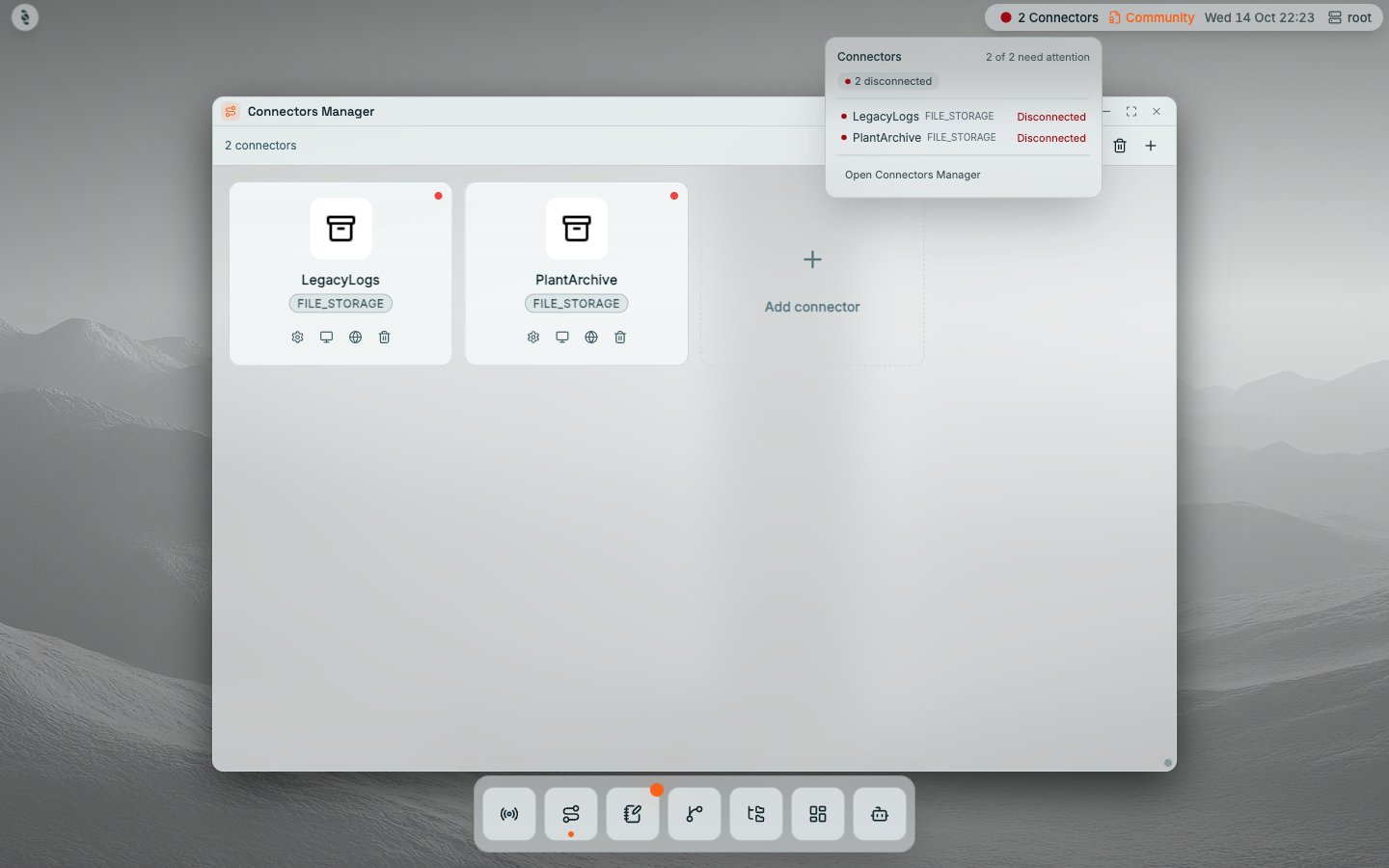
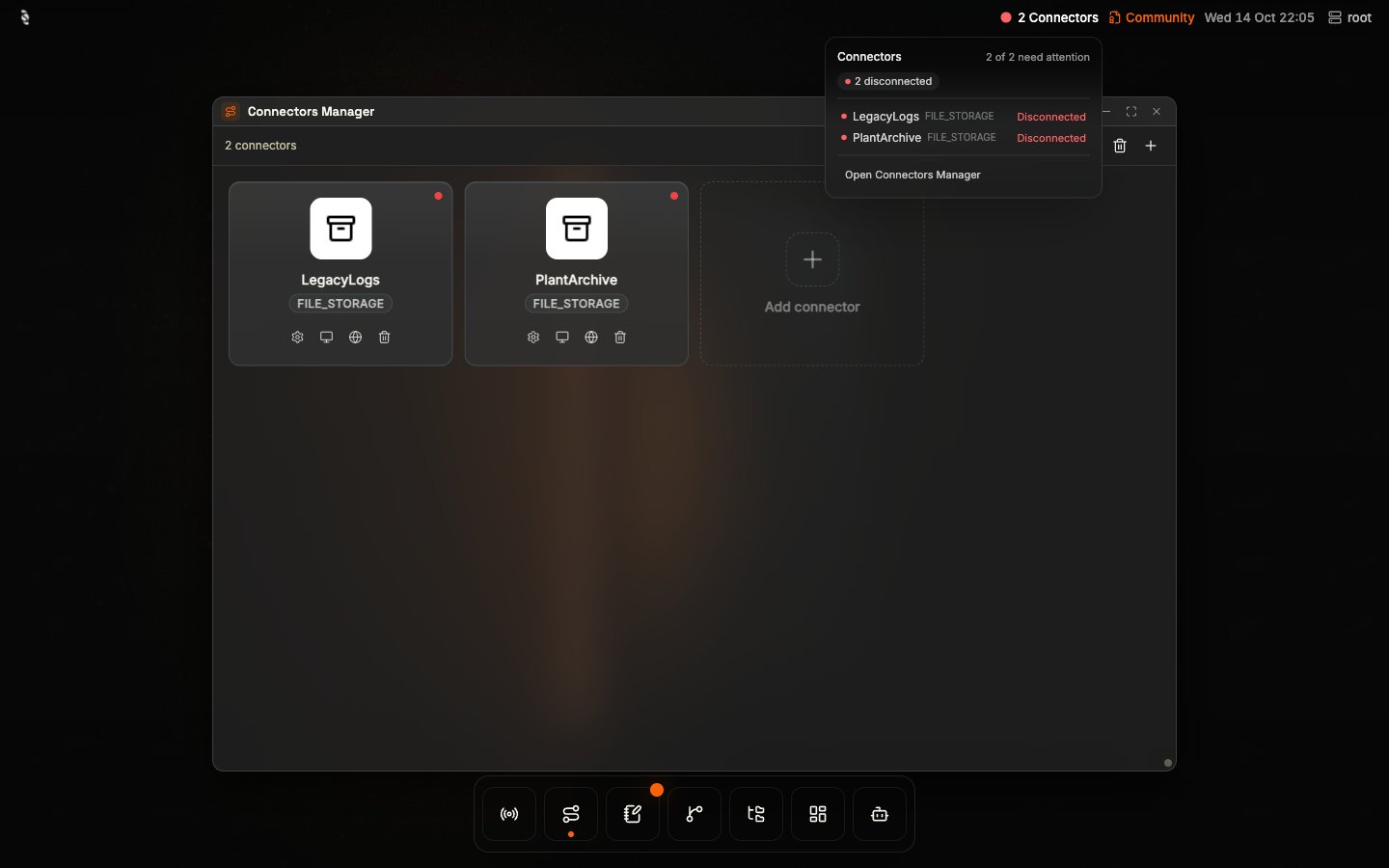
Coreflux HUB Connectors Manager with a 2 connectors count, delete and add buttons, connector cards for LegacyLogs and PlantArchive (FILE_STORAGE), each with a red status dot and Configuration, Monitor, Documentation, and Delete icons, an Add connector card, and the status bar Connectors popover listing both connectors as Disconnected with an Open Connectors Manager linkCoreflux HUB Connectors Manager with a 2 connectors count, delete and add buttons, connector cards for LegacyLogs and PlantArchive (FILE_STORAGE), each with a red status dot and Configuration, Monitor, Documentation, and Delete icons, an Add connector card, and the status bar Connectors popover listing both connectors as Disconnected with an Open Connectors Manager link

Connectors Manager: connector cards with live connection status, configuration, and monitoring tools

Why Use the Connectors Section?

You need to manage Connectors from the browser—add new connectors, edit configuration, check connection status, and troubleshoot with logs. The Connectors section of the Coreflux HUB lets you configure connectors with a visual editor or LoT code, view connected and disconnected connectors, and inspect connector-specific logs.

When to Use It

  • Adding connectors — Create connectors from templates (PostgreSQL, MongoDB, Modbus, etc.) or write LoT code directly
  • Configuring connectors — Edit configuration, events, mappings, and tags in Visual or LoT mode
  • Monitoring — See which connectors are connected and which are not, and view real-time status metrics
  • Troubleshooting — View connector logs, filter by level, and export for analysis

Connectors Tools

Connectors Configuration

Edit connectors, view status (connected/not connected), and delete connectors.

Connectors Monitoring

View real-time status metrics and logs filtered by connector, export as JSON/CSV/LOG.

Connector List and Status

The Connectors Manager displays all defined connectors as cards. Each connector card shows the connector name, type (e.g., SIEMENS_S7), and a status indicator dot in the top-right corner. The dot color tells you the current connection state at a glance:
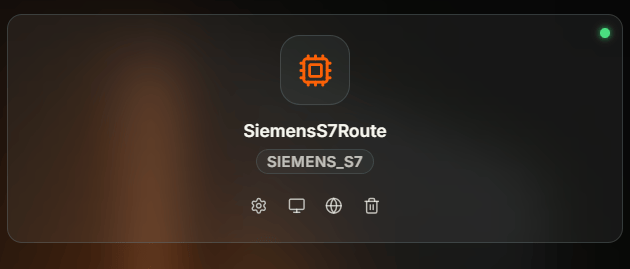
Coreflux HUB connector card titled SiemensS7Route with the SIEMENS_S7 type badge, a green status dot in the top-right corner indicating a connected connector, and four action icons along the bottom for configuration, monitor, documentation, and delete

Connector card for SiemensS7Route with a green status dot in the top-right indicating the connector is connected

Use the controls at the top to sort connectors by name and filter by type. The Delete All button removes all connectors, and the Add a connector + button opens the connector creation options.

Connector Card Actions

Click on a connector card to open its context menu with three options:
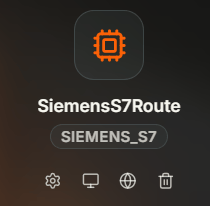
Coreflux HUB SiemensS7Route card with the SIEMENS_S7 type badge and a row of four action icons at the bottom — a gear for Configuration, a monitor for Monitor, a globe for Documentation, and a trash can for Delete

Connector card action icons — gear for Configuration, monitor for Monitor, globe for Documentation, and trash for Delete

Disable a connector

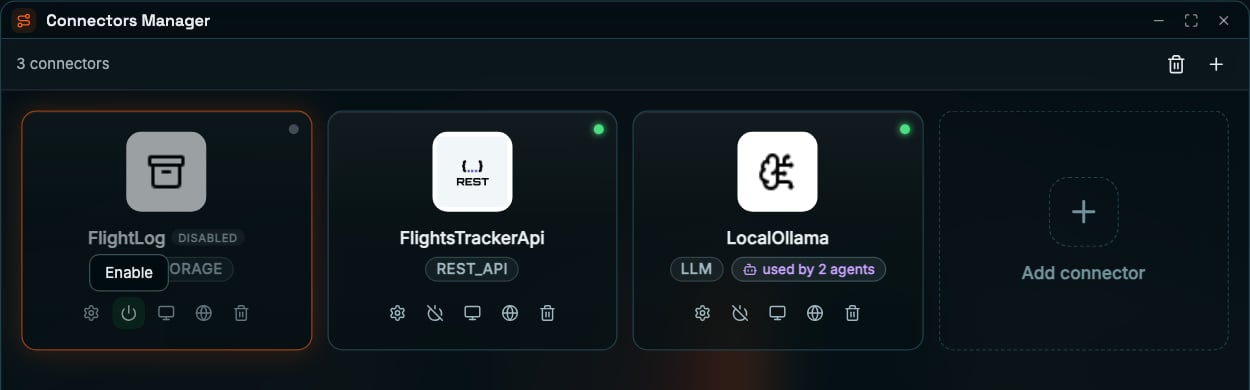
Disable saves the connector’s definition with DISABLE true, and Enable removes it. A disabled connector stays defined but doesn’t run: its card is dimmed, with a grey status dot and a Disabled chip. No connection check runs while it’s disabled.
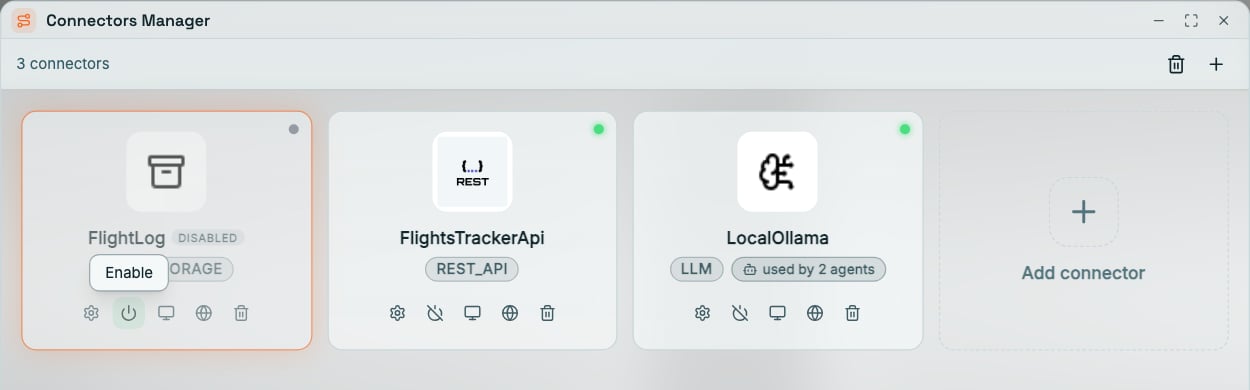
Coreflux HUB Connectors Manager with 3 connectors: the FILE_STORAGE connector FlightLog dimmed with a grey status dot, a DISABLED chip, and the Enable tooltip over its power icon; the REST_API connector FlightsTrackerApi and the LLM connector LocalOllama, used by 2 agents, both with green status dots; and an Add connector cardCoreflux HUB Connectors Manager with 3 connectors: the FILE_STORAGE connector FlightLog dimmed with a grey status dot, a DISABLED chip, and the Enable tooltip over its power icon; the REST_API connector FlightsTrackerApi and the LLM connector LocalOllama, used by 2 agents, both with green status dots; and an Add connector card

FlightLog is disabled, with its Enable action hovered. FlightsTrackerApi and LocalOllama are enabled

The broker refuses to disable a TYPE LLM connector that agents still use: disable those agents first. On a broker without DISABLE support, the HUB changes nothing and says so. The Start / Stop button in the Monitor window does the same thing.

Connector Documentation

The Documentation option opens the Coreflux docs page for the connector type in an embedded viewer inside the HUB. This gives you quick access to syntax reference, configuration parameters, and examples without leaving the interface.
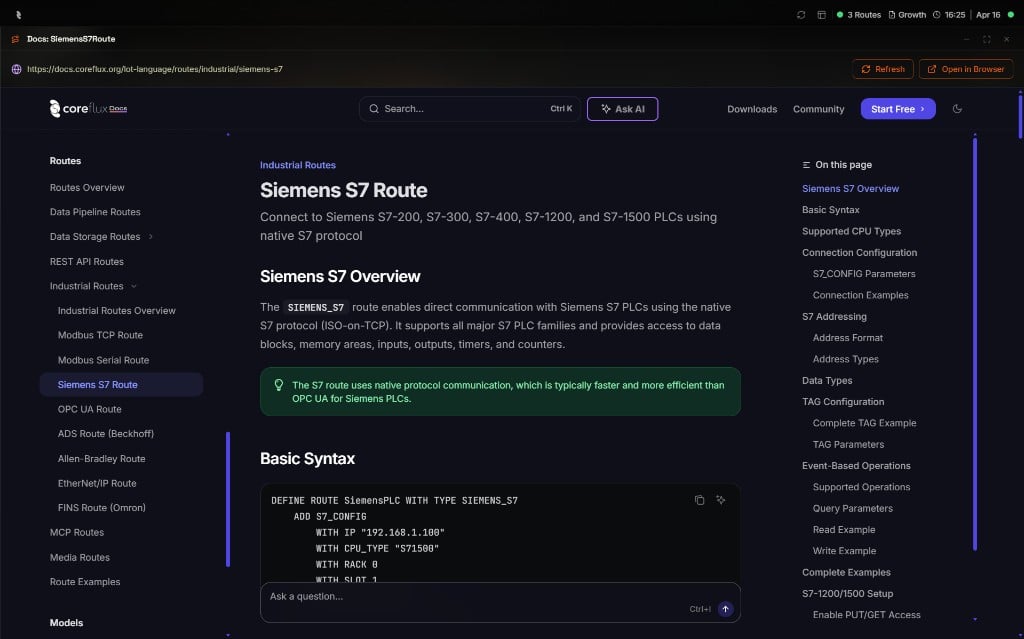
Coreflux HUB embedded Docs window titled SiemensS7Route loading the Siemens S7 Connector page from docs.coreflux.org with Connectors navigation on the left, Siemens S7 Overview and Basic Syntax content in the center, and an On this page outline on the right, plus Refresh and Open in Browser controls

Embedded Docs window showing the Siemens S7 Connector page from the Coreflux documentation inside the HUB


Adding a Connector

Click Add connector (the last card) or the + button in the Connectors Manager toolbar. The New connector window opens with everything in one place: the connector type catalog on the left and the connector editor on the right.
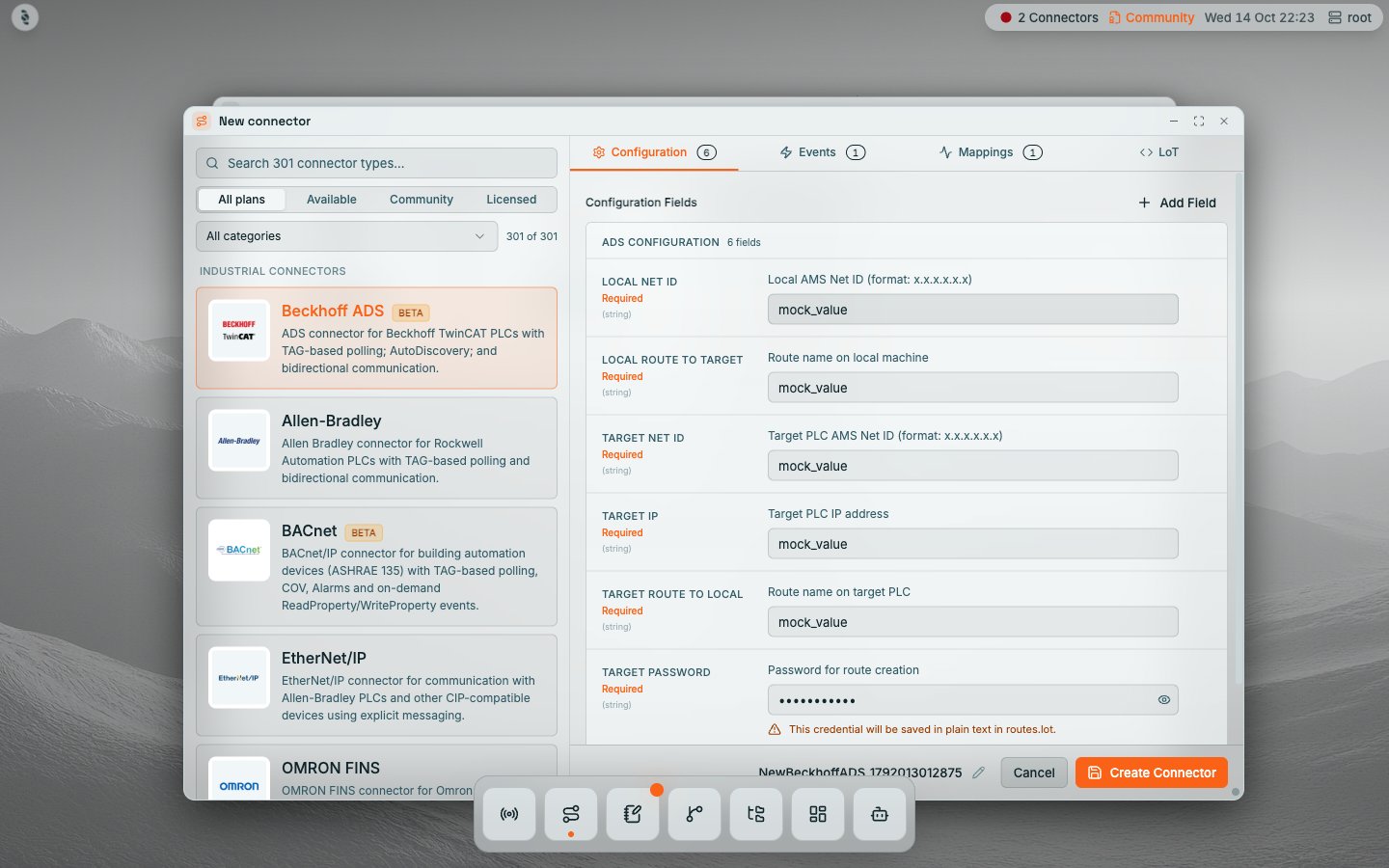
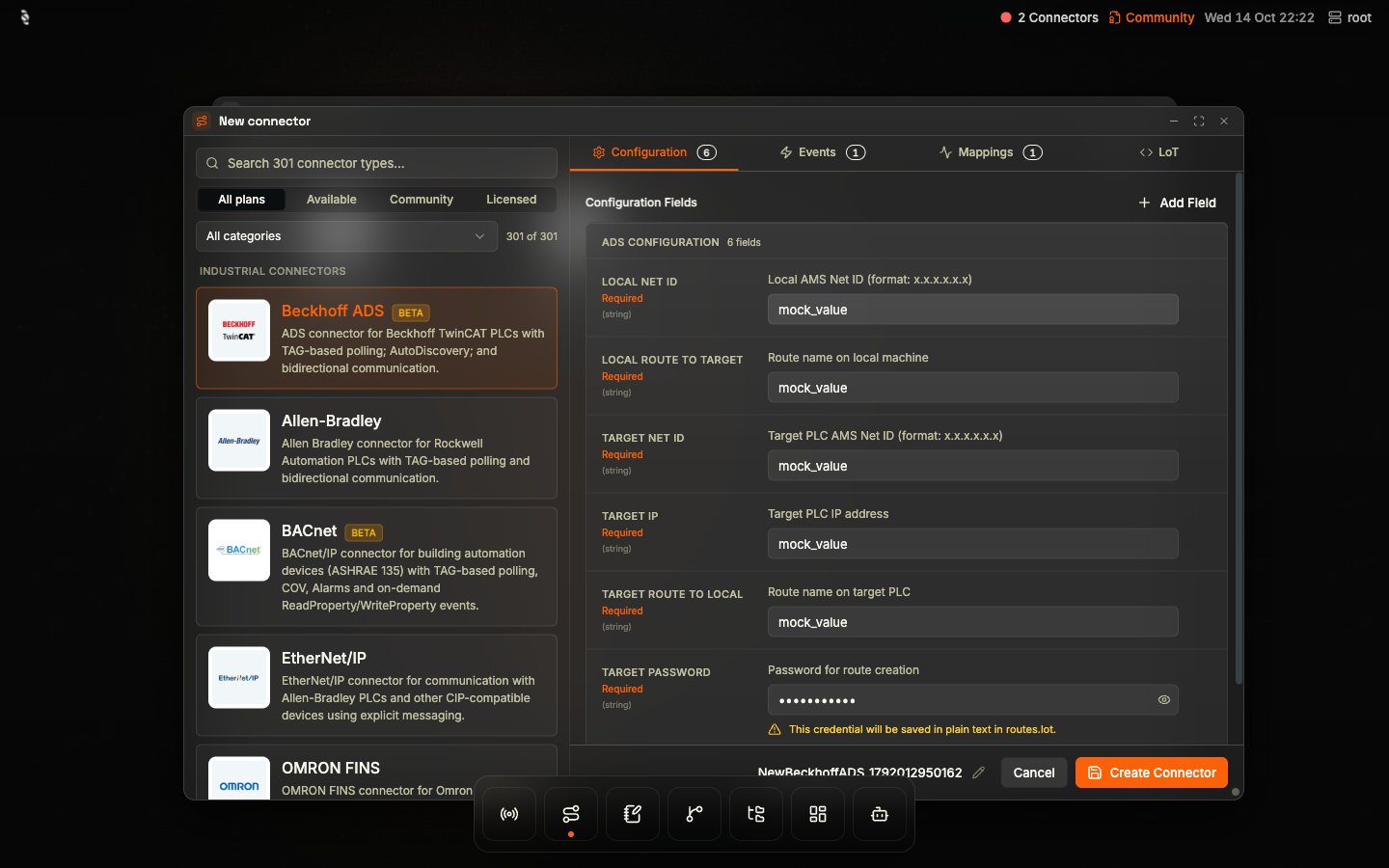
Coreflux HUB New connector window with a Search 301 connector types field, All plans, Available, Community, and Licensed filters, an All categories dropdown, the Industrial Connectors list with Beckhoff ADS selected, and Configuration, Events, Mappings, and LoT tabs showing the ADS configuration fields, plus Cancel and Create ConnectorCoreflux HUB New connector window with a Search 301 connector types field, All plans, Available, Community, and Licensed filters, an All categories dropdown, the Industrial Connectors list with Beckhoff ADS selected, and Configuration, Events, Mappings, and LoT tabs showing the ADS configuration fields, plus Cancel and Create Connector

New connector window: pick a connector type on the left, then fill in its configuration, events, mappings, or LoT on the right

1

Pick a connector type

Use the Search connector types… field, the plan filter (All plans, Available, Community, Licensed), or the All categories list (for example Industrial Connectors, Data Storage Connectors, or AI Connectors) to narrow the catalog, then click a type. Types still in preview carry a Beta badge. The editor on the right fills in with that type’s template. The AI category includes the LLM connector. An agent is not a connector type: add the LLM connector here, then define the agent in LoT. See AI Connectors and Agents.
2

Fill in the configuration

The Configuration tab lists the type’s fields with a short description each. Required fields are marked Required, and secrets such as passwords are masked. Use + Add Field to include optional parameters.
3

Add events and mappings

Use the Events tab for actions triggered by MQTT messages (for example, a query on each message), and the Mappings tab for the tags or points the connector polls and publishes.
4

Review the LoT

The LoT tab shows the generated LoT definition. You can edit the definition directly there if you prefer writing LoT.
5

Name and create

The connector gets a generated name such as NewBeckhoffADS_<timestamp> at the bottom of the window. Click the pencil to rename it, then click Create Connector to deploy it to the broker. Cancel closes the window; if you have unsaved changes, the HUB asks before discarding them.
For example, a PostgreSQL connector written in the LoT tab looks like this (DEFINE ROUTE remains a supported alias):
Every supported connector type has a template in the catalog, including the gRPC connector. See the Connectors Overview for the full list of types and their documentation.

Next Steps

Connectors Configuration

Edit connectors with Visual or LoT mode.

LoT Connectors

Learn connector syntax and available connector types.
Last modified on October 25, 2026