

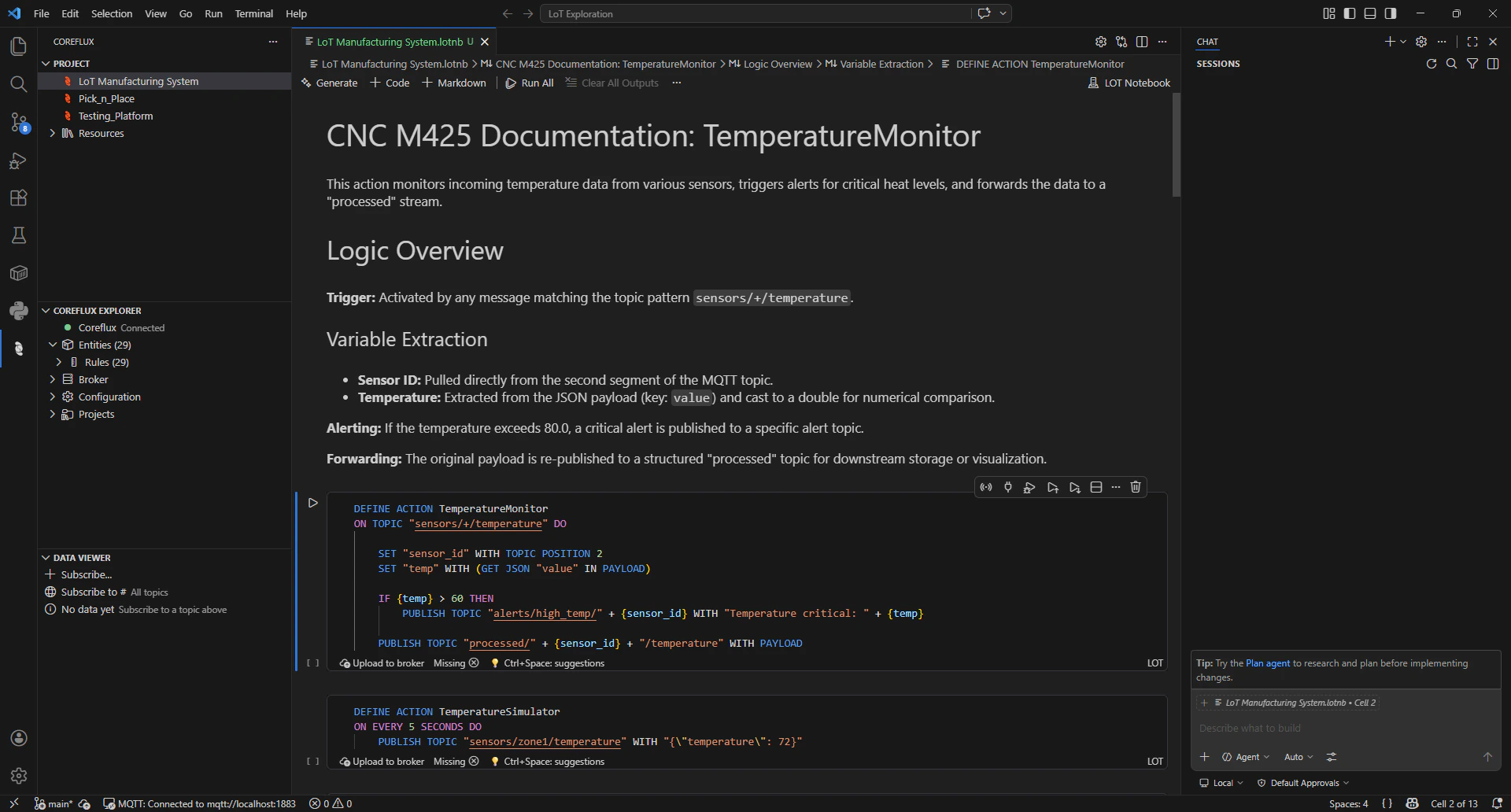
LoT Notebook workspace in VS Code: editor, Coreflux Explorer, Project, and Data Viewer
The Notebook Workflow
LoT Notebooks combine Documentation in Markdown and LoT code in a single file, so you can both run your code and keep your documentation together, using the notebook as living documentation for your project.Install and connect
Install the extension
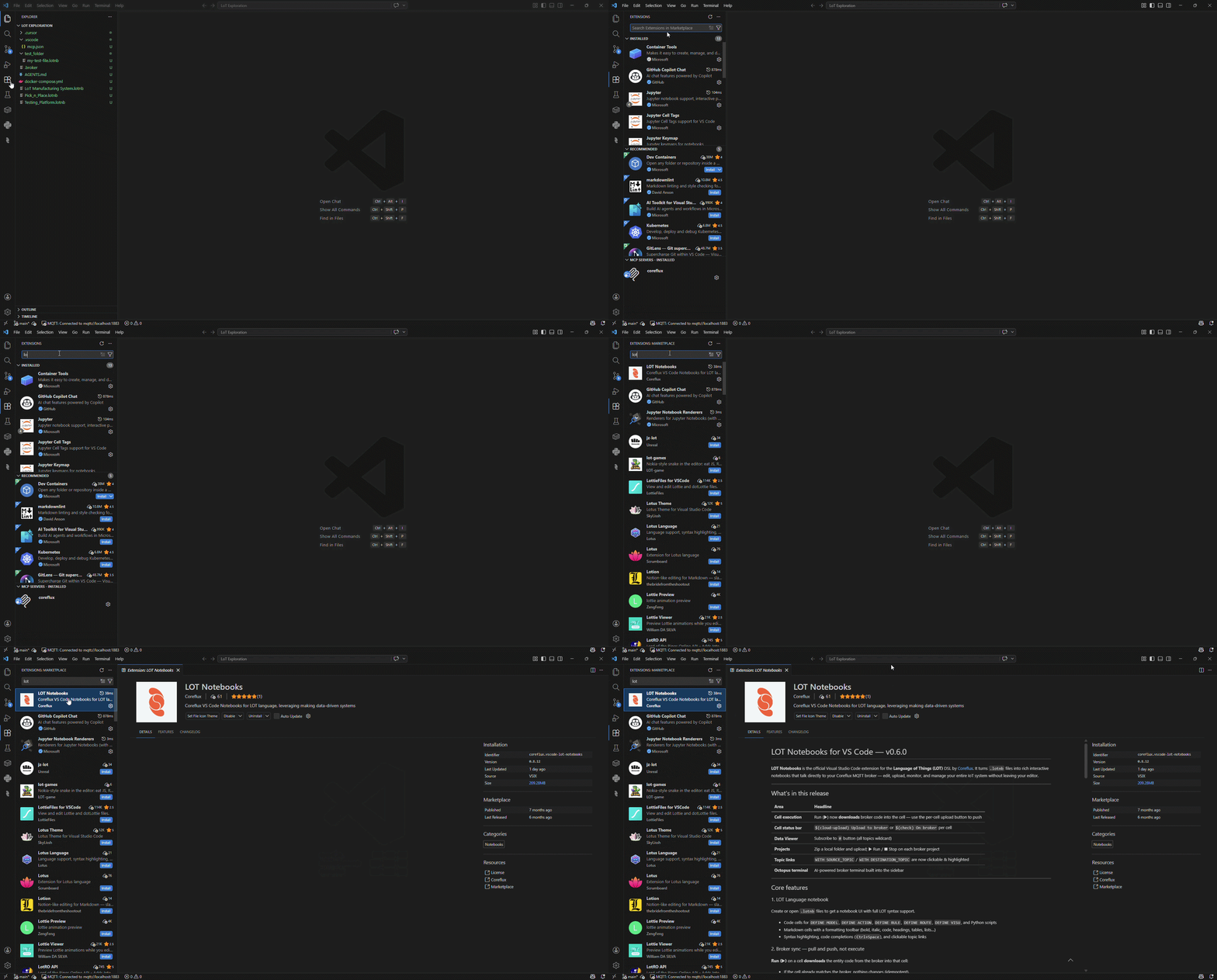
Extensions marketplace: search for Coreflux and install LoT Notebooks
- Open VS Code.
- Open the Extensions view in the sidebar (or use the shortcut
Ctrl+Shift+Xon Windows/Linux,Cmd+Shift+Xon macOS). - Search for LoT Notebooks by Coreflux and install it.
Connect to the broker
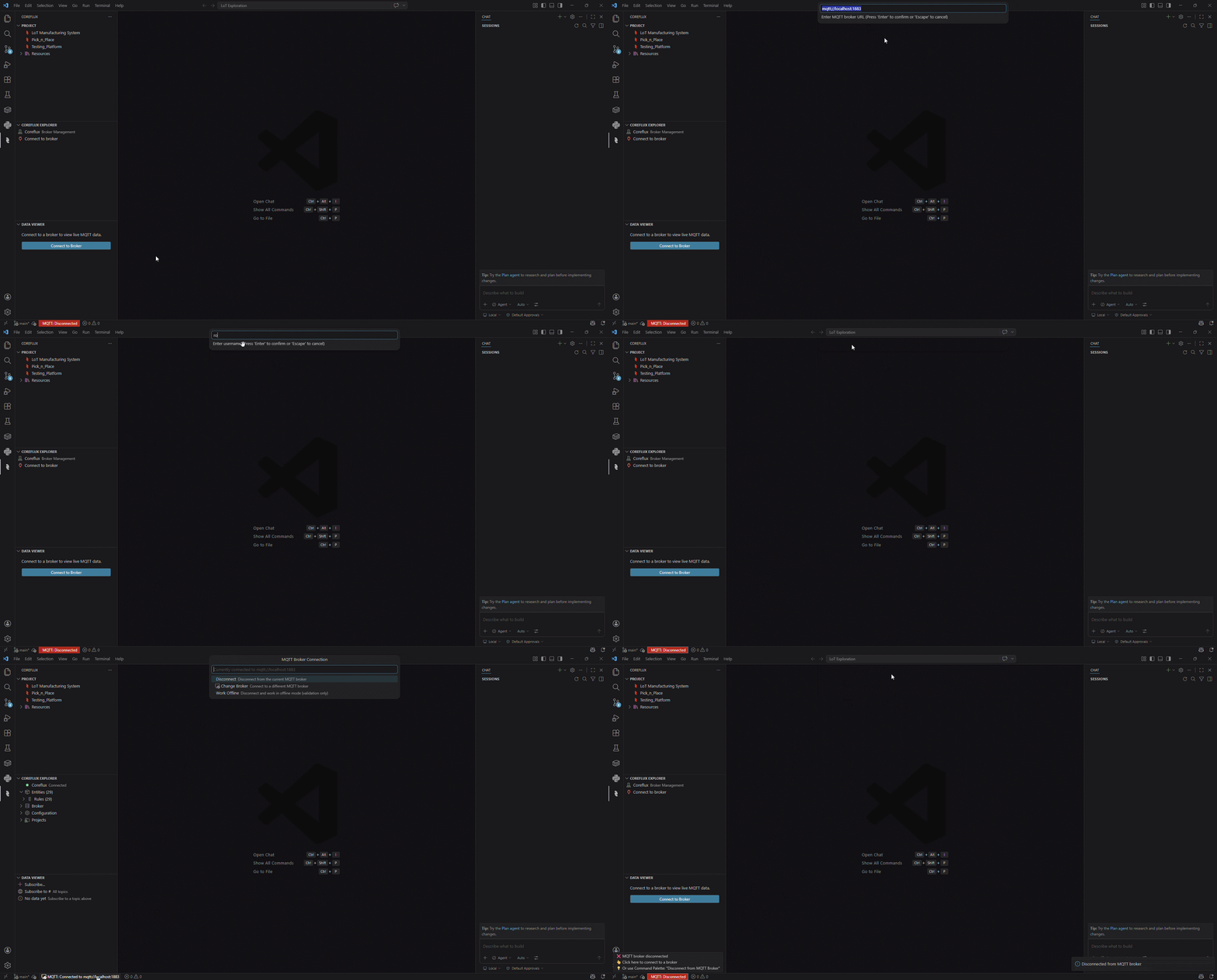
Connect to the broker: pick credentials or connect from the Data Viewer
- Click the MQTT connection status in the bottom-left of VS Code, or click Connect to Broker in the Data Viewer (Coreflux sidebar).
- Enter your broker URL, username, and password.
Example URL and default login credentials
Example URL and default login credentials
mqtt://localhost:1883 or mqtts://your-host:8883 for TLS.Create a new project
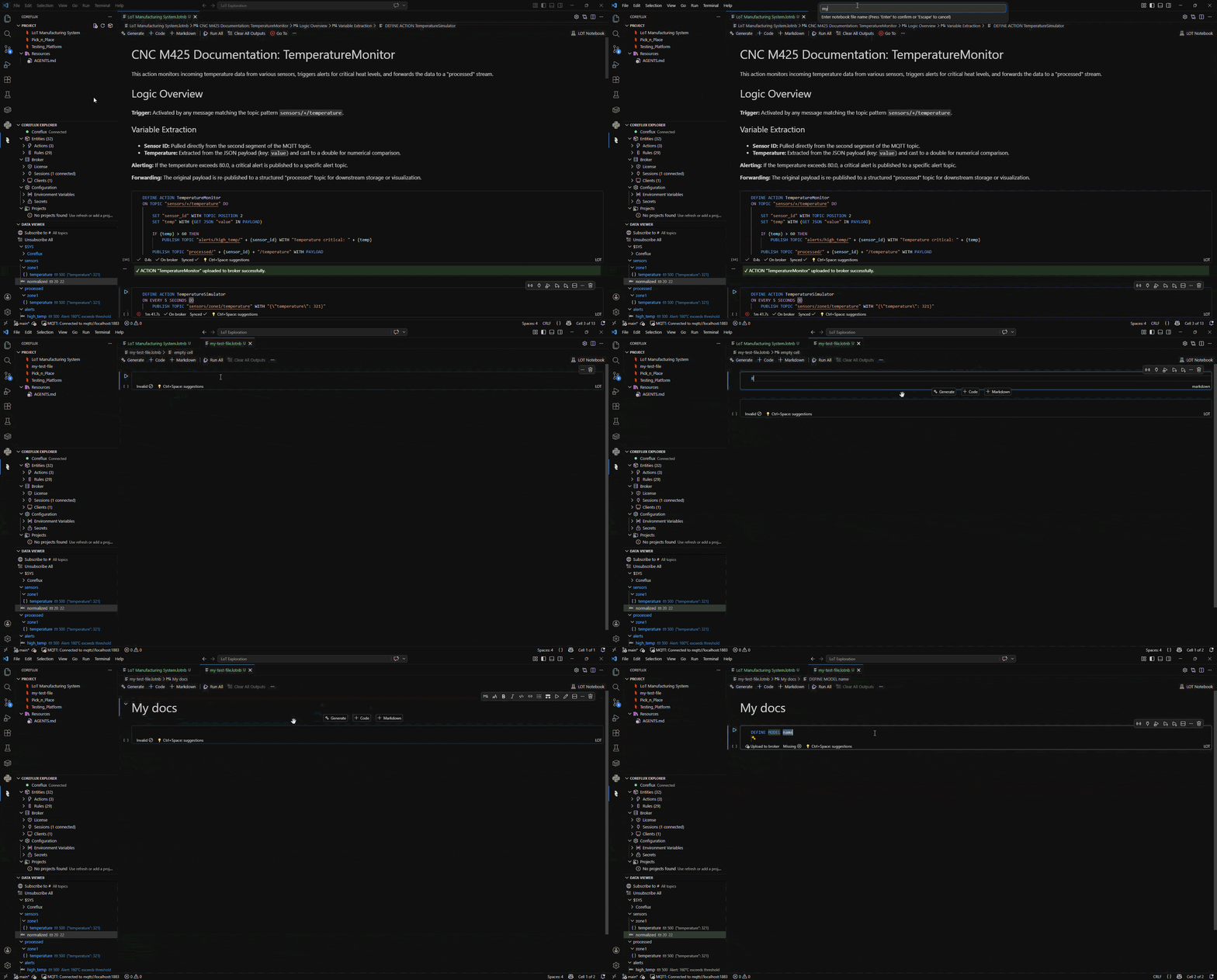
Creating a new LoT Notebook from the Coreflux PROJECT view
- In the Activity Bar, open the Coreflux view. Under PROJECT, use New File to create a notebook and save it in your workspace (use New Folder first if you want a dedicated project folder).
- In the notebook, add Markdown and LoT cells from the toolbar as needed.
Add LoT code to a LoT Notebook
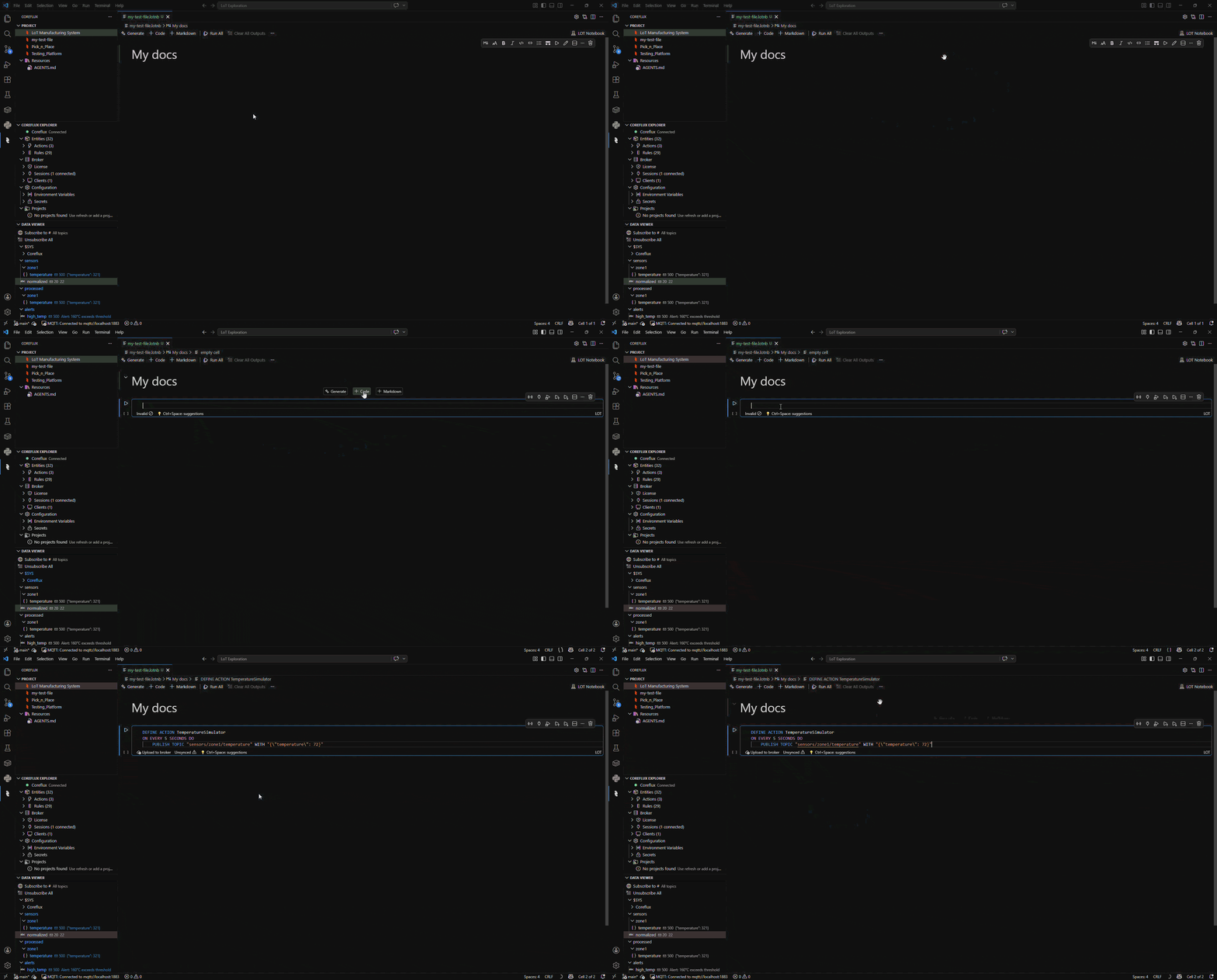
Insert a LoT code cell and add LoT in the notebook editor
- Open your LoT Notebook in VS Code.
- From the notebook toolbar, add a code cell.
- Type or paste your LoT code (
DEFINE ACTION,DEFINE MODEL, and so on). For a first example, use the code below.
What type of cells you can add to LoT Notebooks
LoT Notebooks support three types of cells, each with different behavior:Markdown Cells - Documentation
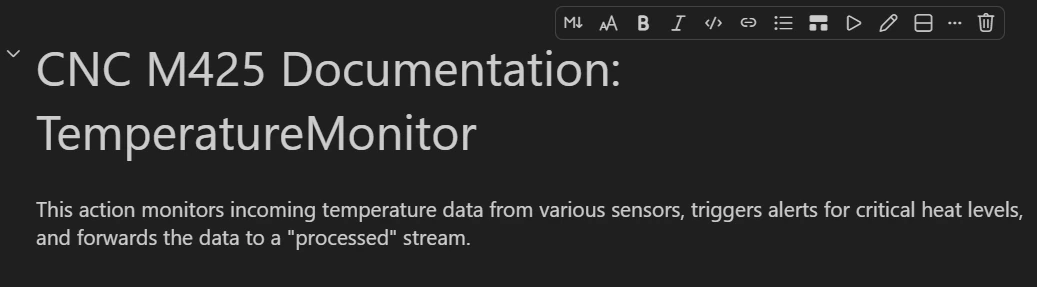
Markdown cell with rich text and the formatting toolbar
- Explain what your code does and why
- Document configuration requirements
- Add diagrams, tables, and formatted text
- Create section headers and navigation
LoT Code Cells - Runnable Logic

LoT code cell: syntax highlighting, sync status and upload to broker buttons
- The extension parses your code
- Sends it to the connected broker via MQTT
- The broker compiles and registers the definition
- You receive confirmation or error feedback
Validate without deploying
Validate in the cell status bar, or LOT Notebook: Validate LOT Cell and Validate LOT Notebook in the Command Palette, asks the broker to check the code without deploying it. The broker’s summary and each diagnostic (severity, code, line, and message) appear under the cell and in Problems with sourceCoreflux. Notebook validation includes Python cells. Diagnostics clear when you edit the cell. Needs a broker newer than 2.14.
Disable an entity
Action, connector, and agent cells have an Enabled / Disabled toggle in the cell status bar. It addsDISABLE true on the line after DEFINE, or removes it; a DISABLE inside a comment is left alone. When you’re connected, the cell is uploaded right away; offline, upload it once you connect. The broker keeps a disabled entity defined, but doesn’t run it. A broker without DISABLE support leaves the cell unchanged. The same toggle is LOT Notebook: Enable / Disable LOT Cell (DISABLE). See Disable and Enable.
THING cells
Running a cell withDEFINE THING blocks sends them as typed, with every template they use from the workspace, as one -addThing. The broker expands them; the extension doesn’t.
- Every run checks first with
-addThing --dryRun. Problems appear on the cell at the line of the THING source. - When a template change would redeploy other root Things, the extension lists them and asks first.
- The cell output shows the broker’s plan per root:
add,update,adopt,remove, orunchangedfor each child. - Remove Thing from Broker sends
-removeThing. The broker refuses to remove a template that’s in use. - A cell in the older THING syntax offers a quick fix that adds
TEMPLATEand rewrites{p}to{{p}}. You can Apply All, or Review in Refactor Preview first. - On a broker without THING support, the cell says so and deploys nothing.
Agent cells
ADEFINE AGENT cell deploys with -addAgent and is removed with -removeAgent. The extension checks the agent like the broker does: a missing USES LLM CONNECTOR (USES LLM ROUTE is still accepted) or DEFAULT_USER, unknown clauses or tools, and an ADD TOOL without its TOPICS, TARGET, or LEVEL "write" are errors. Agents on the broker appear in the Coreflux Explorer and under Agents in the Entities panel.
Agent, Thing, rule, connector, and model checks follow the broker. A connector key such as SUBJECT, and a mixed-case name, are not reported as unknown keywords.
Panel cells
ADEFINE PANEL or DEFINE VISU cell is checked with the broker’s panel parser: component types, SET, BIND, ON … DO, AT, ADD THRESHOLD, and MAPPING. A typo stays an error. Where the broker falls back, the cell shows a warning. Highlighting, hover, and completions cover the panel keywords, and the DEFINE PANEL snippet inserts a starter panel.
Running the cell deploys with -addVisu (the same command as -addPanel). Removing it sends -removeVisu. A Thing’s WITH PANEL body is checked the same way. DEFINE THEME and THEME_VARIANT are recognized. The cell status bar offers Open in Coreflux HUB to view the rendered panel, and a successful upload suggests opening Dashboards there.
See Defining a Panel.
Python Cells - Advanced Logic
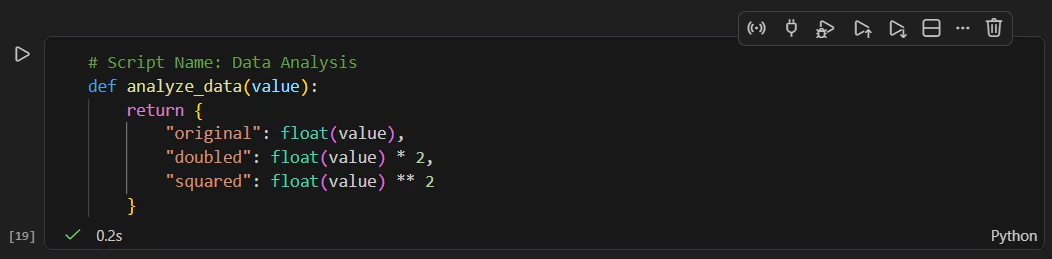
Python cell with syntax highlighting, sync status and upload to broker buttons
Running LoT
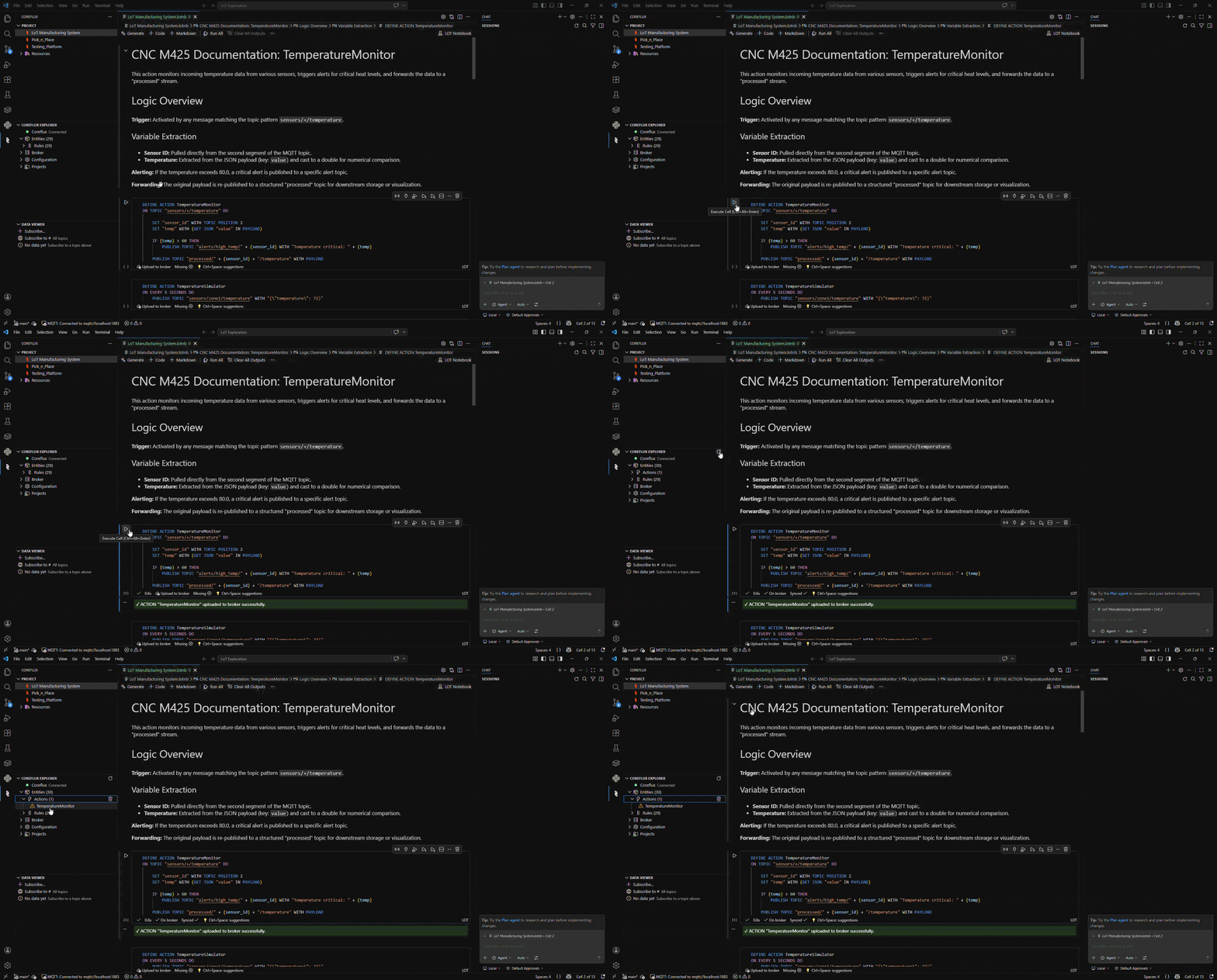
Deploying a LoT or Python code from the notebook to the broker
What else you can do with the LoT extension
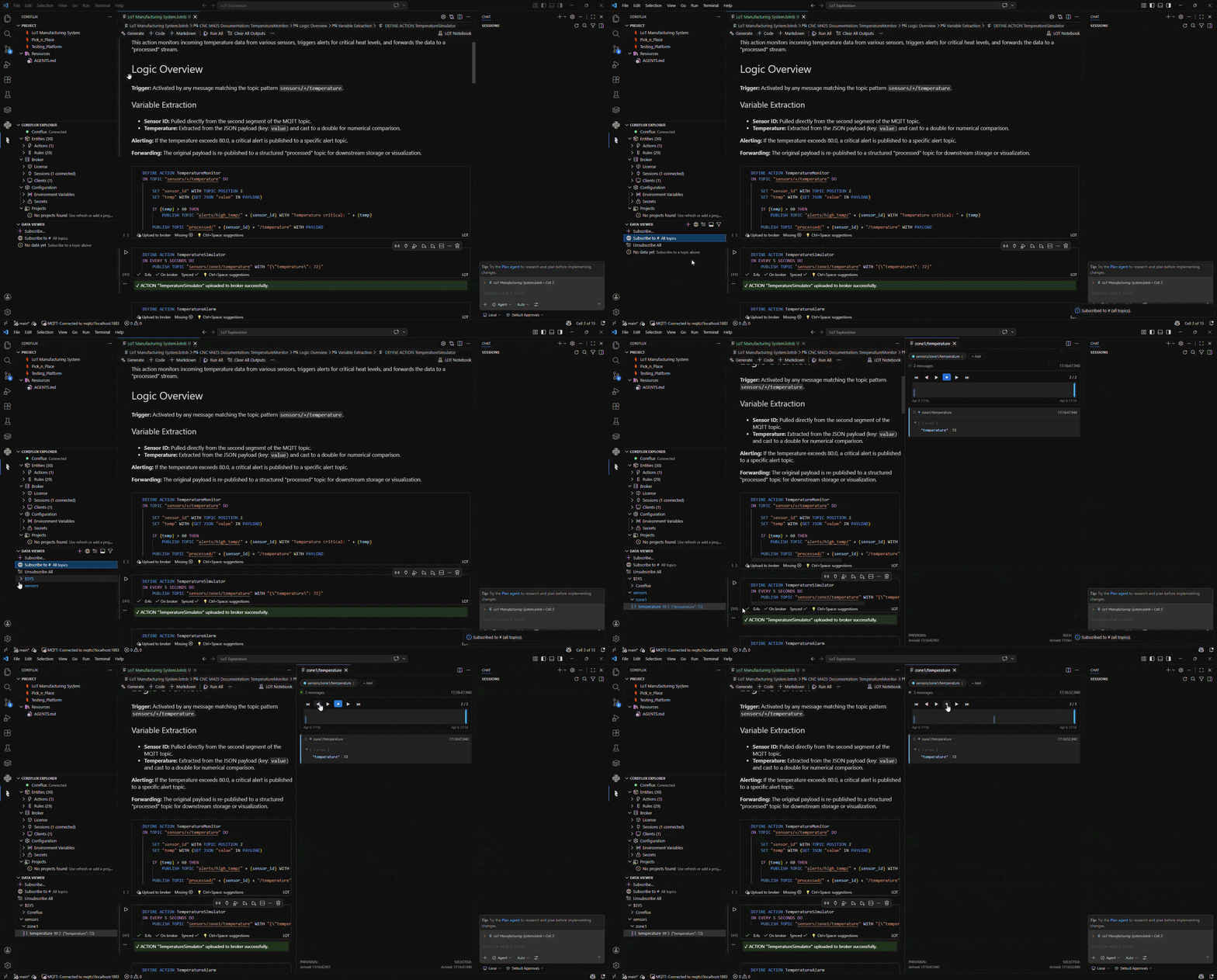
Data Viewer basics: subscribe to topics and watch live MQTT data
License tab
Open License Management from Broker Management. The tab shows the plan, expiry, features, and usage from$SYS/Coreflux/License, and offers these actions:
MCP Server tab
Coreflux: Configure MCP Server opens the broker’s built-in MCP server settings, the same ones as the HUB MCP tab:- Server — Enabled, status (Listening, Disabled, or Pending restart), the endpoint URL with Copy, port, bind IP, and endpoint path. Saved changes apply when the broker restarts.
- Tools — Expose all tools, or pick an allow-list from the broker’s catalog.
- Tokens — List, create, and revoke tokens (
-listMcpTokens,-createMcpToken,-revokeMcpToken). A new token is shown once.
npx mcp-remote). Existing config files are edited in place, keeping comments and other servers. A workspace install also adds the config file to .gitignore, so the token isn’t committed. See MCP Server.
Develop LoT Notebooks with AI
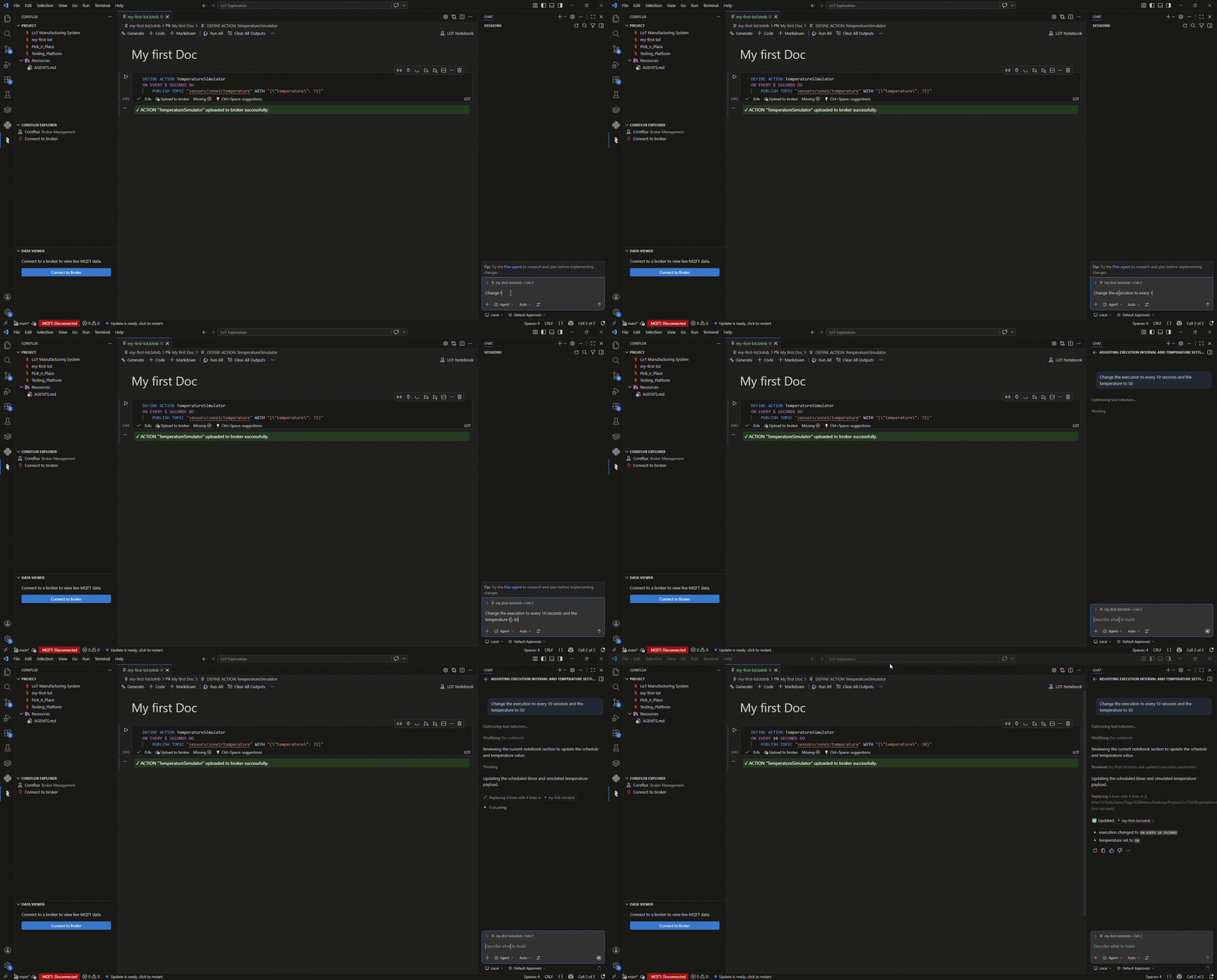
GitHub Copilot with a LoT Notebook: chat in context of the open notebook and cells
.agents, .claude, .cursor, or .github skills folders, in the workspace or in your home folder. The 11 bundled skills come from the public coreflux-skills repository. See Agent Skills (broker 2.22 or later) for the skill list and other ways to install them. Older copies from previous versions are offered to move to the trash.
To for more details on how to use AI with LoT, check this page: Developing with LoT Using AI.
Version control with Git
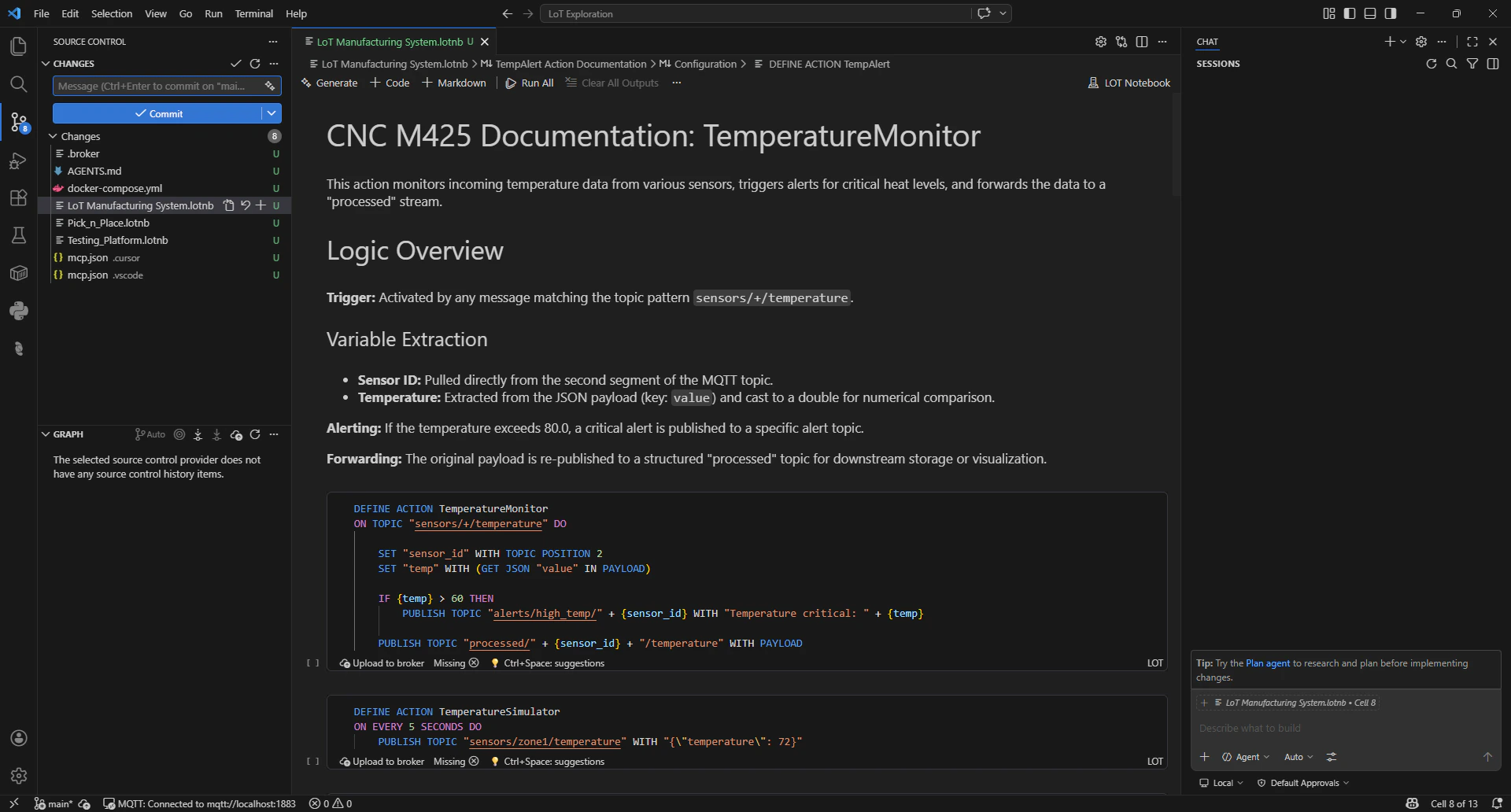
Source Control: Git tracks the whole workspace, not just LoT notebooks
.lotnb files aswell as any other files, like documentation, Docker files and supporting files.
Best Practices
Organize with Markdown
Organize with Markdown
One Definition Per Cell
One Definition Per Cell
Test Incrementally
Test Incrementally
Use Descriptive Names
Use Descriptive Names
Troubleshooting
Cell won't run?
Cell won't run?
- Check that you’re connected to the broker (look for connection status in status bar)
- Verify your credentials are correct
- Ensure the broker is running and accessible
LoT not deployed — license limits?
LoT not deployed — license limits?
Python script not recognized?
Python script not recognized?
- Confirm the first line is
# Script Name: YourScriptName - Check for syntax errors in the Python code
- Ensure function names match what you’re calling from LoT
Entity not appearing after deployment?
Entity not appearing after deployment?
- Check the output for error messages
- Verify no syntax errors in your LoT code
- Use the Coreflux Entities panel to refresh the list