

Your Lab Notebook for IoT
LoT Notebooks bring the power of interactive computing to IoT development. Instead of scattered scripts and disconnected documentation, you build complete systems as code in a single, shareable document.Why Use LoT Notebooks?
Traditional IoT development involves jumping between documentation, code editors, terminal windows, and MQTT clients. LoT Notebooks unify this workflow:Document & Execute
Write markdown explanations alongside executable LoT code. Your documentation stays in sync with your implementation.
Instant Deployment
Run any cell to upload Actions, Models, or Routes directly to your broker. See results immediately.
Python Integration
Embed Python scripts for complex calculations, data processing, or machine learning—all within the same notebook.
Shareable Solutions
Share complete IoT solutions as single
.lotnb files. Recipients get documentation and working code together.What’s Inside a LoT Notebook?
A.lotnb file contains cells—individual blocks that can be either documentation or executable code:
| Cell Type | Purpose | Example |
|---|---|---|
| Markdown | Documentation, explanations, diagrams | Headers, bullet points, images |
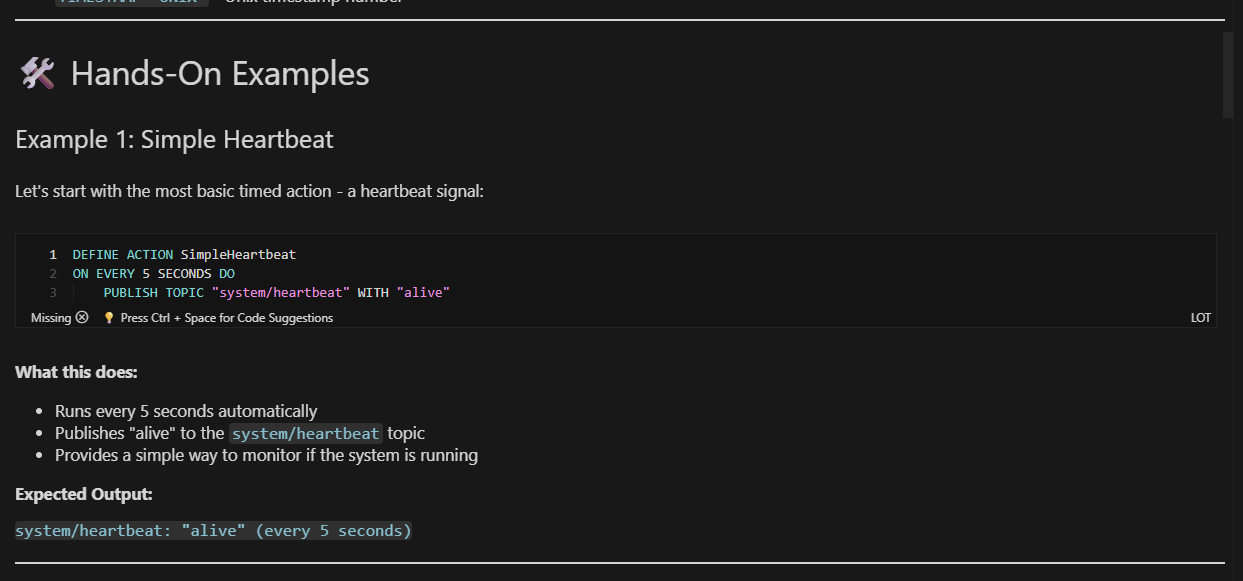
| LoT | Executable LoT code (Actions, Models, Routes, Rules) | DEFINE ACTION Heartbeat... |
| Python | Python scripts for advanced processing | Data validation, calculations |
Getting Started
Ready to create your first notebook? The setup takes just a few minutes:Install the Extension
Open VS Code, go to Extensions (Ctrl+Shift+X), and search for “LoT Notebooks” by Coreflux. Click Install.
Create a Notebook
Create a new file with the
.lotnb extension. VS Code automatically opens it in notebook mode.Connect to Your Broker
Open the Command Palette (Ctrl+Shift+P), run “LoT Notebook: Change Credentials”, and enter your broker details.
Need help installing Coreflux or setting up your broker? See the Getting Started Guide for complete setup instructions.
Next Steps
Learn Usage
Understand cell execution, broker communication, and the development workflow.
Explore Tutorials
Jump into hands-on notebooks covering Actions, Models, Routes, and Python integration.