

Why Use Licensing?
Licensing shows what your organization is entitled to: your trial and every license, what each one includes, and which brokers use it.Licenses List
Each license shows its plan, its status, and how many of its places (activations) are used. A trial reads as trial; on the broker it acts as Growth. Open a license to see its features, the brokers that use it, and where it came from.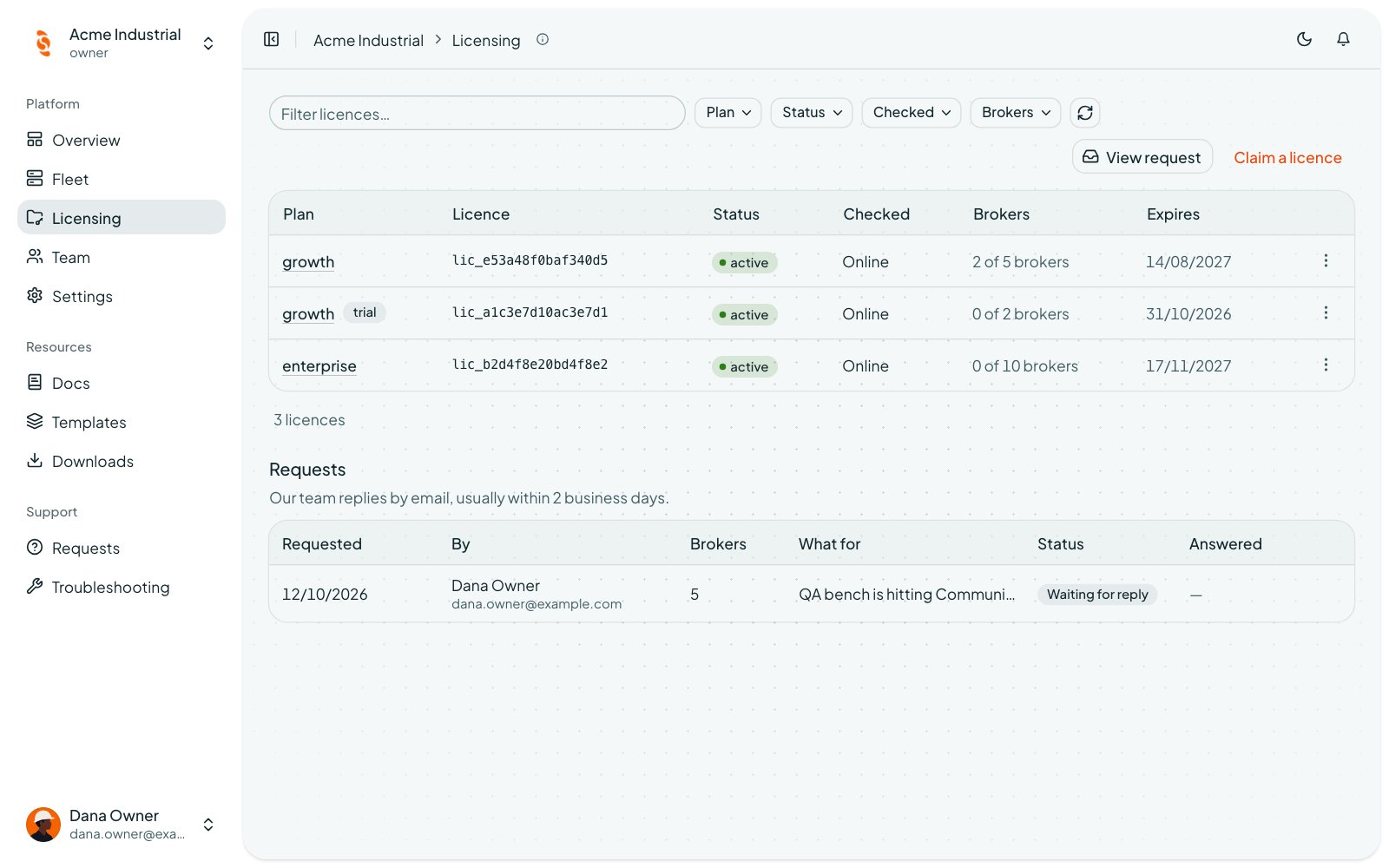
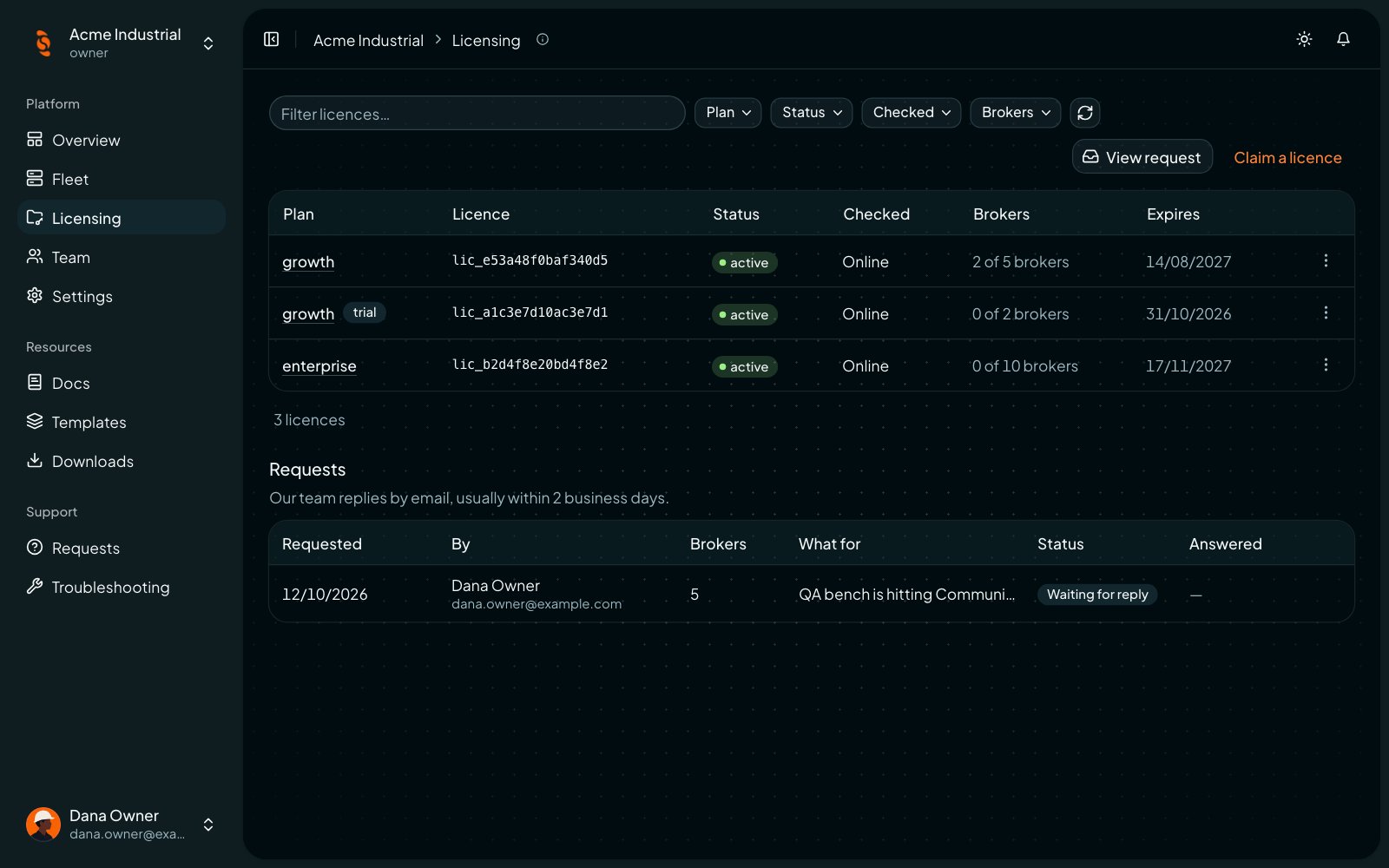
Licenses and license requests
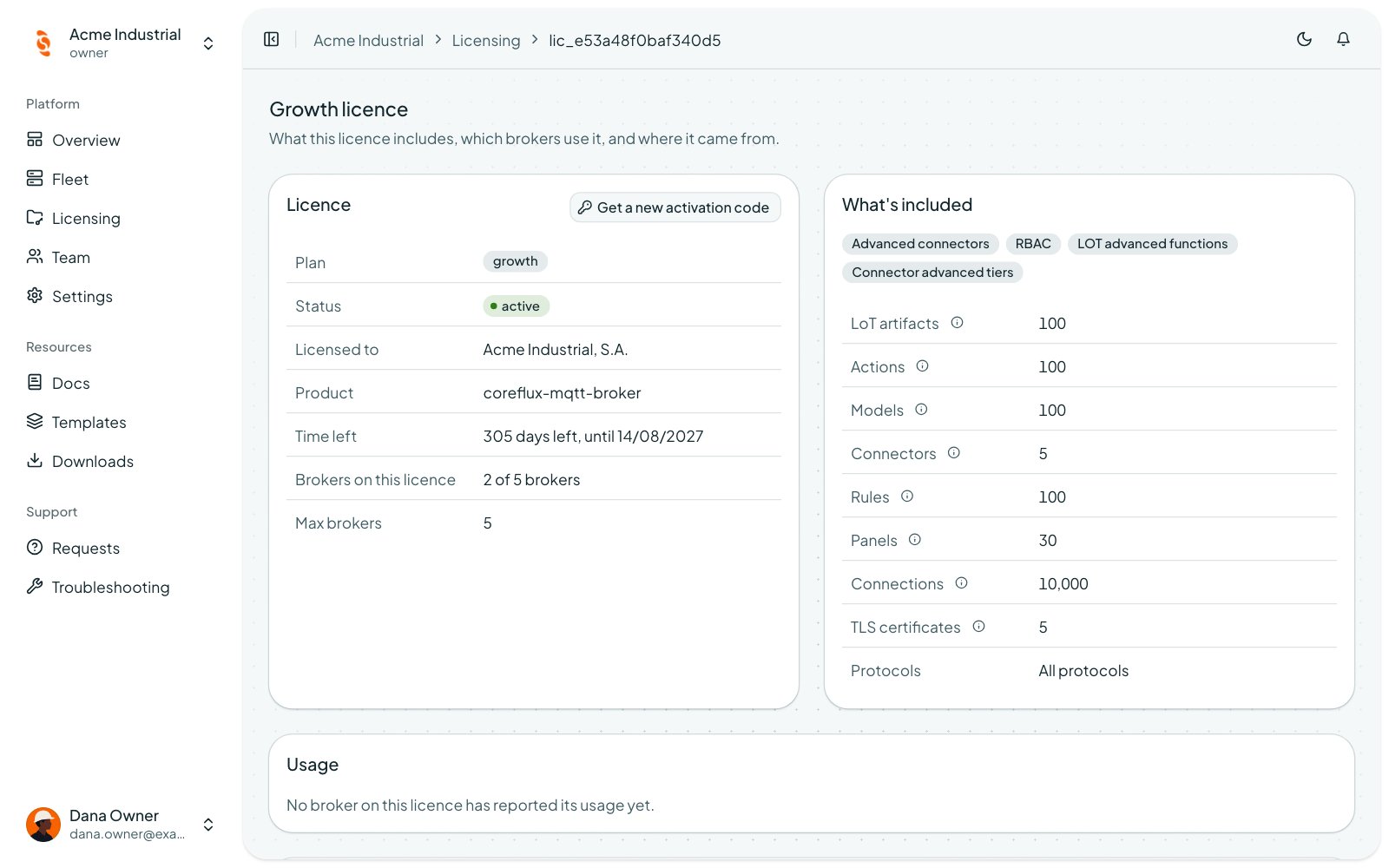
A license and what it includes
Two numbers in the Portal both look like “seats”. Member seats count the people in your organization. A license’s activations count broker instances — a trial allows one. They are separate.
Claim a License You Bought
1
Open Claim licence
In Licensing, choose Claim a licence.
2
Enter the activation code
Use the code from your purchase confirmation, or the one Coreflux support sent you.
3
Claim it
Click Claim licence. The license appears in your organization, and the code keeps working afterwards.
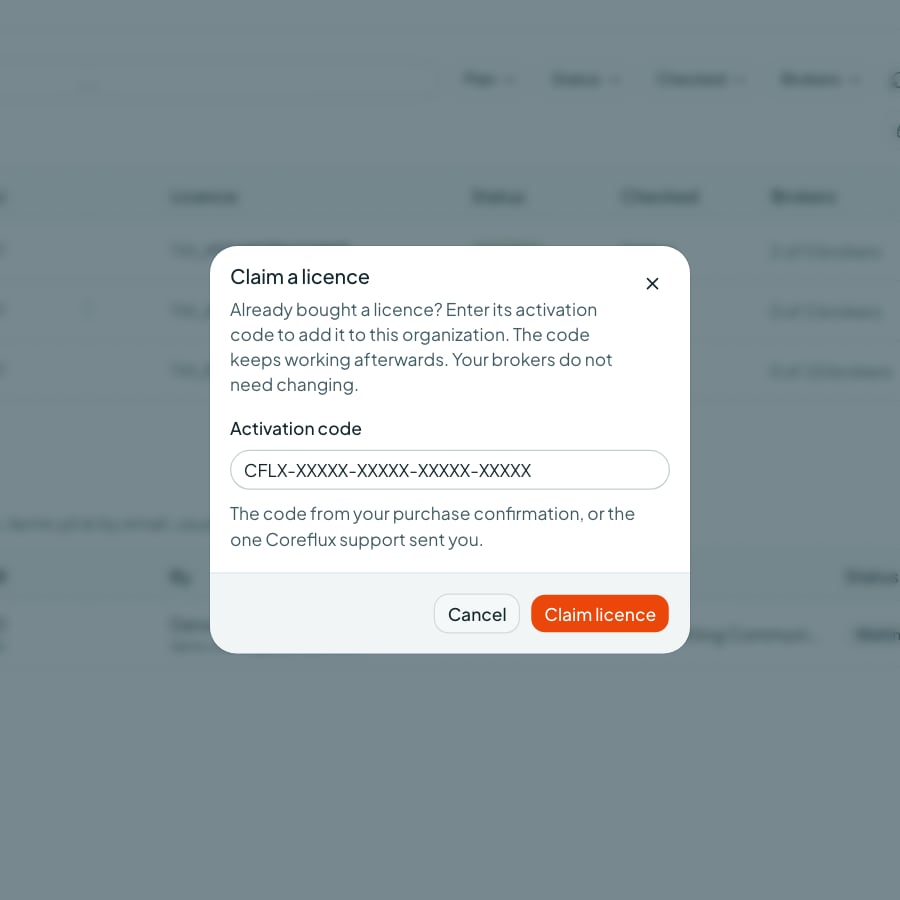
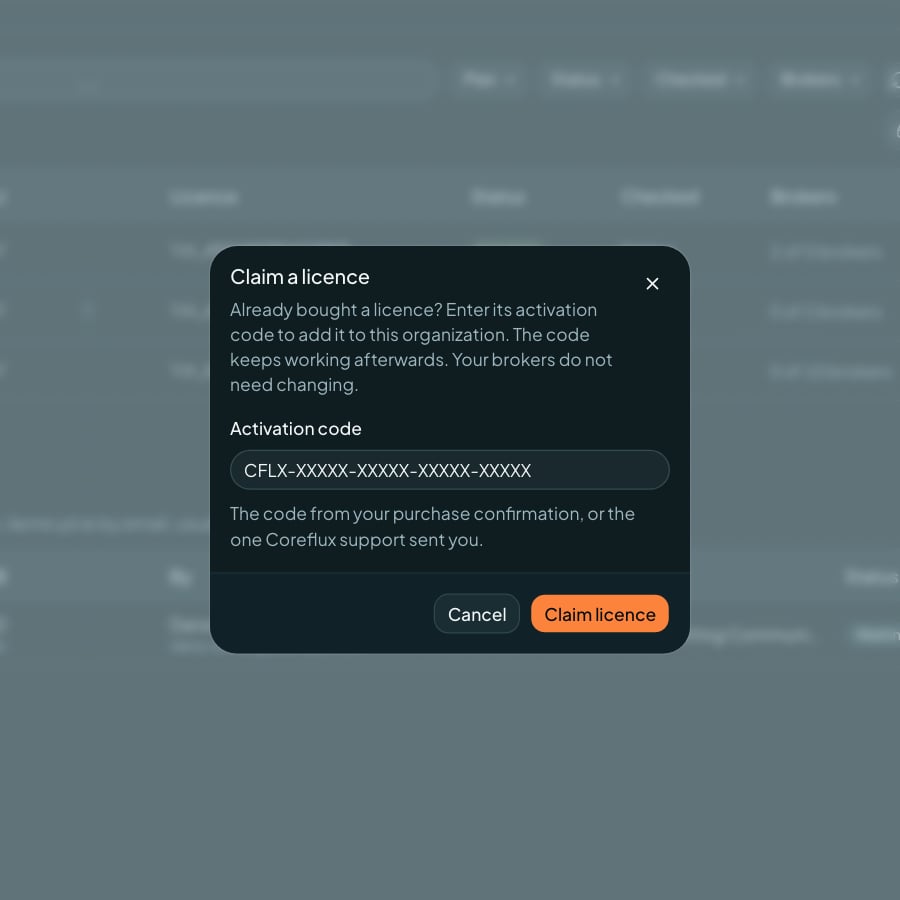
Claim a licence
Request a License
To buy a license, choose Request a licence in Licensing. Tell Coreflux what it is for, how many brokers you need (leave it blank if you are not sure), a contact email, and anything else they should know, then click Send request. The Coreflux team replies at the contact email, usually within 2 business days. Nothing is billed in the Portal. While a request is open, Licensing shows View request instead.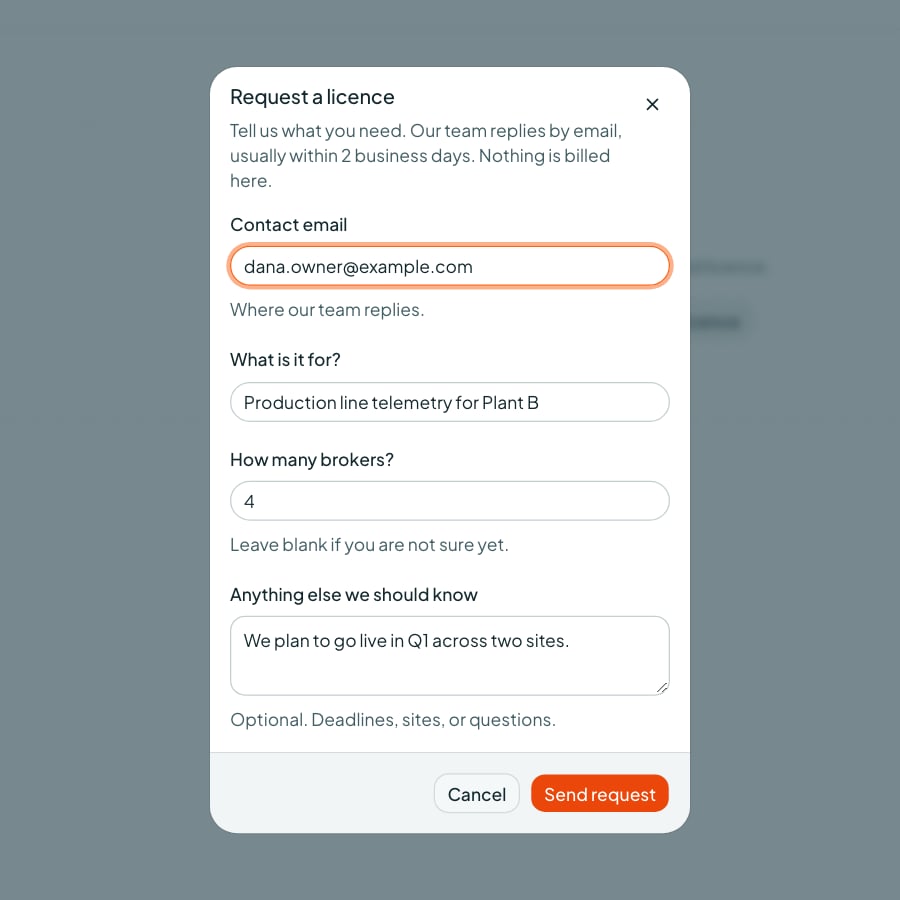
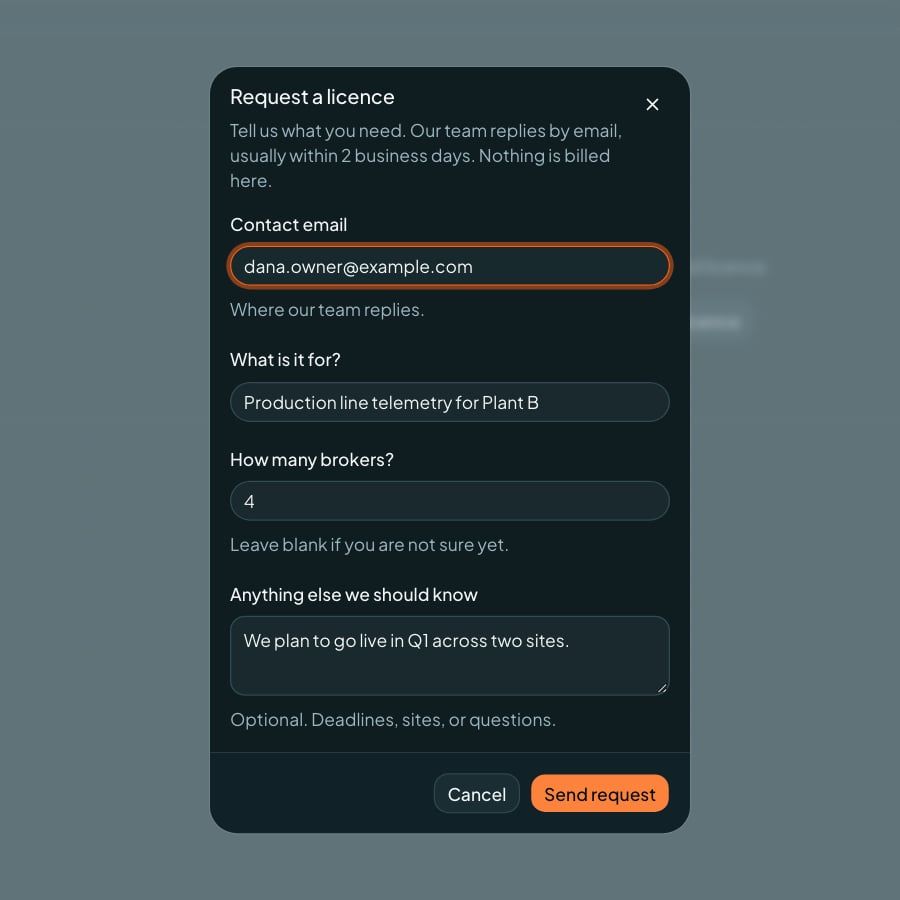
Request a licence