

Why This Matters
Not everyone who works with your brokers needs to change them. Team lets you invite colleagues and give each one only the access they need. Settings holds the organization-wide options.Roles
Every role can do everything the one before it can, and a little more.
Invite a Colleague
1
Open Team
Go to Team → Members and choose Invite member.
2
Choose the role
Enter their email and pick a role.
3
Send the invitation
They receive an email with a link to accept. Pending invitations are listed in Team until they are accepted.
Each pending invitation already counts against your organization’s member seats.
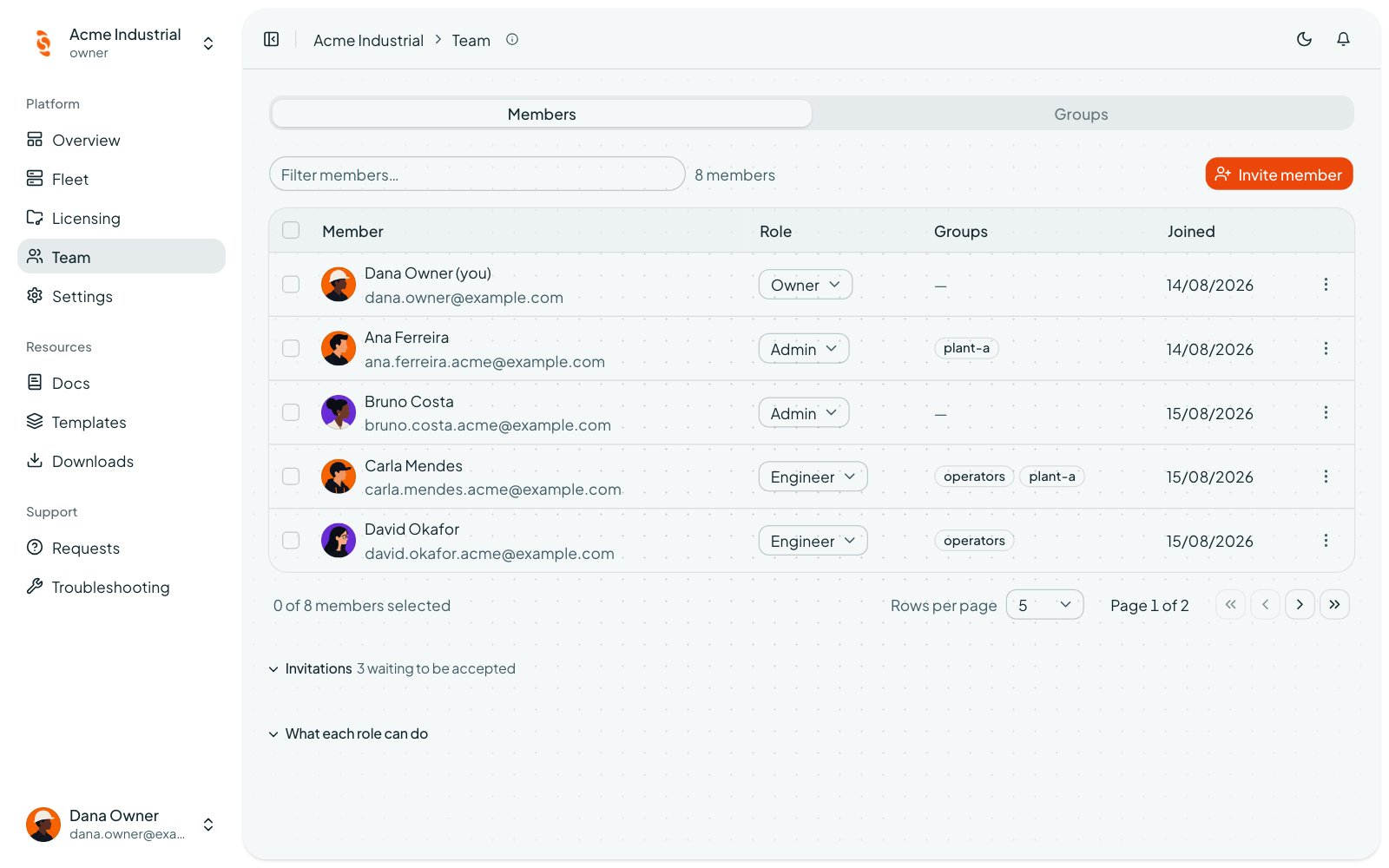
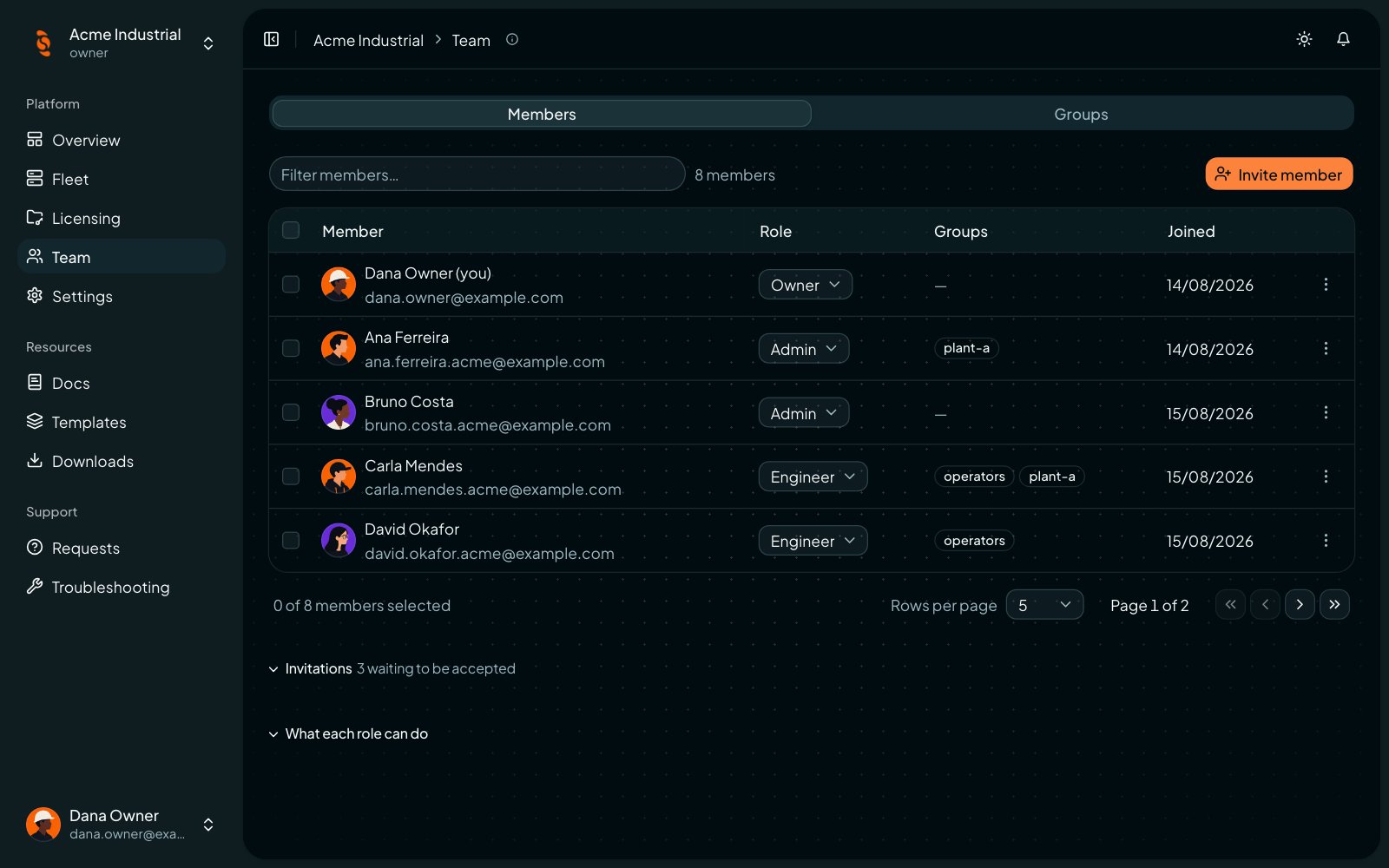
Team members and their roles
Groups
The Groups tab in Team lets you create groups and assign members to them. Groups are named sets of members that the broker applies on its next reconnect. Managing groups needs the admin role.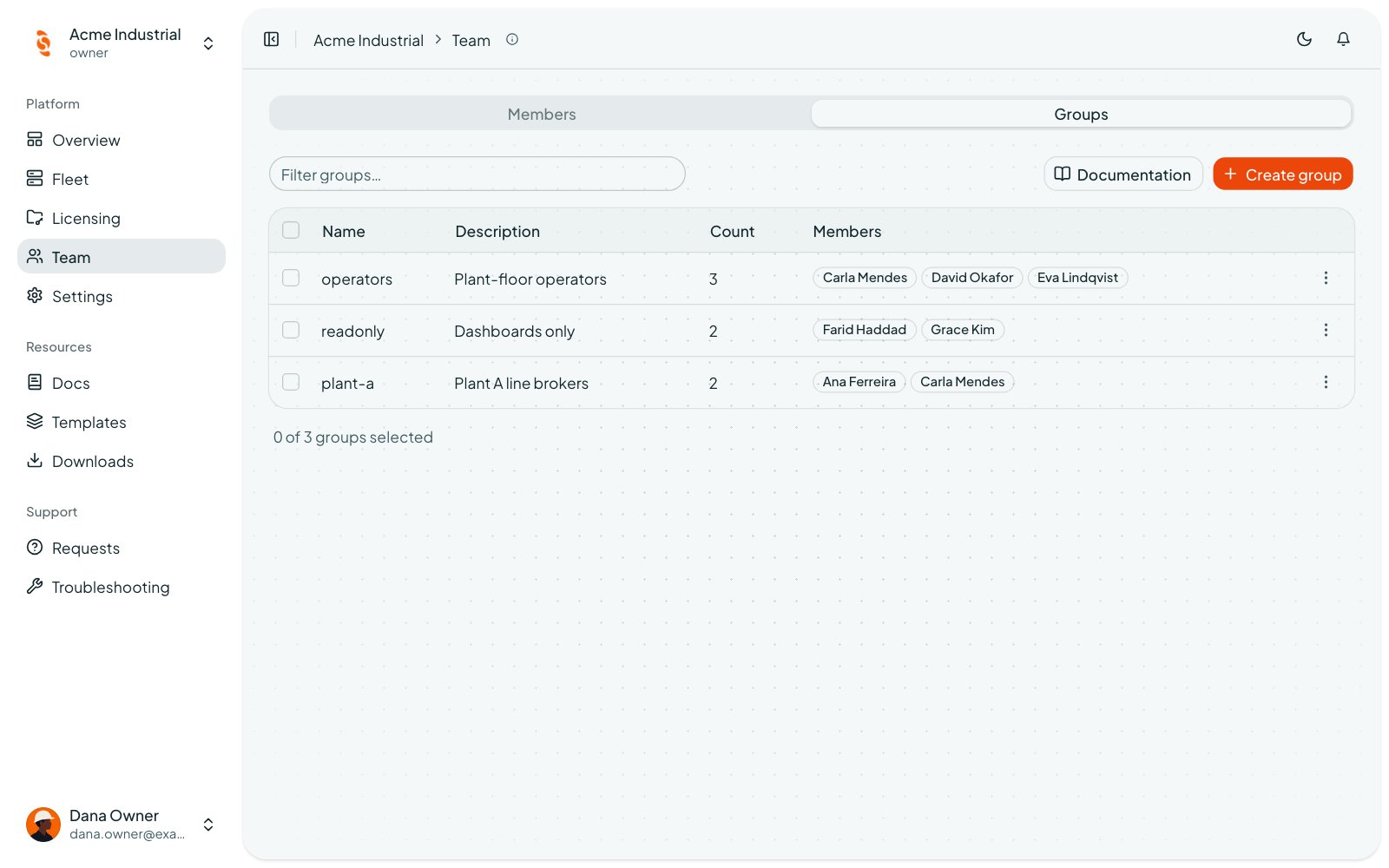
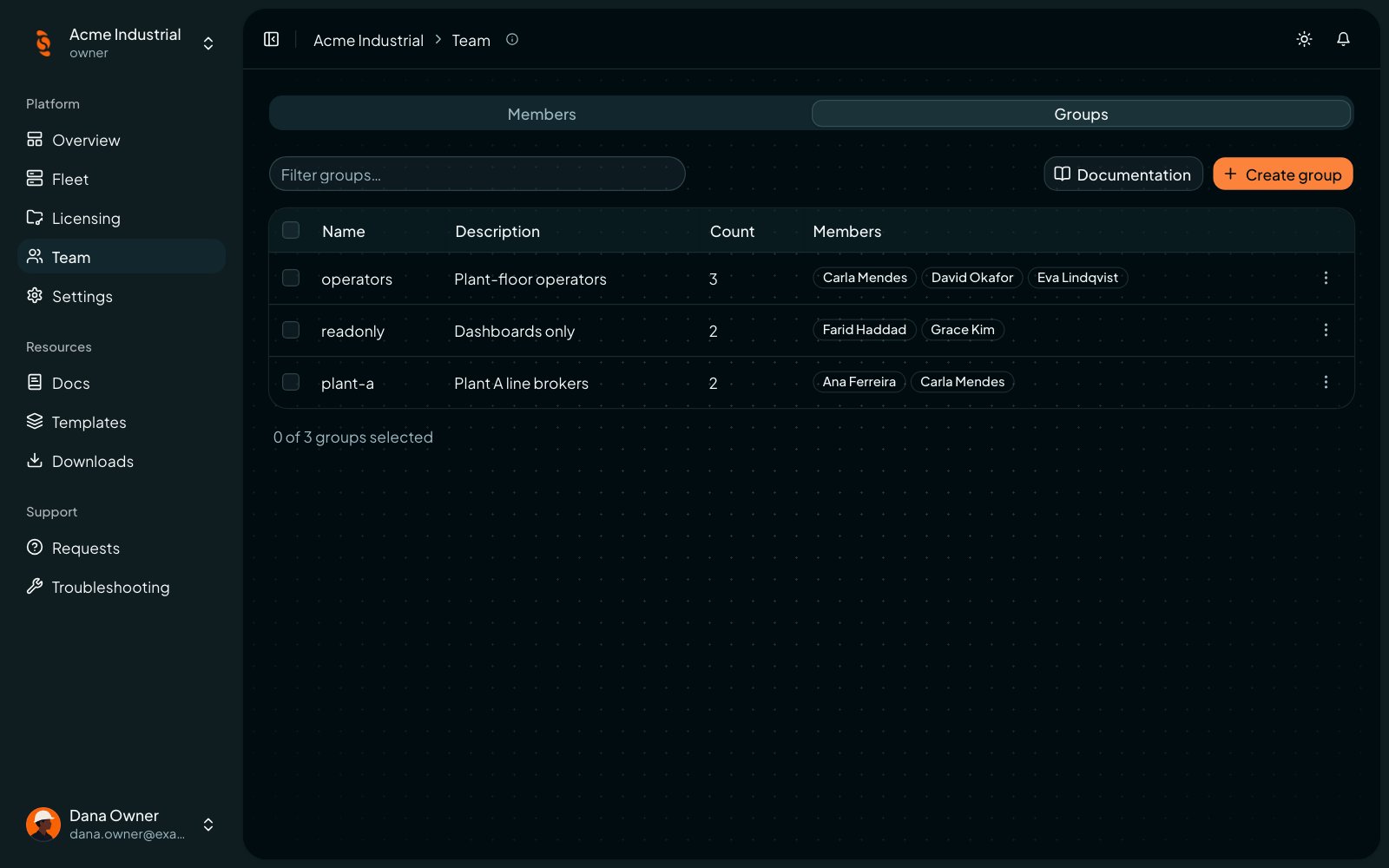
Groups in Team
Settings
Settings has three tabs: General, Security, and Audit Logs. To require MFA, open Security, turn on Require MFA to access organization, and click Save. Members then need an authenticator on their account before they can use Fleet, Licensing, Team, or Settings.
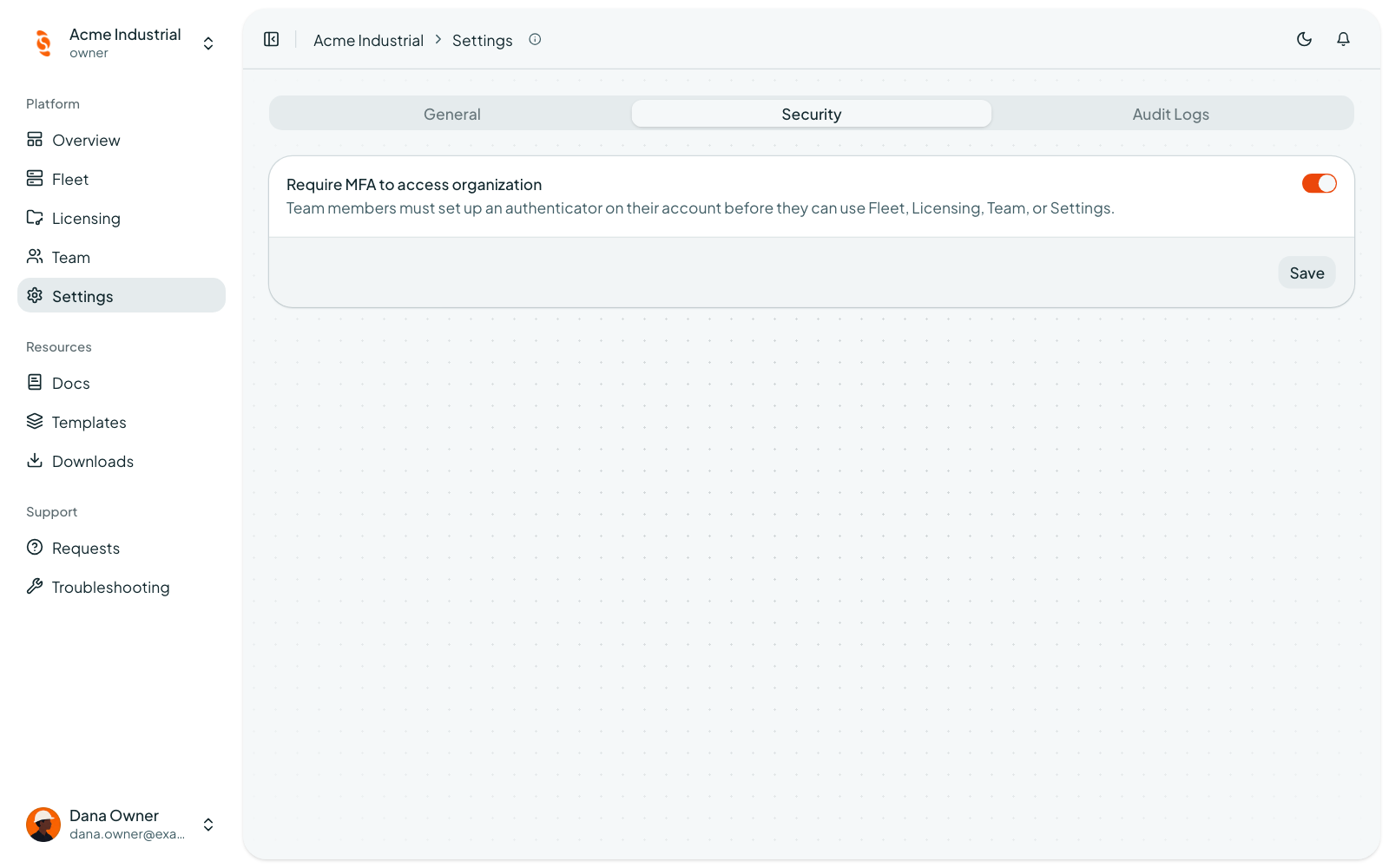
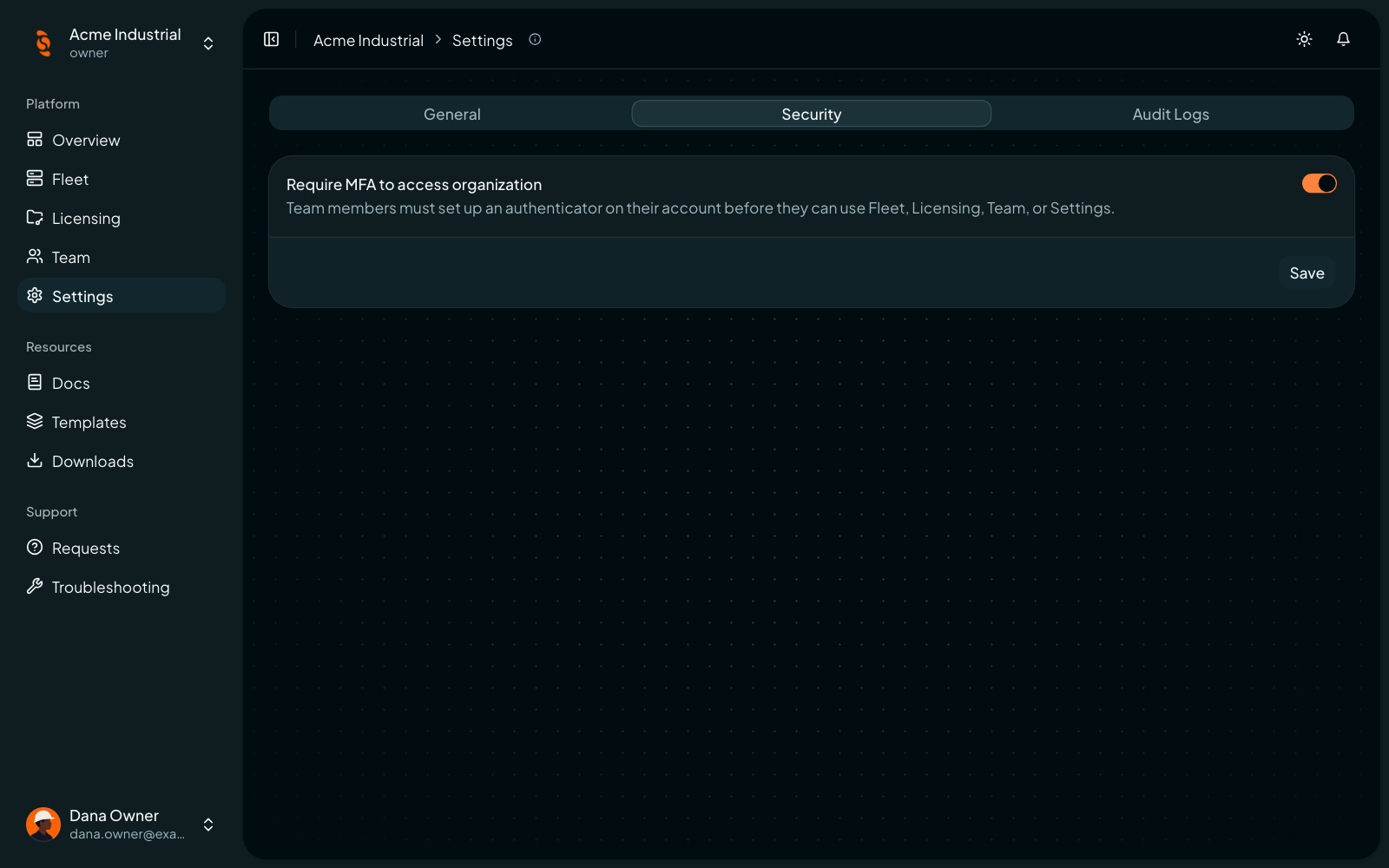
Require MFA for the organization
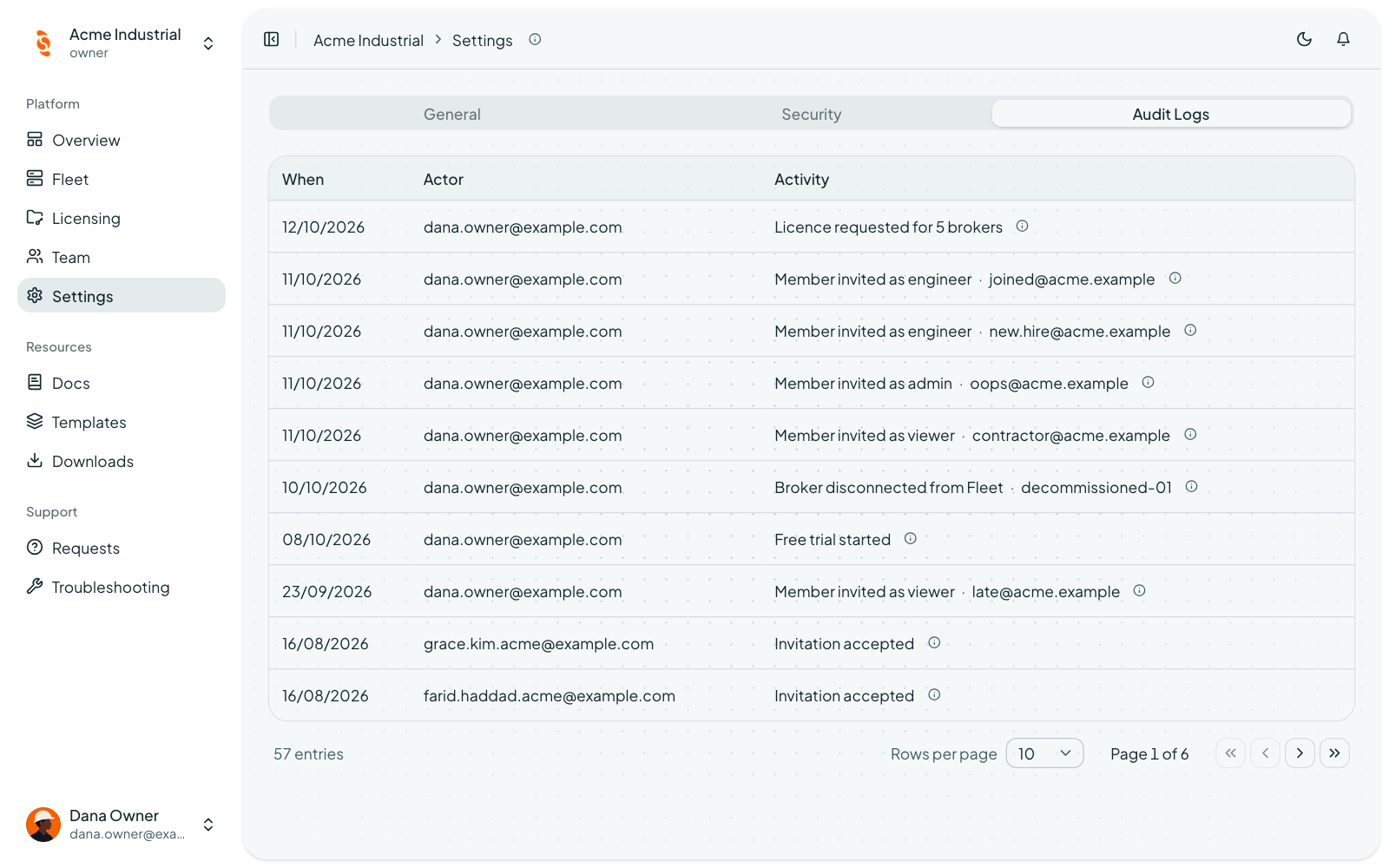
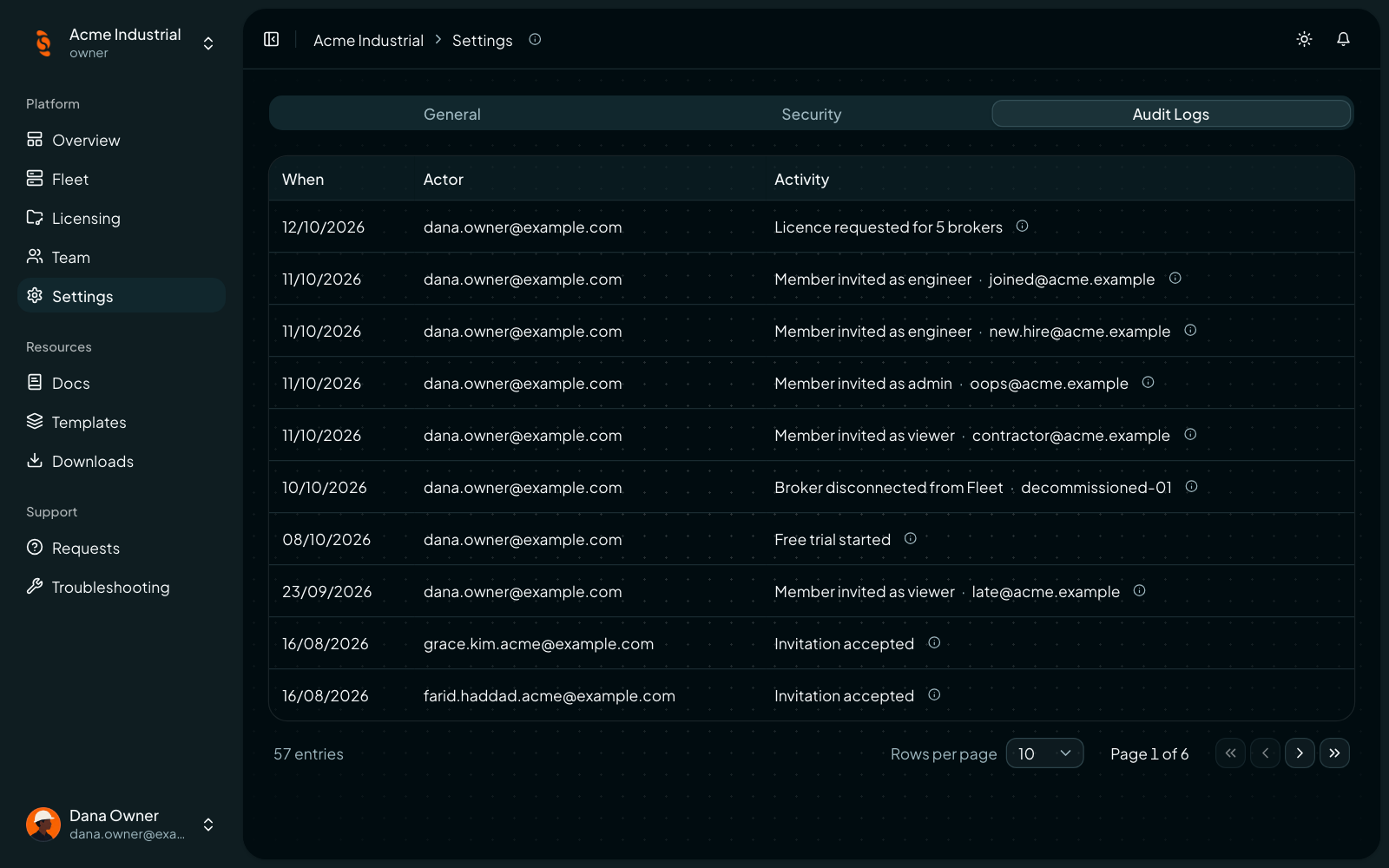
Audit logs