

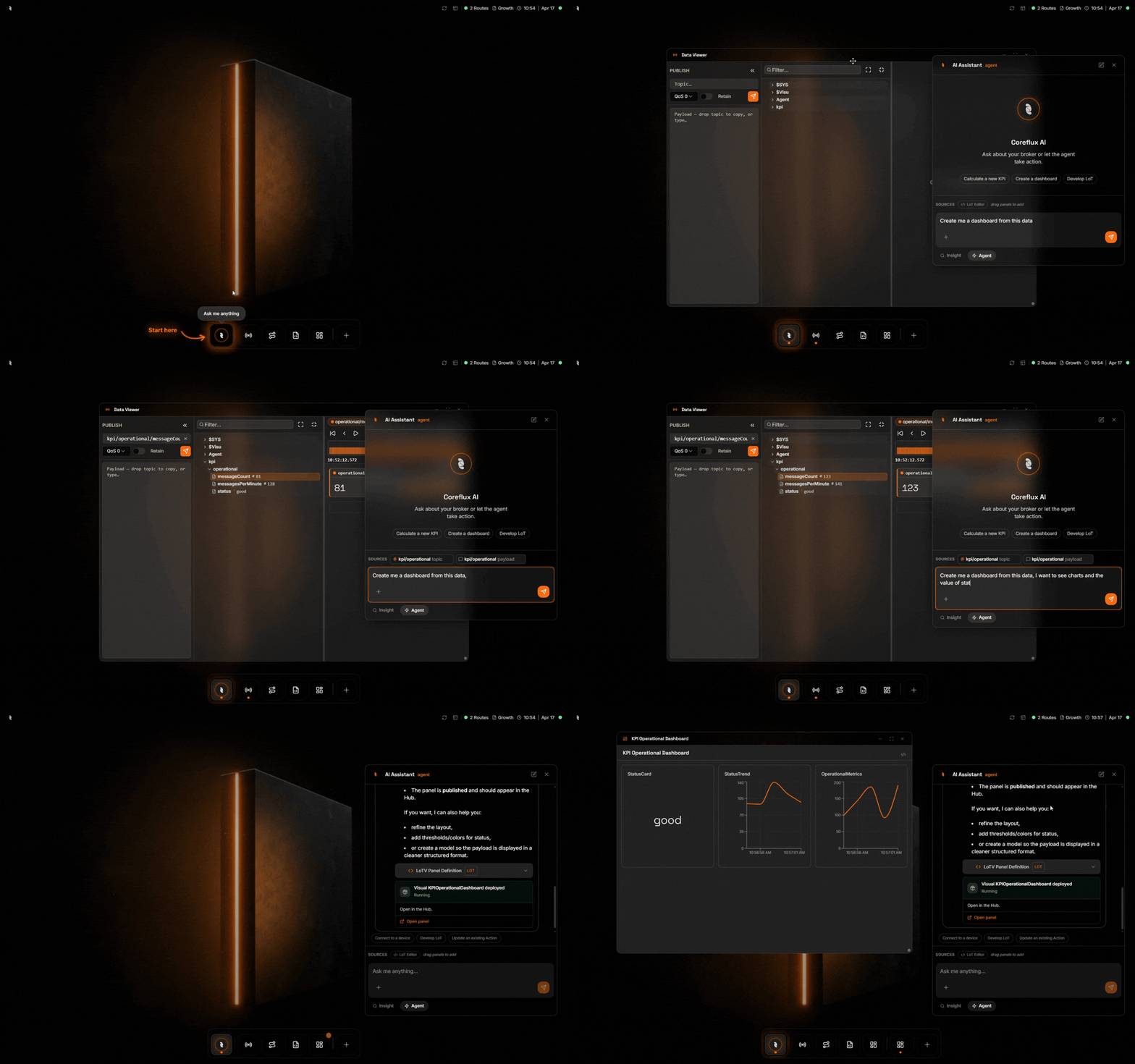
Ask the AI Assistant to build something — it opens, drafts, and deploys in the same panel
Your Broker, Now With a Teammate
The AI Assistant lives inside the same Coreflux MQTT broker that already carries your sensor, PLC, and cloud traffic. You describe what you want in everyday language—ask for insights from the data already flowing through your broker, build Dashboards with live widgets and KPIs, or develop LoT (Language of Things) Actions that run on the broker—and the assistant uses the broker’s own tools to answer, draft, refine, and deploy. It is not a separate chat app pasted on top; it works with your live system.When to Use the AI Assistant
- Ship integrations faster — Describe connections or logic you need; the assistant drafts and deploys Connectors, Actions, and panels where your permissions allow.
- Explore without guesswork — Ask what topics exist, which Connectors are healthy, or how a KPI is calculated before you change anything.
- Hand off safely — Use read-only mode for operators or auditors who should see answers but not apply changes.
WITH HUB_VISIBLE "true" and an interaction topic. The HUB does not list a legacy TYPE AGENT connector as a target.
Run Models On-Premise or in the Cloud
Where inference runs is an architecture and compliance choice. The AI Assistant supports edge (on-premise) models and cloud providers so you can keep prompts and payloads on your network when you need to, or use hosted APIs when policy allows.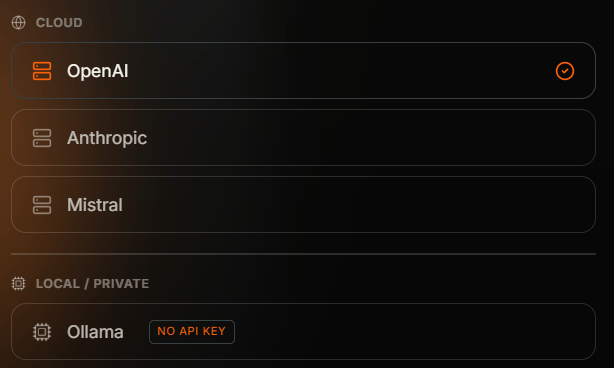
Provider picker in the AI Setup wizard — cloud providers (OpenAI, Anthropic, OpenAI-compatible) and a local/private option (Ollama)
- On-premise (edge) — Run models on hardware you control, for example Ollama on the same host or LAN as the broker, so data does not leave your site.
- Cloud providers — Connect to hosted models such as OpenAI or Anthropic, or any OpenAI-compatible endpoint, when your organization allows traffic to leave the network.
ollama pull llama3.2) — the name you enter in step 2 must match a model already available in Ollama. The model must support tool calling (function calling); the Assistant relies on tools to act on your broker, so models without tool-calling support will not work. Check the model’s capabilities on the Ollama model library before pulling it. Coreflux connects to your Ollama endpoint; it does not install Ollama or download models for you. Lightweight models may work for a quick test, but often are not capable enough for reliable agent work or good answer quality.If the broker runs in Docker, localhost inside the container is not the host. With Docker Compose, point at the Ollama service (e.g. http://ollama:11434). If Ollama runs on the host, use http://host.docker.internal:11434 (Docker Desktop) or the host’s LAN IP. On the broker path the wizard writes that URL onto a TYPE LLM connector. See Picking a provider.Ollama requirements
Ollama is supported with requirements: the model must call tools, and its context must hold the HUB assistant’s prompt.num_ctx) for each run, so the Ollama setting no longer matters. It uses at least HUB_OLLAMA_MIN_CTX (default 16384) and up to HUB_OLLAMA_MAX_CTX (default 32768), never above the model’s own maximum. A prompt too large for the model ends the run with a clear error instead of being truncated. On low-memory or CPU-only hosts, lower HUB_OLLAMA_MAX_CTX.The same release ends a run when the model sends nothing for HUB_AGENT_FIRST_OUTPUT_TIMEOUT_MS, or goes silent mid-answer for HUB_AGENT_IDLE_TIMEOUT_MS. Both default to 120000 (120 s), and time spent inside broker tools doesn’t count. Raise them on slow hardware, where the first answer can take minutes. These are HUB server environment variables.Set up the AI Assistant
The first time you open the AI Assistant, a short wizard asks whether it should run in the HUB or on the broker, then walks through provider, model, and API key. When the broker path is not signed in as a local broker user, it also asks which broker user the agent’sDEFAULT_USER should be. You only do this once per broker; after that, clicking the Coreflux icon opens the assistant directly.
Open the AI Setup wizard
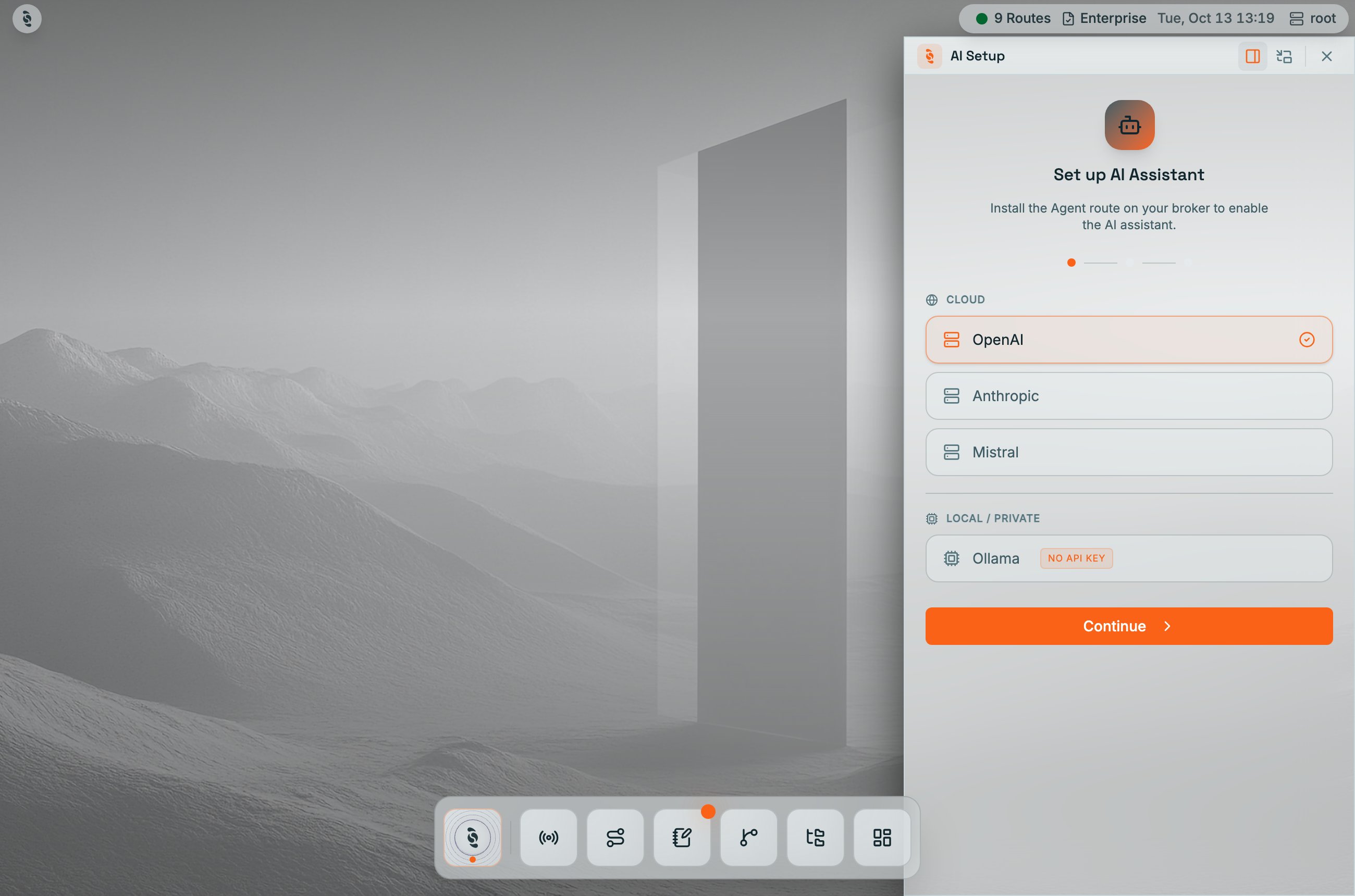
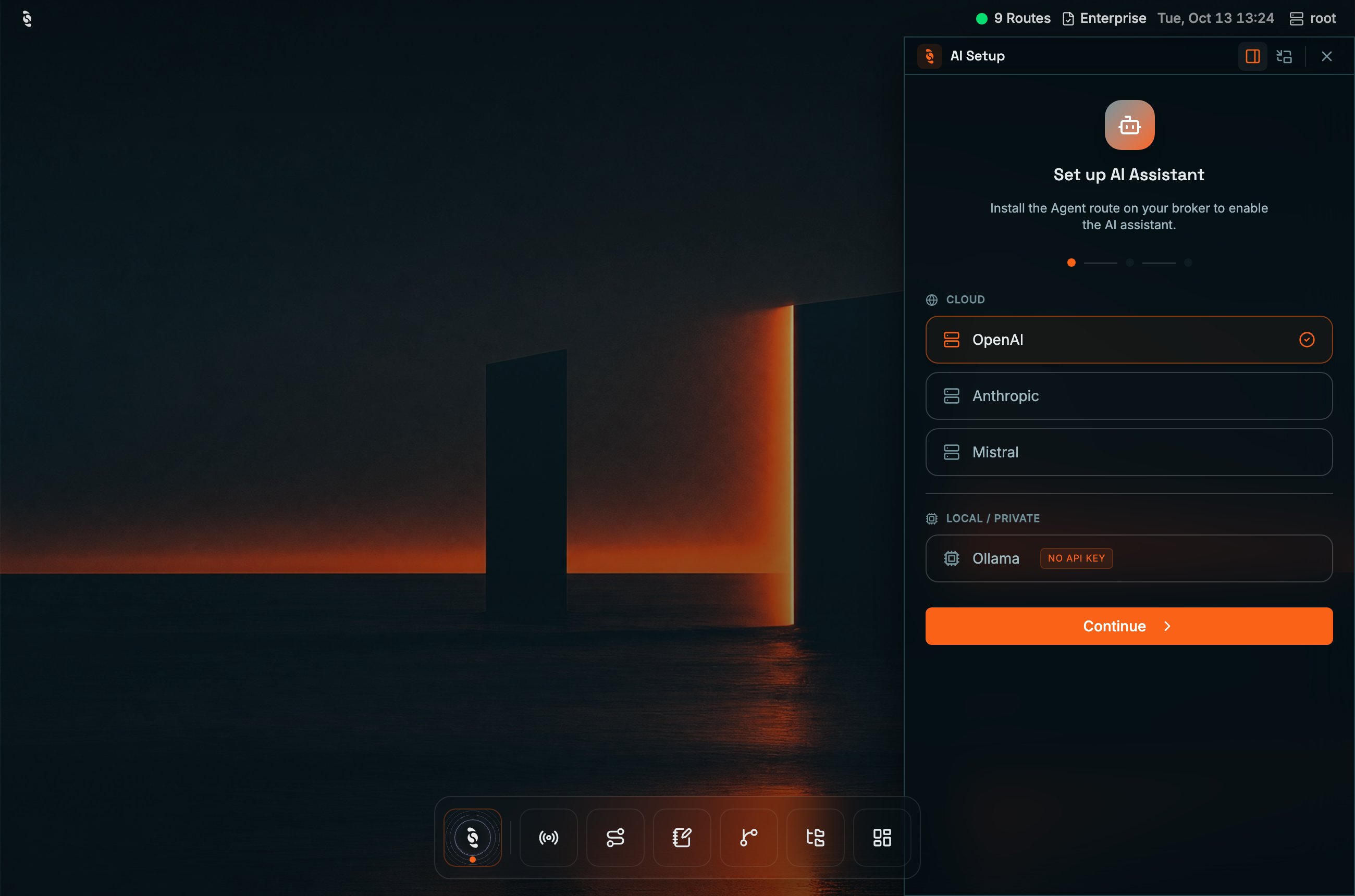
AI Setup wizard, step 1: pick a cloud provider (OpenAI, Anthropic, OpenAI-compatible) or a local Ollama model, then Continue
Pick a model
gpt-5.4-mini) into the custom field. Click Continue when you are ready.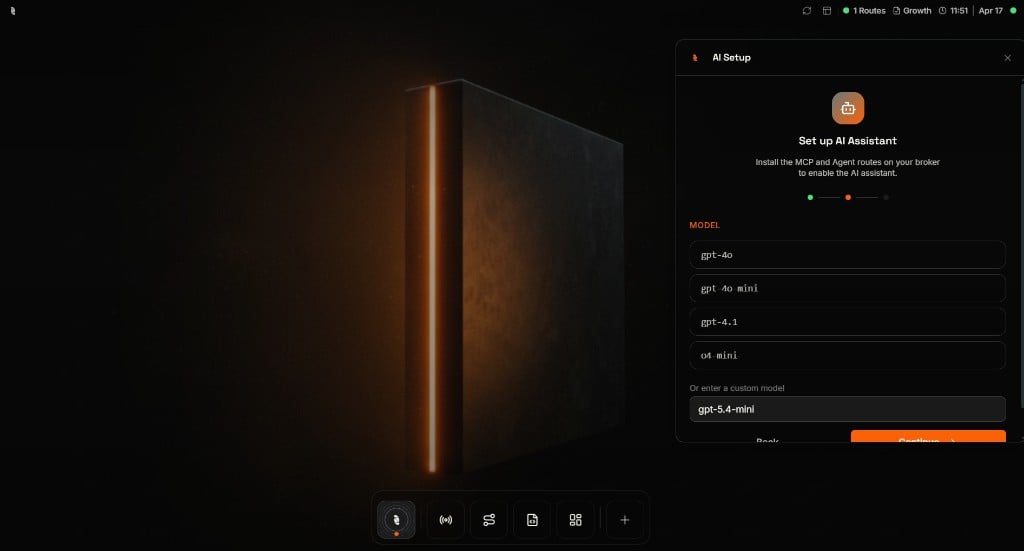
AI Setup wizard step 2 — choose a suggested model or type a custom one
Add your API key
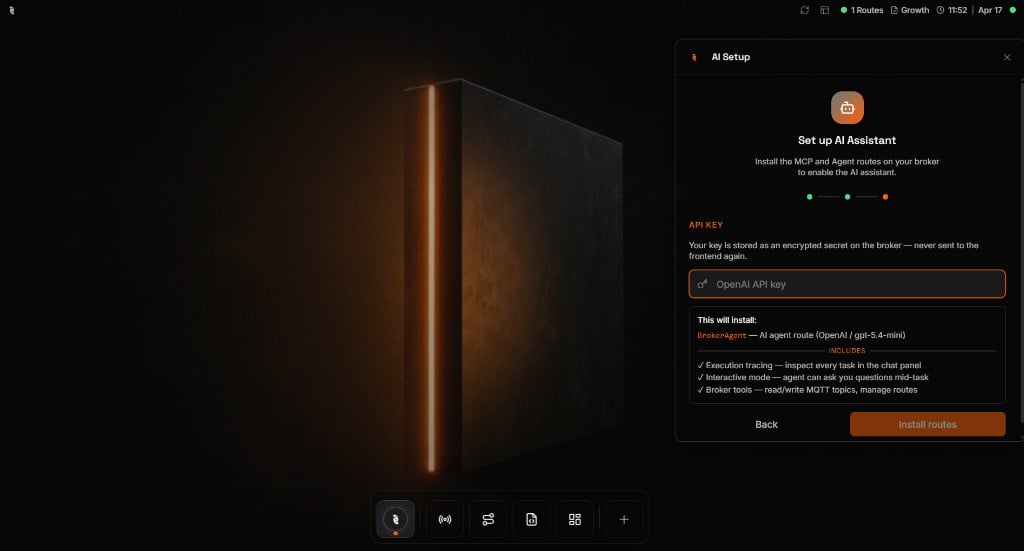
AI Setup wizard step 3 — paste your provider API key; the broker stores it as an encrypted secret
Where do I get an API key?
Where do I get an API key?
- OpenAI — platform.openai.com/api-keys
- Anthropic — console.anthropic.com
- OpenAI-compatible — the key your endpoint’s operator issues, if it needs one
Install and you're ready
TYPE LLM connector named BrokerAgentLlm and a DEFINE AGENT named BrokerAgent on the interaction topic hub/assistant, visible in the picker. A key you paste is stored with -setSecret and referenced from the connector. Ollama needs no key. An OpenAI-compatible endpoint gets a key only when you supply one, and the connector is pinned to Chat Completions.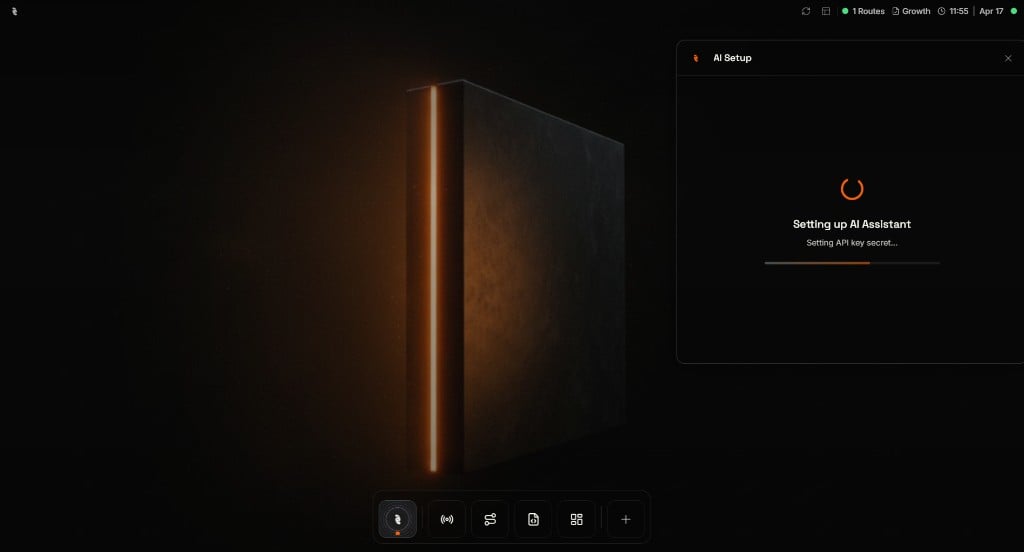
AI Setup finishing — the broker provisions the assistant in the background
$SYS/Coreflux/Agents/# and the hub/assistant/# replies. DEFAULT_USER is your local MQTT login. A Coreflux account session is not a broker user — the wizard asks for a Broker user and will not install until you choose one. A tool call succeeds only when both you and that user are allowed to make it.
The installed agent is granted read_mqtt, read_lot, write_mqtt, and create_lot for actions, models, connectors, and panels. Writing grants are deployed with WITH LEVEL "write". Re-running setup sends -addConnector and -addAgent again. Both update in place, so the agent keeps its conversations. The broker refuses to remove an LLM connector an agent still uses.
Agents are their own LoT entity. Connectors Manager lists BrokerAgentLlm and leaves BrokerAgent out. The LoT Editor deploys an agent cell with -addAgent and removes it with -removeAgent.
Manage broker agents
The Agents app on the dock lists everyDEFINE AGENT on the broker as a card, next to an Activity tab. Each card has Configure, Disable / Enable, Open in LoT Editor, Show activity, and Remove. A card with no status shows offline. DEFINE AGENT is a preview feature in broker 2.22.
Disable an agent
The power icon on a card redeploys the agent withDISABLE true, or without it. A disabled agent stays defined but takes no tasks. Its card is dimmed, with a Disabled pill and a grey status dot. On a broker without DISABLE support, the HUB changes nothing and says so. In a cluster, the change applies on the node you’re connected to.
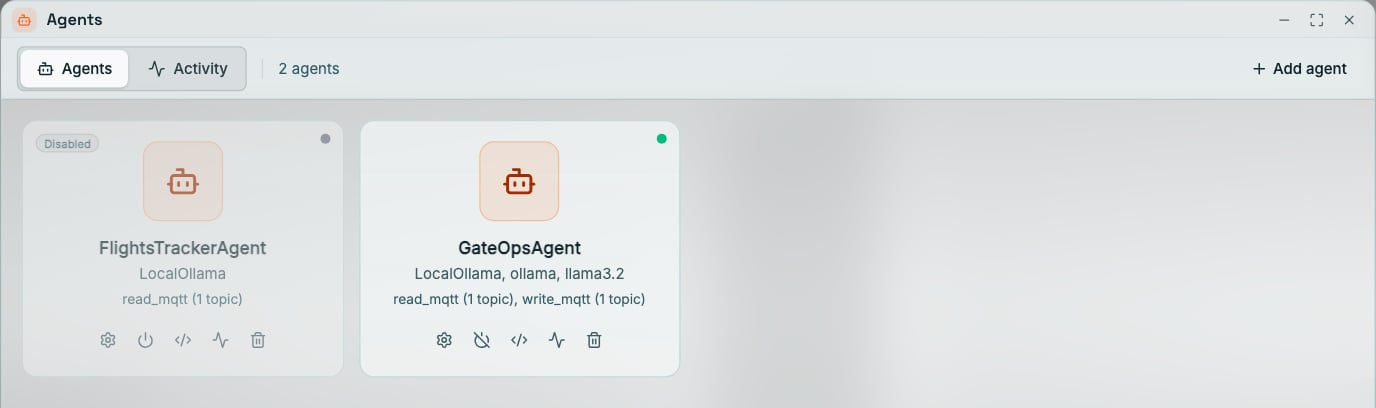
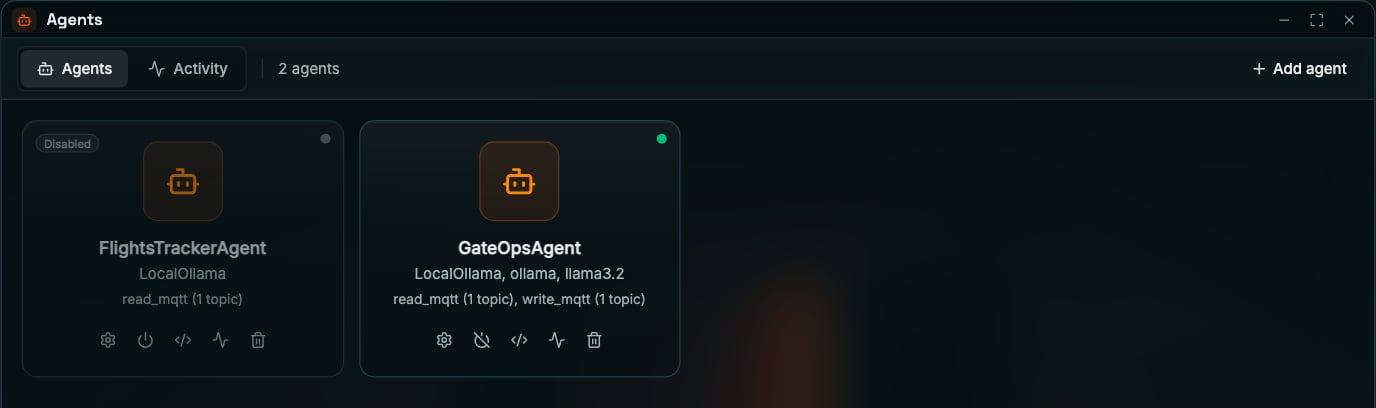
Agents app with FlightsTrackerAgent disabled and GateOpsAgent running
Configure an agent
Configure and Add agent open a form with three tabs: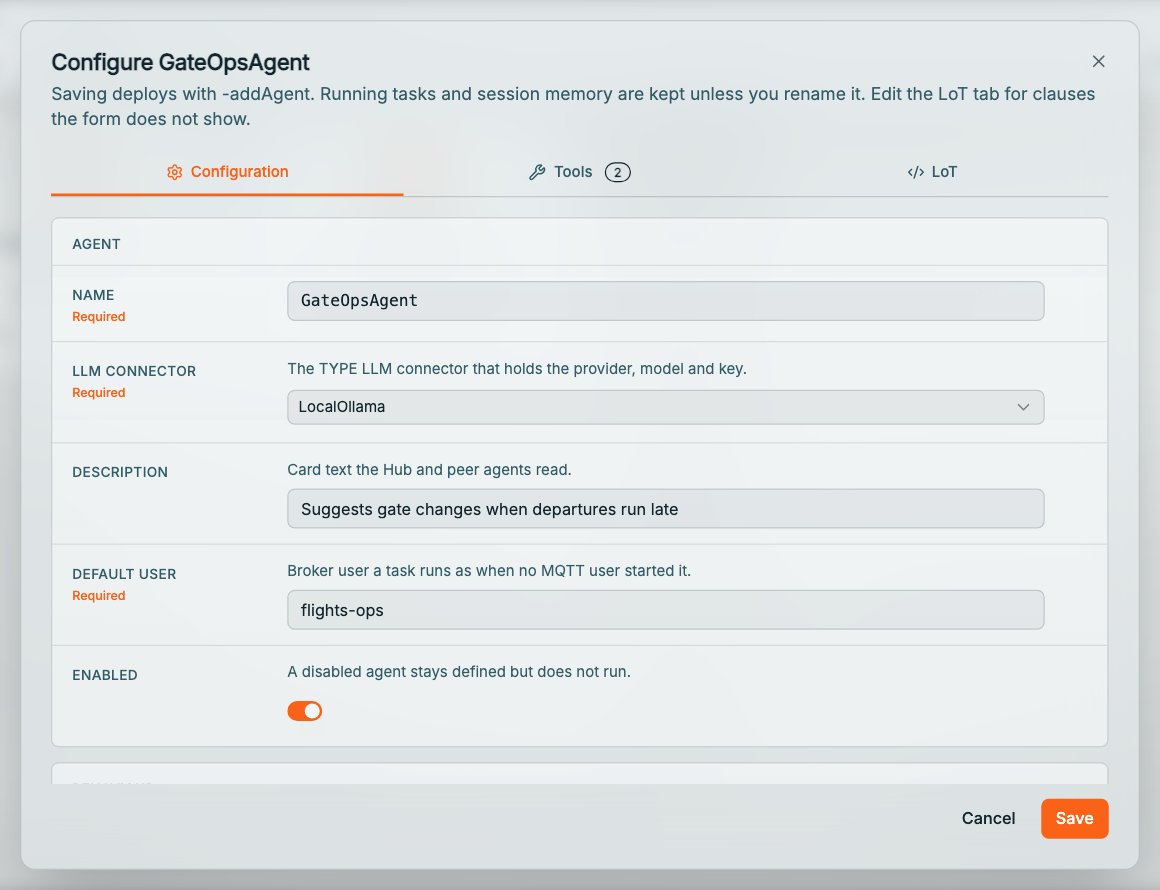
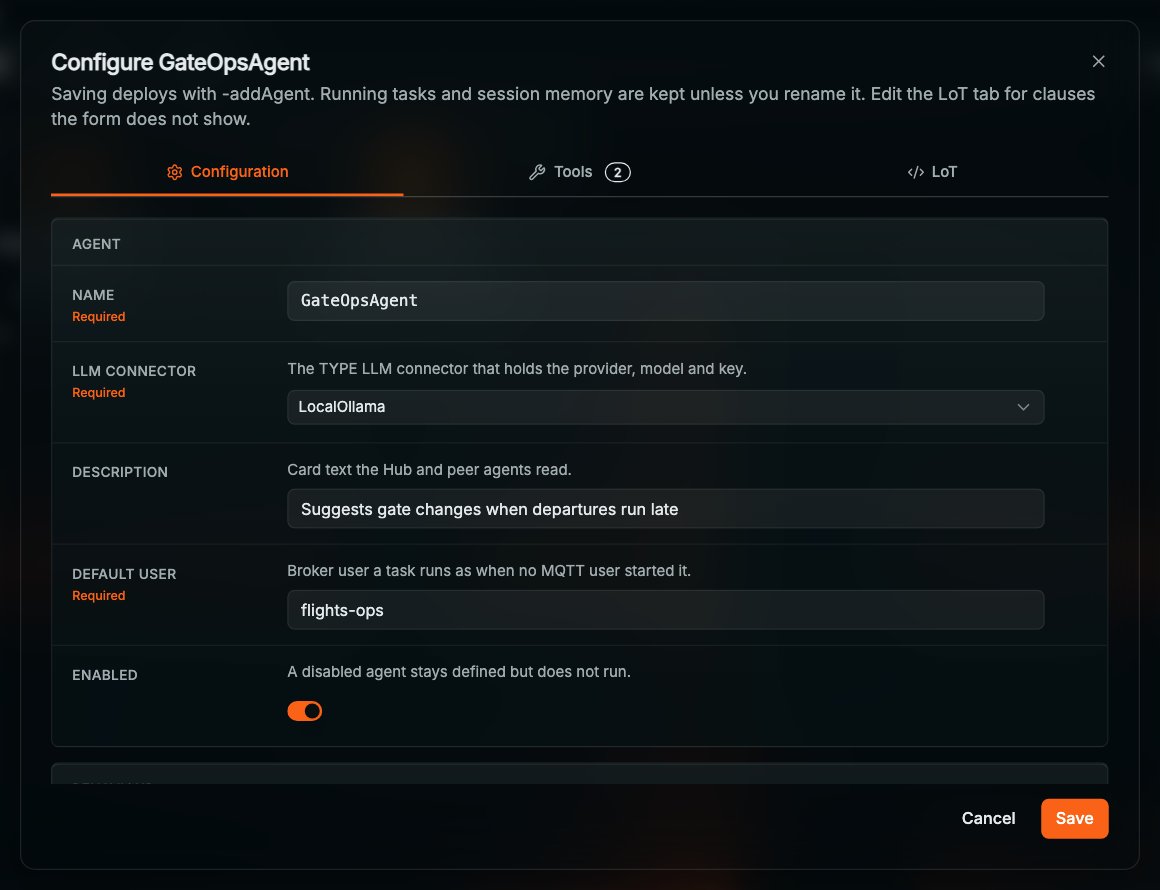
Configure GateOpsAgent: the Configuration tab
GET SECRET and GET ENV values, and clauses the form has no field for, which it lists under Kept as written. Save deploys with -addAgent. Running tasks and session memory are kept unless you rename the agent. See Agent syntax.
Coming from a TYPE AGENT assistant
ATYPE AGENT connector from an earlier release is skipped when the broker loads, and the HUB does not list it, install it, or migrate it. There is no in-panel update that rewrites it.
Rewrite it as a TYPE LLM connector plus DEFINE AGENT, using the table in Coming from TYPE AGENT, or run the wizard again and let it install BrokerAgentLlm and BrokerAgent. Your previous provider, model, and key are not copied for you.
Open the AI Assistant
Use the Coreflux icon in the bottom app dock—the first icon on the left. You can peek at the assistant without opening the full side panel, then click when you want the full workspace.Hover to preview
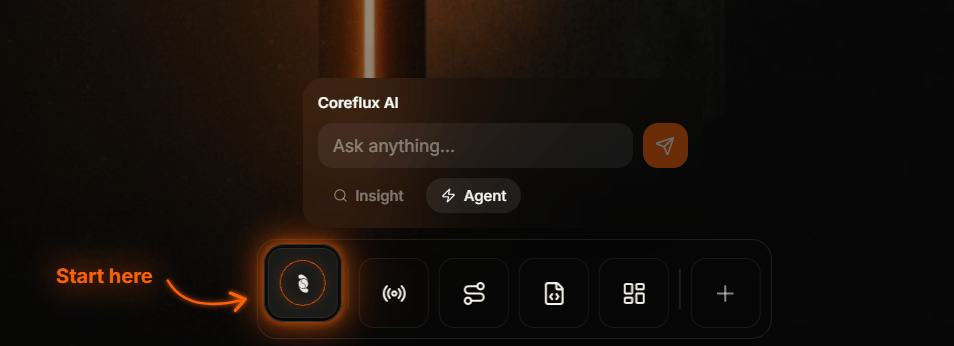
Hover the dock Coreflux icon to open the compact Coreflux AI bubble with Ask anything and mode pills
Click to open the full panel
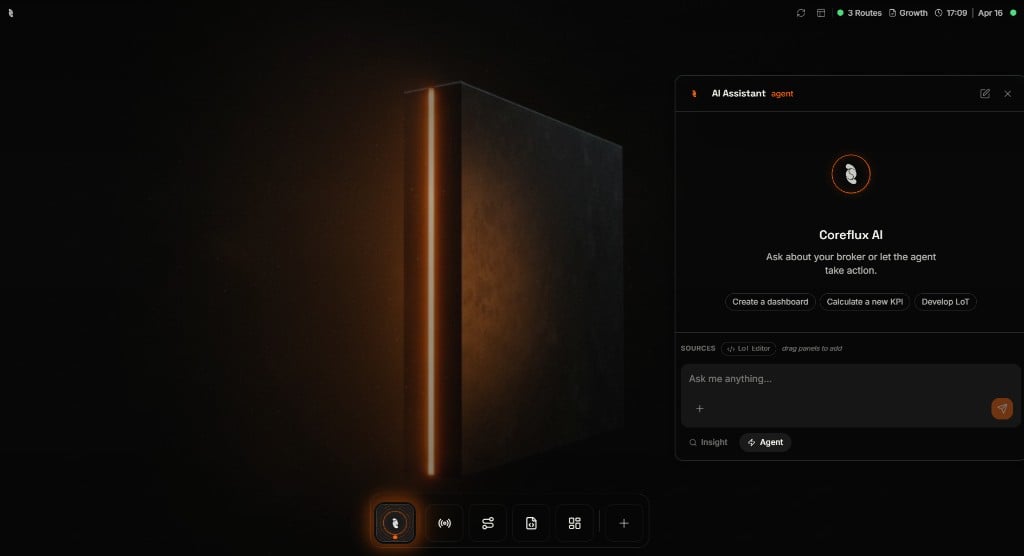
Full AI Assistant panel — suggested prompts, Sources, and the main chat input
Agent vs Insight mode
Pick the mode that matches how much change you want the assistant to make. You can switch at the bottom of the panel at any time.What you can do
These are typical starting points—phrase them in your own words; the assistant will ask follow-ups if something is missing.Build a dashboard
Develop an Action in LoT
Calculate a new KPI
Explain your broker state
Example: Build a KPI with Agent mode
Below is one real flow: you ask for a KPI, the assistant requests the missing pieces, then deploys an Action and offers a shortcut to the LoT Editor. Stay in Agent mode for this path.Ask
AI Assistant in Agent mode with suggested prompts including Calculate a new KPI
Clarify
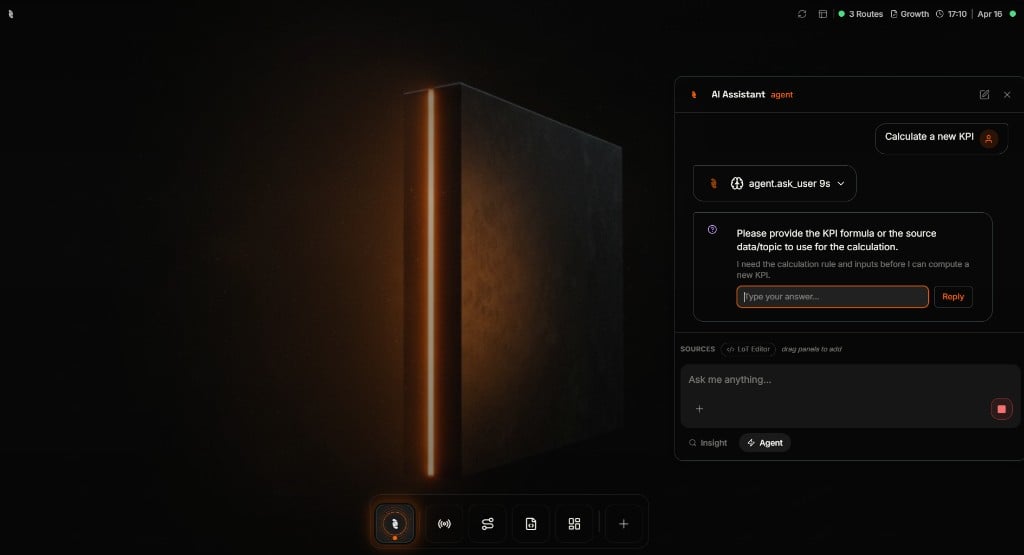
Assistant asking for KPI formula or source data before continuing
Deploy
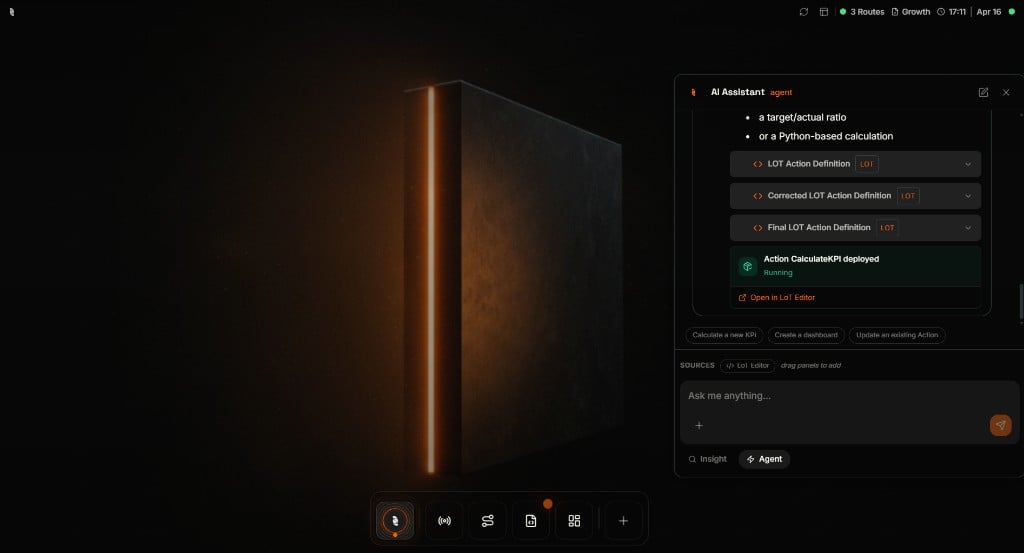
Deployed Action with Running status and Open in LoT Editor link
Example: Explore safely with Insight mode
Switch to Insight before you send if you only want answers—not changes. You can still get structured output such as tables and follow-up suggestions.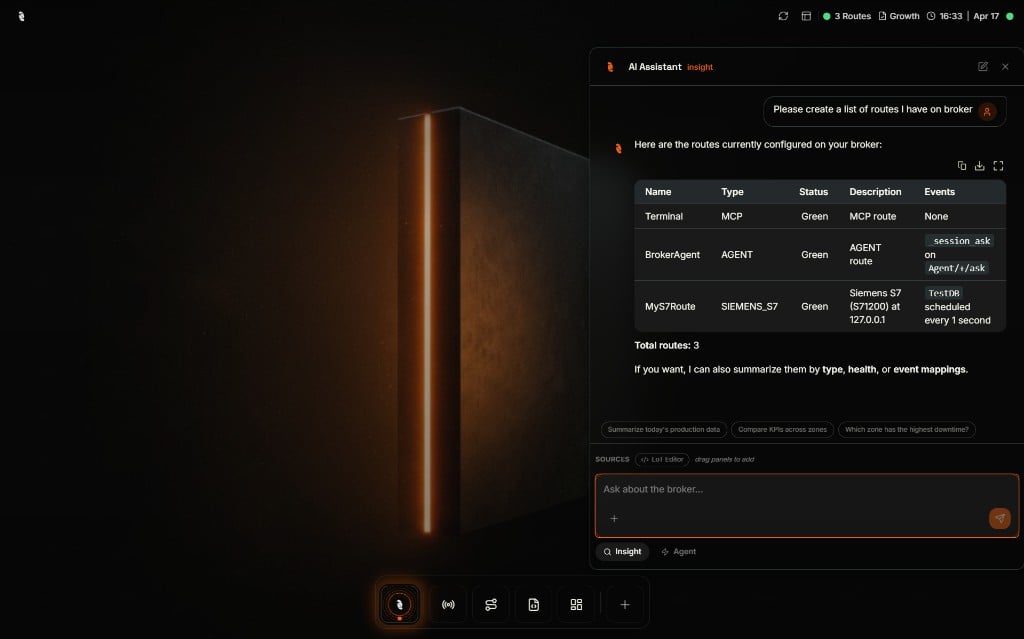
Insight mode — list of Connectors returned as a table after a natural-language question
Built-in safeguards
- The HUB target runs as the MCP token’s user — Every call passes the broker’s own permission check. Writes pause until you approve them. A request that names no mode is treated as Insight.
- A broker agent runs as the person who asked, capped by
DEFAULT_USER— Both must be allowed. A refusal names the user who lacked the right. - Insight mode is read-only — No deploy, publish, or execute path while Insight is selected.
- Stop at any time — Long runs can be cancelled from the UI so you are never stuck waiting on a runaway answer.
- Same deployment path as humans — Anything the assistant deploys still goes through the broker’s normal validation and permission checks.
- A shared web HUB does not call arbitrary hosts: see Allowed hosts in a browser HUB.
Allowed hosts in a browser HUB
The HUB assistant connects from the HUB server to the broker’s MCP endpoint and, for Ollama or an OpenAI-compatible provider, to the model’s base URL. On a browser or Docker HUB that other people can reach, the assistant stays off until both of these are true:- Coreflux sign-in is configured on the HUB server, and the user is signed in.
HUB_AGENT_ALLOWED_HOSTSlists the hosts the assistant may reach.
- Unset or empty: the assistant is off and reports HUB_AGENT_ALLOWED_HOSTS names no broker it may reach.
- Sign-in not configured: the assistant is off and tells you to use a broker agent or the desktop app.
- Not signed in: Sign in with your Coreflux account to use the Hub assistant.
- Host not listed: This Hub may not reach
<host>. Add it to HUB_AGENT_ALLOWED_HOSTS.
Broker agents in the HUB
LoT → Agents (also the dock and the status-bar Agents widget) is where you manage broker agents and watch them work. Add and configure from that window. Saving an existing agent sends-addAgent again, which updates it in place and keeps its conversations. Removing an agent cancels its running tasks and forgets its session memory. The activity view is read-only: it follows the task stream, and a question started by CALL AGENT shows up as a short preview.
Connectors Manager lists connectors only. An LLM connector can show how many agents use it. The broker refuses to remove that connector while an agent still names it.
Best practices
Start in Insight when you are learning
Start in Insight when you are learning
Always review what was deployed
Always review what was deployed