

Why Use Fleet?
Fleet lists every broker in your organization in one table — where it runs, whether it is online, which version it runs, and which license it uses. You add brokers here, and open any broker to see its performance.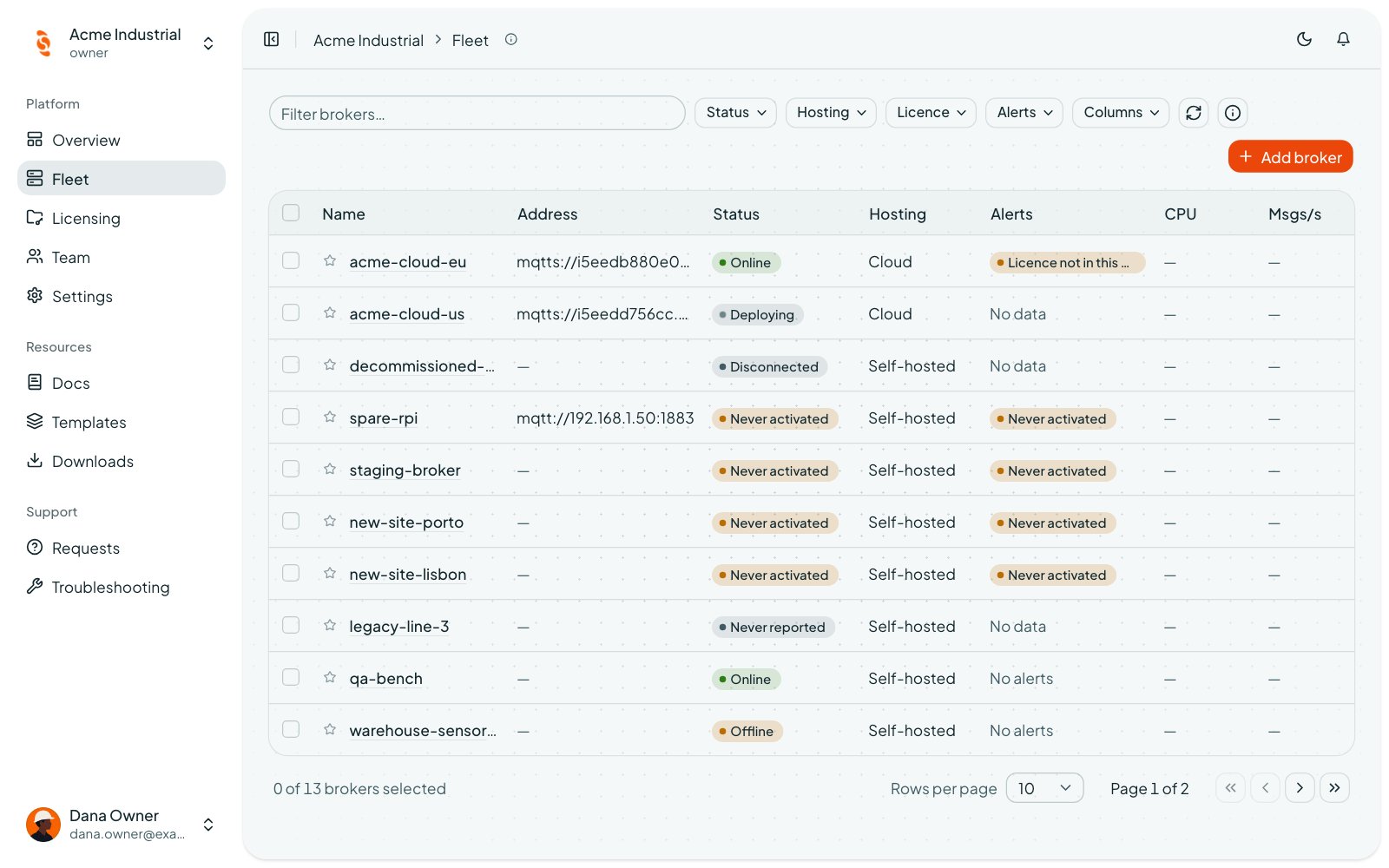
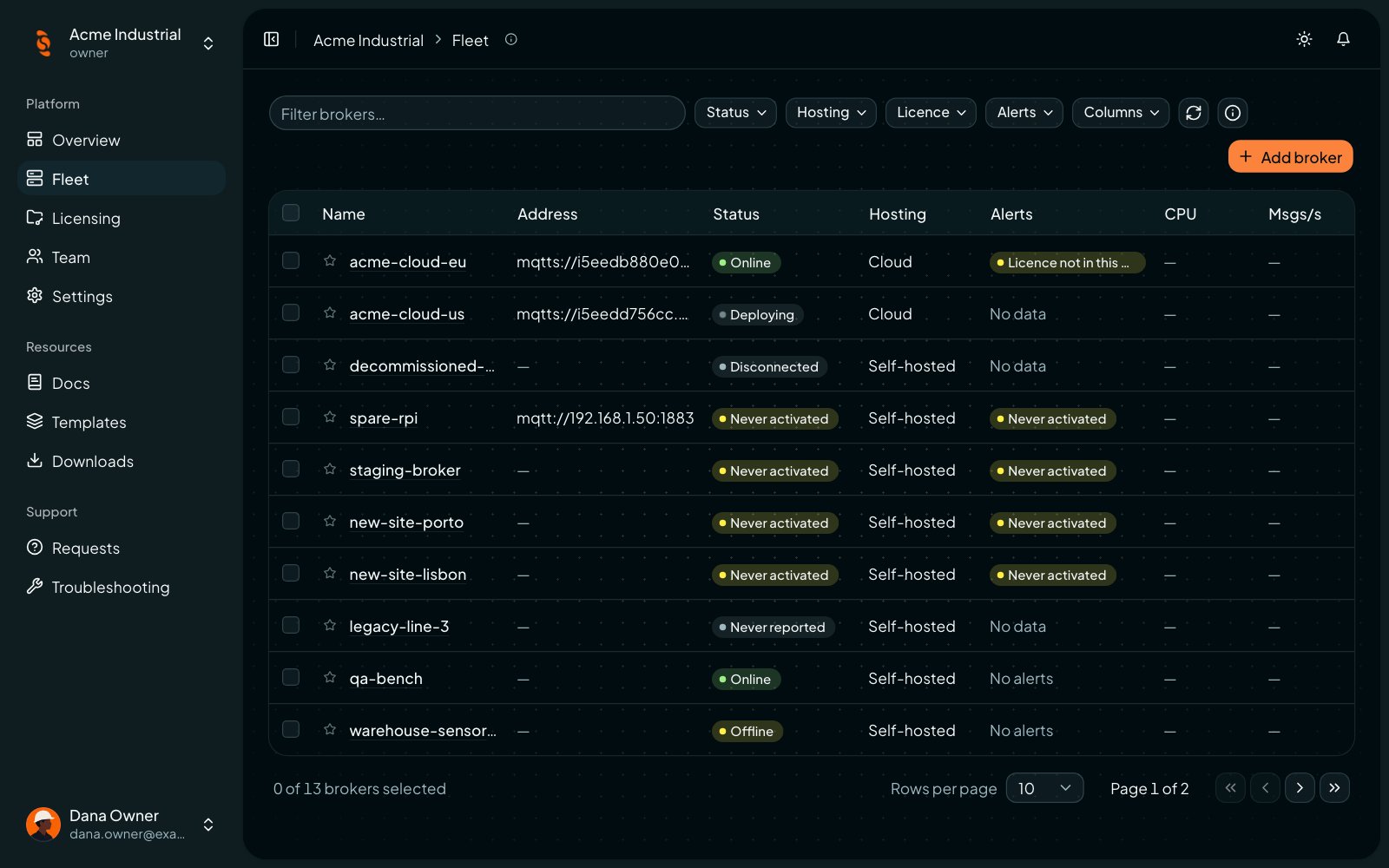
Fleet with brokers in different states
Add a Broker
Click Add broker in Fleet. The first question is Where will it run?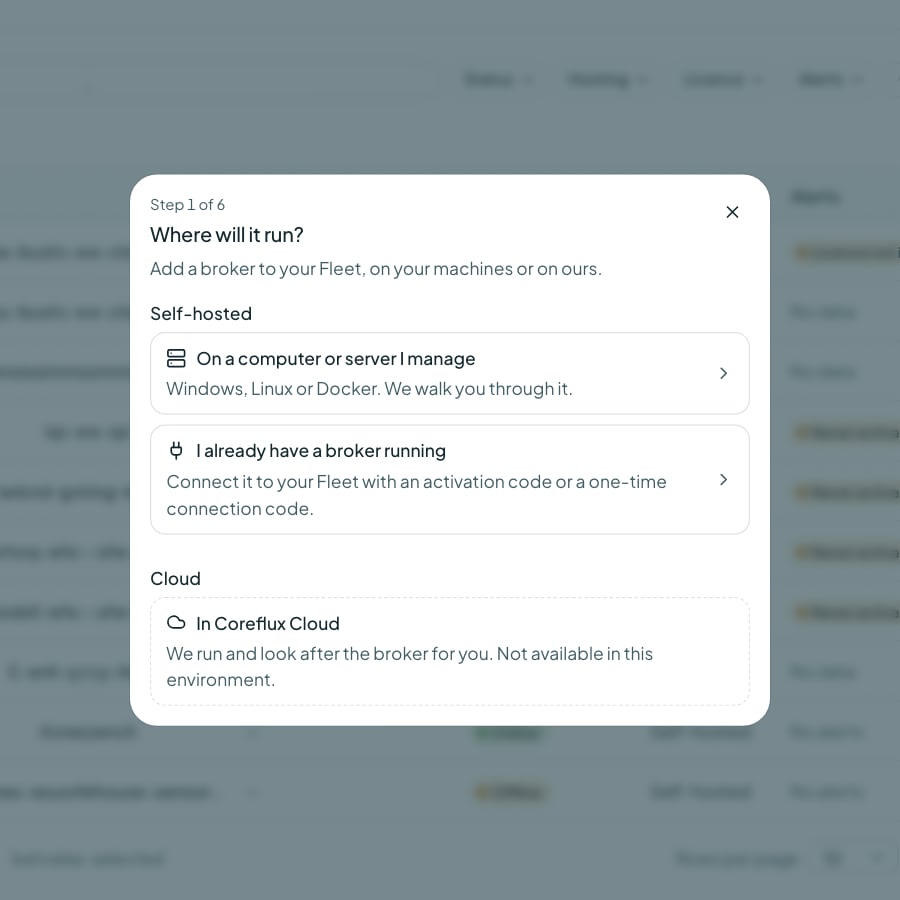
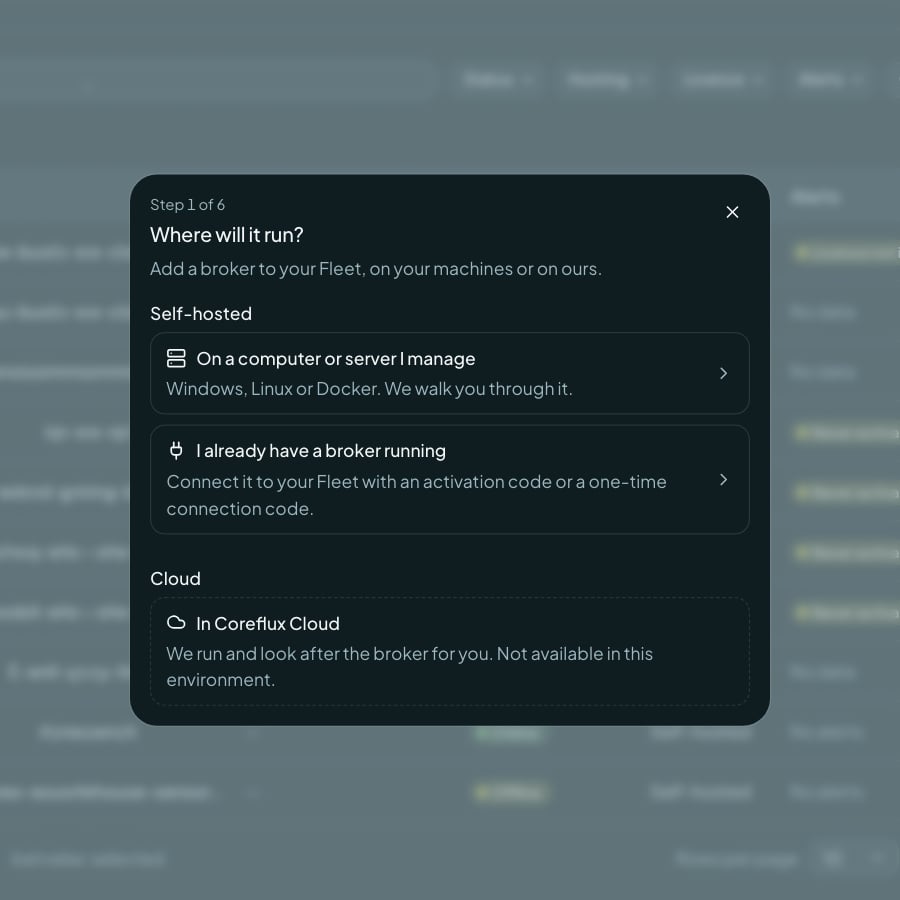
Add broker: Where will it run?
Adding a license to a broker needs a license with a free place. If your organization has none yet, the Portal asks you to get a license first — start a trial or claim one in Licensing.
Install a New Broker
The Portal shows the commands for your platform —docker run, a Linux service, the Windows installer, or helm install — with your activation code already filled in. The broker starts with COREFLUX_ACTIVATION_CODE, activates its license, and joins your Fleet on its own.
Connect a Running Broker
For a broker that is already running, choose I already have a broker running, pick the license, and click Get activation command. The Portal shows the activation code and the command to publish to$SYS/Coreflux/Command. The broker picks up your license and joins your Fleet. The code is shown once and is valid for 20 minutes. See Licensing and Enrollment for the broker side.
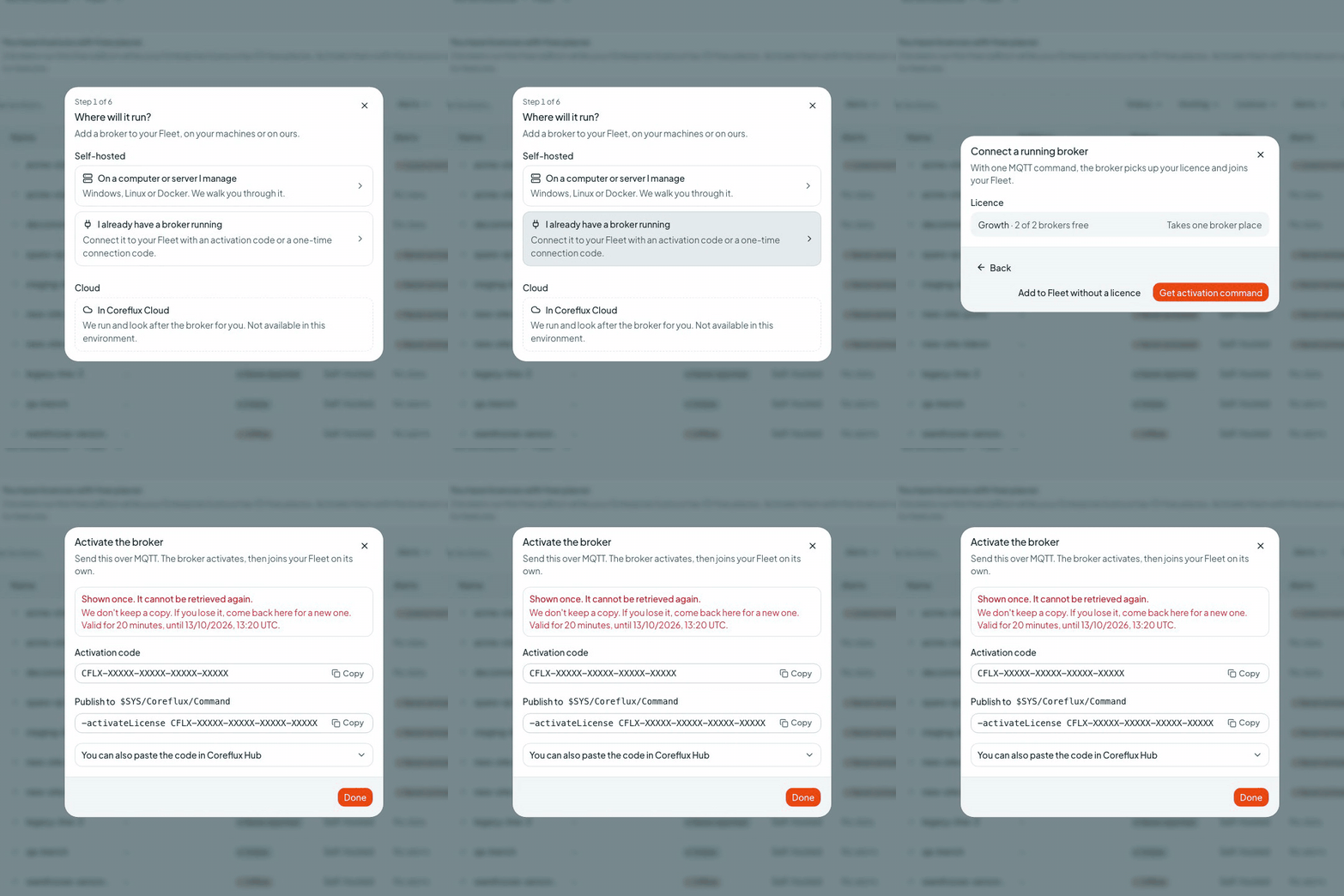
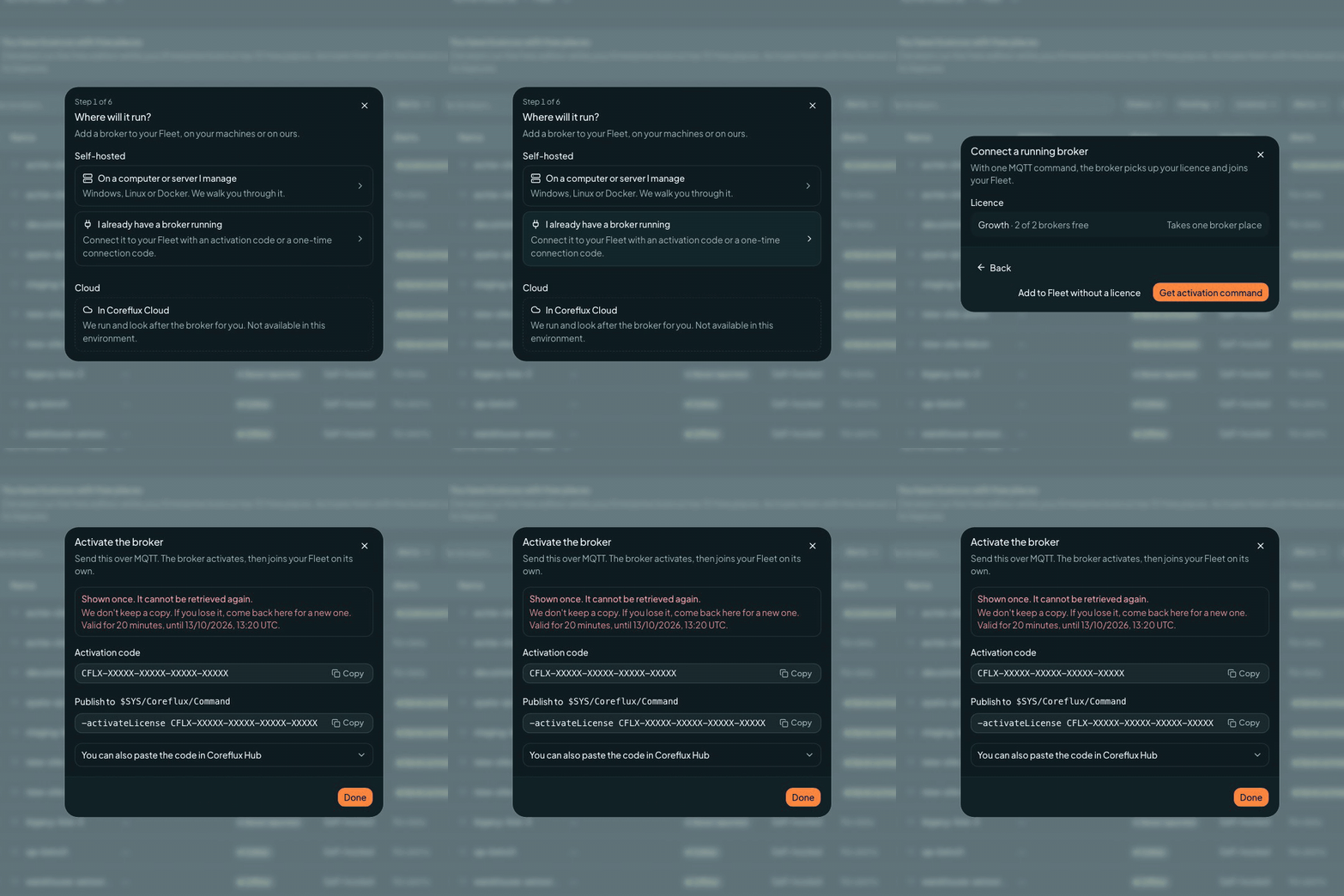
Connect a running broker and get its activation command
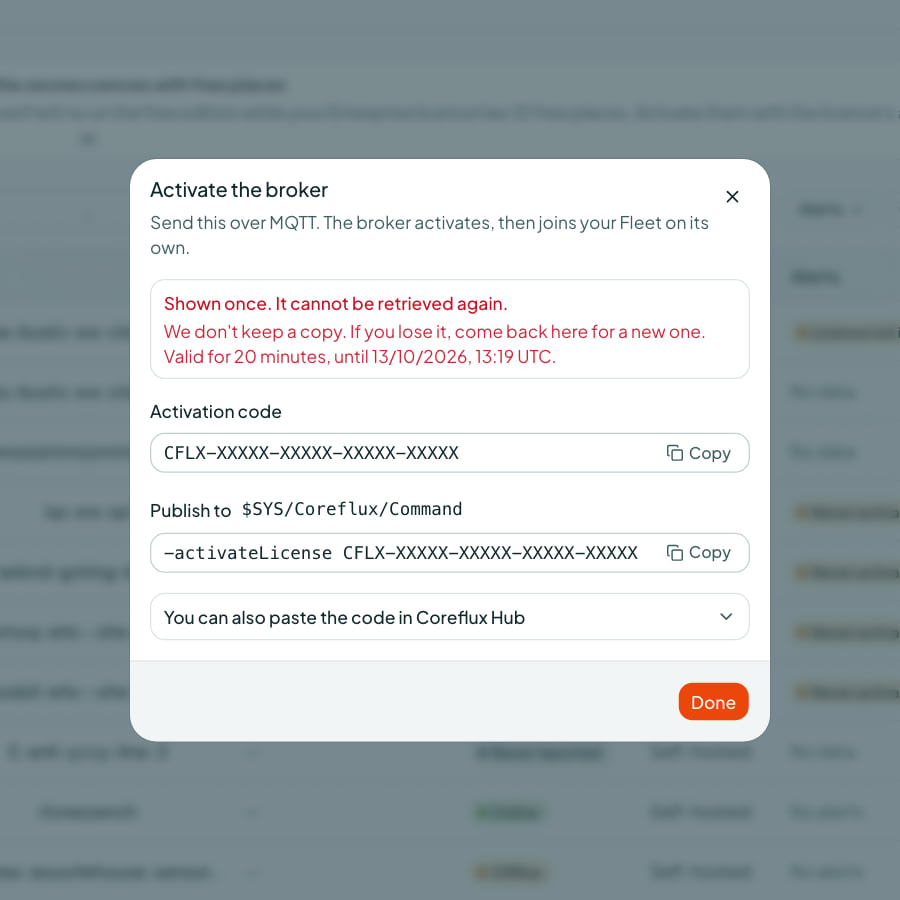
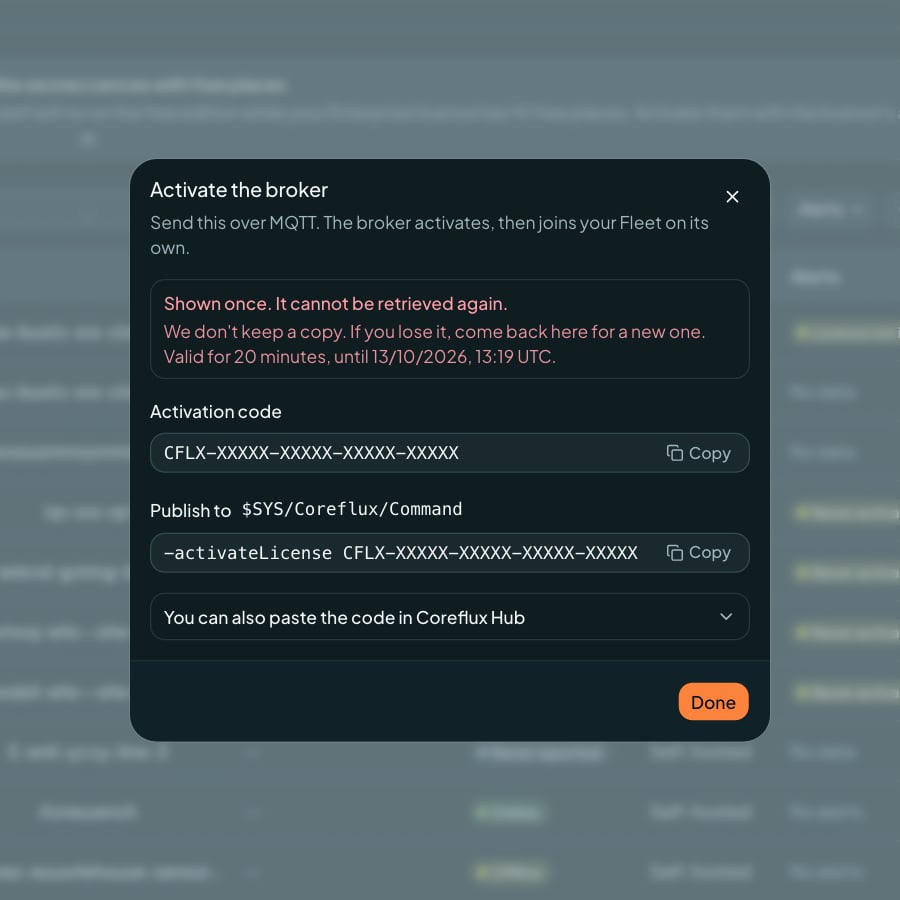
The activation command, shown once
-enroll command to publish to $SYS/Coreflux/Command. The code is shown once, works once, and is valid for 20 minutes. You can activate a license on that broker later.
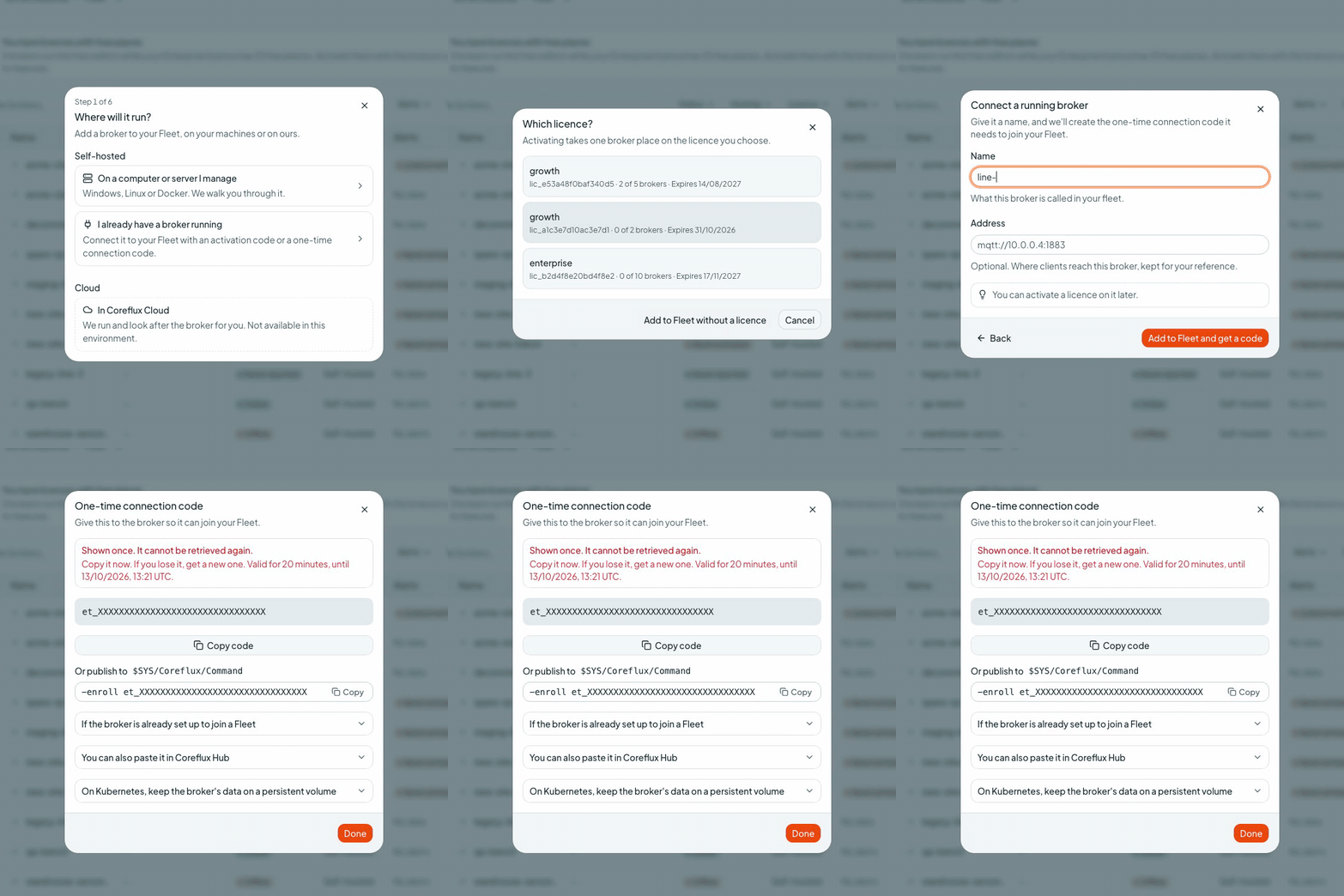
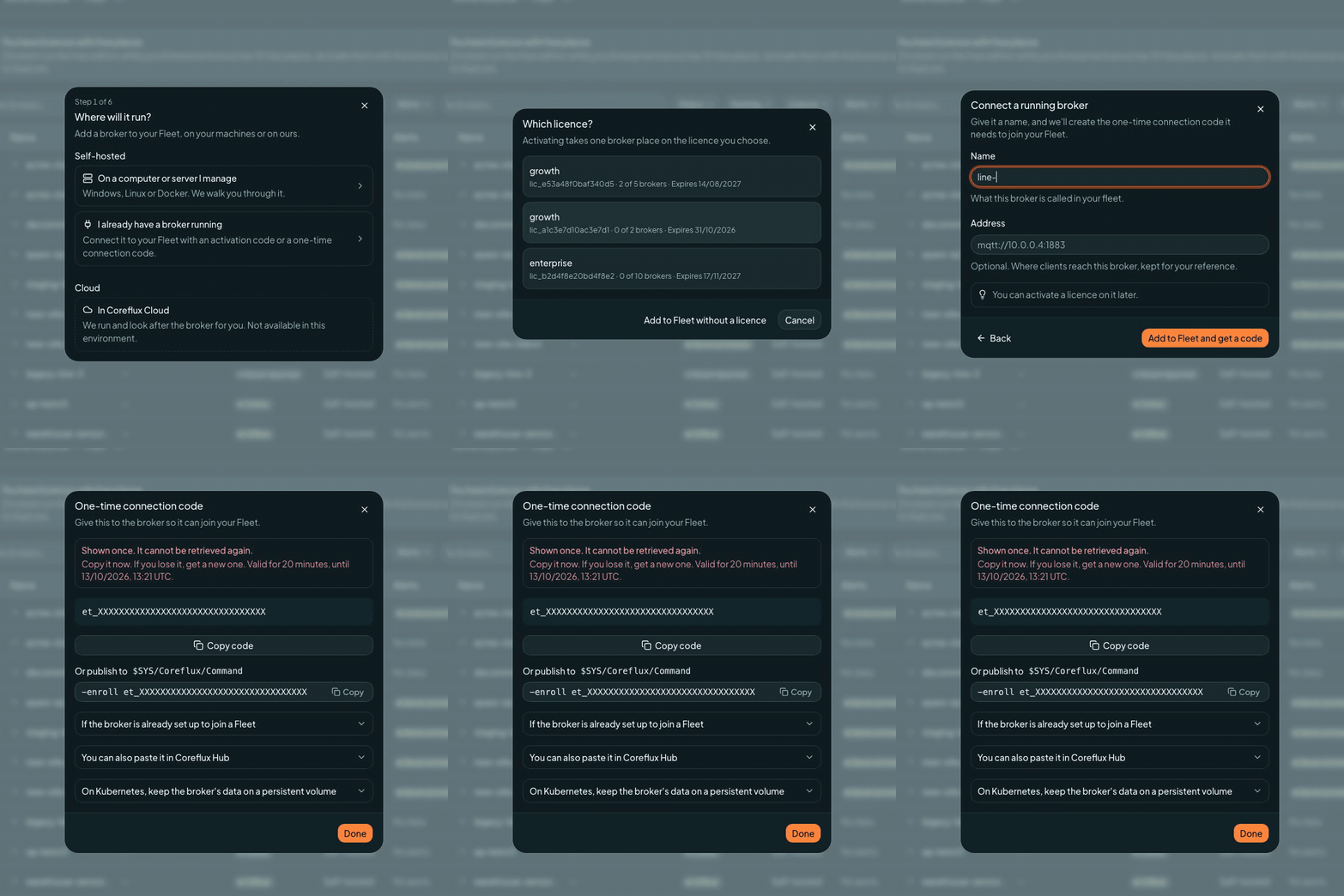
Add a broker without a license and get a one-time connection code
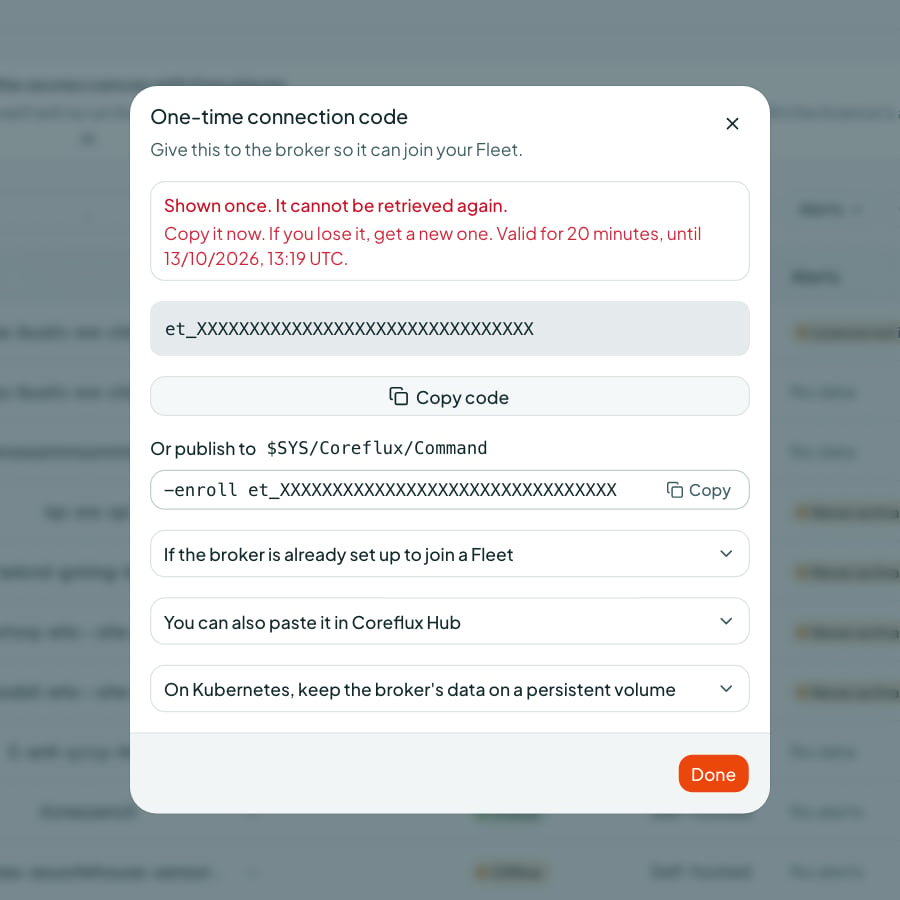
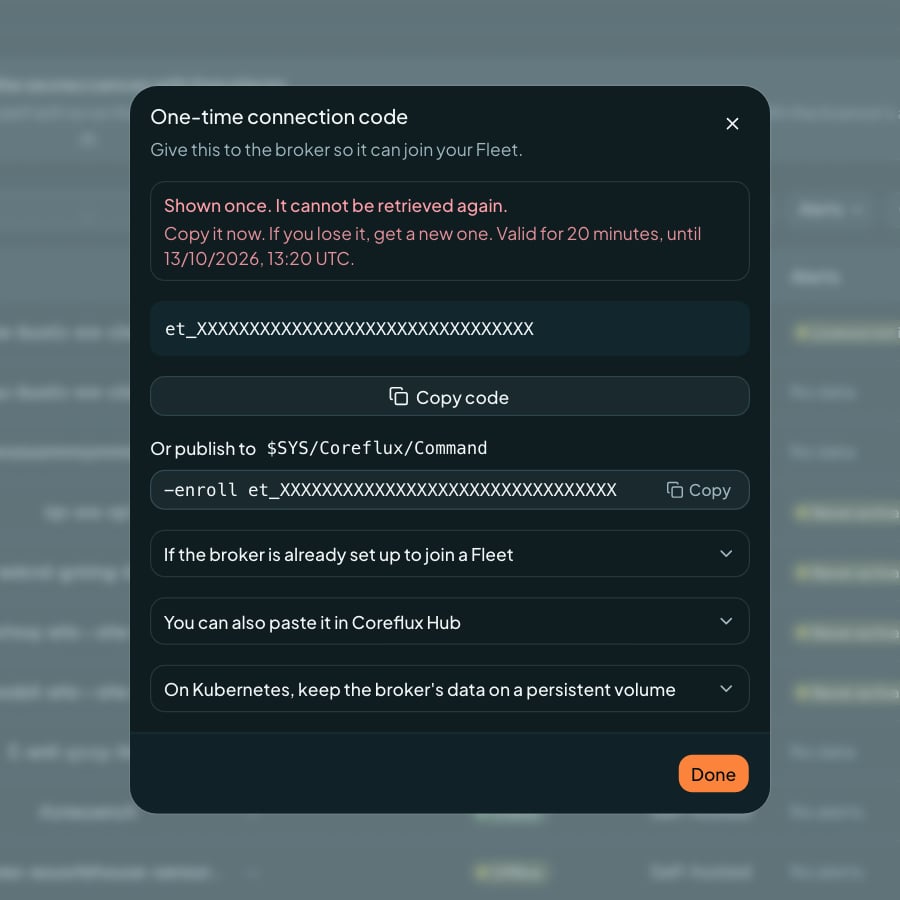
The one-time connection code, shown once
Deploy in Coreflux Cloud
Choose In Coreflux Cloud to have Coreflux run the broker. The Portal starts the deployment and shows its progress in Fleet (Deploying, or Deploy failed with the reason). Only admins and owners can deploy to Cloud.Broker Status
Use Filter brokers and the column headers to find a broker in a long list.
Broker Details
Open a broker to see its address, version, license, and last seen time, plus performance: messages, peak throughput, error rate, time seen online, and charts of messages per second, data, and connected clients. Pick the range with 1h, 24h, 7d, or 30d. Enrolled brokers’ performance metrics are charted on this page.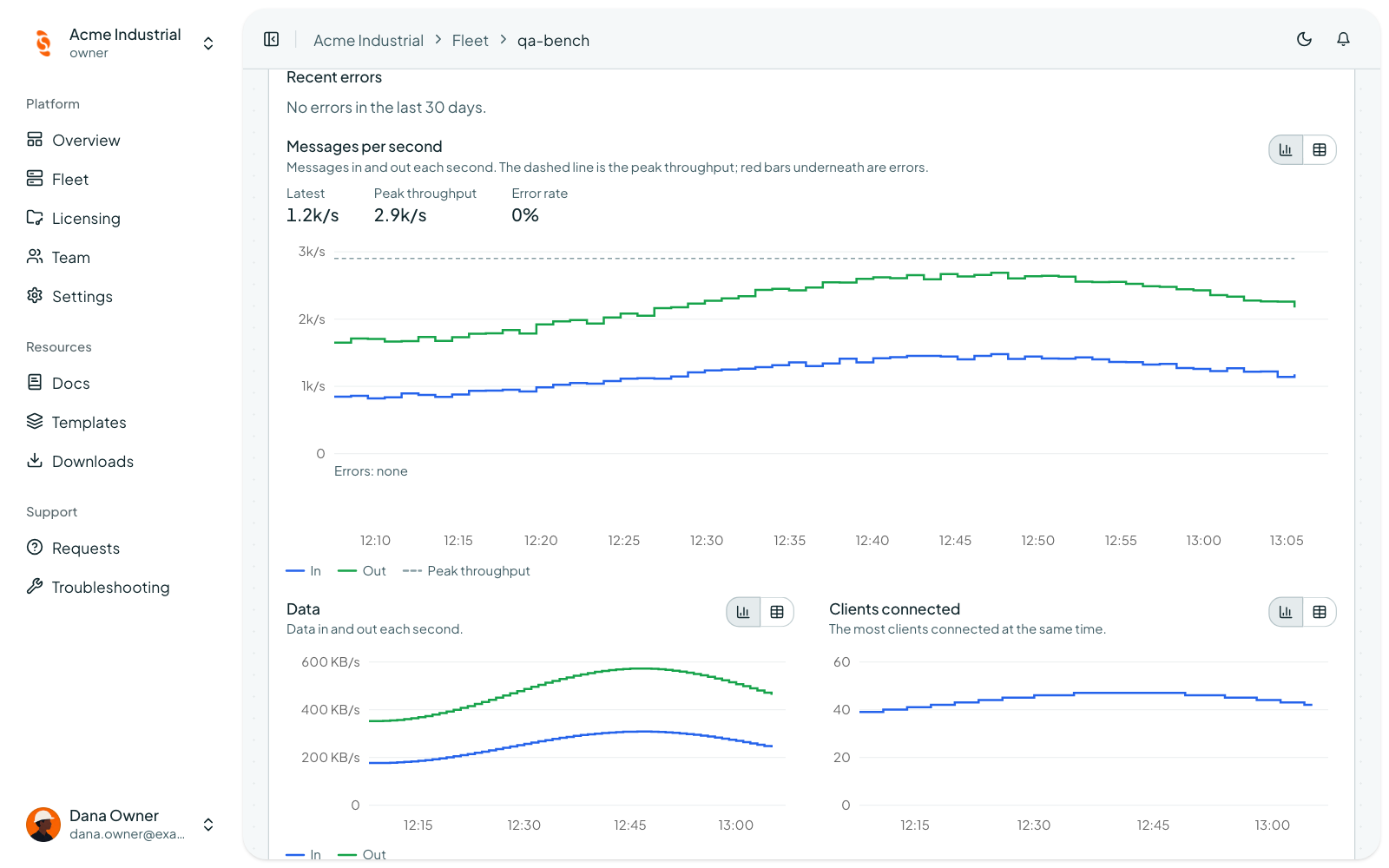
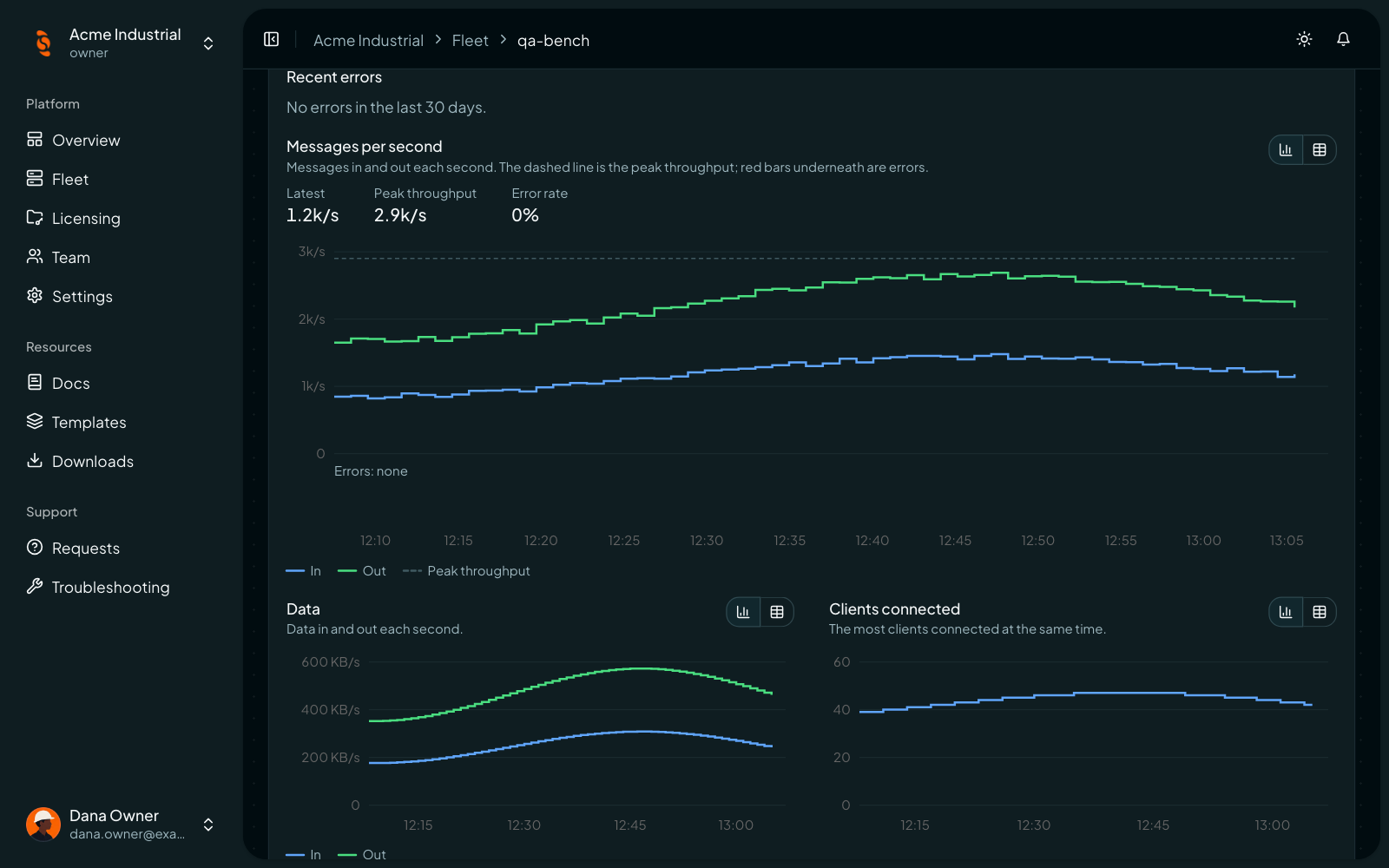
Broker details with performance charts
Performance charts need the broker to send telemetry. A broker that has not been activated shows Available once this broker is activated.
Troubleshooting
The broker runs but never appears in Fleet
The broker runs but never appears in Fleet
The broker reports why on
$SYS/Coreflux/License, under Enrollment.Reason. Common causes:- The broker started without an activation code, so it runs the free edition.
- The broker cannot reach the platform on port 443. Allow it through your firewall or proxy; the broker retries on its own.
- The license is not claimed by an organization. Start a trial or claim the license in Licensing, then restart the broker.
The broker has no internet access
The broker has no internet access
An activation code needs the license service online. Offline sites use a signed license file instead; ask Coreflux support for one. A broker licensed this way does not appear in Fleet.
After a restart the broker appears twice, or a license place is used up
After a restart the broker appears twice, or a license place is used up
The data volume was lost, so the broker started as a new install. On the license page in Licensing, free up the old broker’s place, and keep the volume persistent from then on.
A one-time connection code was refused
A one-time connection code was refused
One-time connection codes work once and are valid for 20 minutes. Get a new code from the broker in Fleet and use it straight away.