

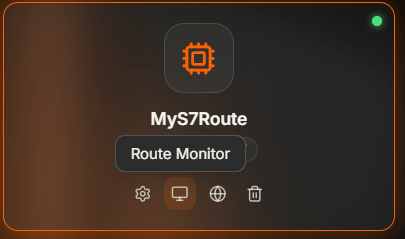
Connector card for MyS7Route with the monitor icon highlighted and a Connector Monitor tooltip
Why Monitor Connectors?
You need to know whether a connector is running correctly — whether it is connected, how many messages it has processed, and whether there are errors. The Monitor window gives you live status metrics and real-time logs filtered to a single connector, so you can troubleshoot without searching through broker-wide output.When to Use It
- Verifying connectivity — Confirm that a connector is connected to its target system after creation or configuration changes
- Tracking activity — Check message counts and error rates to validate that events and mappings are executing
- Troubleshooting connections — See why a connector failed to connect using status details and log entries
- Exporting for analysis — Download filtered logs as JSON, CSV, or LOG for offline review
Accessing the Monitor
Open the Connectors Manager, click on a connector card, and select Monitor. The Monitor window opens with two tabs: Status and Logs.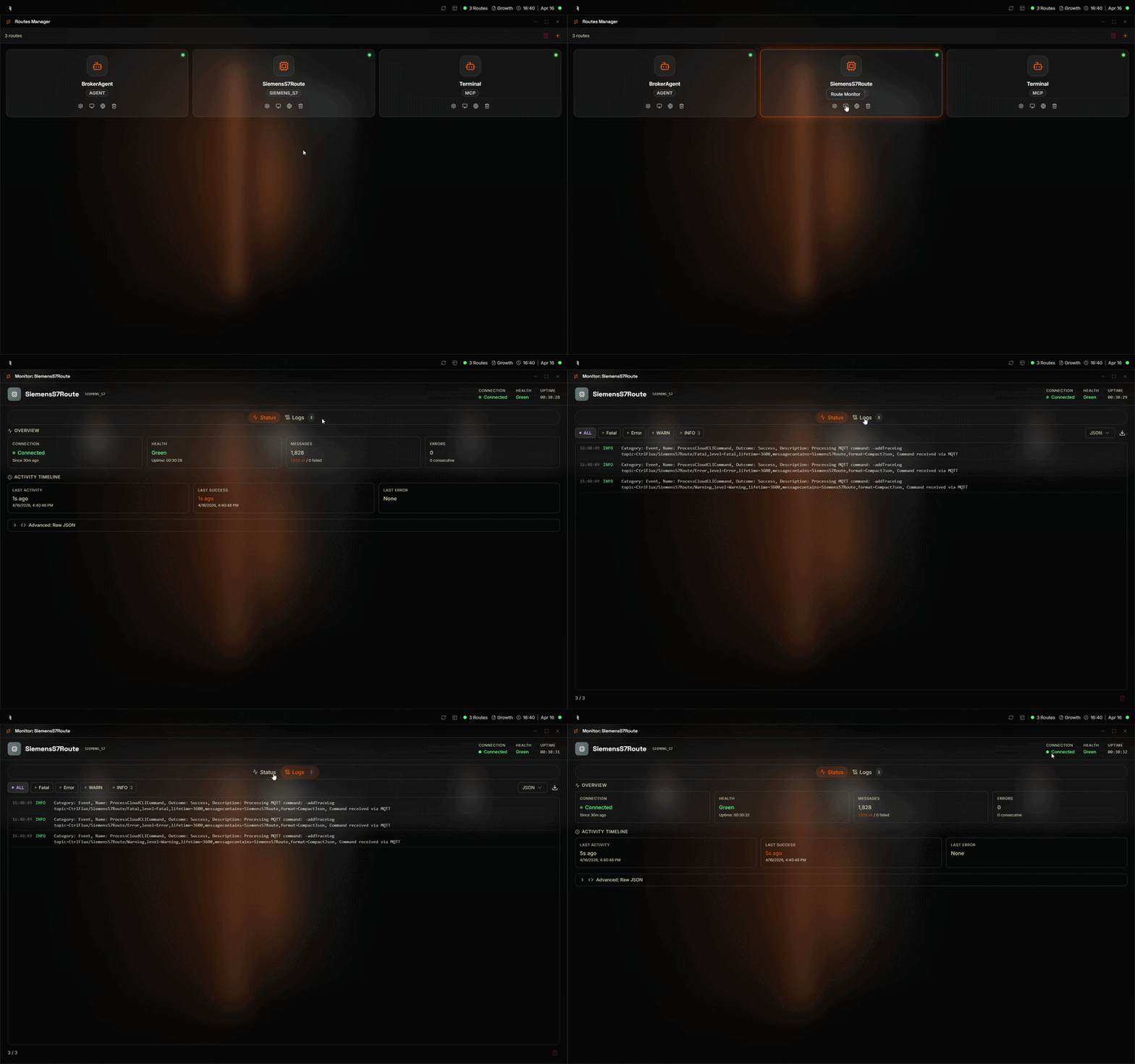
Opening the Monitor from a connector card in the Connectors Manager
Status Tab
The Status tab displays live metrics from the broker for the selected connector.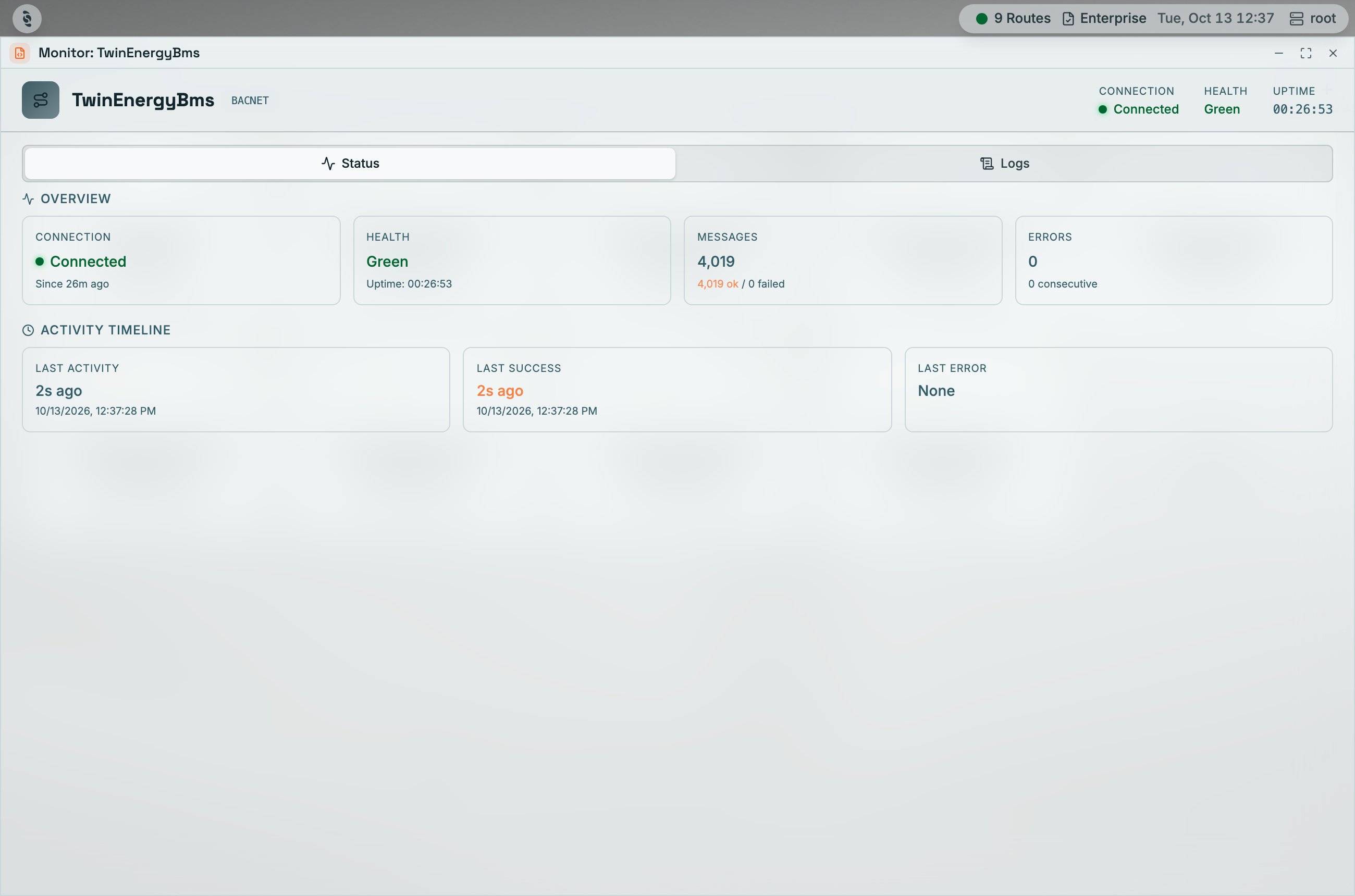
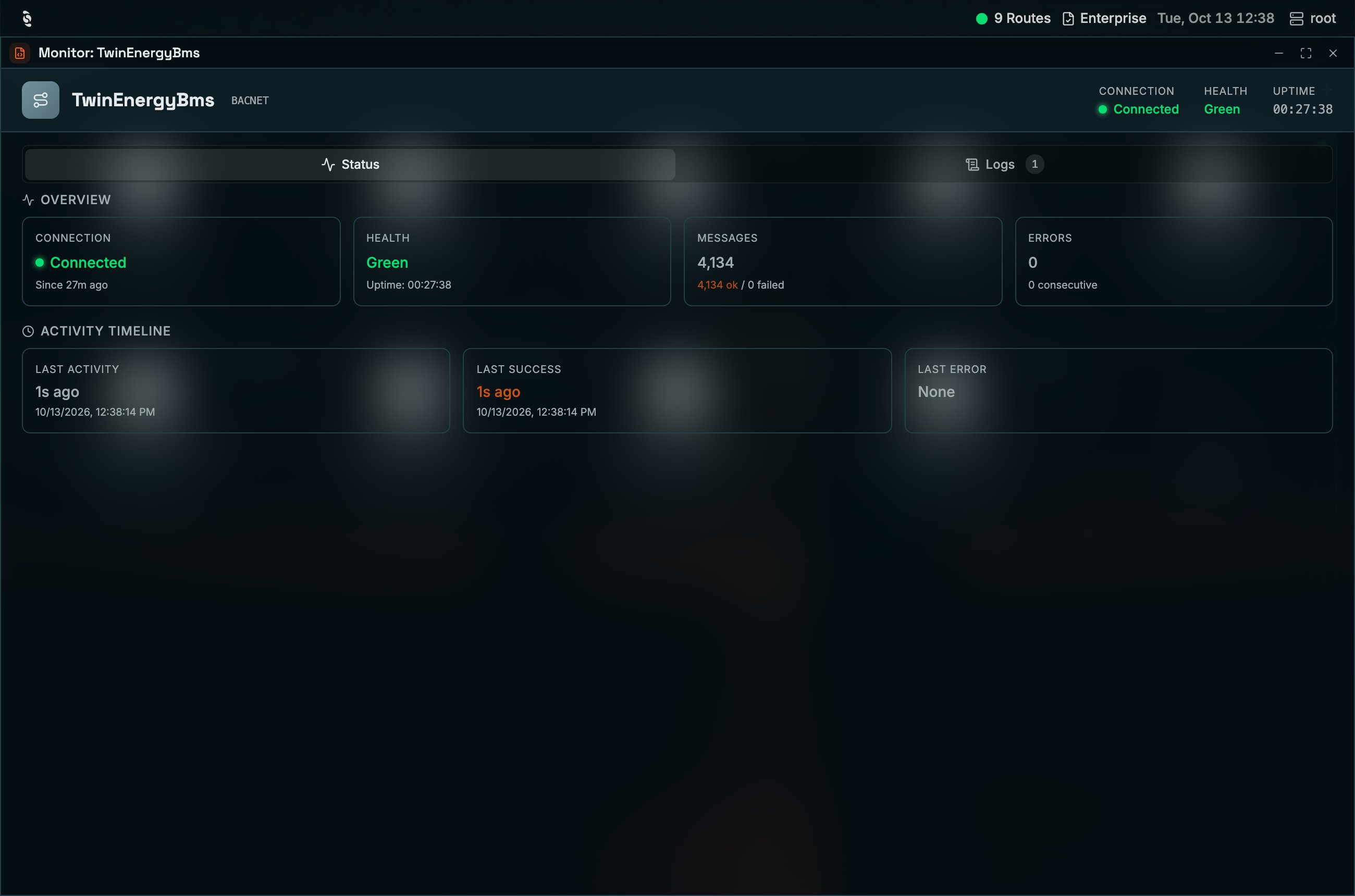
Monitor window, Status tab: connection, health, and uptime in the header, then the Overview cards and the Activity Timeline
The Activity Timeline shows timestamps for last activity, last success, and last error. When the connector has recent failures, a Recent Errors list appears below the timeline with a link to view them all in the Logs tab. Uptime is shown in the window header.
Start and Stop
The header has a Stop button while the connector runs, and Start while it’s stopped. Stop saves the connector withDISABLE true, the same as Disable on its card. The connector stays defined but doesn’t run, and the header says so. Start removes the line. The button follows changes made elsewhere, such as in the LoT Editor.
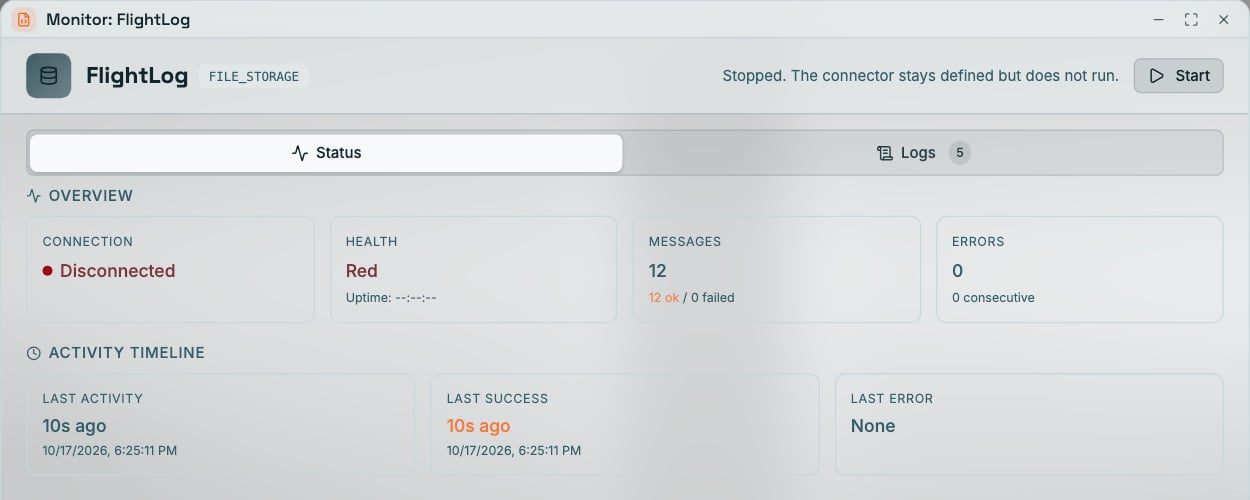
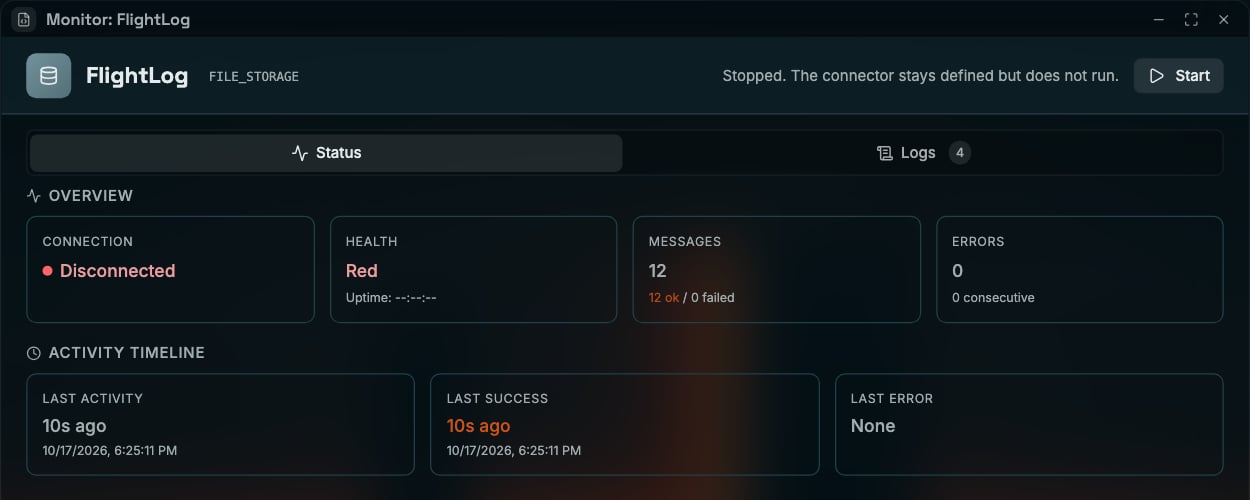
Monitor window for a stopped FILE_STORAGE connector, with Start in the header
Logs Tab
The Logs tab shows real-time log entries filtered to the selected connector.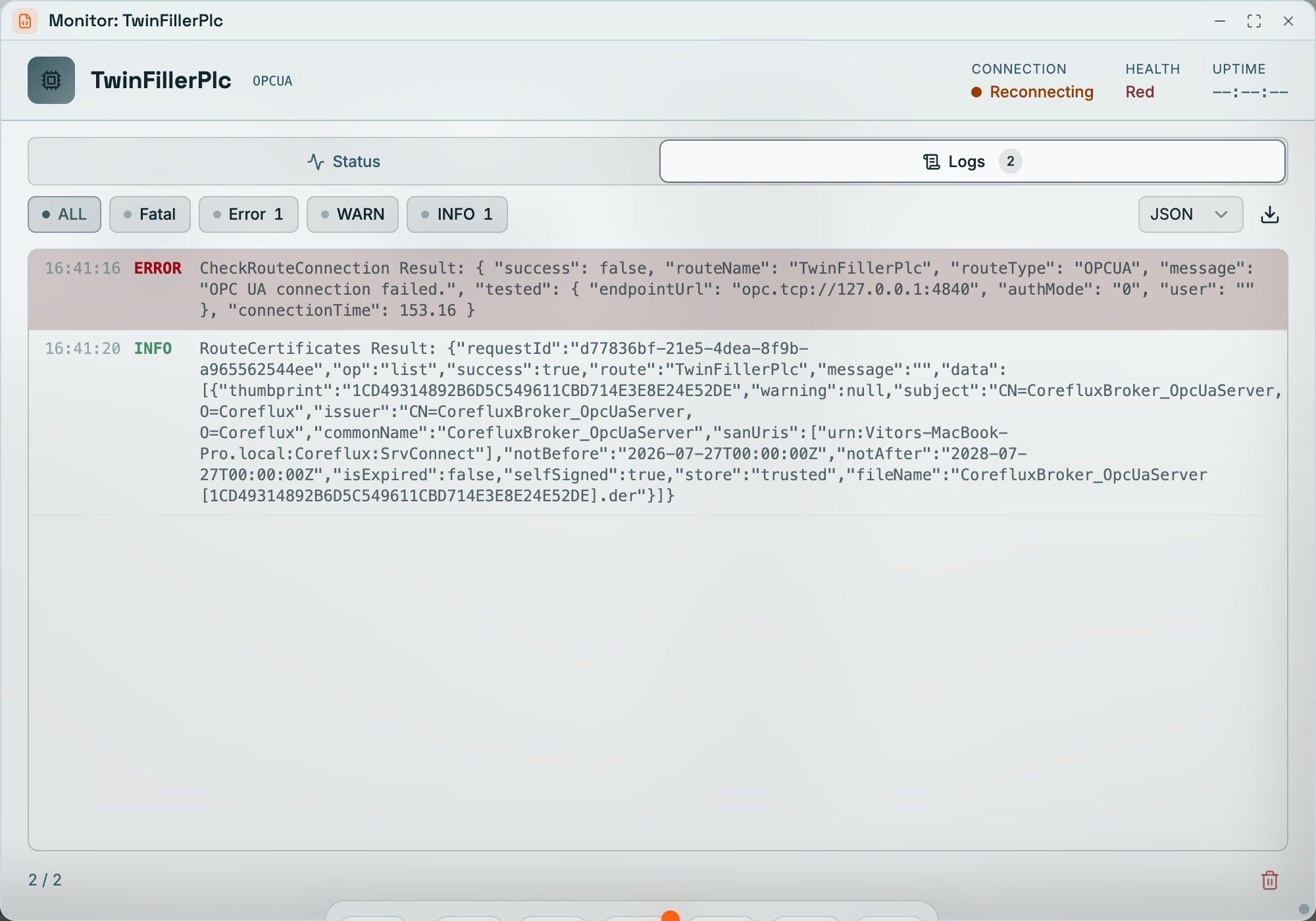
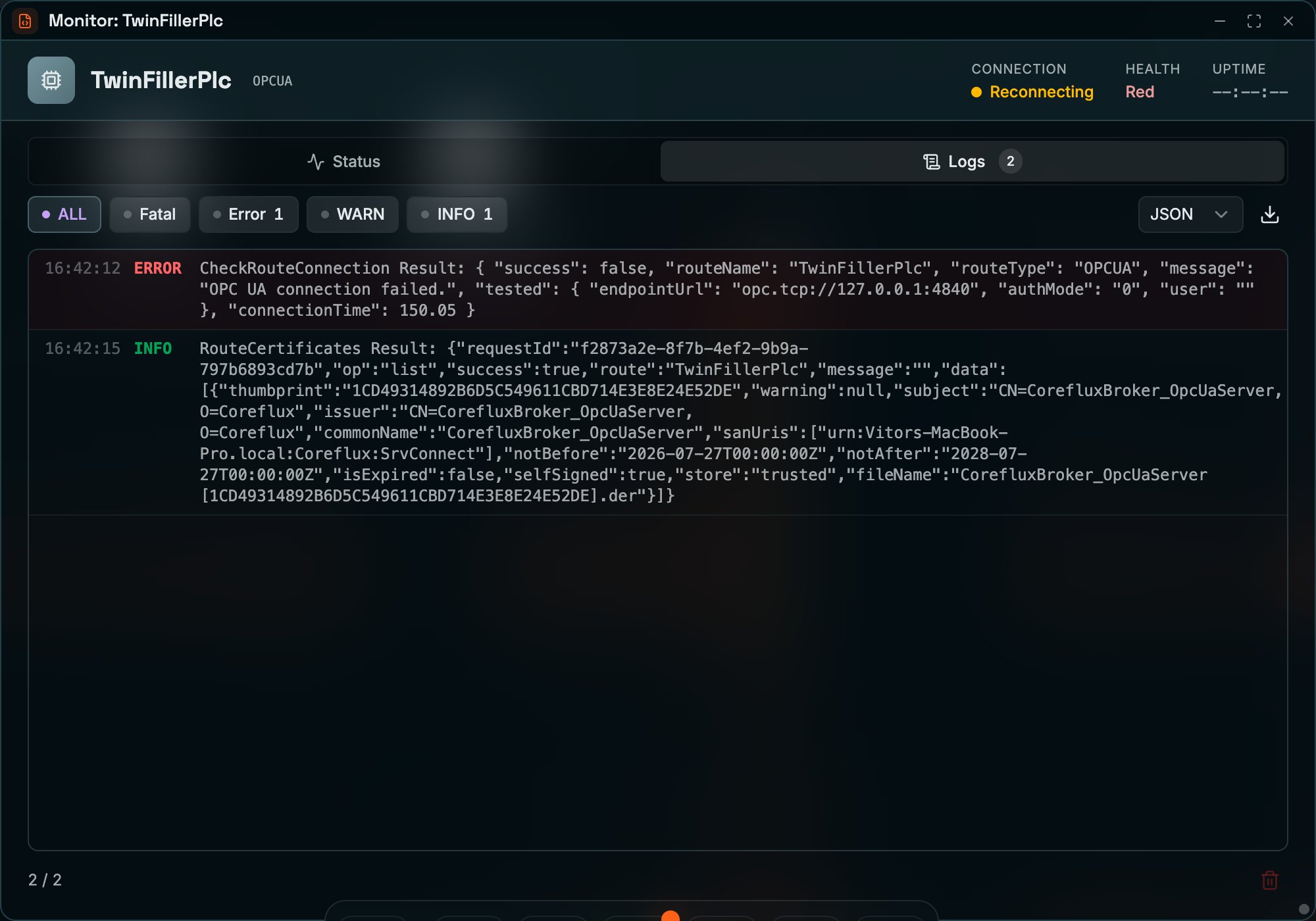
Monitor window — Logs tab with level filters, JSON format selector, and export controls
Filter by Level
Use the filter buttons to show only certain log levels:Log Entry Fields
Each log entry displays:Export
Use the export dropdown to choose a format:- JSON — Structured export for parsing or integration
- CSV — Spreadsheet-friendly format
- LOG — Plain text log file
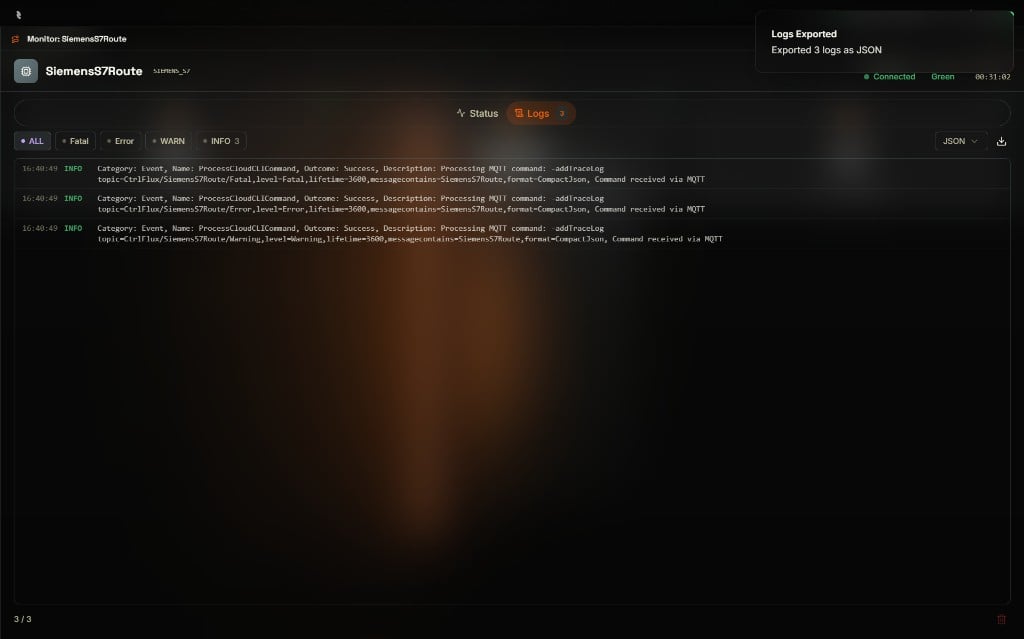
Exporting SiemensS7Route logs as JSON with a Logs Exported confirmation toast in the top-right corner
Clear Logs
Use Clear Logs to remove displayed entries from the view. This does not affect the broker — it only clears the HUB display.Next Steps
Connectors Configuration
Edit connector settings if status or logs show connection or configuration issues.
Broker Logs
View broker-wide logs for system-level troubleshooting.