

What are Connectors?
Connectors define connections between your Coreflux MQTT broker and external systems. They enable broker-to-broker communication, database storage, industrial protocol integration, REST API connectivity, email notifications, AI integration, and media processing — all without writing custom middleware.Write
DEFINE CONNECTOR and deploy it with -addConnector. DEFINE ROUTE and -addRoute remain supported aliases, as do the other Route command spellings. The broker stores each definition exactly as you typed it. Overload settings use ADD CONNECTOR_CONFIG; ADD ROUTE_CONFIG remains a supported alias. Older brokers accept only DEFINE ROUTE and -addRoute. See Connector command spellings.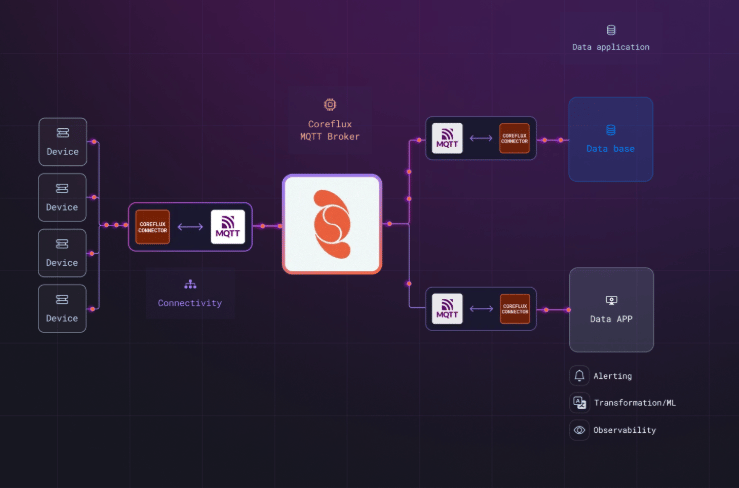
Connectors connect your Coreflux MQTT broker to databases, industrial equipment, APIs, cloud services, and more
Connector Categories
System Connectors
Configure MQTT bridges and Sparkplug roles.
Streaming Connectors
Connect MQTT topics to Apache Kafka.
gRPC Connectors
Call an external gRPC service from MQTT (
TYPE GRPC), with one bidirectional call per device topic by default.Notification Connectors
Send alerts and reports to people from MQTT events.
Data Storage Connectors
Store MQTT data in PostgreSQL, MySQL, MongoDB, OpenSearch, Snowflake, and more.
REST API Connectors
HTTP client/server for external API integration and webhook endpoints.
Industrial Connectors
Connect to PLCs via Modbus, Siemens S7, OPC UA, ADS, Allen-Bradley, and FINS.
MCP Connectors
Connect out to external MCP servers (
TYPE MCP / CALL MCP). To expose this broker as an MCP server, see MCP Server.AI Connectors and Agents
Call a model with a TYPE LLM connector, or define an agent that uses it.
Media Connectors
Decode barcodes, capture camera frames, and publish microphone audio.
Overload configuration
Choose wait or drop when a connector cannot keep up with incoming MQTT.
Basic Syntax
Components
string
required
Unique identifier for the connector. Use descriptive names like
CloudBridge, SensorDataIndexer, AlertEmailer.type
required
The type of connector (see Available Connector Types below).
block
Configuration blocks specific to the connector type (e.g.,
MQTT_CONFIG, MONGODB_CONFIG, REST_API_CONFIG).block
Optional. Controls wait-or-drop behavior when this connector cannot keep up with incoming MQTT. Works on every connector type.
ADD ROUTE_CONFIG remains a supported alias. See Store and Forward Configuration.block
Defines topic mappings for data flow between source and destination.
Disable a connector
AddDISABLE true on its own line to keep a connector defined but stopped:
DISABLE false, or no DISABLE line, means enabled. The state survives a restart.
To switch it without editing the code, use -disableConnector <name> and -enableConnector <name> (aliases -disableRoute / -enableRoute). -disableConnector refuses a TYPE LLM connector that agents still use: disable those agents first. See Disable and enable.
Available Connector Types
- System
- Streaming
- Notification
- Data Storage
- Industrial
- Other
Quick Examples
- Email Alerts
- Modbus TCP
- REST API
- PostgreSQL Storage
- MQTT Bridge
Send email notifications from MQTT events:
Understanding Connector Configuration
Connectors share two common building blocks: MQTT configuration and topic mappings. You’ll see these across most connector types, so understanding them here saves time when setting up any specific connector.Connecting to a Broker
Connectors that communicate with MQTT brokers — like bridges — need to know which broker to talk to. The simplest option isBROKER SELF, which tells the connector to use your local Coreflux broker:
Not every connector type requires an
MQTT_CONFIG block. Database connectors, email connectors, and REST connectors have their own configuration sections. Check the specific connector page for details.Controlling Data Flow with Mappings
Mappings define which MQTT topics flow through a connector and in which direction. For example, to push local sensor readings to a cloud broker:DIRECTION parameter controls where data goes:
When a connector cannot keep up
Incoming MQTT can outpace the destination. AddADD CONNECTOR_CONFIG on any connector to choose whether that connector waits or drops the newest message (ADD ROUTE_CONFIG remains a supported alias). Connectors without the block use the broker default (balanced). See Store and Forward Configuration.
Connector Status Monitoring
Every connector automatically publishes real-time health and status information to a dedicated MQTT topic. No additional configuration is required — the status topic is created as soon as the connector is defined.Status updates are published to a
$SYS topic and are available to any client subscribed to the broker.Status Topic
The topic follows this pattern:MyS7Route publishes its status to $SYS/Coreflux/Routes/MyS7Route/status.
Status Payload
The status topic publishes a JSON object with connection health, message statistics, and timing information:Field Reference
Checking Connector Status
You can monitor any connector’s health by subscribing to its status topic. Use MQTT Explorer or any MQTT client to subscribe:Use Cases
- Edge-to-Cloud Sync
- Industrial Integration
- Real-Time Analytics
- Alert Notifications
Bridge local edge data to cloud brokers:
Next Steps
Industrial Connectors
Connect to PLCs and industrial equipment.
Data Storage
Store MQTT data in databases.