

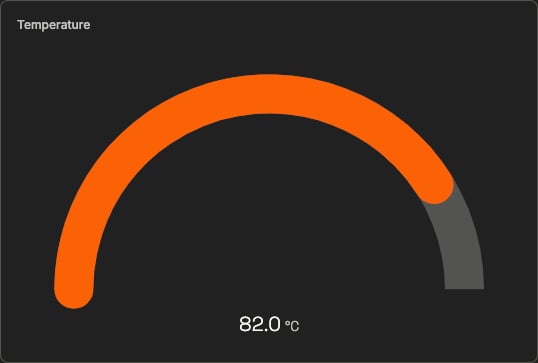
A gauge made live by a single BIND line — every message on the topic moves the needle
Start by wiring one widget to one topic; the deeper reference — targets, coercion, JSON extraction — follows after.
Bind a widget in 30 seconds
Pick a topic you can see updating in the Data Viewer, and point a component at it with oneBIND line:
sensor/temperature, and the needle moves. That one highlighted line is all a binding is: which aspect of the widget (VALUE) gets fed from where (TOPIC "sensor/temperature").
Where data comes from
Today, bindings read from MQTT topics — the widget updates on every message. Browse what’s available in the Data Viewer:Extracting from JSON payloads
Real device payloads are rarely a bare number. When the topic carries a JSON object, addJSON_PATH on the component to pick a field:
That covers most panels. The rest of the page is the reference: the full grammar, every bind target, and the transformation options that work today.
Anatomy of a binding
- Target — which aspect of the component receives the data (
VALUE,STATE,DATA, …). TO TOPIC— both words are mandatory; the source is always an MQTT topic path.- Topic path — the topic string in quotes.
Bind targets
Type coercion
If a topic publishes text but the component expects a number or boolean, append a coercion keyword to the bind line:"87.5" coerced with AS NUMBER displays as 87.50 on a value component.
Formatting readouts
Apply units and decimal places on the component, not on theBIND line:
SET UNIT and SET DECIMALS are documented per widget in Display components.
Common mistakes
The widget shows nothing at all
The widget shows nothing at all
Check the binding line word by word — these are the usual silent breakers:
The widget shows the raw payload instead of one field
The widget shows the raw payload instead of one field
The topic carries JSON — add
SET JSON_PATH "$.field" to the component, as shown in Extracting from JSON payloads.Next Steps
Actions & events
The other half of interactivity: reacting to clicks, changes, and thresholds.
Display components
Which target each widget accepts, with rendered examples.