


Opening System Configuration from the Coreflux HUB System menu
Why Use System Configuration?
You need to change broker settings—ports, TLS, connection limits, or other parameters—without editing configuration files. The System Configuration in the Coreflux HUB lets you view and modify broker settings from the browser.When to Use It
- Adjusting ports — Change MQTT, TLS, or WebSocket ports
- TLS configuration — Enable or configure TLS for secure connections
- Binding settings — Control which IP addresses the broker listens on
- License and enrollment — Activate with a code or signed file, refresh a lease, enroll the broker in an organization. Register at portal.coreflux.org for a 30-day Growth-type license and to manage your fleet
- MCP Server — Enable the listener, restrict advertised tools, and mint client tokens
- Other broker options — Any configurable broker parameter exposed in the UI
Accessing System Configuration
In the HUB top navigation, select System, then System Configuration. The configuration panel shows available settings grouped by category.Configuration Panel
The Broker Settings window groups settings into tabs: General, Certificates (HUB 2.12 with broker 2.22, see Certificates), Variables & Secrets, License, and MCP Server. The General tab displays broker settings as editable form fields, organized into groups.Dock layout, memory limits, viewer refresh, and video wallpaper belong to this HUB install. Open Hub Settings from the account pill. See Desktop shell.
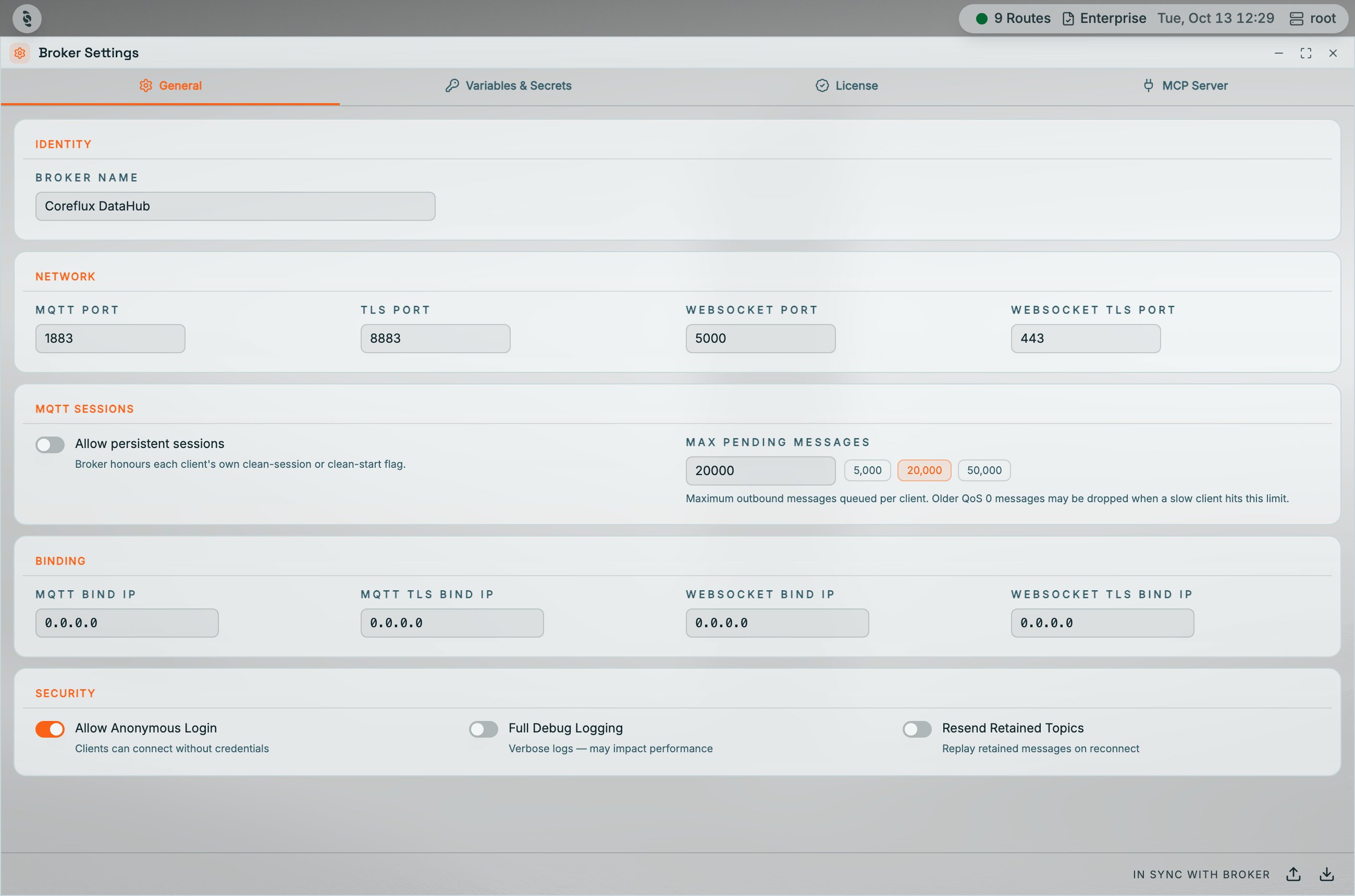
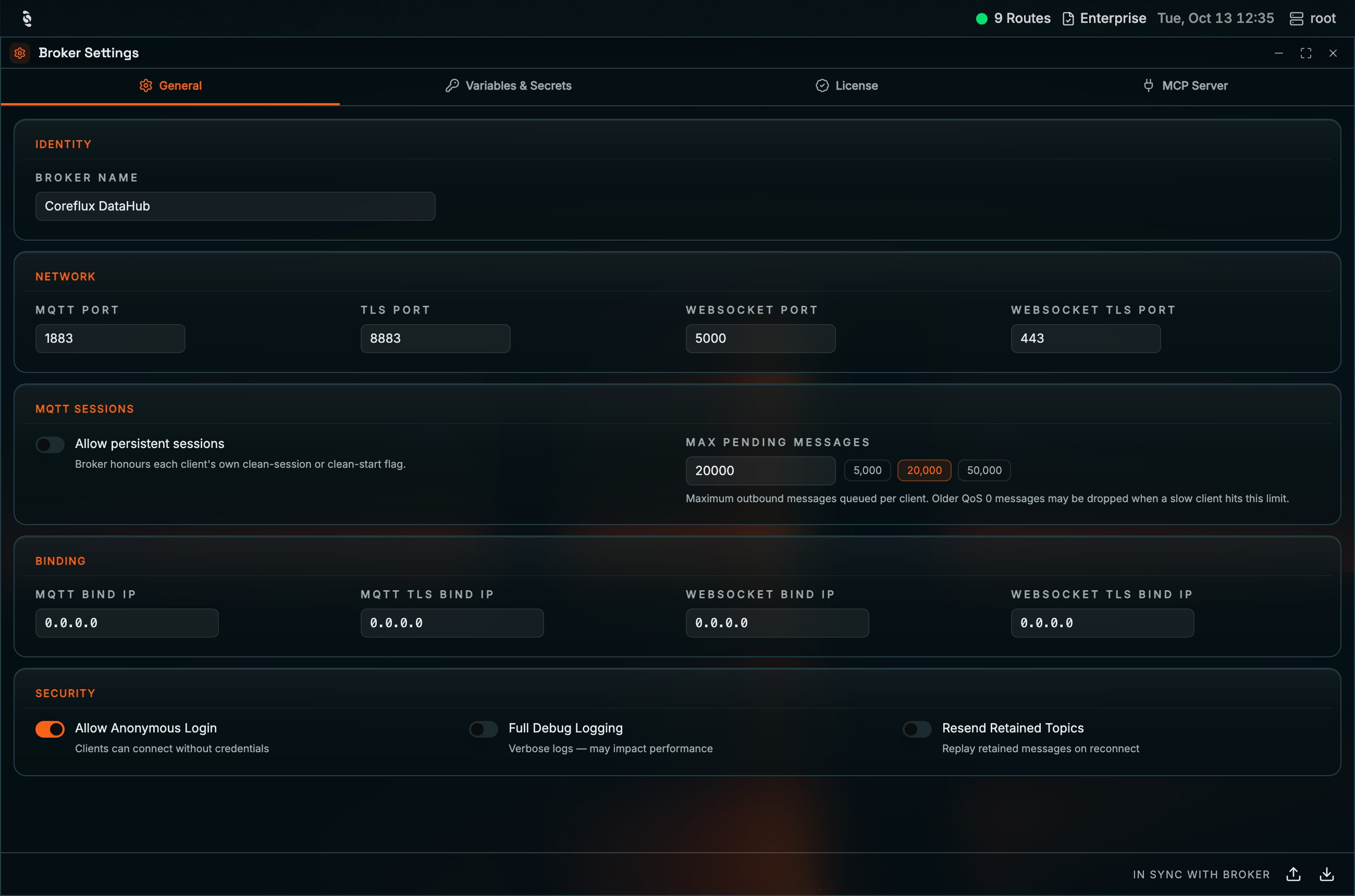
Broker Settings: General tab with Identity, Network, MQTT Sessions, Binding, and Security groups
Edit values as needed and click the save button to apply changes. Use the import and export icons in the top-right of the General group to upload or download the configuration.
ENV Variables & Secrets
The ENV & Secrets tab is where you keep reusable values out of your Actions and Connectors. Instead of typing the same database address or API key in every place that needs it, you save it once here and reference it by name. When the value changes, you update it in one spot.For advanced topics like encryption keys, Docker and Kubernetes deployment, CLI commands, and the full LoT (Language of Things) syntax, see Environment Variables & Secrets.
ENV Variables
ENV Variables hold plain text values that anyone with access to the HUB can read. Use them for things that change between environments but aren’t sensitive — a database hostname, a port number, an API base URL, or a feature flag.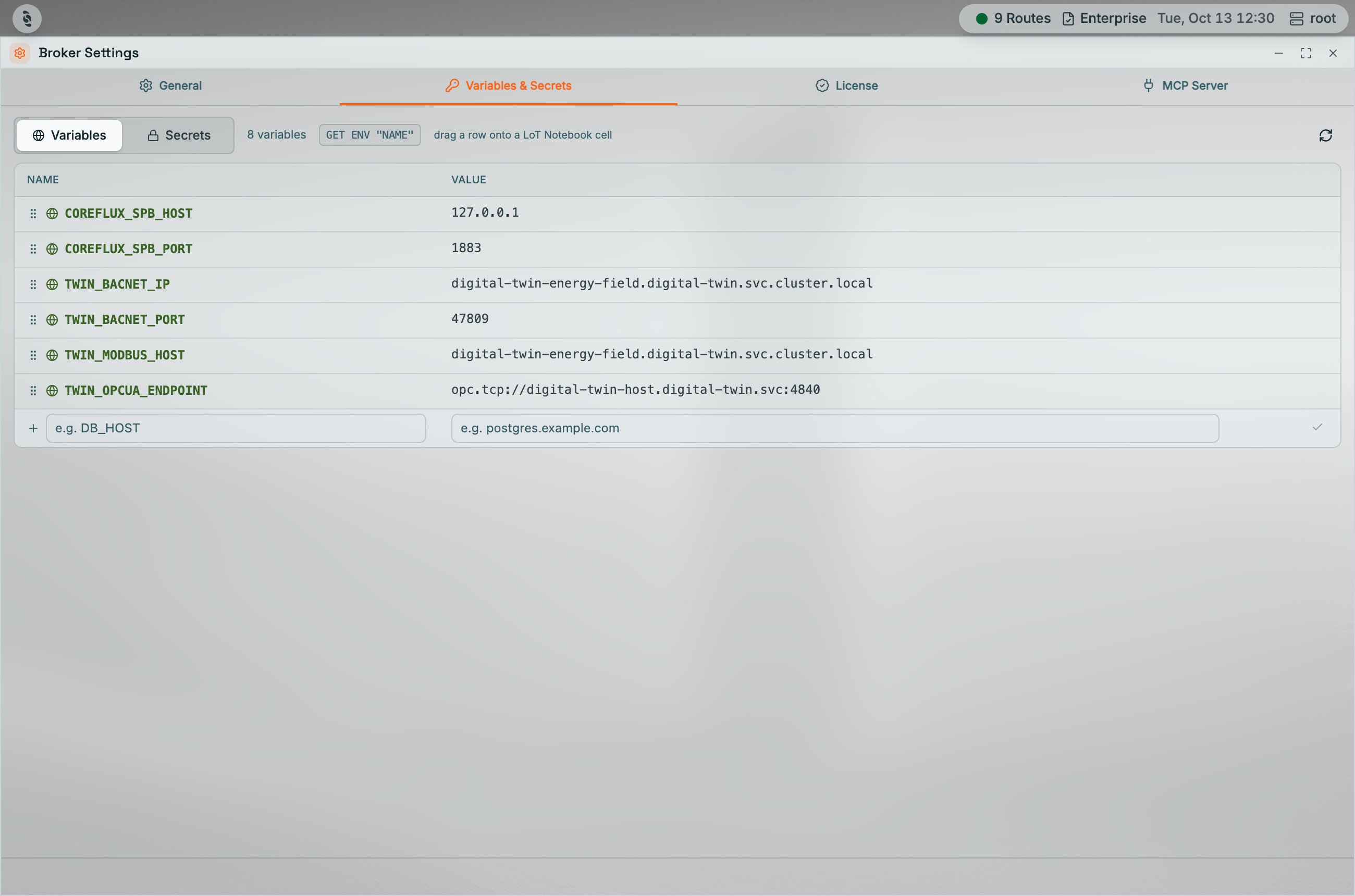
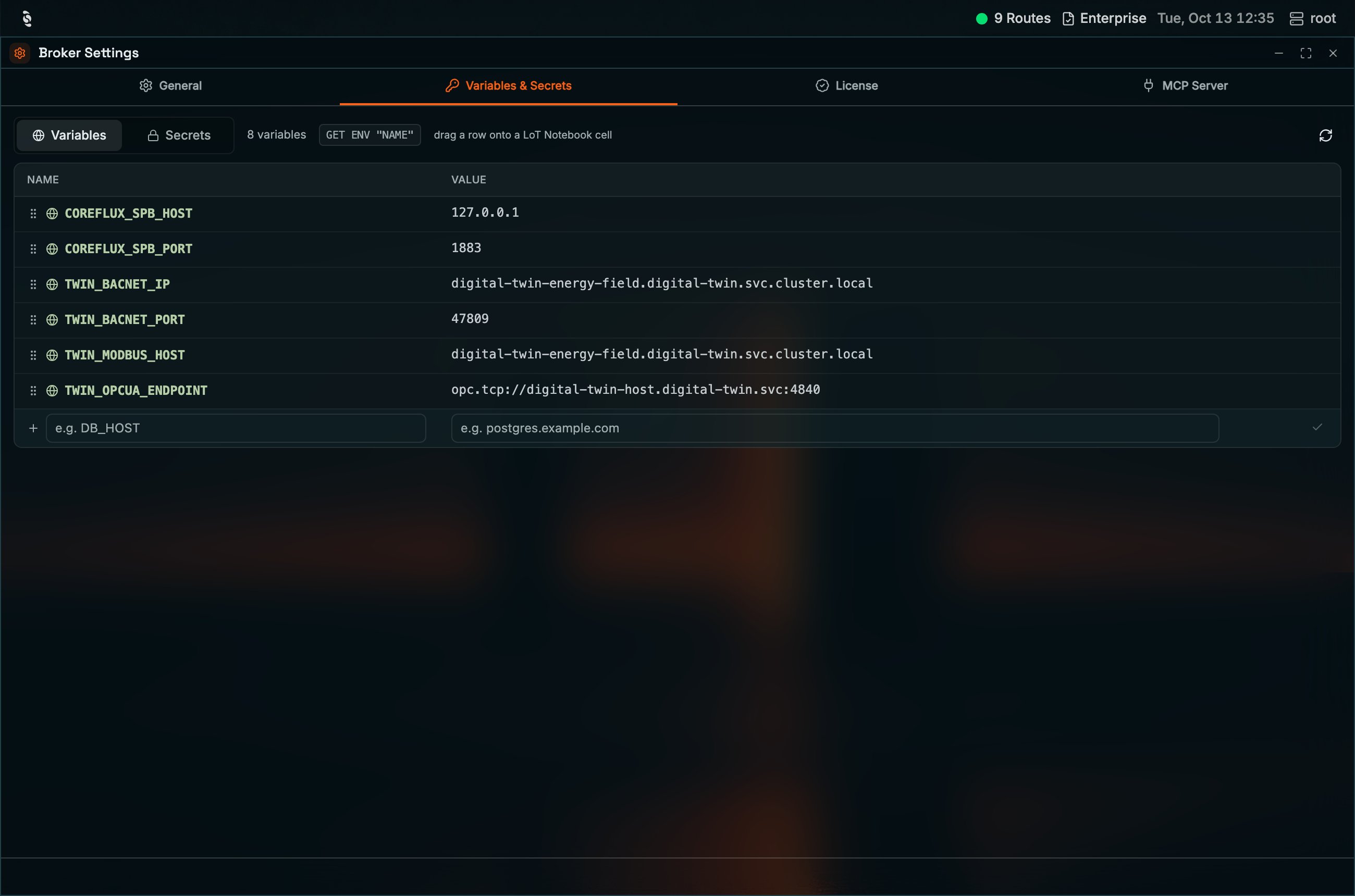
Variables list in the Variables & Secrets tab, with the inline add row at the bottom
Adding a Variable
1
Use the inline row
The last row of the Variables table is always an empty add row, with
e.g. DB_HOST and e.g. postgres.example.com as placeholders.2
Fill in the name and value
Type a clear name like
DB_HOST in the first field and its value, for example postgres.example.com, in the second.3
Save
Press Enter or click the check mark at the end of the row. The variable is saved to the broker and shows up in the list.
Managing Existing Variables
Hover over any row in the list to reveal three quick actions on the right side:Secrets
Secrets hold sensitive values that should never be shown again after you save them. The HUB encrypts them at rest, so even an administrator looking at the list only sees dots where the value should be. Use Secrets for passwords, API keys, tokens, and any other credentials.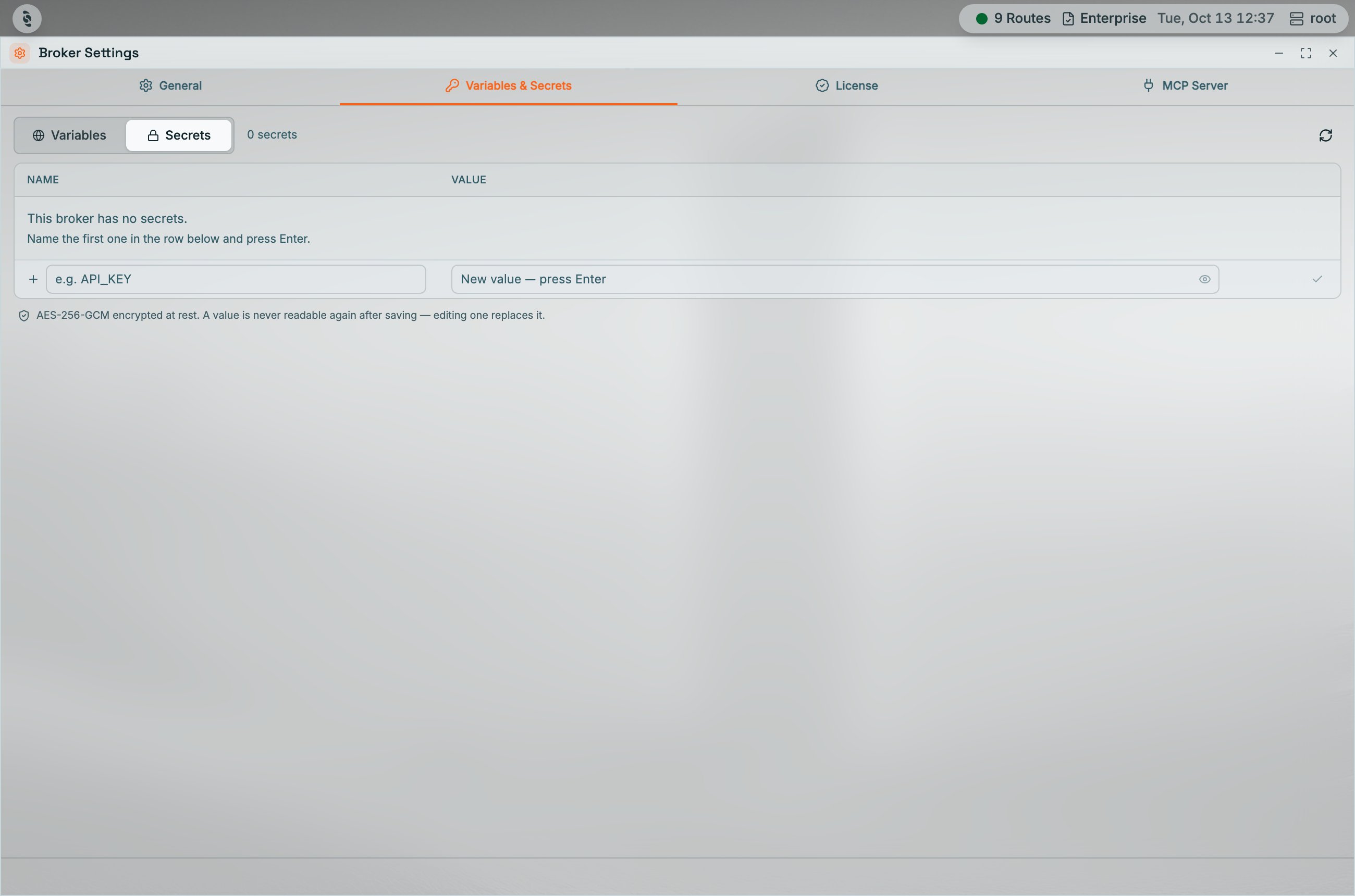
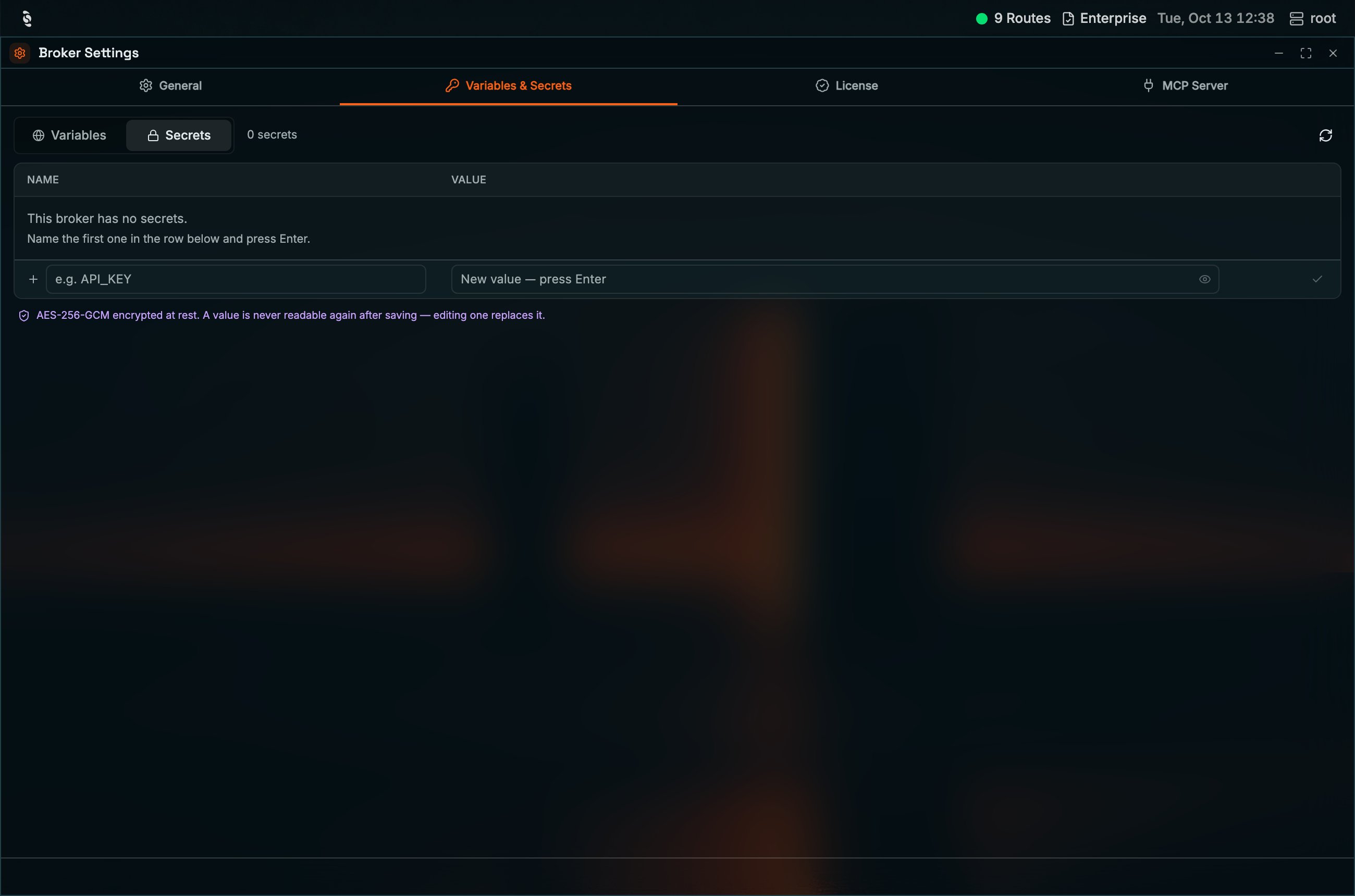
Secrets list in the Variables & Secrets tab: values are never readable again after saving
Adding a Secret
1
Use the inline row
Switch to the Secrets sub-tab. The last row of the table is an empty add row with
e.g. API_KEY as the name placeholder and a hidden value field.2
Fill in the name and value
Type a clear name like
API_KEY and paste the value into the hidden field. The note below the table reminds you that values are AES-256-GCM encrypted at rest and never readable again after saving.3
Save
Press Enter. The secret shows up in the list with its value masked.
Managing Existing Secrets
Hover over any row in the list to reveal two quick actions on the right side:MCP
The MCP tab turns the broker’s MCP Server on, edits its listen settings, and mints access tokens so Cursor, Claude Code, or Claude Desktop can call broker tools as a broker user. HUB itself is not an MCP client. This tab writes theMcp block through the same save-and-restart path as the System tab, and runs -createMcpToken / -listMcpTokens / -revokeMcpToken over the command envelope.
Older brokers have no
Mcp key in $SYS/Coreflux/Config and no retained $SYS/Coreflux/MCP/Info. The tab explains that the feature is absent and does not write a block the broker would drop. Update the broker first.Server
The tab shows Enabled, a status dot (Listening, Disabled, or Pending restart), the endpoint URL with a copy button, plus Port, Bind IP, and Endpoint. The broker applies theMcp block at startup. Saving Enabled does nothing until you restart the broker. HUB cannot restart it for you.
A bind outside loopback shows an amber note: bearer tokens cross the network in clear text, so put TLS in front. HUB does not configure TLS for this listener.
Tools
Expose all tools maps toMcp.EnableAllTools. When it is off, only the allow-list is advertised. The picker is seeded from the advertised Streamable HTTP catalogue (not only $SYS/Coreflux/MCP/Tools, which lists tools the running server currently exposes and can be empty). Use advertised names (get_route_template), not command tokens (route_code). Add action_* names with Custom tool.
Token lifetime is the default TTL in days for new tokens (0 never expires). Advanced holds Server name and Server version.
Tokens
When the server is enabled and no active token exists, the tab warns that every request is401 while the listener stays up.
1
Create a token
Click Create token. Pick a broker user (tool calls run with that user’s RBAC — prefer a least-privilege account), a name without whitespace, and an optional lifetime in days.
2
Copy the value immediately
The plaintext is returned once. Copy it from the dialog. HUB does not write it to the connection log, a store, or disk. Closing the dialog clears it.
3
Paste a client snippet
The result view offers Claude Code (
.mcp.json), Cursor (.cursor/mcp.json), and Claude Desktop snippets. Every snippet includes "type": "http" and Authorization: Bearer …. Claude Code and Claude Desktop skip an entry that has a url but no type, with no error.0.0.0.0, the URL on $SYS/Coreflux/MCP/Info is not reachable as written. HUB substitutes the host it is itself connected to; a loopback bind is used verbatim.
The token table shows name, user, created, expires, last used, and state. Revoke refuses clients immediately. Filter the list by user if needed.
Broker refusals (McpTokenManagement, unknown user, already-revoked) are shown verbatim. Timeouts say the broker did not respond — token commands use McpTokenManagement, not AllowedSystemConfiguration alone.
License
The License tab reads the retained$SYS/Coreflux/License topic and sends the four broker commands: -activateLicense, -loadLicense, -refreshLicense, and -enroll. The HUB never verifies a license itself — it displays what the broker reports.
The status bar, this tab, and the fleet pills share one set of labels: Trial, Trial (Growth), and Licensed (Growth).
The broker always starts. With no license it runs as Community. The HUB does not start a trial. Register at portal.coreflux.org for a 30-day Growth-type license, then paste the activation code (or drop the signed file) on this tab. Use the same portal to manage your fleet of brokers, and open that fleet from the HUB login card after you sign in with a Coreflux account.
Cards, top to bottom:
Enrollment.Pending: false means the broker has not recorded a problem — not that it is bound to an organization. The card uses Enrollment.Enrolled and Enrollment.BoundOrg as the source of truth for Enrolled. Manage the fleet at portal.coreflux.org. The token field stays available until the card shows Enrolled.Activate with a code (online)
1
Get an activation code
Register at portal.coreflux.org for a license — including a 30-day Growth-type trial. Then paste the
CFLX-… activation code on this tab. The broker must be able to reach https://license.coreflux.org.2
Paste and activate
On the License tab, choose Activation code, paste the code, and click Activate. Limits apply immediately — no broker restart.
3
Confirm status
The status card refreshes from the next retained
$SYS/Coreflux/License payload. Use Refresh later to pick up a plan change without waiting for the daily lease timer.Install a signed file (offline)
1
Copy the fingerprint
On the License file option, copy the hardware fingerprint shown above the drop zone. Send it to Coreflux so the signed license can be bound to that broker host. If the source is
hostname+mac (typical in containers), the fingerprint can change when the container is recreated.2
Drop the signed file
Save the signed license Coreflux issued. Drop a
.jws file (.license and .txt extensions are accepted for the same JWS text). The HUB strips wrapping whitespace and sends the token to the broker.3
Confirm binding
Status should show an offline license. If the broker replies that the license file was not found and the path starts with
eyJ, this broker is too old to accept JWS text over MQTT — update the broker, or install on the host with --load-license.Enroll in an organization
Enrollment is separate from the plan. Paste a one-shotet_… token. Treat it as done when the card shows Enrolled and the bound organization — Enrollment.Pending clearing is not enough. Not enrolled means the broker published Enrolled: false. Enrollment pending shows the broker’s reason sentence. Enrollment not reported means this payload only has { Pending, Reason } (typical of an older broker). The token field stays reachable in every state. Local users keep working while enrollment is pending; federated logins that need an org binding are refused. Manage the fleet at portal.coreflux.org.
Full operator reference, including GET /license and process environment variables: Licensing and Enrollment.
Next Steps
Licensing and Enrollment
Activation codes, signed licenses, enrollment, and
GET /license.MCP Server
Enablement, endpoints, tokens, and
$SYS/Coreflux/MCP topics.