

The Certificates tab is new in HUB 2.12 and needs broker 2.22. On an older broker the tab reports Unsupported broker version.
Why Use Certificates?
A broker that serves MQTTS or WSS presents a server certificate, and with mutual TLS (mTLS) it also checks the certificates clients present. The Certificates tab lets an administrator see and change all of that from the HUB: which certificate the broker presents, which Root CA it validates client chains against, which client certificates it trusts, and which are about to expire. You don’t need shell access to the broker host.When to Use It
- Renew the server certificate before it expires, without restarting the broker.
- Onboard a device by trusting its client certificate.
- Cut off a device by revoking its certificate.
- Watch expiry across the server certificate, the Root CA, and every trusted client certificate.
Open the Certificates Tab
Open System Config (Broker Settings) and select Certificates, the tab right after General. You need administrator rights on the broker (AllowedSystemConfiguration, shown as Full Access in User Management).
The tab has two parts: Broker, the identity the broker presents on its TLS ports, and Clients, the trust store used for mTLS.
Broker: Server Certificate and Root CA
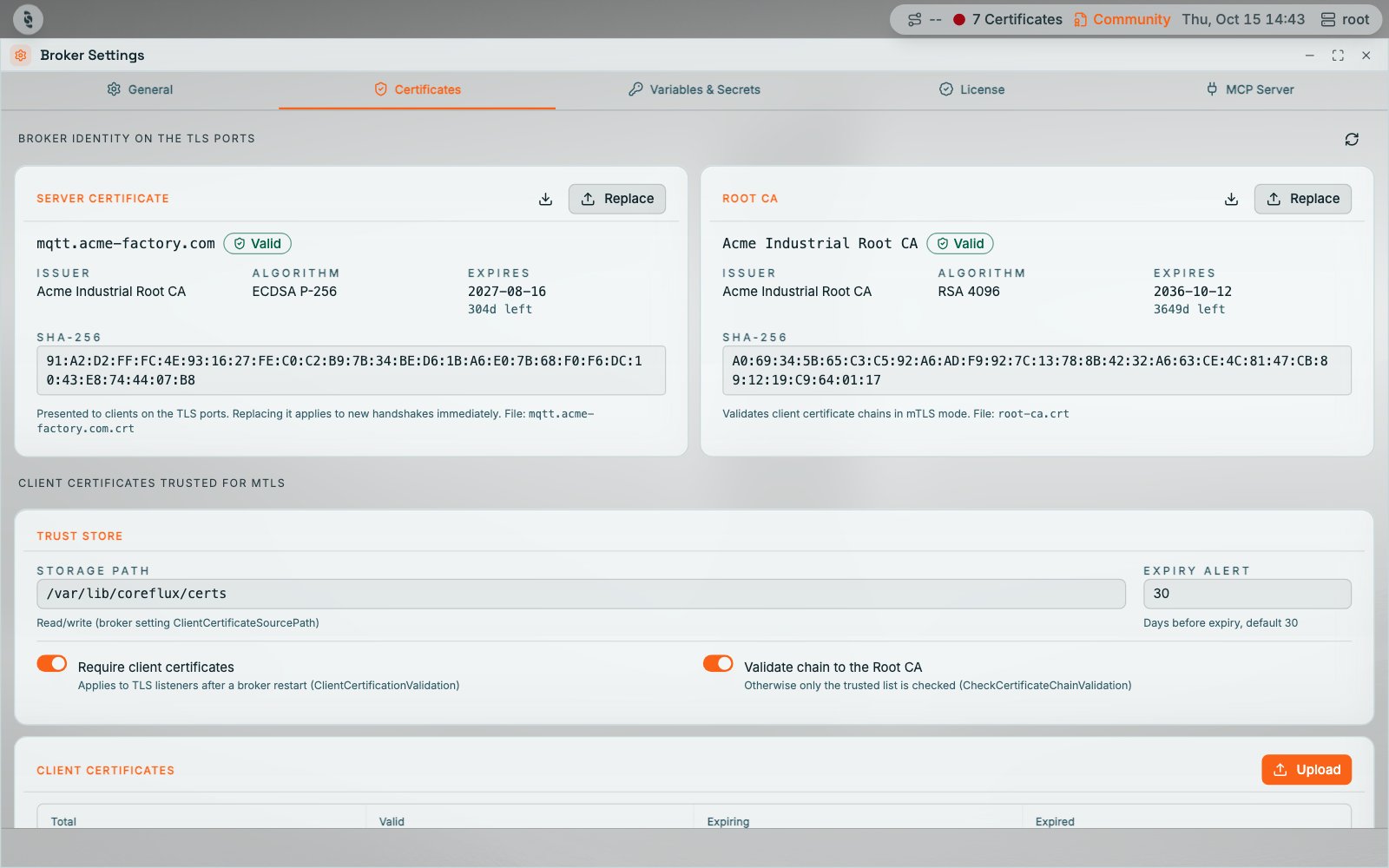
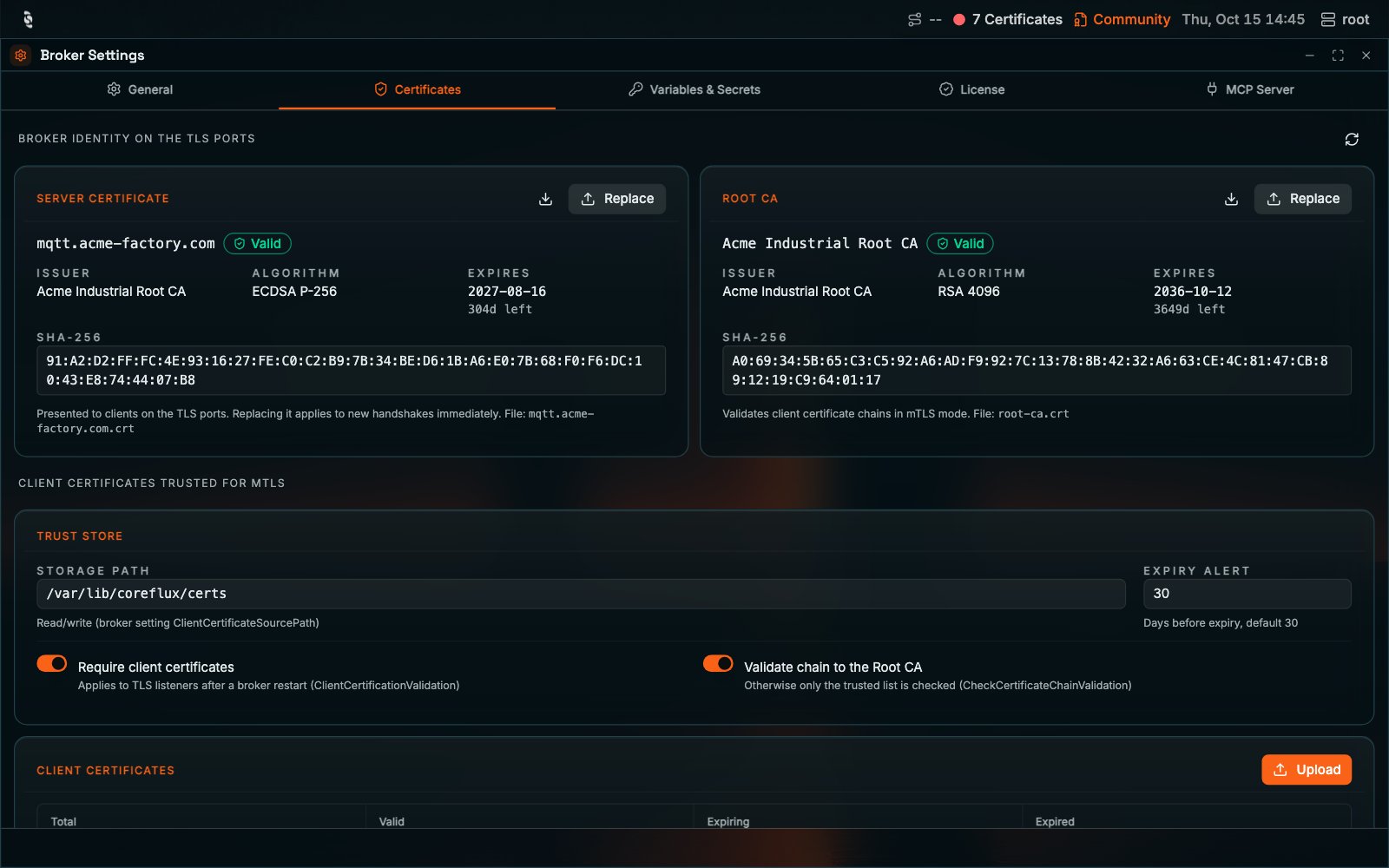
Certificates tab, Broker section: server certificate and Root CA cards
- Download saves the public certificate as PEM (
broker-server.crtorbroker-root-ca.crt). Private keys are never downloaded. - Replace uploads a new certificate.
Replace the server certificate
Upload a.pfx/.p12 with its passphrase, a PEM that embeds the private key, or a certificate plus a separate key file (and the key passphrase if it is encrypted). The key must be RSA or ECDSA. The broker checks that the key matches the certificate before it writes anything.
ServerCertificatePathalready set and TLS running: the broker keeps a timestamped backup of the old files (<file>.bak-<yyyyMMddHHmmss>), writes the new ones in the same format, and swaps them in. New TLS connections use the new certificate right away. Existing connections stay up. No restart.- No server certificate configured yet: the broker writes
server.pemto abroker/folder under the storage path, setsServerCertificatePathto it, and asks you to restart the broker to turn TLS on.
Replace the Root CA
Upload the CA certificate (.crt, .pem, or .cer) used to validate client certificate chains. The broker keeps a timestamped backup of the old file and applies the new CA to chain validation immediately. If the uploaded certificate is not marked as a CA, the broker still installs it and warns you.
Clients: the mTLS Trust Store
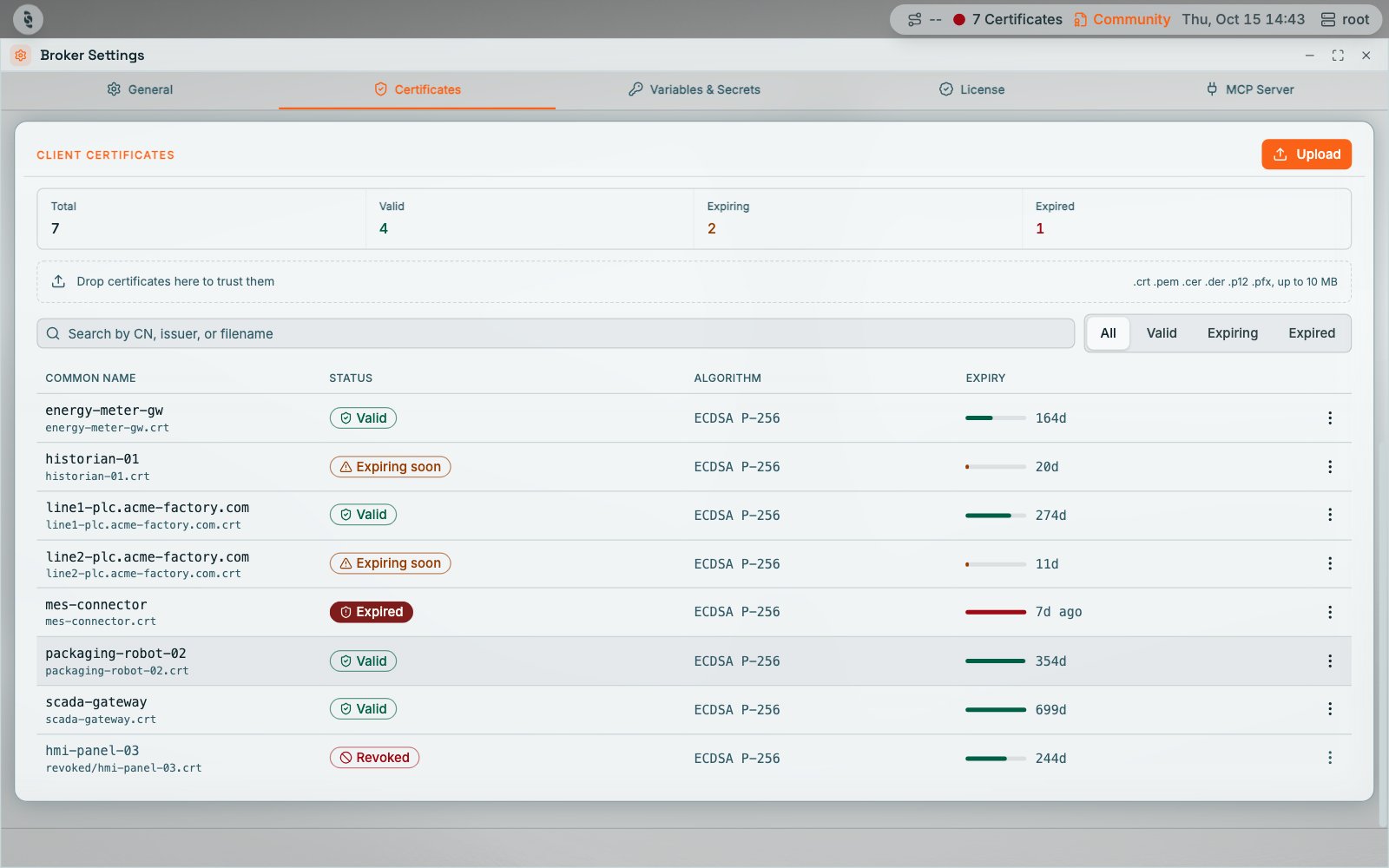
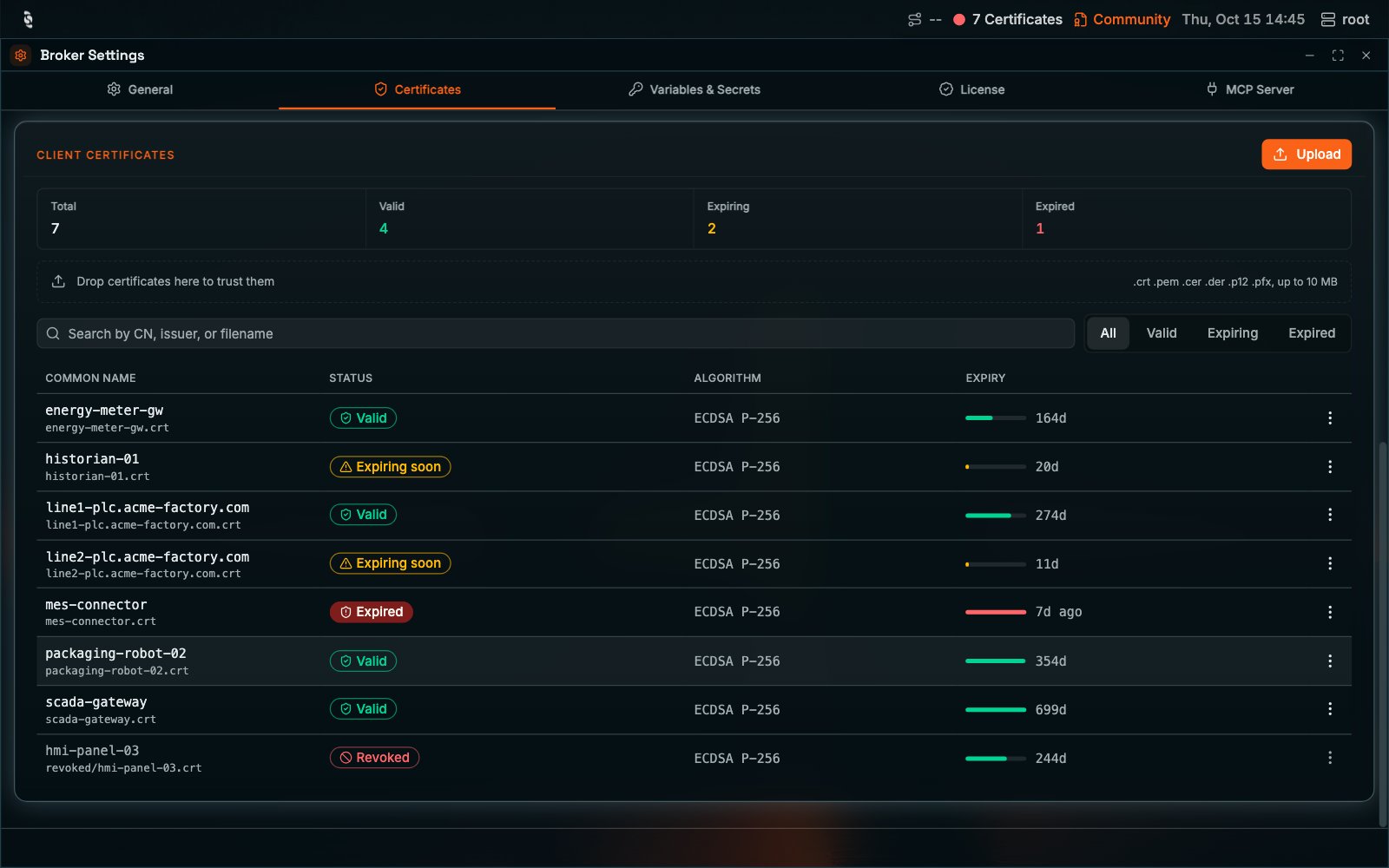
Certificates tab, Clients section: trust store settings and the client certificate list
Trust store settings
The broker refuses a storage path that:
- is not absolute,
- is the filesystem root or inside a system folder (for example
/etc,/usr,/proc,/root, or the Windows and Program Files folders), unless it is a subfolder ofCONFIG_PATH(see below), - is the
CONFIG_PATHfolder itself, which holds the broker config and secrets. The error suggests acertssubfolder instead, - is the folder that holds the broker’s server certificate or key,
- on Linux and macOS, sits outside the allowed roots:
/var/lib,/opt,/srv,/data,/mnt,/media,/home,/Users, temp folders, the default path’s parent, and the folders inCOREFLUX_DATA_PATHandCONFIG_PATH. Add roots withCOREFLUX_CERT_STORAGE_ROOTS(a list separated by:on Linux and macOS).
CONFIG_PATH is allowed even when CONFIG_PATH sits under a system folder. In Docker, where CONFIG_PATH is /etc/project, /etc/project/certs works. This exception doesn’t apply when CONFIG_PATH is a system folder itself: with CONFIG_PATH=/etc, paths under /etc stay refused.
Symbolic links are resolved first, so the check applies to the real folder: a link that points into a system folder, or out of CONFIG_PATH, is refused. If the folder doesn’t exist, the broker creates it.
When the path can’t be used (missing, unreadable, or read-only), the tab shows a red banner with the reason. On a non-default path, Reset to default puts the default back. A read-only path still lists certificates, but upload and revoke are disabled.
Upload client certificates
Click Upload or drop files on the drop zone. Accepted types are.crt, .pem, .cer, .der, .p12, and .pfx, up to 10 MB each.
Private keys and CSRs are refused: .key and .csr files, and PEM files that contain only a key or a CSR. The error reads “Private keys and CSRs are not stored in the client trust store; use Replace on the broker certificate to install a server key.” To install a server key, use Replace on the broker certificate.
- PKCS#12 (
.p12,.pfx): the HUB asks for the passphrase. The broker stores only the certificates, as a.pem, and discards the private key and the passphrase. - PEM with an embedded private key: the key is discarded and only the certificate is stored. The detail view says so.
- Duplicates: a certificate already in the store is refused. A revoked certificate can’t be uploaded again. Restore it from the
revoked/folder on the host instead.
Find a certificate
The list shows each certificate’s common name, file name, status, algorithm, and expiry. Search by common name, issuer, or file name, and filter by All, Valid, Expiring, or Expired. Select a row to open its detail: issuer, algorithm, serial, validity dates, SANs, SHA-256 fingerprint, and the file path.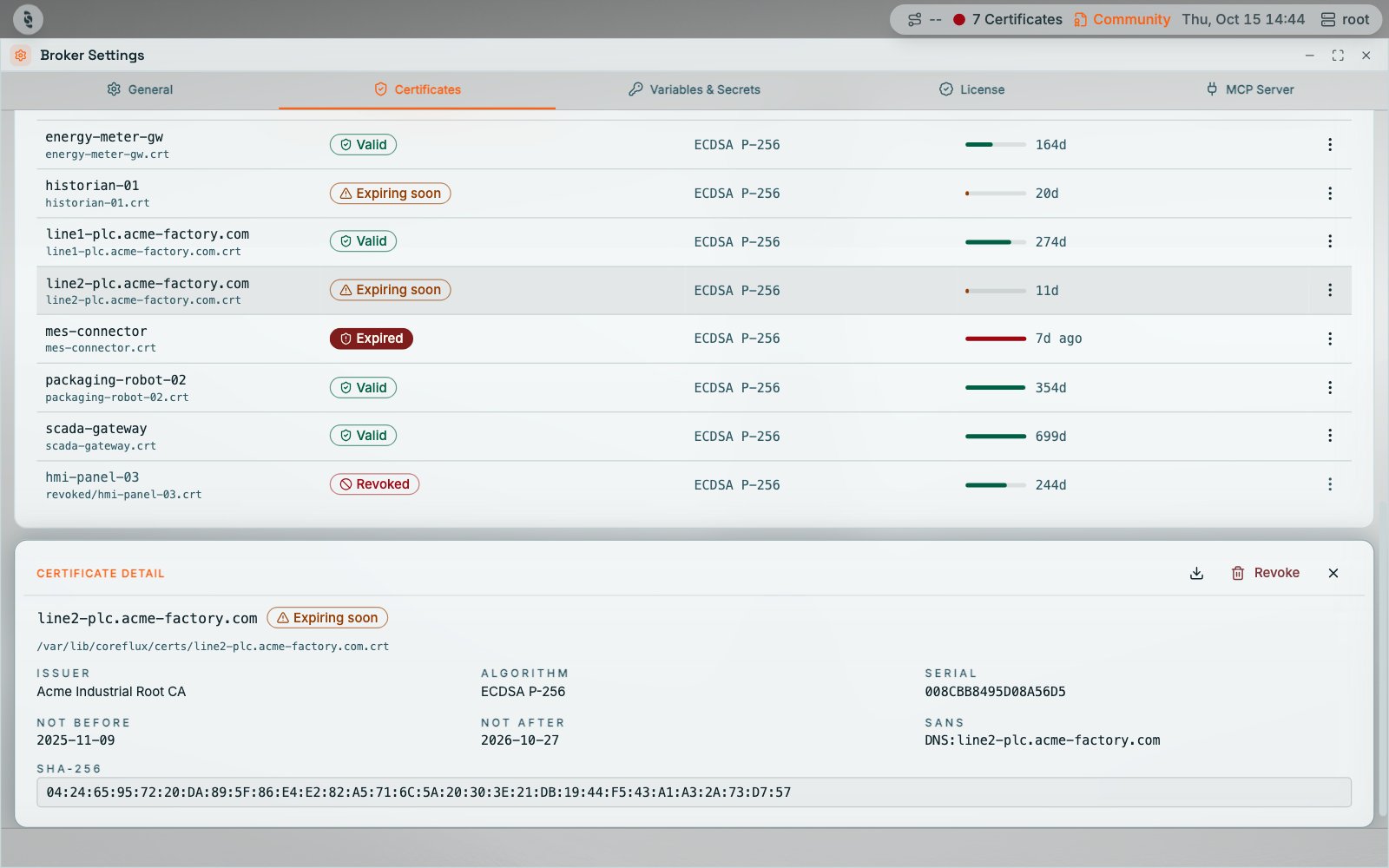
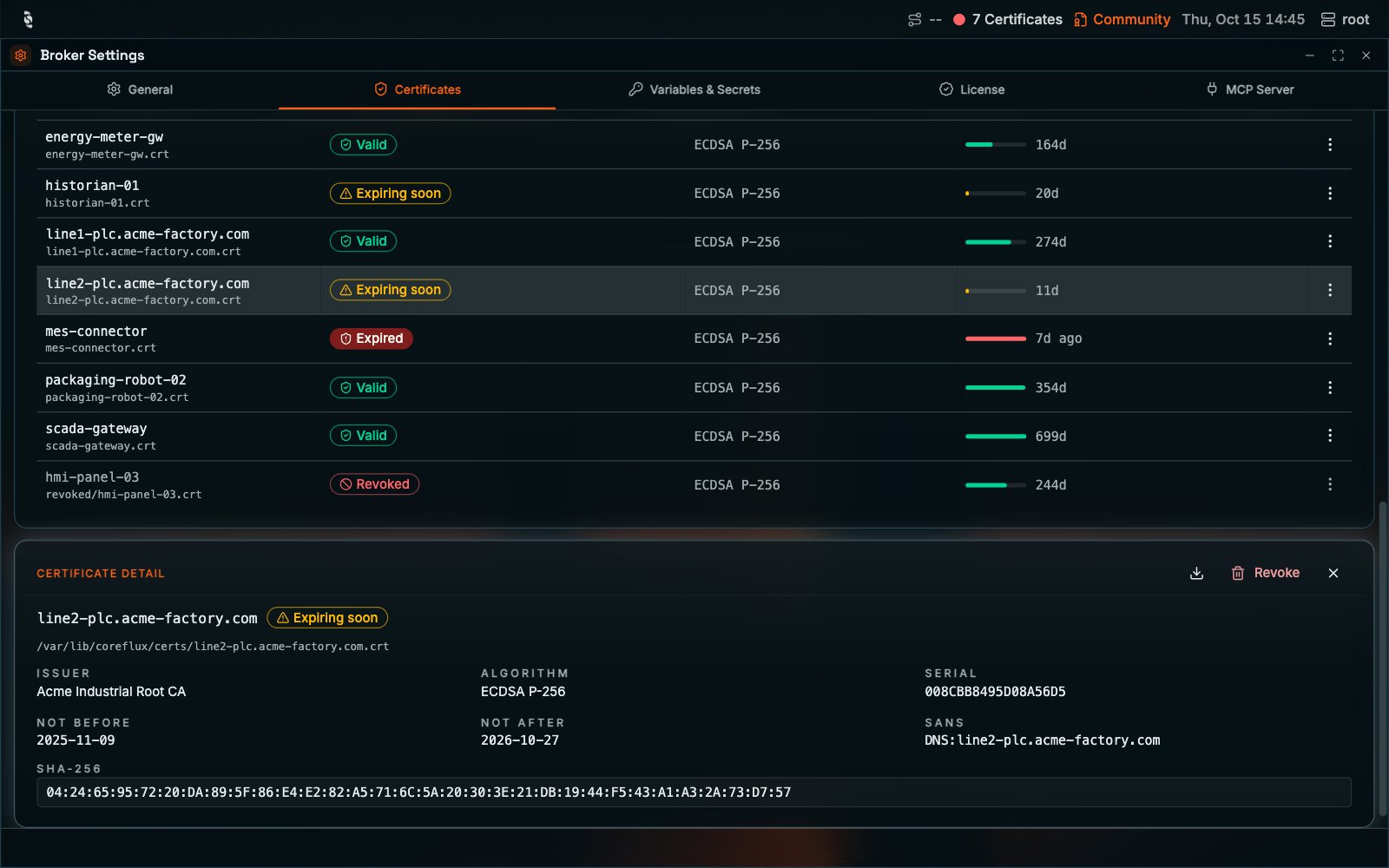
Certificate detail with Download and Revoke
Revoke a certificate
Choose Revoke from the row menu or the detail view, then confirm. The broker moves the file torevoked/ under the storage path and rejects new connections that present it immediately. The revocation is audit-logged. Revoked certificates stay in the list with a Revoked badge.
Certificates in the folder set by ClientCertificateRevocationListPath are also treated as revoked.
Status Bar Alerts
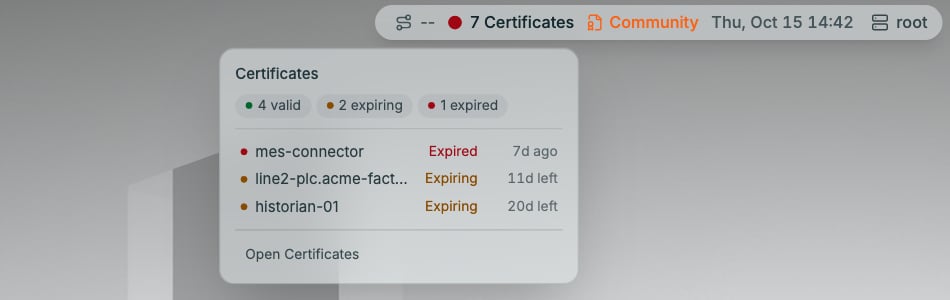
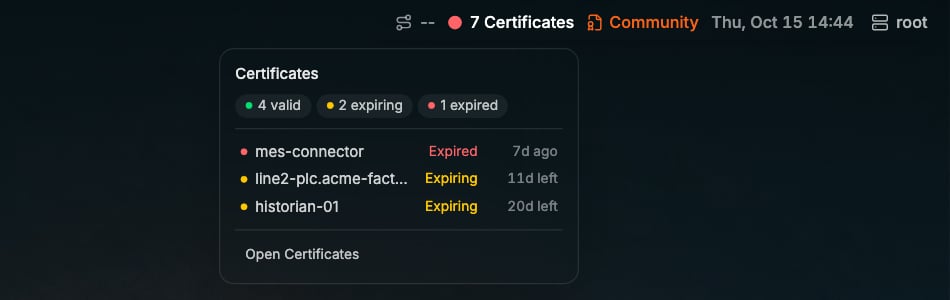
Status bar certificate indicator and its popover
$SYS/Coreflux/Certificates/Summary topic.
From MQTT
The HUB uses the admin-only-brokerCertificates command. You can script the same operations over $SYS/Coreflux/Command.
Next Steps
TLS and mTLS settings
Configure server certificates and client validation in the broker config.
System Configuration
The other Broker Settings tabs.