

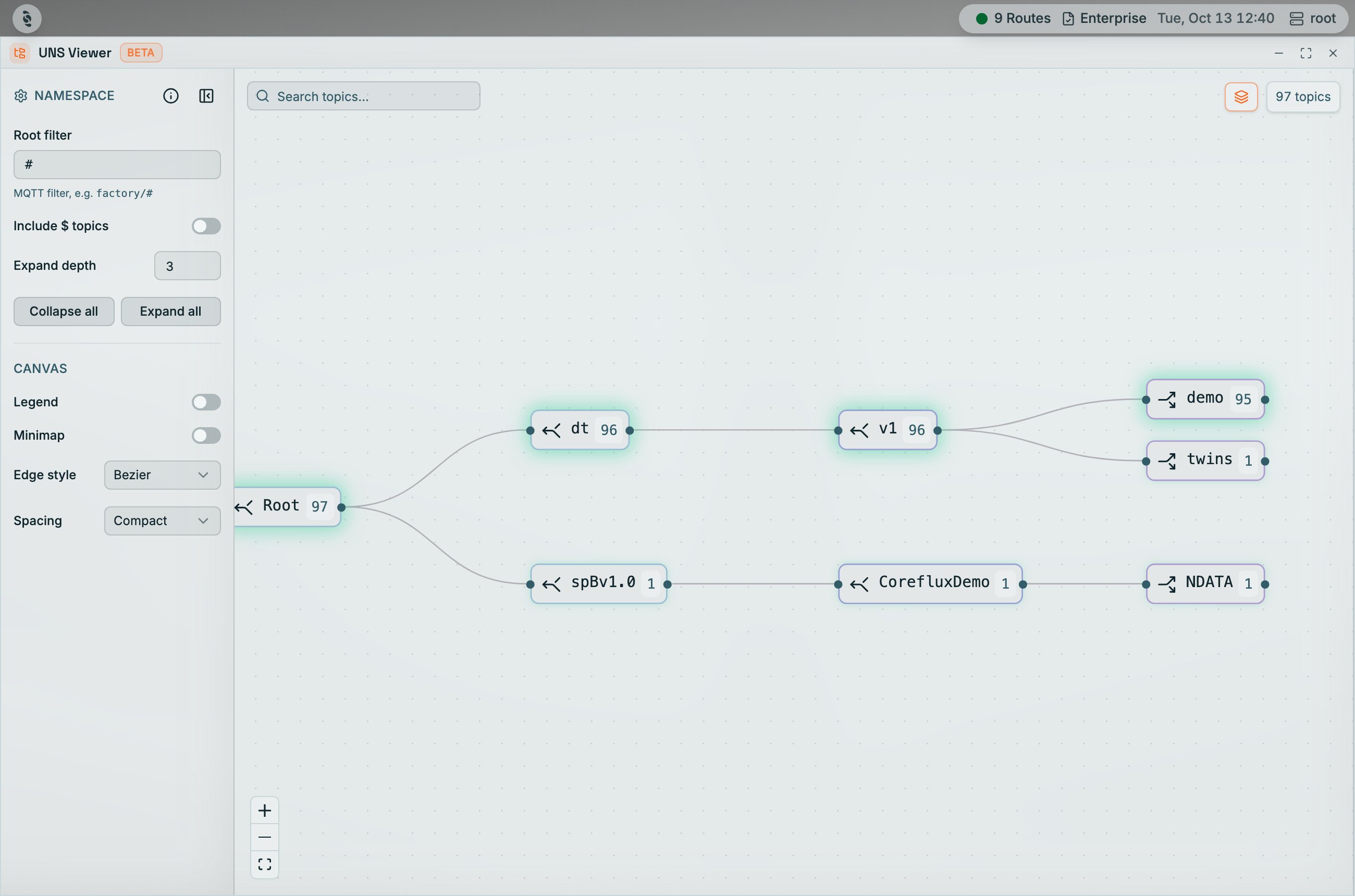
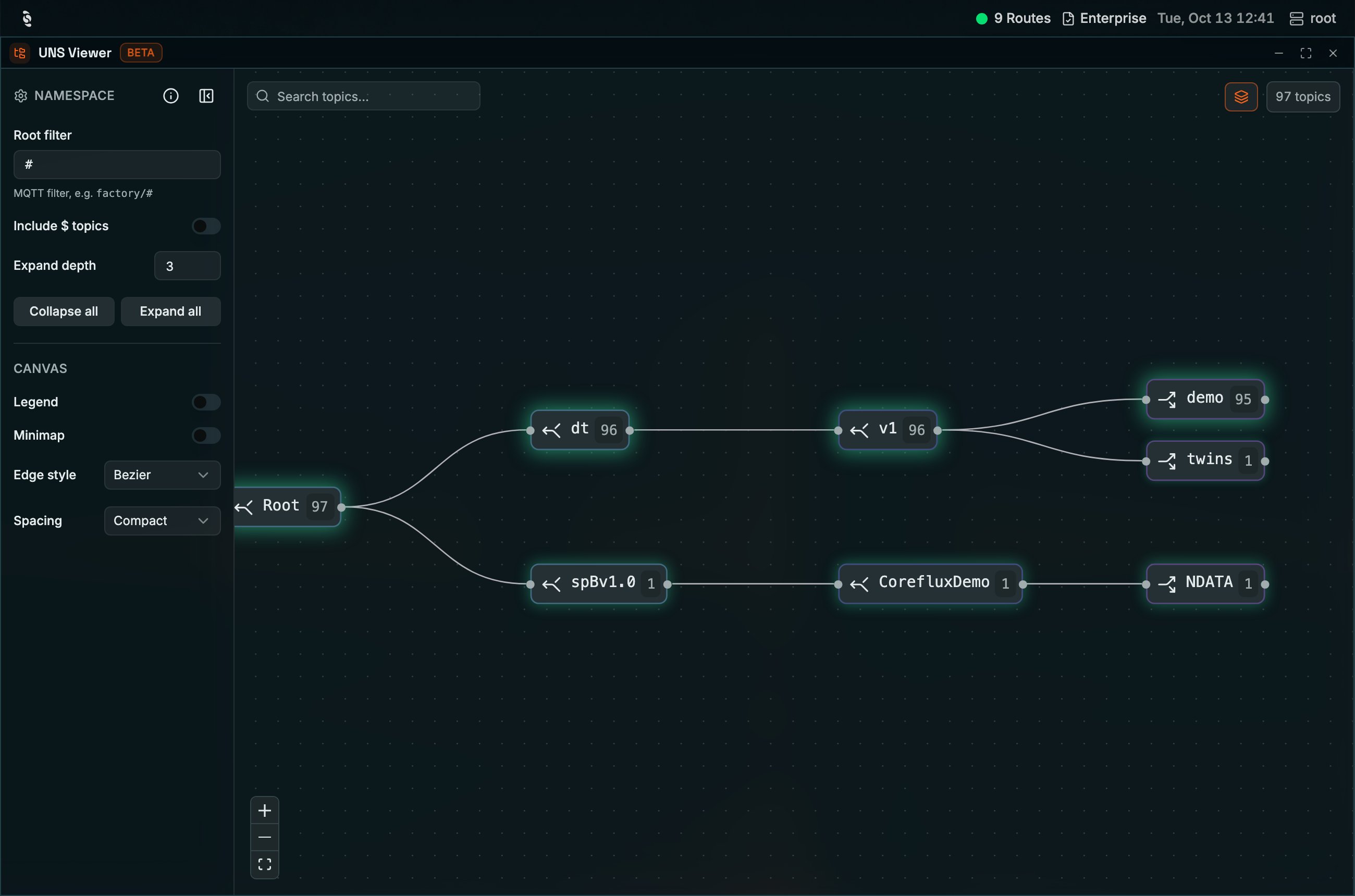
UNS Viewer showing a namespace of 97 topics: Root splits into dt and spBv1.0, dt expands through v1 into demo and twins, and spBv1.0 into CorefluxDemo and NDATA
Why Use the UNS Viewer?
You have hundreds or thousands of topics on your broker and you need to understand their shape — how the namespace is organised, which levels exist, and where a given device or metric sits in the hierarchy. Reading that structure from a flat list of topic strings is slow and error-prone. The UNS Viewer draws your broker’s namespace as a hierarchy graph, so you can see the structure at a glance instead of reconstructing it in your head.The UNS Viewer carries a
BETA badge in its window header. It is available for everyday use, but its controls and layout may still change between releases.When to Use It
- Understanding an unfamiliar broker — Open the namespace and read the hierarchy top-down instead of guessing at topic conventions
- Reviewing your namespace design — Check that a new site, line, or device was published under the level you intended
- Finding where a metric lives — Search for a name and see which branch of the hierarchy it belongs to
- Tracing a topic back to your logic — Each leaf reports which Actions and Connectors produce or consume it
- Comparing several topics at once — Select multiple topics and watch their values and history side by side
- Spotting activity — Live pulses show which parts of the namespace are actually receiving traffic
Accessing the UNS Viewer
Select UNS Viewer in the HUB dock. The window opens with the namespace already built from the topics the HUB has seen, and aN topics badge in the top-right corner reports how many leaf topics are currently in scope.
Reading the Graph
The canvas draws two kinds of node:
Colour and motion carry meaning too, and the Legend toggle puts a key on the canvas while you are learning the vocabulary:
- Live value — a green pulse means a message just arrived on that topic
- Activity pulse — a green glow on a namespace node shows aggregated traffic somewhere below it
- Search match — an amber ring marks topics matching your current search
No message at this time, because the values live on its children.
Navigating the Namespace
The NAMESPACE section of the left rail controls how much of the tree is drawn:The Root filter applies when you press Enter — typing a filter alone does not redraw the graph.
uns/porto/hq/f1/# is the fastest way to keep the graph readable.
The Search topics box highlights matching topics in place with an amber ring rather than filtering the graph, so you keep the surrounding structure as context while you locate something.
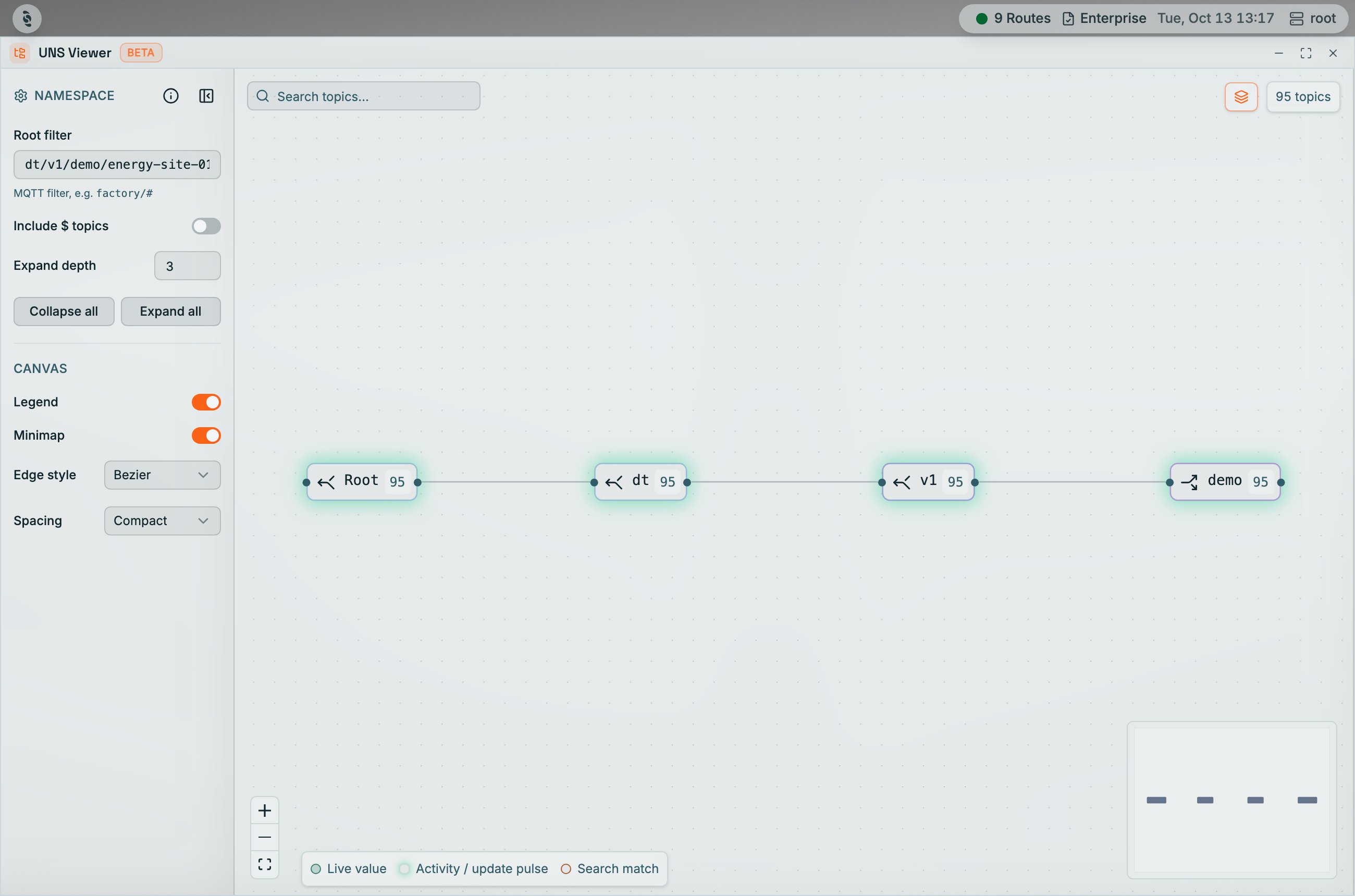
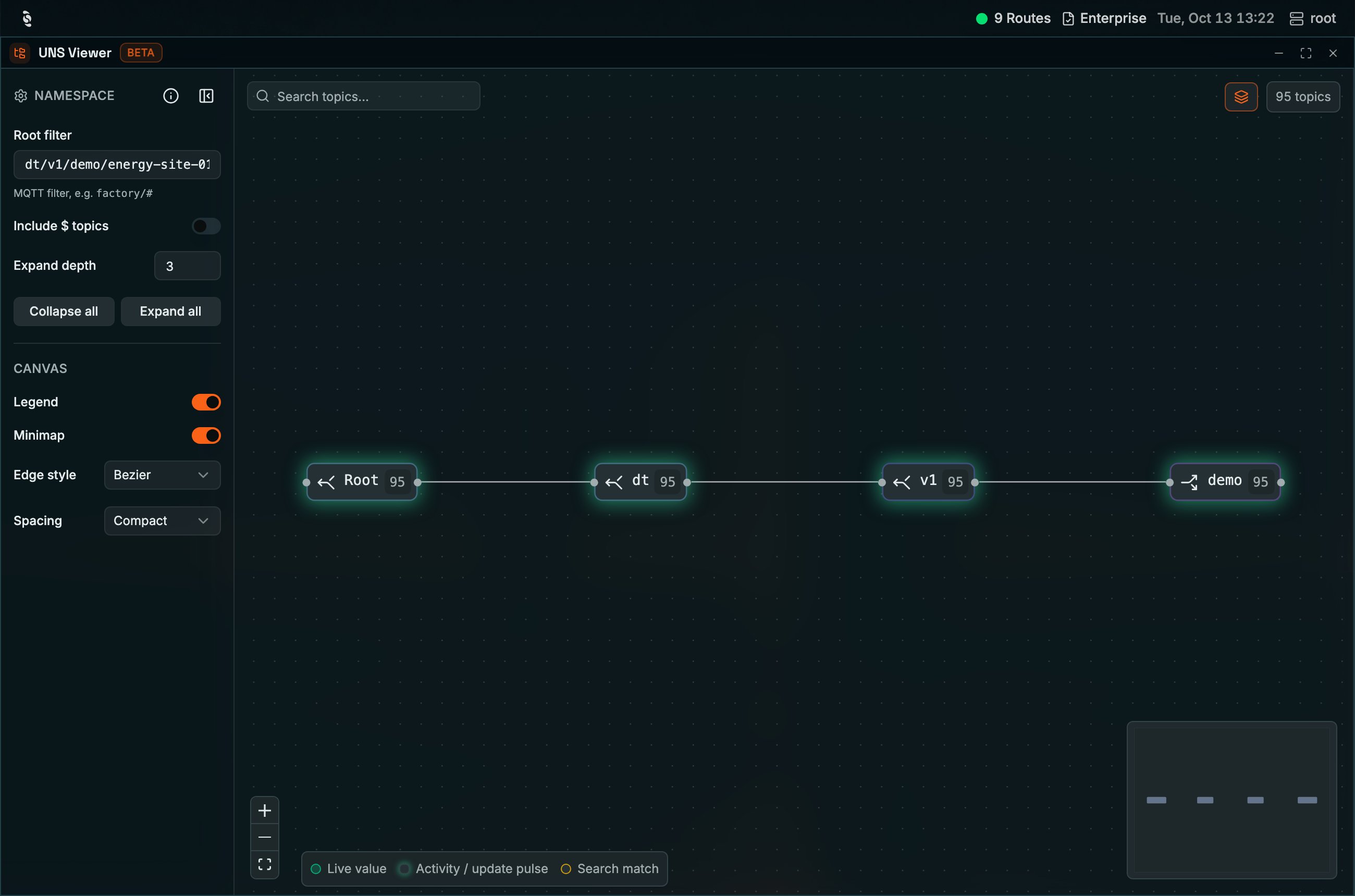
The Namespace rail with the Root filter scoped to dt/v1/demo/energy-site-01/#, which narrows the badge to 95 topics; Legend and Minimap are on, adding a key at the bottom and an overview map in the corner
Canvas options
The CANVAS section changes how the graph is drawn without changing what it contains:
Zoom, pan, and a fit-view control sit at the bottom-left of the canvas. Fit the view after expanding or filtering — a freshly laid-out graph is often off-centre.
Inspecting a Topic
Select a leaf topic to open the inspector on the right. It reports the topic’s breadcrumb path, its live value, its history, and how it relates to the LoT running on your broker.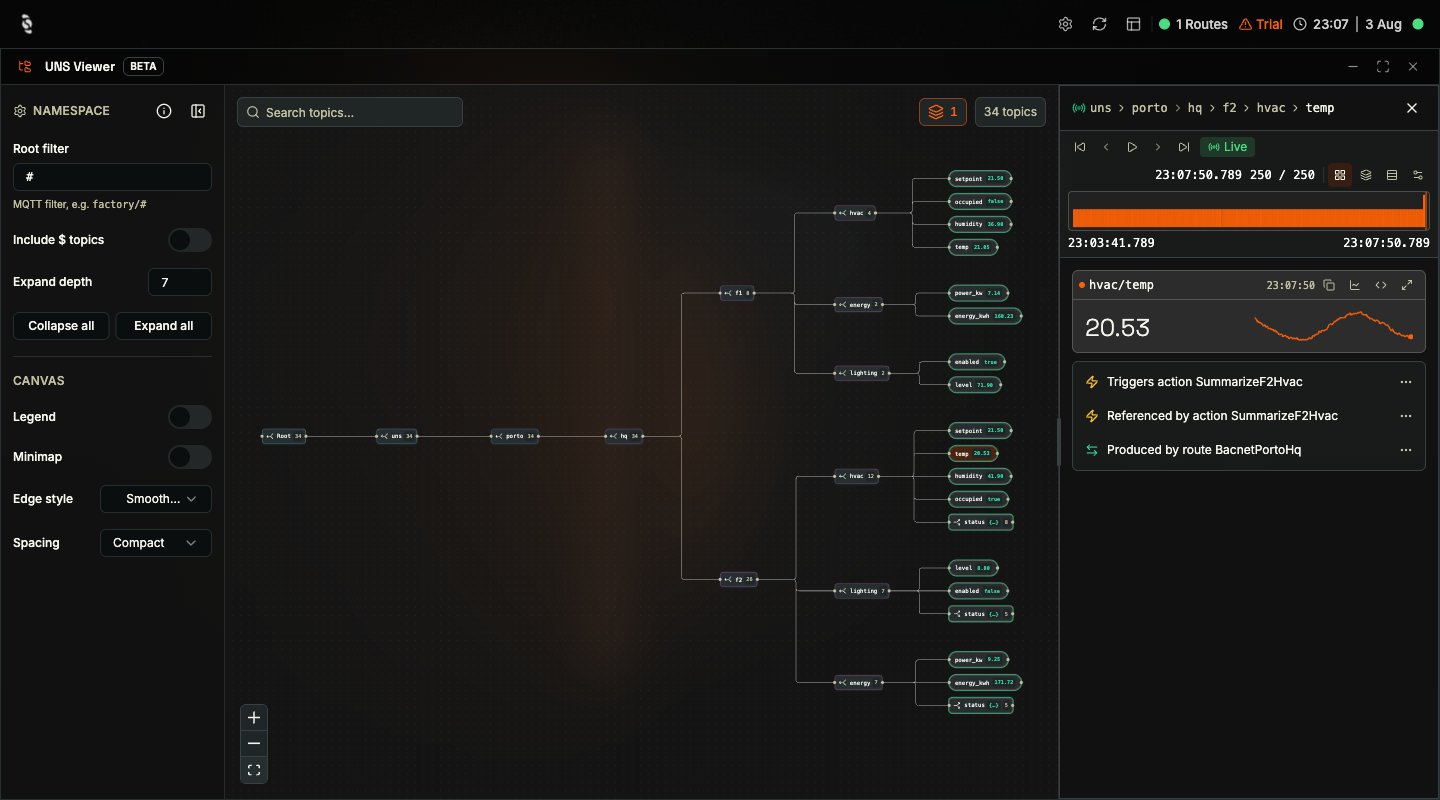
The inspector for uns/porto/hq/f2/hvac/temp: a Live indicator, playback controls, a message histogram spanning 23:03:27 to 23:07:36, a position counter reading 250 / 250, a value card showing 20.61 with a sparkline of recent history, and cross-references reporting that the topic triggers and is referenced by action SummarizeF2Hvac and is produced by connector BacnetPortoHq
- A value card with the current value and a sparkline of recent history
- A message histogram with the start and end timestamps of the buffered history
- Playback controls — step to first, previous, next, or last message, or play the history back
- A
Livetoggle that snaps to the latest message and resumes real-time updates - LoT cross-references — which Actions the topic triggers, which reference it, and which Connector produces it
Not referenced by any action or connector.
Comparing several topics
Turn on multi-select in the top-right corner to keep more than one topic selected. Each selection becomes a removable chip carrying its own message count, the inspector header counts them, and the histogram merges every selected topic onto one timeline so you can line their behaviour up against each other. PressEsc to leave multi-select.
With multi-select off, a plain click replaces the current selection, while Shift, Ctrl, or ⌘ click adds to it.
Namespace Best Practices
The UNS Viewer makes the consequences of namespace design visible, and the shape it draws is only as good as the topics you publish:- Keep the hierarchy consistent — model your physical or organisational structure, so the graph reads like your plant
- Use lowercase, stable, descriptive segment names — and avoid renaming a level once it is in use
- Publish state as retained messages so late subscribers, including this viewer, get the current value
- Prefer descriptive leaf metrics over opaque blobs that have to be parsed downstream
- Narrow the root filter on large namespaces rather than fighting a graph with thousands of nodes
The viewer builds its tree from the topics the HUB has observed. A topic that has never published, and holds no retained value, cannot appear in the graph.
Next Steps
LoT Flow
See the Actions, Models, and Connectors behind those topics as a dependency graph.
Data Viewer
Read individual payloads, track topics as cards, and publish test messages.