

Documentation Index
Fetch the complete documentation index at: https://docs.coreflux.org/llms.txt
Use this file to discover all available pages before exploring further.
Why Use User Management?
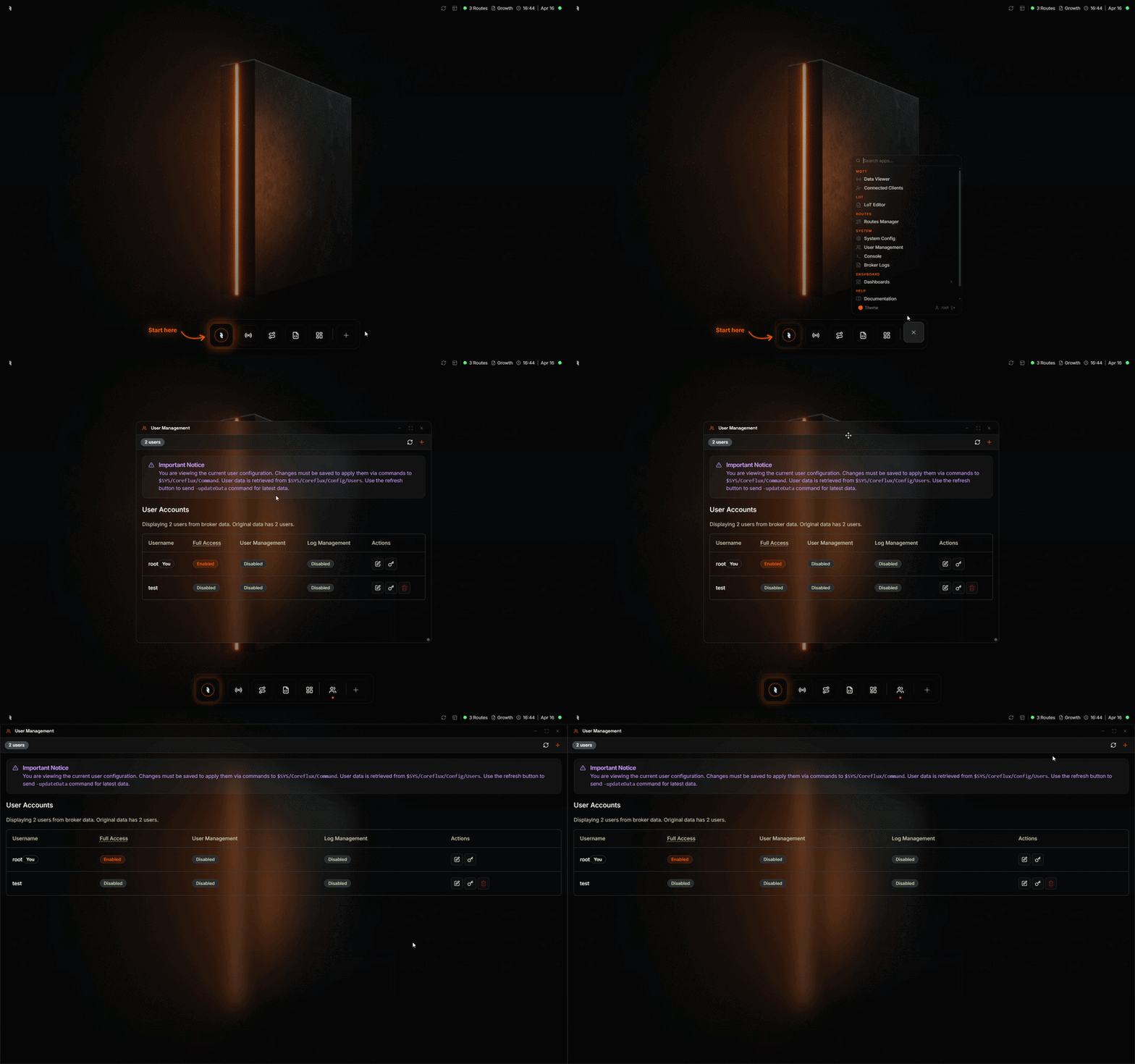
You need to control who can connect to your broker—add users, set passwords, and manage access. The User Management in the Coreflux HUB lets you create, edit, and delete users without editing configuration files or using command-line tools.When to Use It
- Adding users — Create new users for devices, applications, or operators
- Updating credentials — Change passwords
- Managing permissions — Control which features each user can access
- Removing access — Delete users who no longer need broker access
Accessing User Management
In the HUB top navigation, select System, then User Management. The user accounts table shows all configured users with their permissions.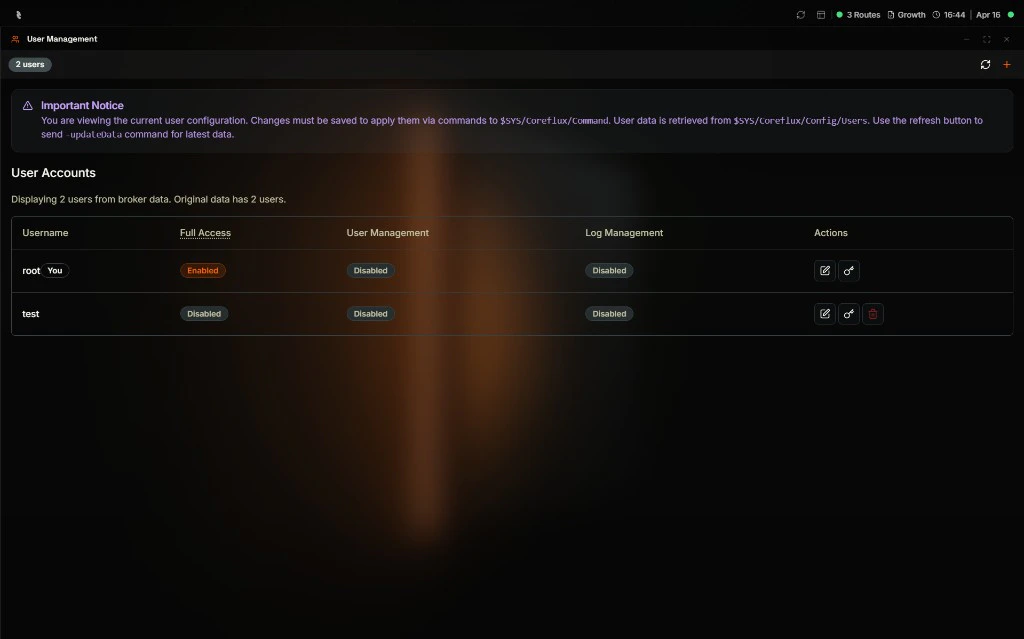
User Permissions
Each user has three permission categories, controlled by toggles:| Permission | Description |
|---|---|
| Full Access | Full administrative access to broker configuration and asset management |
| User Management | Permission to create, edit, and delete other users |
| Log Management | Access to broker logs, trace logs, and log export |
root user has special permissions that cannot be fully modified.
Creating a User
- Click the + button in the top-right corner.
- The Add New User modal opens.
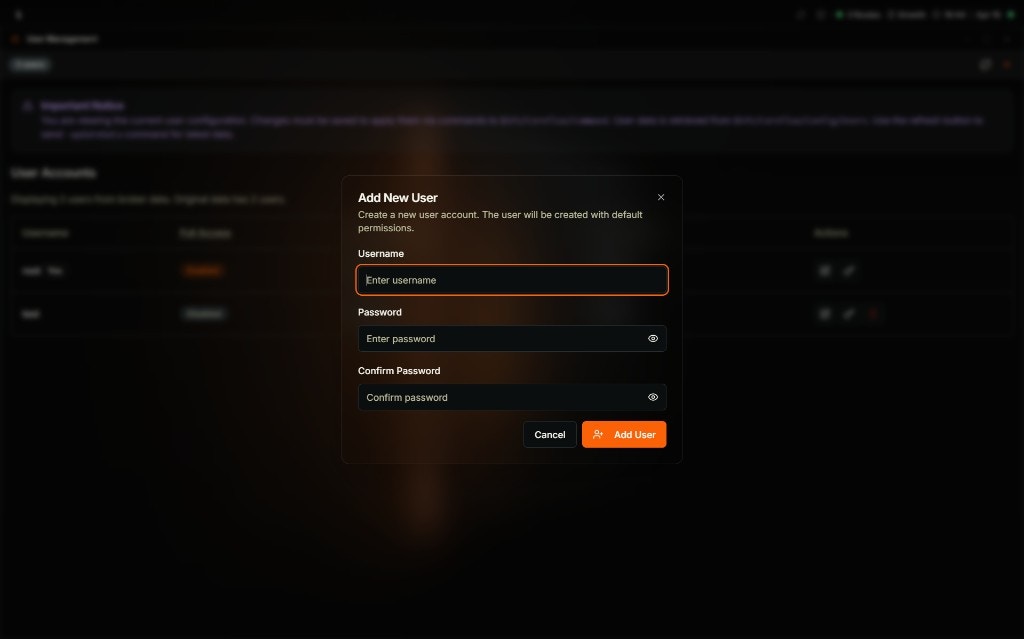
- Enter a username and password (with confirmation).
- Click Add User. The user is created with default permissions and can now connect to the broker.
Editing a User
Toggle permission switches directly in the user table to modify access. When you change a permission, the user row shows a Modified badge and action buttons appear: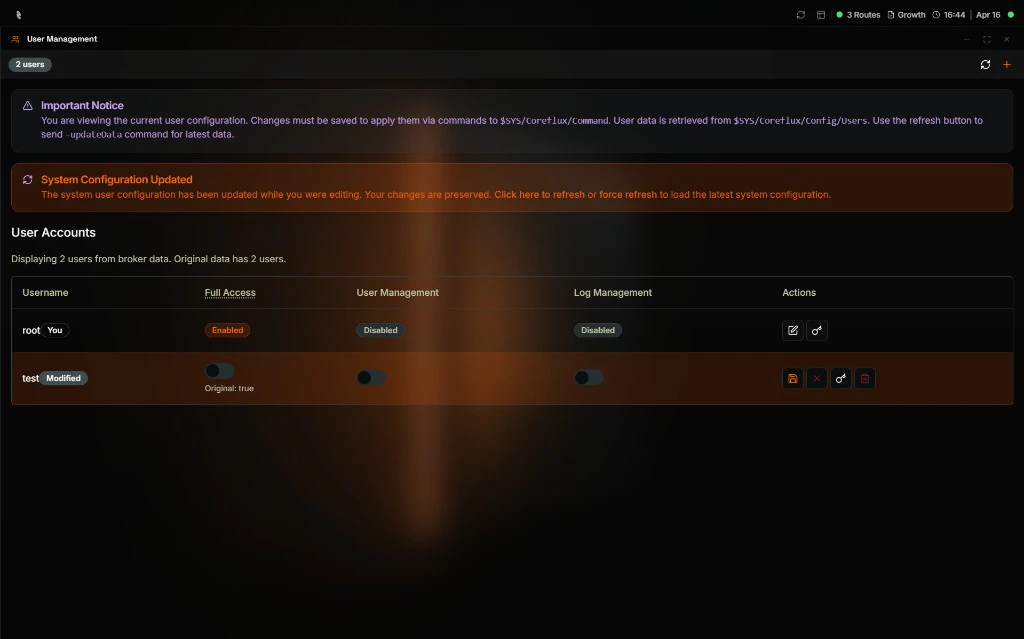
| Action | Icon | Description |
|---|---|---|
| Save | Floppy disk | Save the modified permissions to the broker |
| Cancel | X | Revert unsaved changes |
| Change Password | Key | Update the user’s password |
| Delete | Trash | Remove the user from the broker |
Deleting a User
Click the delete (trash) icon next to a user and confirm the deletion. Theroot user cannot be deleted.
Next Steps
MQTT Broker Configuration
Learn about authentication and security options.