

Documentation Index
Fetch the complete documentation index at: https://docs.coreflux.org/llms.txt
Use this file to discover all available pages before exploring further.

Why Use the Command Console?
You need to run broker commands—add Actions, remove Routes, or perform other operations—without connecting an external MQTT client. The Command Console lets you execute broker commands directly from the Coreflux HUB.When to Use It
- Adding entities — Send
-addAction,-addRoute, or similar commands - Removing entities — Send
-removeAction,-removeRoute, etc. - Other operations — Any command supported by the broker’s command topic
How It Works
The Command Console sends your input to the broker. The broker processes the command and returns a response, which the HUB displays in the console output. You do not need to:- Subscribe to the command topic
- Use an external MQTT client (e.g., MQTT Explorer)
- Publish from the command line
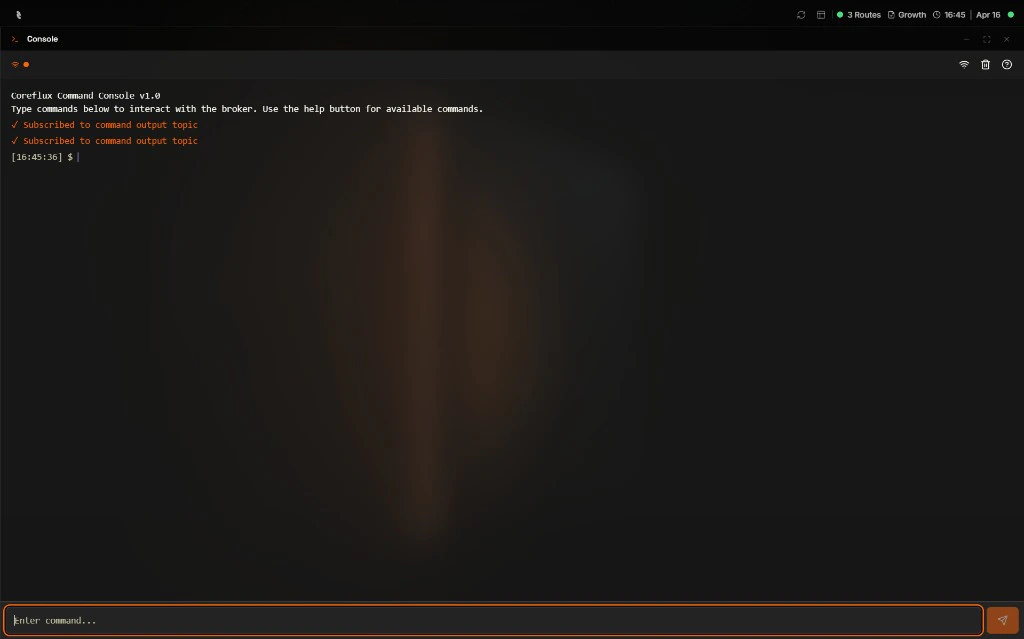
Entering Commands
- In the HUB top navigation, select System, then Command Console.
- Enter the command in the input field (e.g.,
-addAction DEFINE ACTION ...). - Send the command. The broker processes it and returns a result.
Next Steps
MQTT Broker Commands
Learn available broker commands and syntax.
Broker Logs
View command execution logs.