

Documentation Index
Fetch the complete documentation index at: https://docs.coreflux.org/llms.txt
Use this file to discover all available pages before exploring further.
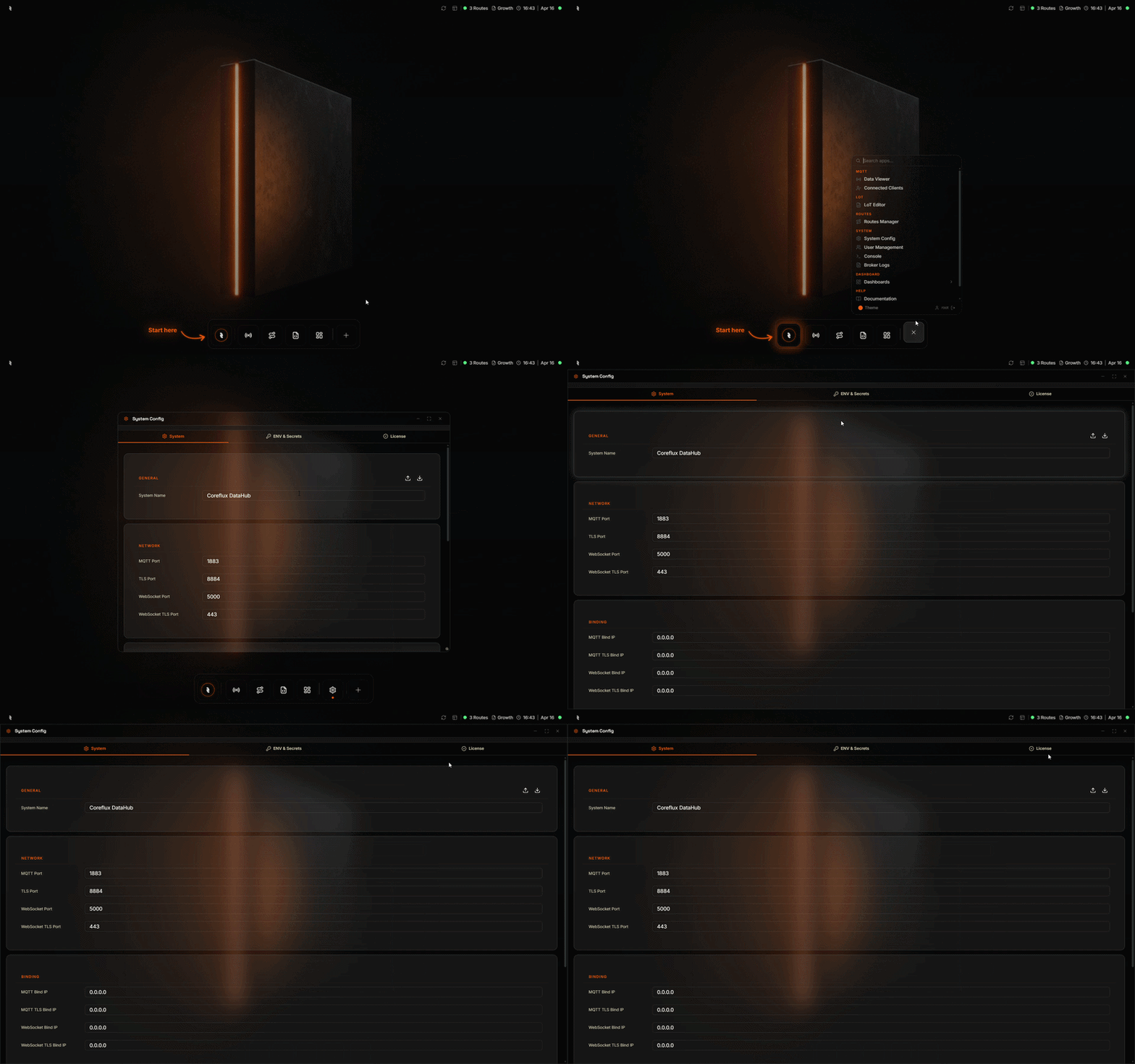
Why Use System Configuration?
You need to change broker settings—ports, TLS, connection limits, or other parameters—without editing configuration files. The System Configuration in the Coreflux HUB lets you view and modify broker settings from the browser.When to Use It
- Adjusting ports — Change MQTT, TLS, or WebSocket ports
- TLS configuration — Enable or configure TLS for secure connections
- Binding settings — Control which IP addresses the broker listens on
- Other broker options — Any configurable broker parameter exposed in the UI
Accessing System Configuration
In the HUB top navigation, select System, then System Configuration. The configuration panel shows available settings grouped by category.Configuration Panel
The System Config panel has three tabs — System, ENV & Secrets, and License. The System tab displays broker settings as editable form fields, organized into groups: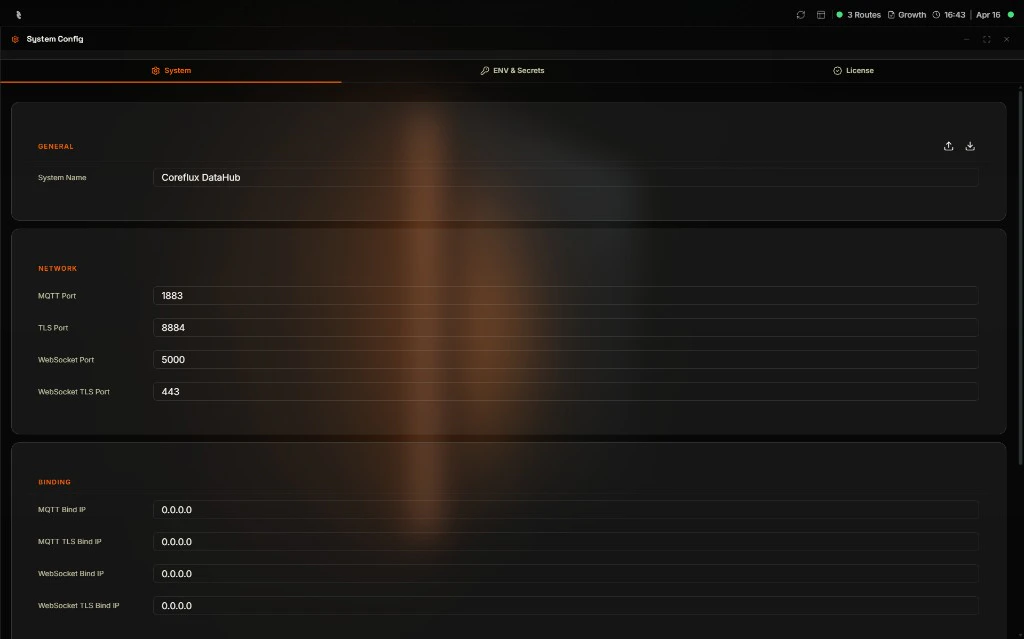
| Group | Settings |
|---|---|
| General | System Name |
| Network | MQTT Port, TLS Port, WebSocket Port, WebSocket TLS Port |
| Binding | MQTT Bind IP, MQTT TLS Bind IP, WebSocket Bind IP, WebSocket TLS Bind IP |
ENV Variables & Secrets
The ENV & Secrets tab is where you keep reusable values out of your Actions and Routes. Instead of typing the same database address or API key in every place that needs it, you save it once here and reference it by name. When the value changes, you update it in one spot.For advanced topics like encryption keys, Docker and Kubernetes deployment, CLI commands, and the full LoT (Language of Things) syntax, see Environment Variables & Secrets.
ENV Variables
ENV Variables hold plain text values that anyone with access to the HUB can read. Use them for things that change between environments but aren’t sensitive — a database hostname, a port number, an API base URL, or a feature flag.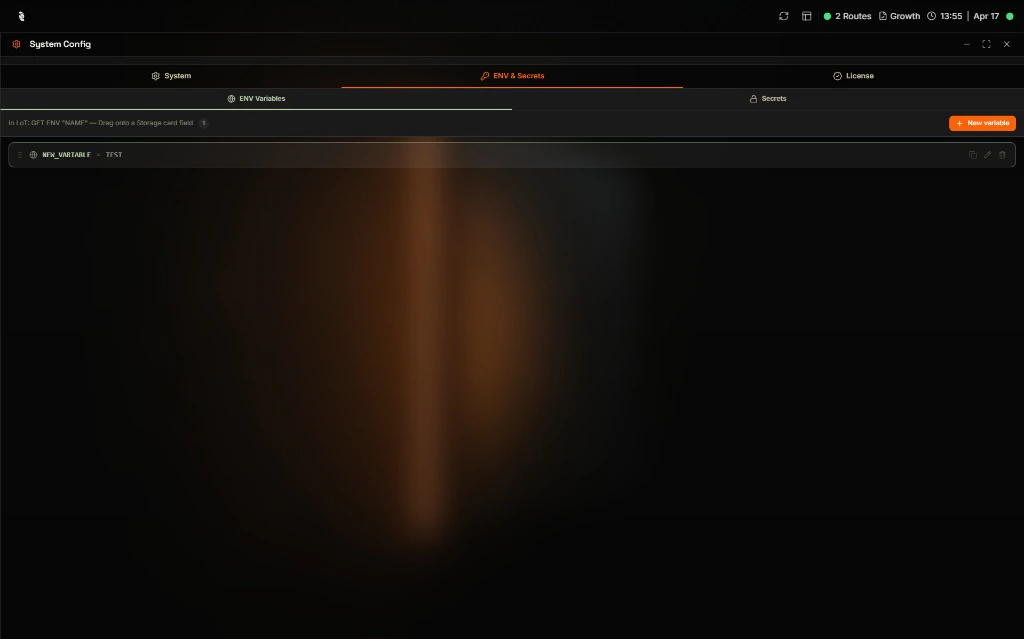
Adding a Variable
Fill in the name and value
Give the variable a clear name like 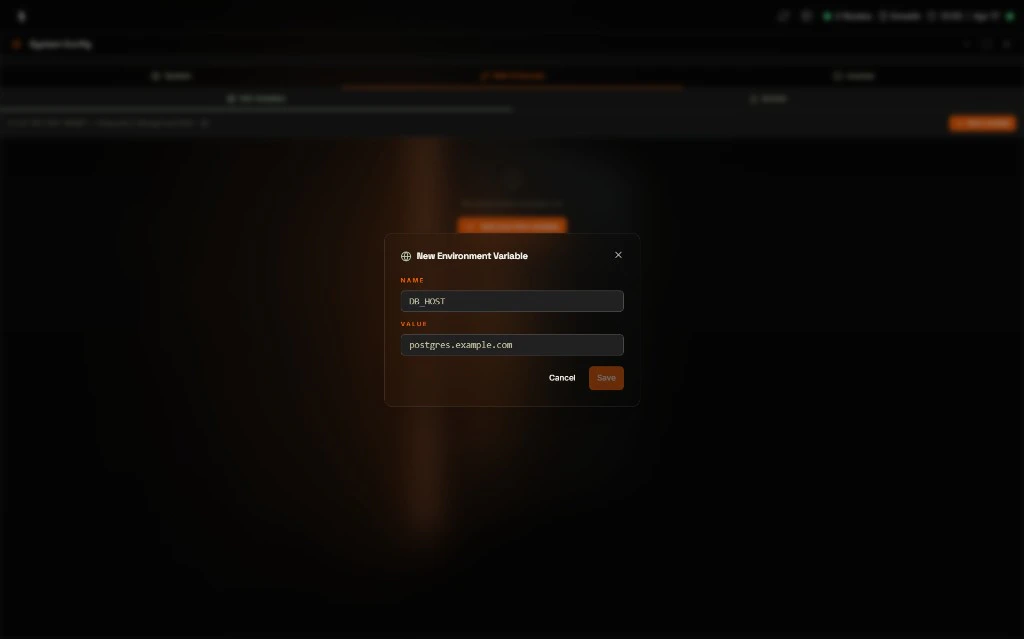
DB_HOST and enter its value, for example postgres.example.com.Managing Existing Variables
Hover over any row in the list to reveal three quick actions on the right side:| Action | What it does |
|---|---|
| Copy value | Copies the current value to your clipboard so you can paste it elsewhere. |
| Edit | Reopens the form so you can change the value. The name stays the same. |
| Delete | Permanently removes the variable. Anything that uses it stops finding the value. |
Secrets
Secrets hold sensitive values that should never be shown again after you save them. The HUB encrypts them at rest, so even an administrator looking at the list only sees dots where the value should be. Use Secrets for passwords, API keys, tokens, and any other credentials.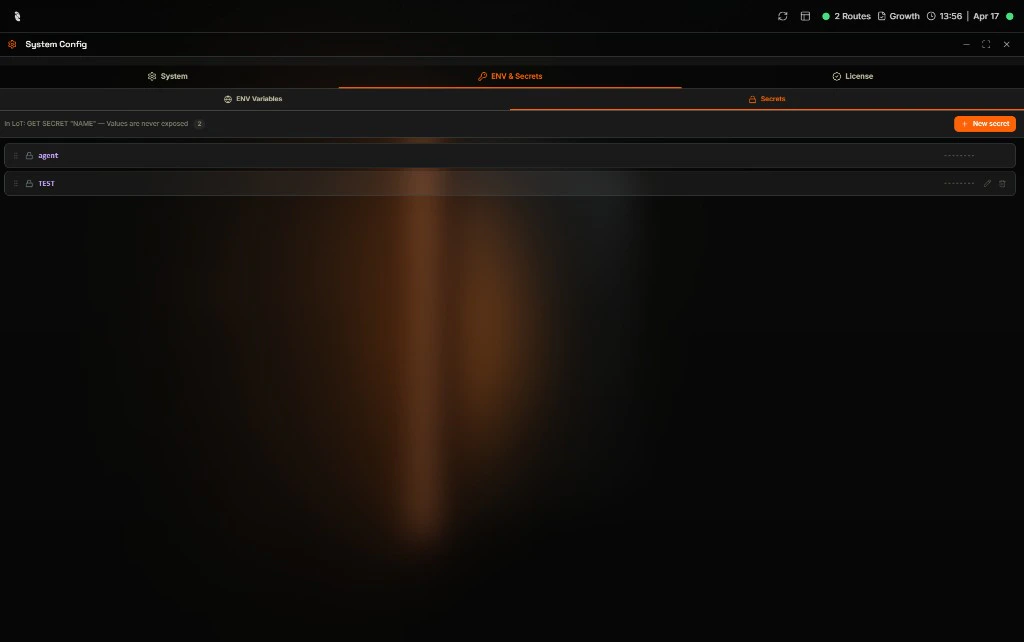
Adding a Secret
Fill in the name and value
Give the secret a clear name like 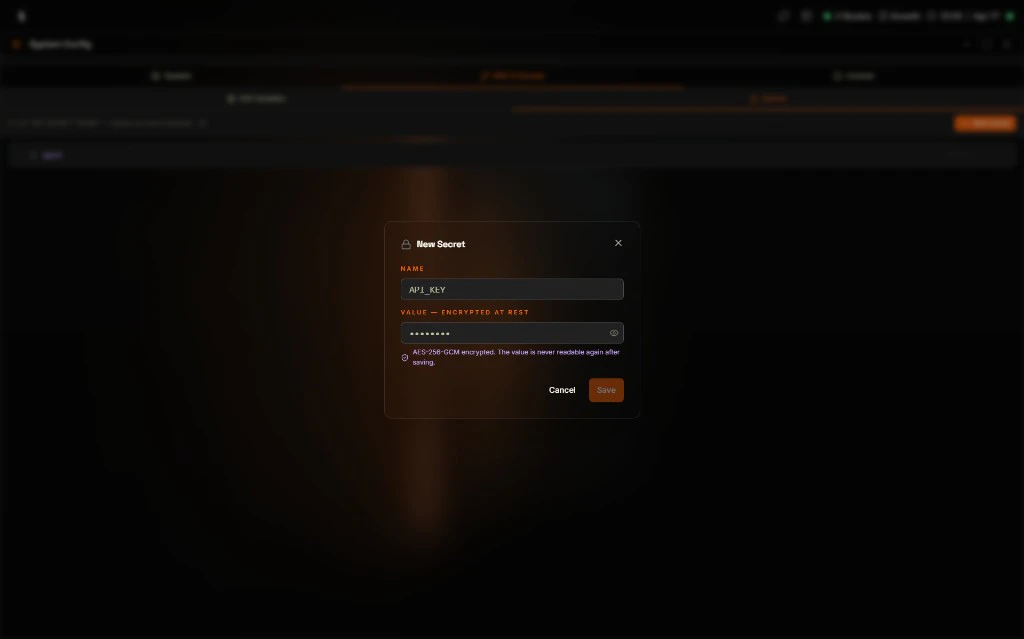
API_KEY and paste the value into the hidden field. The form notes that the value is AES-256-GCM encrypted and never readable again after saving.Managing Existing Secrets
Hover over any row in the list to reveal two quick actions on the right side:| Action | What it does |
|---|---|
| Set a new value | Opens the form so you can overwrite the secret with a new value. There is no way to view the current one. |
| Delete | Permanently removes the secret. Anything that uses it stops finding the value. |
License
The License tab shows what your current Coreflux license allows, how much of each quota you are using, which premium features are unlocked, and where to upload a new license file when you receive one.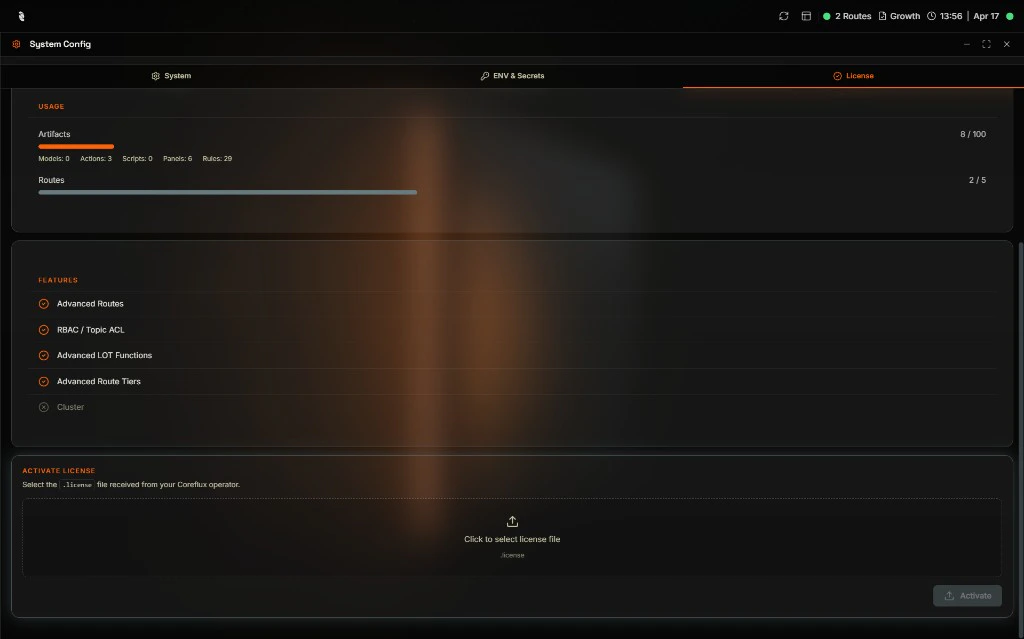
| Block | What you see |
|---|---|
| Usage | Progress bars for Artifacts (Models, Actions, Scripts, Panels, Rules) and Routes with the current count vs the license limit. |
| Features | A list of premium features with a check icon next to the ones your license unlocks and a cross next to the ones it does not. |
| Activate License | A drop area where you upload a .license file you received from your Coreflux operator. |
Activating a New License
Get the license file
Request a
.license file from your Coreflux contact. Save it somewhere you can find it on your computer.Select the file
In the Activate License section, click the drop area labeled Click to select license file and pick the
.license file.Next Steps
User Management
Create and manage broker users.
MQTT Broker Configuration
Learn configuration options and file-based setup.