

Documentation Index
Fetch the complete documentation index at: https://docs.coreflux.org/llms.txt
Use this file to discover all available pages before exploring further.
Why Use the Routes Section?
You need to manage Routes from the browser—add new routes, edit configuration, check connection status, and troubleshoot with logs. The Routes section of the Coreflux HUB lets you configure routes with a visual editor or LoT code, view connected and disconnected routes, and inspect route-specific logs.When to Use It
- Adding routes — Create routes from templates (PostgreSQL, MongoDB, Modbus, etc.) or write LoT code directly
- Configuring routes — Edit configuration, events, mappings, and tags in Visual or LoT mode
- Monitoring — See which routes are connected and which are not, and view real-time status metrics
- Troubleshooting — View route logs, filter by level, and export for analysis
Routes Tools
Routes Configuration
Edit routes, view status (connected/not connected), and delete routes.
Routes Monitoring
View real-time status metrics and logs filtered by route, export as JSON/CSV/LOG.
Route List and Status
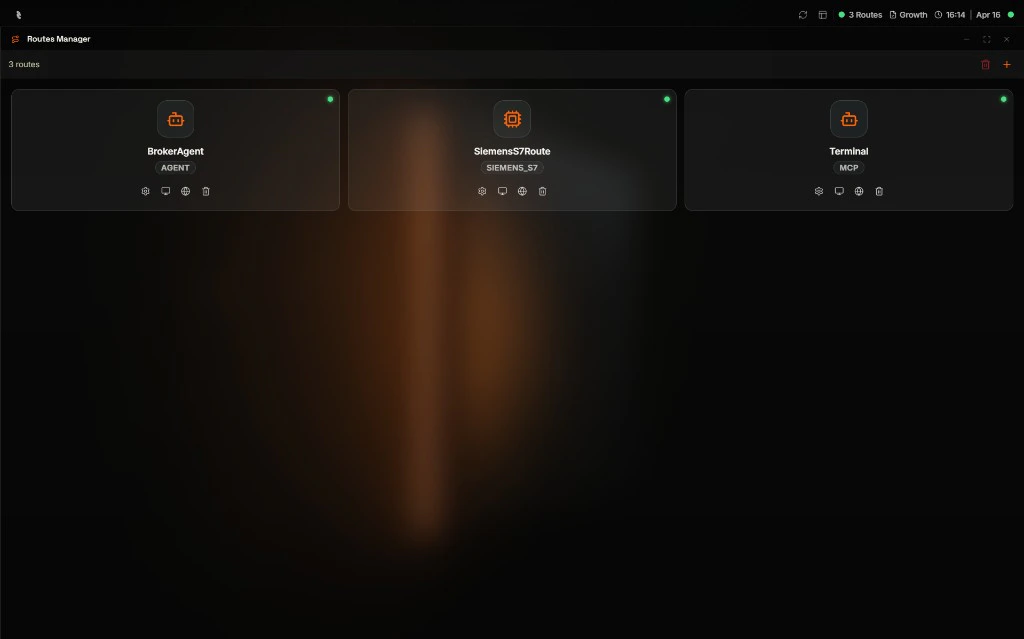
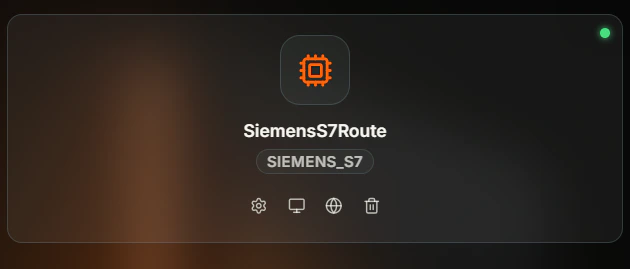
The Routes Manager displays all defined routes as cards. Each route card shows the route name, type (e.g.,SIEMENS_S7), and a status indicator dot in the top-right corner. The dot color tells you the current connection state at a glance:
| Color | Status |
|---|---|
| Green | Connected |
| Red | Not connected |
| Gray | Unknown status |
| Yellow | Reconnecting |
Route Card Actions
Click on a route card to open its context menu with three options:
| Action | Description |
|---|---|
| Configuration | Opens the Routes Configuration panel to edit settings, events, mappings, and tags |
| Monitor | Opens the Routes Monitoring window with a Status tab (connection, health, messages, errors) and a Logs tab (real-time route logs) |
| Documentation | Opens the Coreflux documentation for the route type directly inside the HUB |
Route Documentation
The Documentation option opens the Coreflux docs page for the route type in an embedded viewer inside the HUB. This gives you quick access to syntax reference, configuration parameters, and examples without leaving the interface.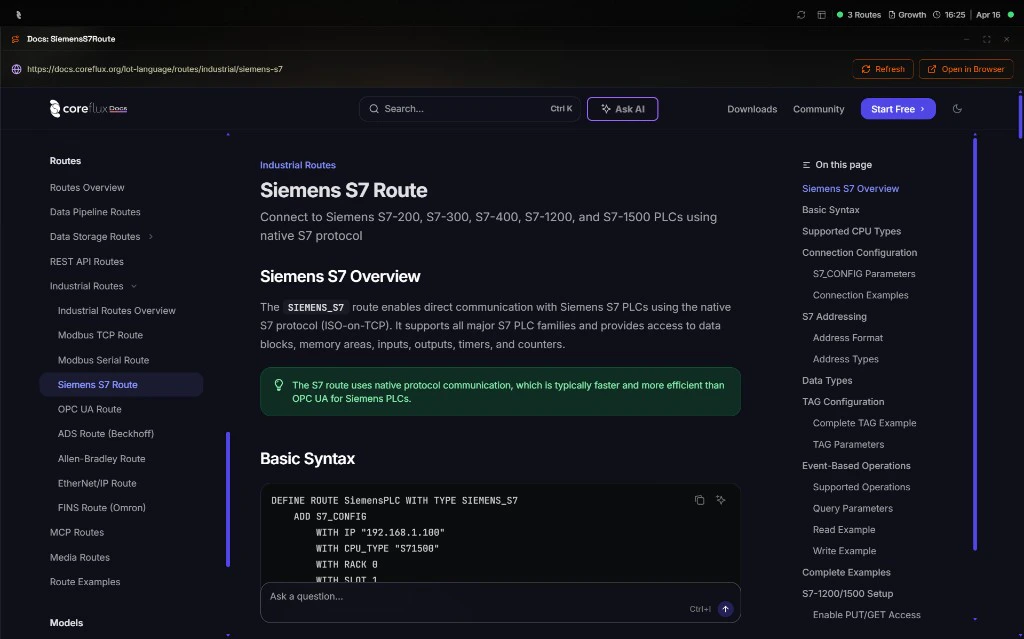
Adding a Route
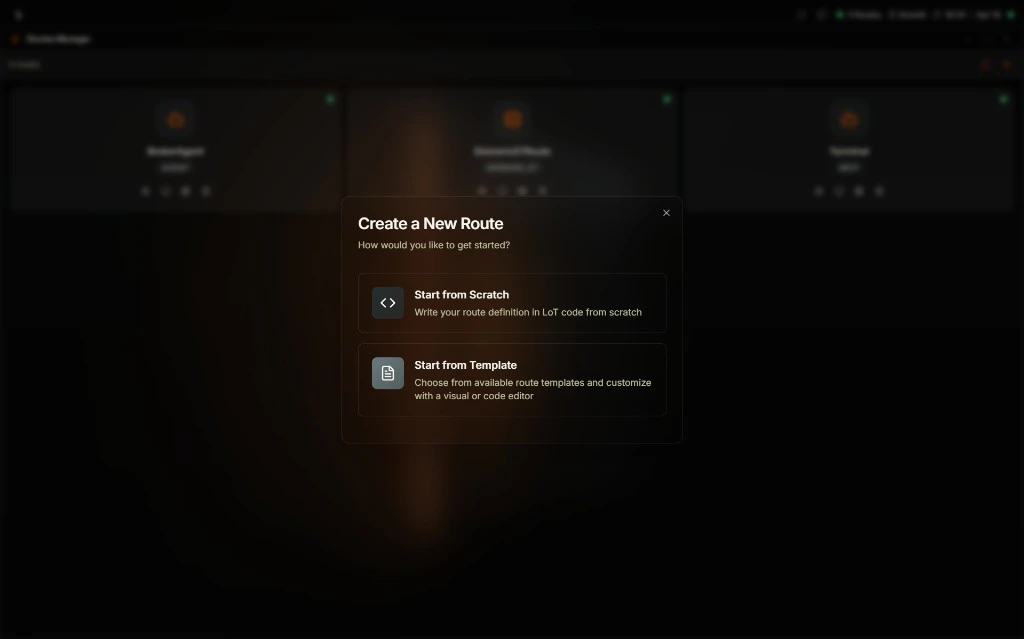
Click Add a route + in the Routes Manager. The Create a New Route modal appears with two options:- Start from Scratch — Opens the LoT code editor where you write your route definition from scratch
- Start from Template — Opens the template list where you pick a route type and configure it visually
| Method | Best For |
|---|---|
| Start from Scratch | Custom routes, full control over syntax, copying from documentation |
| Start from Template | Quick setup for common route types with a visual configuration form |
Start from Scratch
Select Start from Scratch to open the Create Route with Code Editor modal. Write your route definition in LoT language and click Create Route to deploy.
Start from Template
Select Start from Template to open the templates list. Choose a route type to configure it visually.- Select Start from Template from the Create a New Route modal.
- The Templates list opens with available route types.
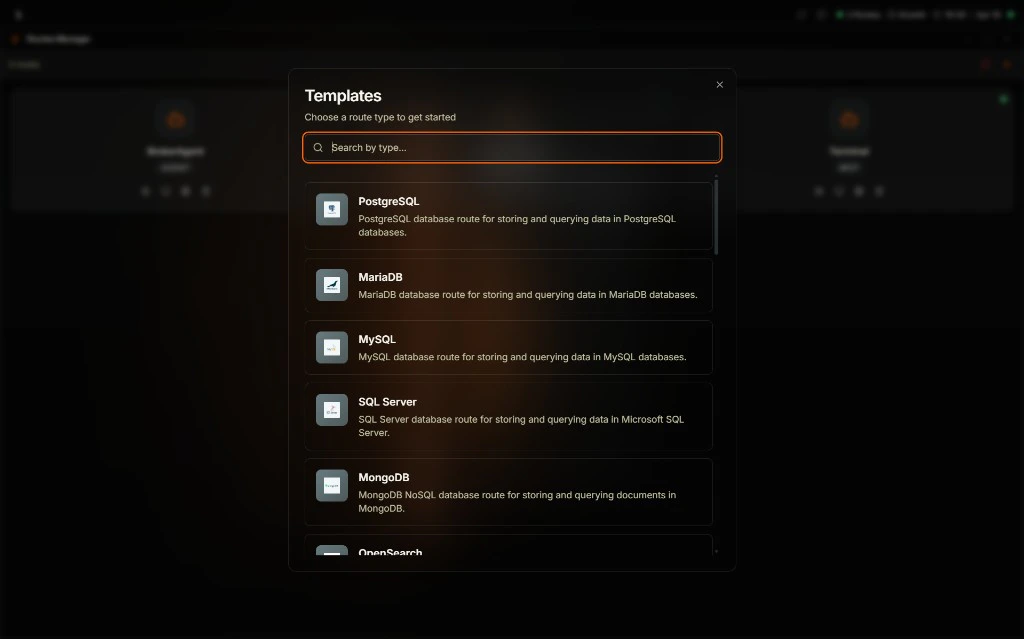
- Use Search by type… to filter (e.g., “PostgreSQL”, “Modbus”).
- Select a template. The route creation view opens with a configuration form.
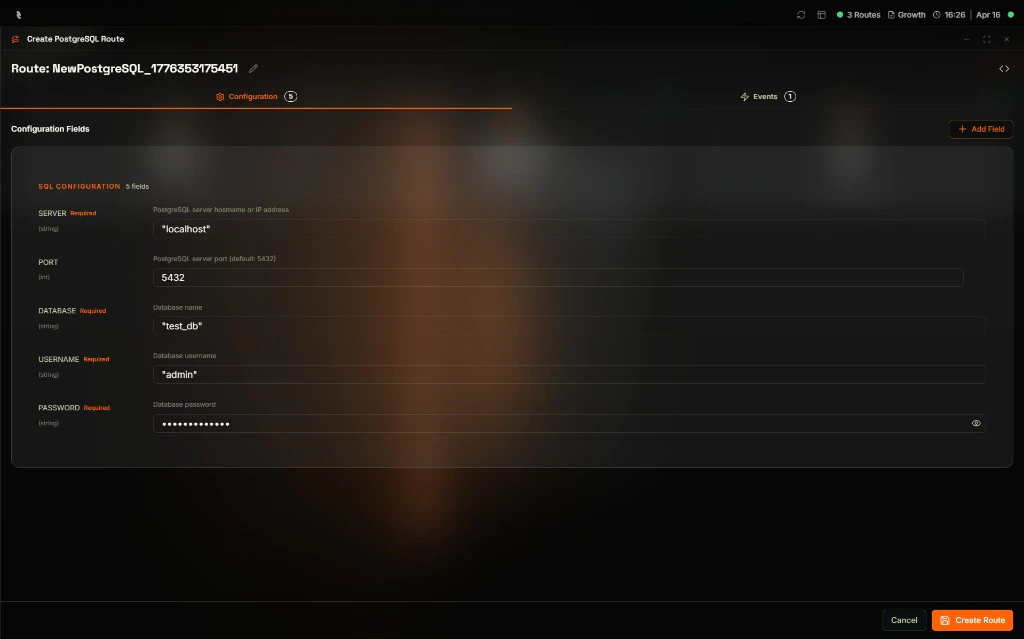
- Configuration — Fill in the connection fields (server, port, database, username, password). Required fields are marked with a badge. Use + Add Field to include optional parameters.
- Events — Define events for the route (e.g., queries triggered by MQTT messages).
- LoT Mode — Switch to LoT Mode to view or edit the generated LoT code directly.
- Fill in the configuration fields and add events as needed.
- Click Create Route to deploy. Click Cancel to discard.
Next Steps
Routes Configuration
Edit routes with Visual or LoT mode.
LoT Routes
Learn route syntax and available route types.