

Documentation Index
Fetch the complete documentation index at: https://docs.coreflux.org/llms.txt
Use this file to discover all available pages before exploring further.
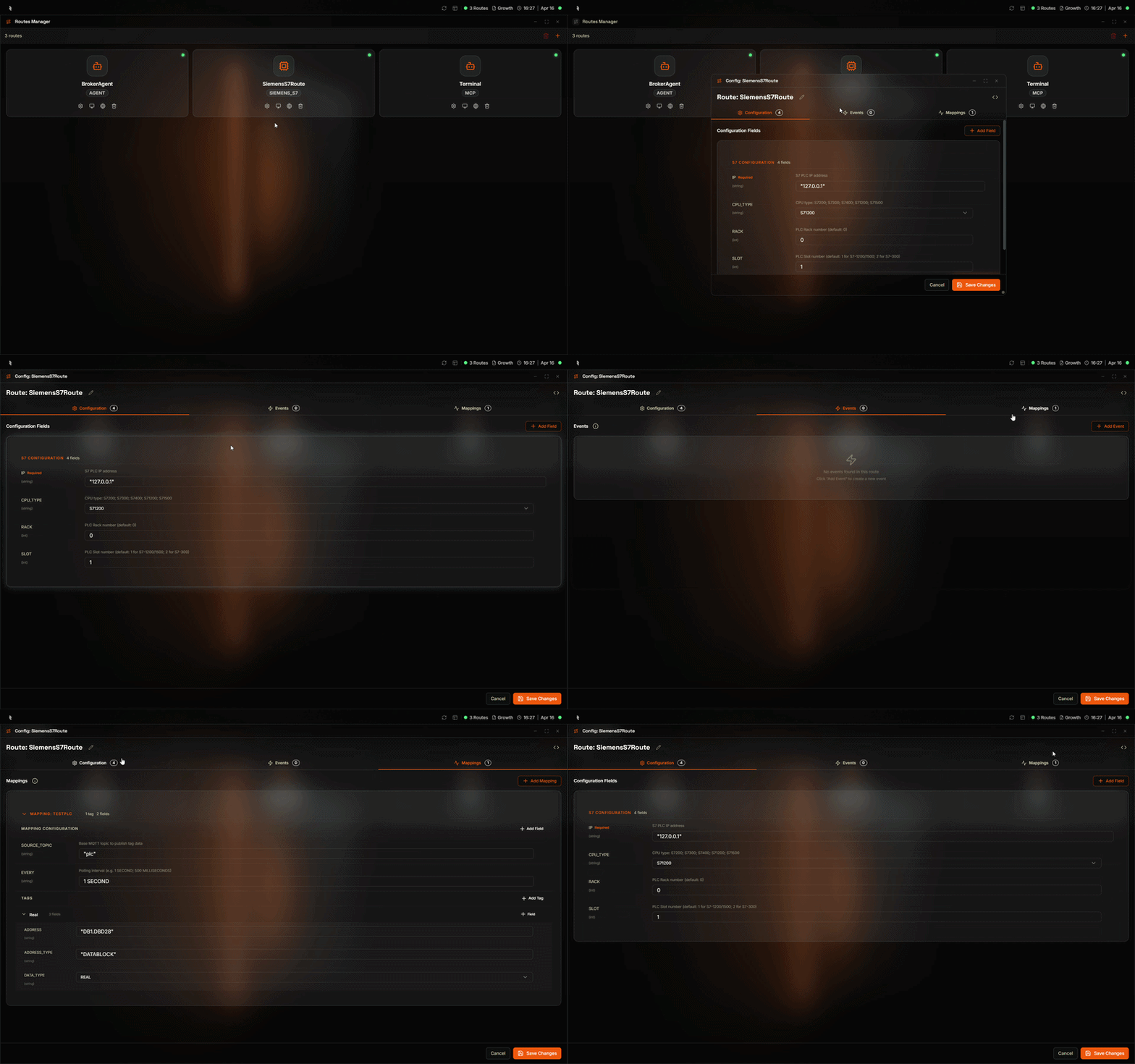
Why Configure Routes in the Coreflux HUB?
You need to adjust route settings—connection parameters, events, mappings, and tags—without editing files or publishing MQTT commands. The Route Configuration in the HUB lets you edit routes with a form-based Visual Mode or switch to LoT Mode to modify the raw LoT code by hand.When to Use It
- Updating connection settings — Change IP, port, credentials, or other config fields
- Adding events or mappings — Extend a route with new events, mappings, or tags
- Switching modes — Use Visual Mode for guided editing or LoT Mode for full control
Visual Mode vs LoT Mode
| Mode | Best For |
|---|---|
| Visual Mode | Form-based editing with add/remove fields, modals, and validation |
| LoT Mode | Direct LoT code editing for power users who prefer hand-editing |
LoT Mode
Switch to LoT Mode to view and edit the full route definition as LoT code. This gives you direct control over the syntax and is useful for copying configurations or making bulk changes.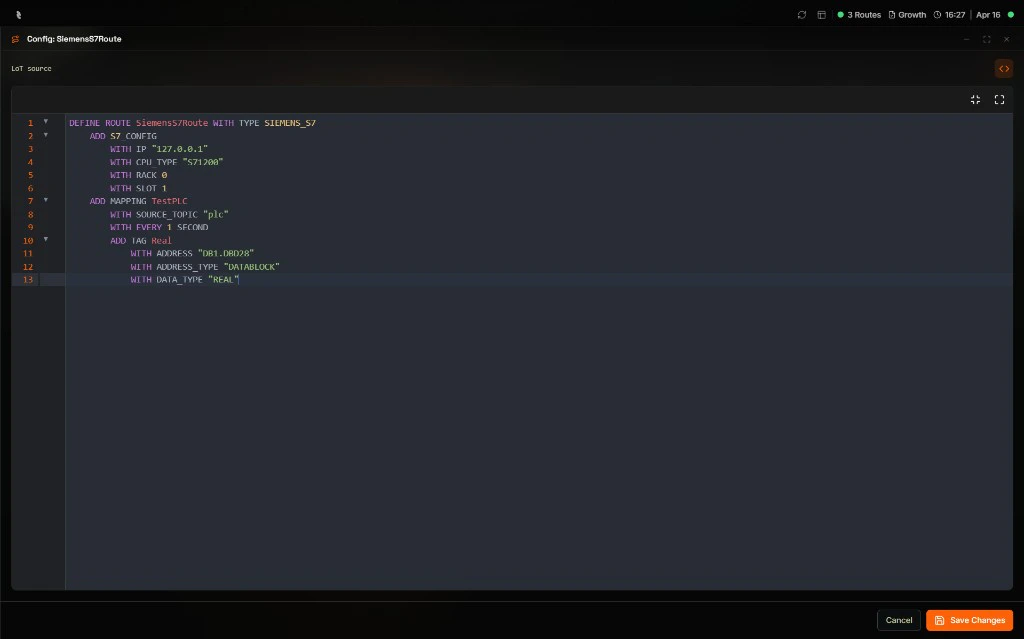
Renaming Elements
You can rename routes, events, mappings, and tags directly from the configuration panel. Click the pencil icon next to any element name to turn it into an editable text field, type the new name, and press Enter to confirm. A Renamed badge appears briefly to confirm the change. This works the same way for all element types:- Route name — Displayed at the top of the configuration panel
- Event name — Displayed in the Events tab header for each event
- Mapping name — Displayed in the Mappings tab header for each mapping
- Tag name — Displayed in the tag header within a mapping
Renaming takes effect when you click Save Changes. If you cancel without saving, the original names are restored.
Configuration Tab
The Configuration tab shows the route’s connection and protocol settings (e.g.,S7_CONFIG, SQL_CONFIG, MODBUS_CONFIG). Each field displays its name, whether it is required or optional, its data type, and a description.
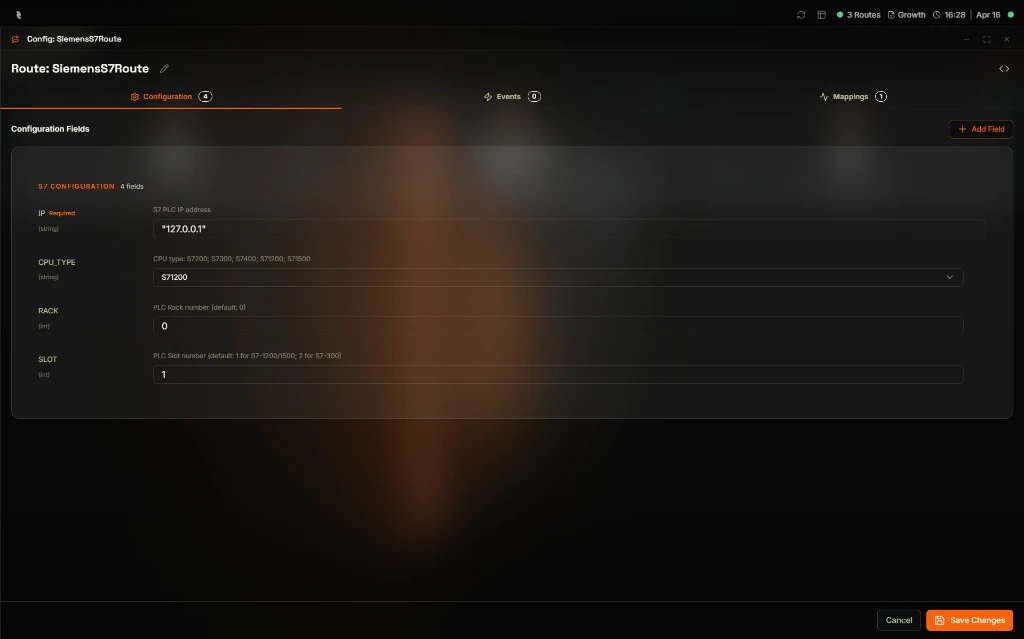
- View fields — See all configuration fields with their types and descriptions
- Edit field — Change values in the input fields
- Add field — Click + Add Field to add optional fields from a list of available parameters
- Delete field — Use the delete icon on a field to remove it
Adding a Configuration Field
Click + Add Field to open the Add Configuration Field modal. This shows all optional fields available for the route type, along with their data types and descriptions.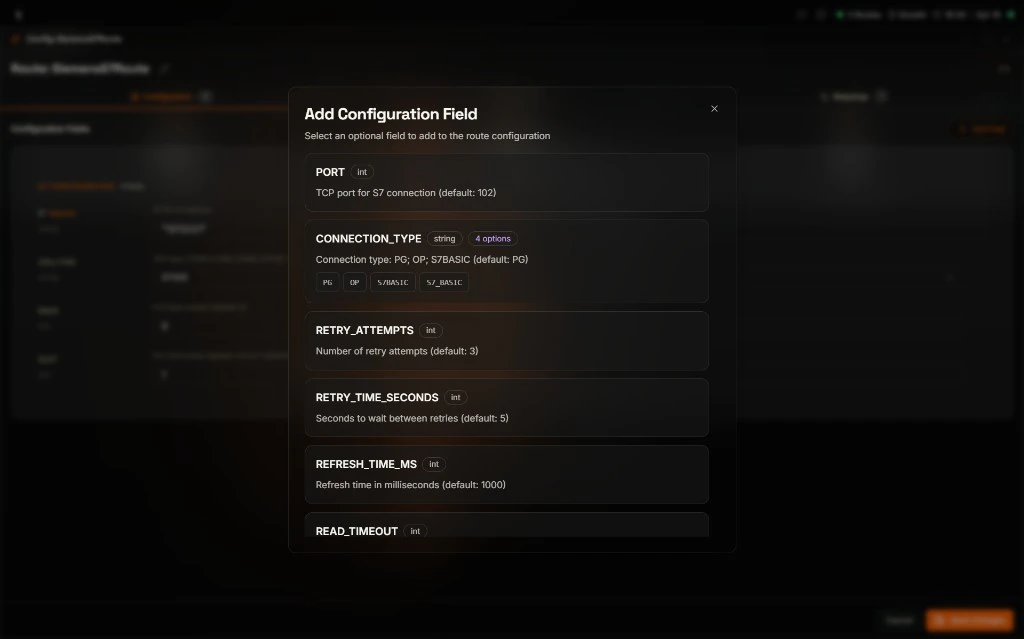
Events Tab
The Events tab manages event definitions for the route. Events define how the route reacts to MQTT messages—typically by reading from or writing to the connected device or service.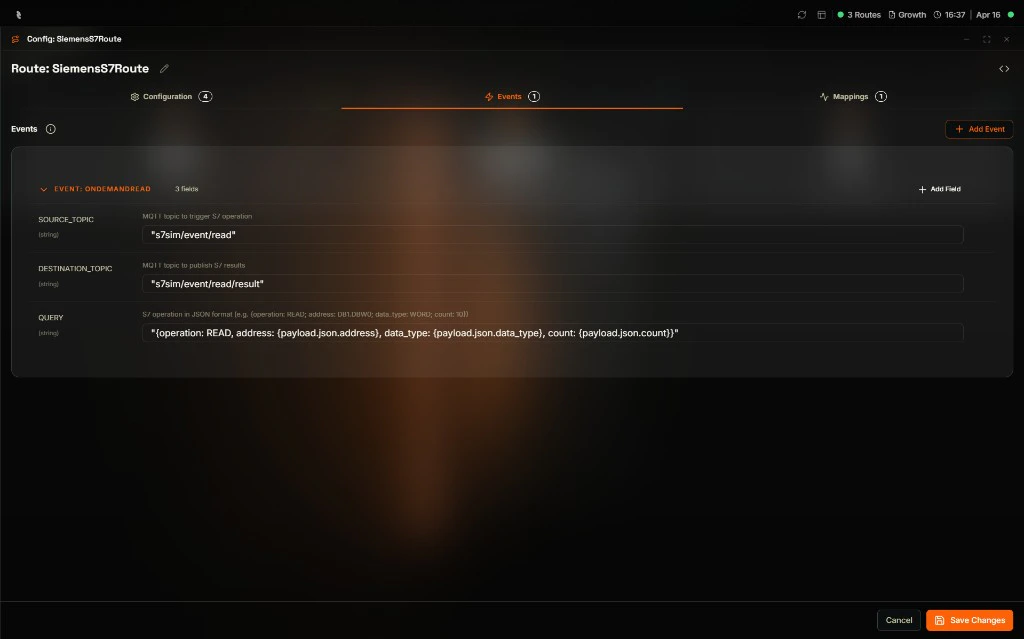
- Add Event — Click + Add Event to create a new event with a name and fields
- Rename event — Click the pencil icon next to the event name to rename it
- Edit event — Expand an event to view and edit its fields (e.g.,
SOURCE_TOPIC,DESTINATION_TOPIC,QUERY) - Add field — Use + Add Field within an event to add optional fields
Adding an Event Field
Click + Add Field inside an event to open the Add Event Field modal. This shows the optional fields available for the event.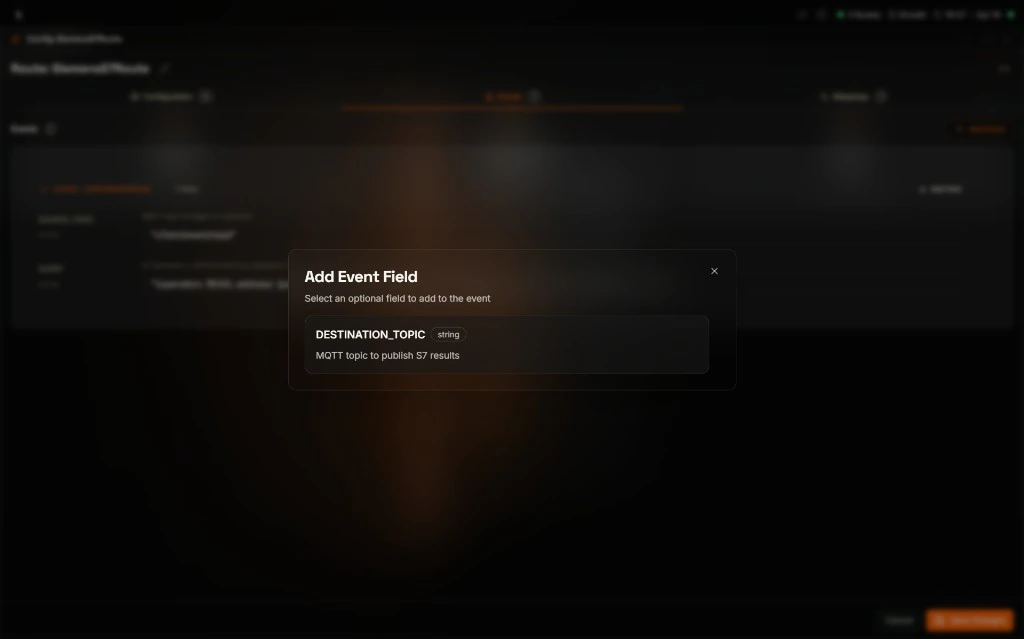
Mappings Tab
The Mappings tab manages mapping definitions and tags. Mappings define periodic data polling from a connected device—reading tags at a set interval and publishing the data to MQTT topics.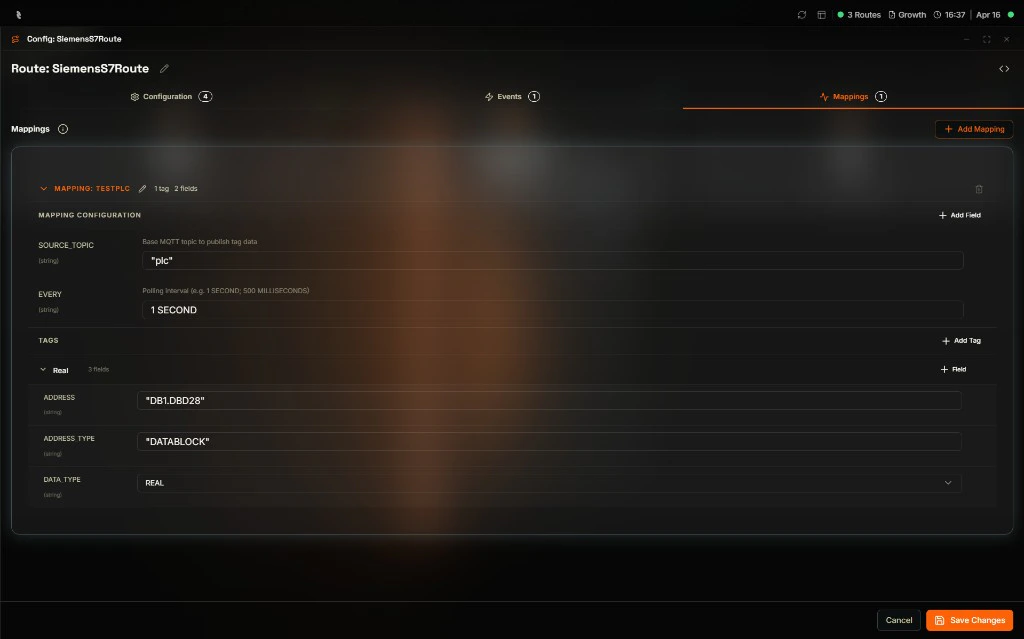
- Add Mapping — Click + Add Mapping to create a new mapping with a name, mapping fields, and tags
- Rename mapping — Click the pencil icon next to the mapping name to rename it
- Edit mapping — Expand a mapping to edit its configuration (e.g.,
EVERY,SOURCE_TOPIC) and tags - Add Tag — Use + Add Tag within a mapping to add tags with address, data type, and other properties
Adding a New Mapping
Click + Add Mapping to open the Add New Mapping modal. Enter a mapping name, then use + Add Field and + Add Tag to build the mapping.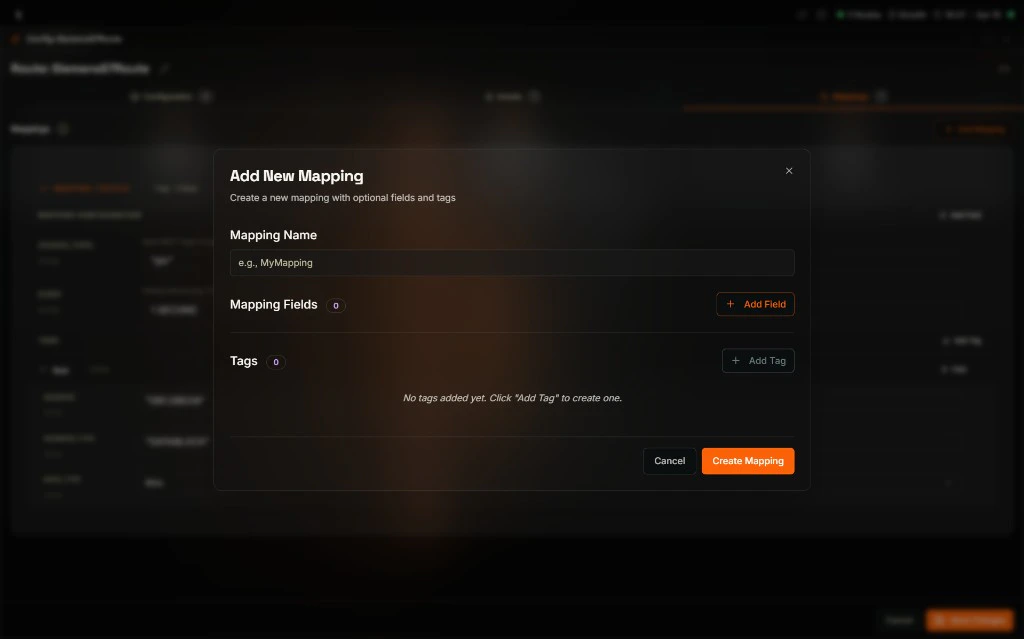
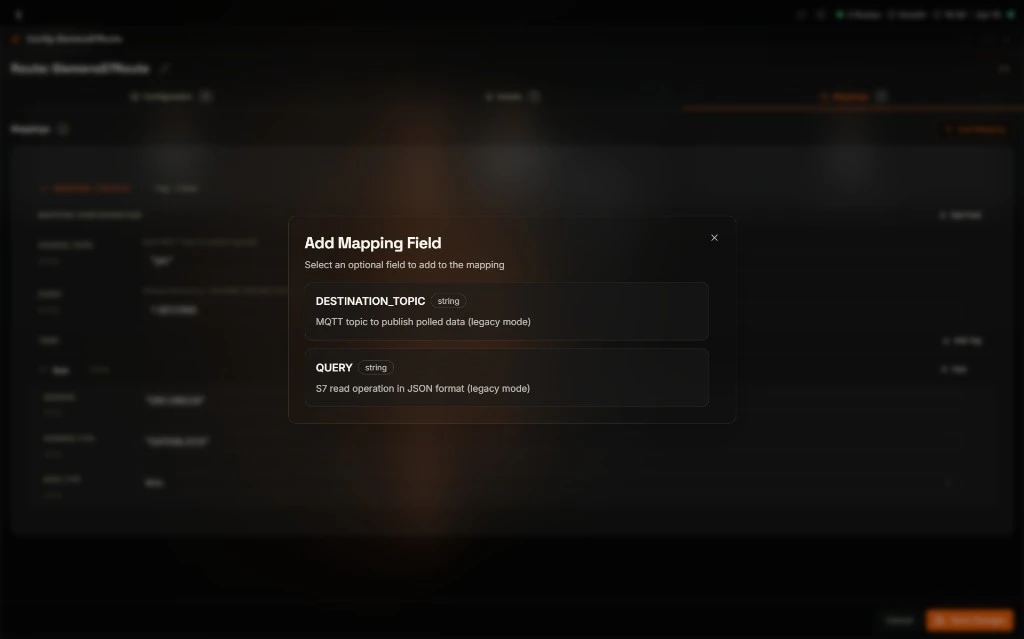
Adding a Mapping Field
Click + Add Field inside a mapping to open the Add Mapping Field modal. This shows the optional fields available for the mapping, such asDESTINATION_TOPIC and QUERY.
Tags
Tags are defined inside mappings. Each tag represents a data point to read from the connected device. You can add, edit, rename, and remove tags and their properties (address, address type, data type, scaling, unit, etc.) from the Mappings tab. To rename a tag, click the pencil icon next to the tag name.Saving and Canceling
- Save Changes — Applies all edits to the broker
- Cancel — Discards unsaved changes and closes the configuration panel
Next Steps
Routes Overview
Create new routes with templates or LoT code.
Routes Monitoring
View and export route-specific logs and status.