Documentation Index Fetch the complete documentation index at: https://docs.coreflux.org/llms.txt
Use this file to discover all available pages before exploring further.
Why View Connected Clients? You need to know which clients are connected to your broker—devices, applications, or the Coreflux HUB itself. The Connected Clients view shows all active MQTT connections with detailed connection info, traffic statistics, session data, and last activity so you can verify connectivity and troubleshoot disconnections.
When to Use It
Verifying device connections — Confirm that sensors or gateways are connectedTroubleshooting — Check if a client has disconnected or failed to connectMonitoring — See how many clients are using the broker and their trafficDebugging — Inspect session state, pending messages, and last activity timestamps
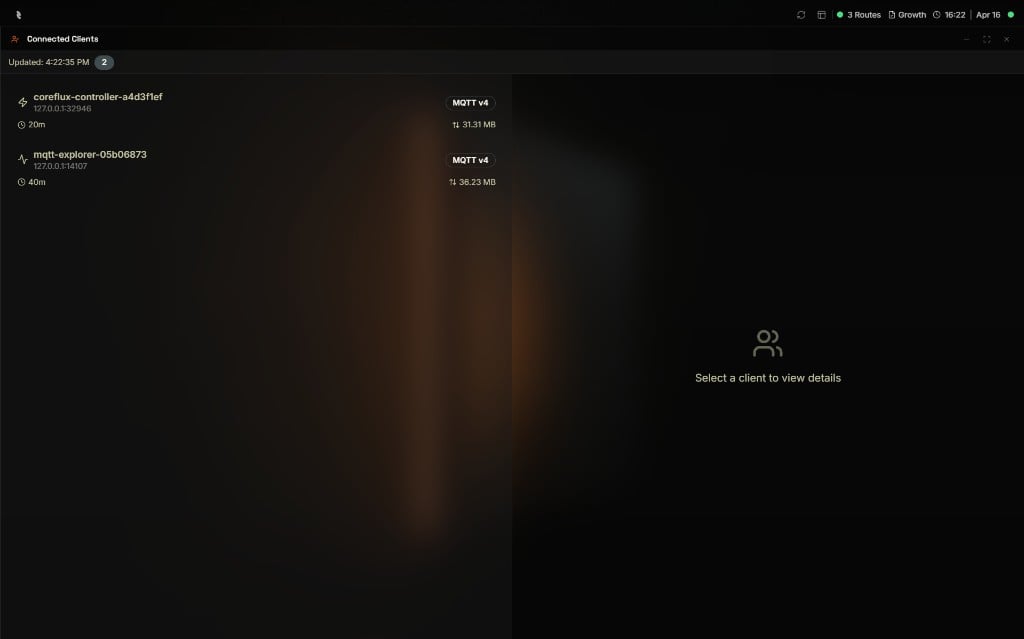
Connected Clients Interface The Connected Clients view has two panels: a client list on the left and a detail panel on the right. Select a client to view its connection information.
Client List (Left Panel) The left panel lists all clients currently connected to the broker. For each client you see:
Field Description Client ID Unique identifier for the connection (e.g., coreflux-controller-0e1e882c) Endpoint Client IP and port (e.g., 127.0.0.1:62983) Connection Duration How long the client has been connected (e.g., 40m) Total Traffic Estimated bytes received and sent combined (e.g., 15.16 MB) Protocol MQTT version (e.g., MQTT v4)
Select a client to view its detailed information in the right panel.
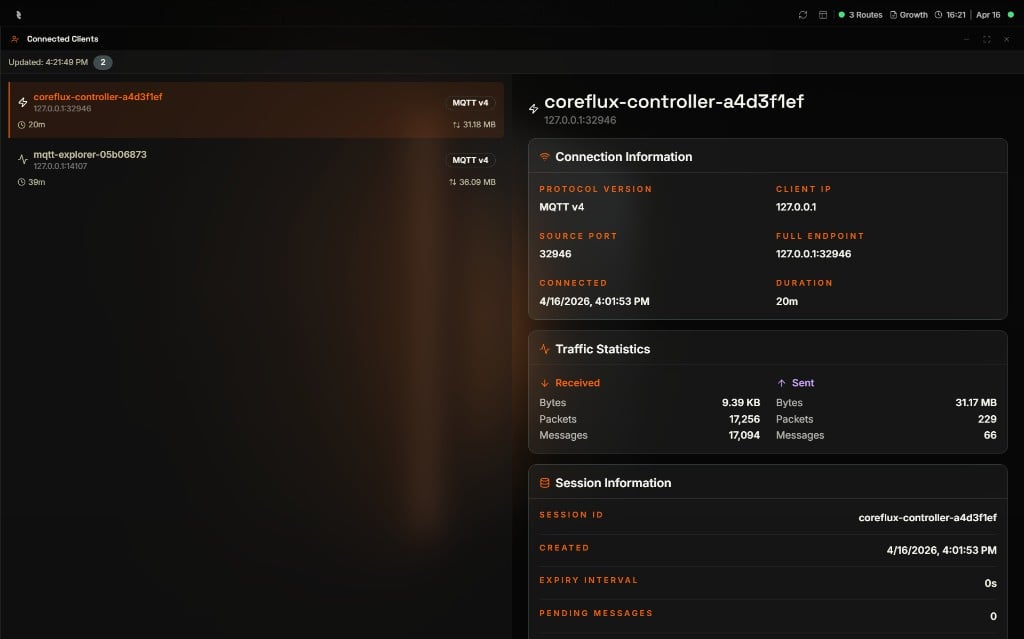
Client Details (Right Panel) When you select a client from the list, the right panel shows four sections:
Field Description Protocol Version MQTT version (e.g., MQTT v4) Source Port Client’s source port Connected Timestamp when the client connected Client IP Client IP address Full Endpoint IP:port (e.g., 127.0.0.1:62983) Duration Connection duration (e.g., 40m)
Traffic Statistics Direction Fields Received Bytes, Packets, Messages Sent Bytes, Packets, Messages
Use these to see how much data the client has exchanged with the broker.
Field Description Session ID Session identifier (typically matches Client ID) Created Timestamp when the session was created Expiry Interval Session expiry (e.g., 0s for no expiry) Pending Messages Number of messages awaiting delivery to this client Status Connection status (e.g., Connected)
Last Activity Field Description Last Packet Received Timestamp of the last packet received from the client Last Packet Sent Timestamp of the last packet sent to the client Last Non-KeepAlive Timestamp of the last non-keepalive packet
Refreshing the List The view updates as clients connect and disconnect. Use the refresh control if you need to force an update of the displayed list. The detail panel shows an “Updated” timestamp indicating when the data was last refreshed.
Next Steps
Data Viewer Explore topics and publish messages.
MQTT Protocol Understand MQTT client connections and sessions.