

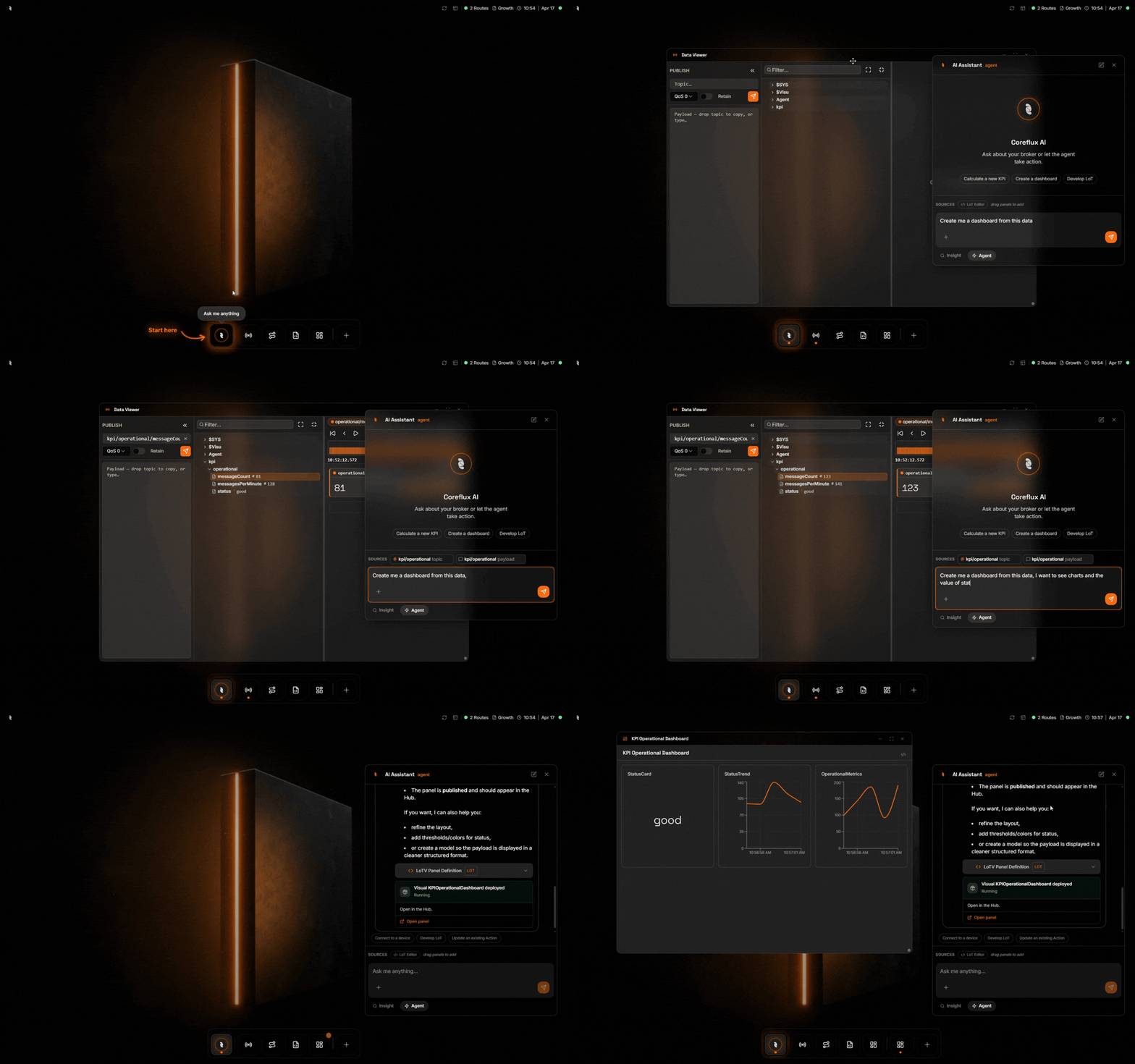
Ask the AI Assistant to build something — it opens, drafts, and deploys in the same panel
Your Broker, Now With a Teammate
The AI Assistant lives inside the same Coreflux MQTT broker that already carries your sensor, PLC, and cloud traffic. You describe what you want in everyday language—ask for insights from the data already flowing through your broker, build Dashboards with live widgets and KPIs, or develop LoT (Language of Things) Actions that run on the broker—and the assistant uses the broker’s own tools to answer, draft, refine, and deploy. It is not a separate chat app pasted on top; it works with your live system.When to Use the AI Assistant
- Ship integrations faster — Describe connections or logic you need; the assistant drafts and deploys Routes, Actions, and panels where your permissions allow.
- Explore without guesswork — Ask what topics exist, which Routes are healthy, or how a KPI is calculated before you change anything.
- Hand off safely — Use read-only mode for operators or auditors who should see answers but not apply changes.
Run Models On-Premise or in the Cloud
Where inference runs is an architecture and compliance choice. The AI Assistant supports edge (on-premise) models and cloud providers so you can keep prompts and payloads on your network when you need to, or use hosted APIs when policy allows.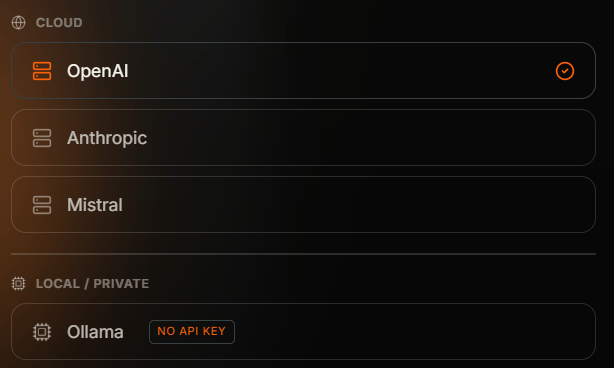
Provider picker in the AI Setup wizard — cloud providers (OpenAI, Anthropic, Mistral) and a local/private option (Ollama)
- On-premise (edge) — Run models on hardware you control, for example Ollama on the same host or LAN as the broker, so data does not leave your site.
- Cloud providers — Connect to hosted models such as OpenAI, Anthropic, or Mistral when your organization allows traffic to leave the network.
ollama pull llama3.2) — the name you enter in step 2 must match a model already available in Ollama. Coreflux connects to your Ollama endpoint; it does not install Ollama or download models for you. Lightweight models may work for a quick test, but often are not capable enough for reliable agent work or good answer quality.If the broker runs in Docker, localhost inside the container is not the host. With Docker Compose, point at the Ollama service (e.g. http://ollama:11434). If Ollama runs on the host, use http://host.docker.internal:11434 (Docker Desktop) or the host’s LAN IP. See AI Routes — Ollama for BASE_URL in LoT.Set up the AI Assistant
The first time you open the AI Assistant, a short wizard walks you through three choices—provider, model, and API key—and prepares your broker. You only do this once per broker; after that, clicking the Coreflux icon opens the assistant directly.Open the AI Setup wizard
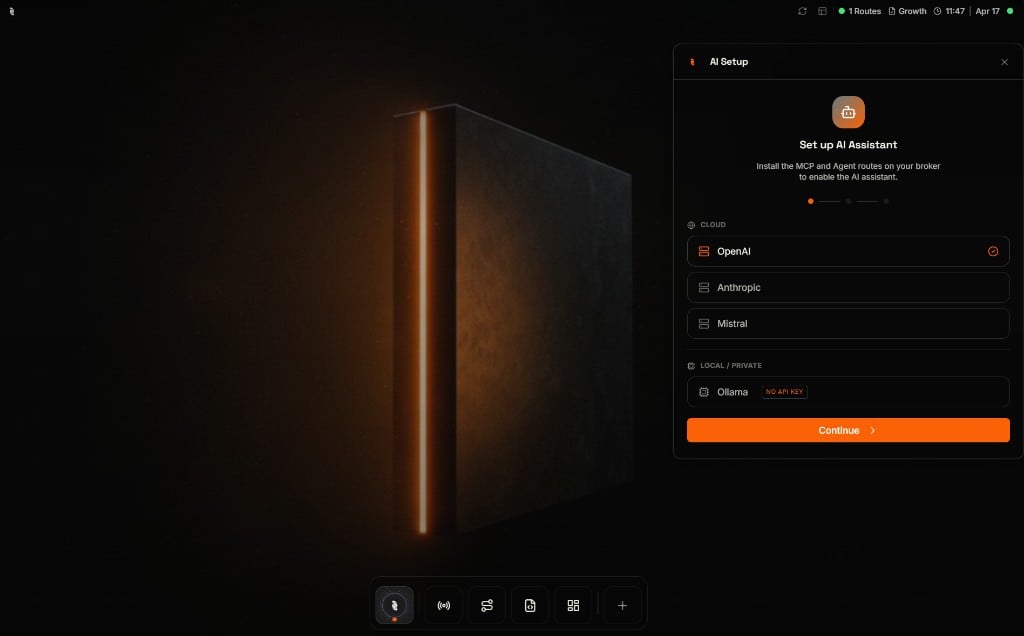
AI Setup wizard step 1 — pick a Cloud provider or a Local / Private engine
Pick a model
gpt-5.4-mini) into the custom field. Click Continue when you are ready.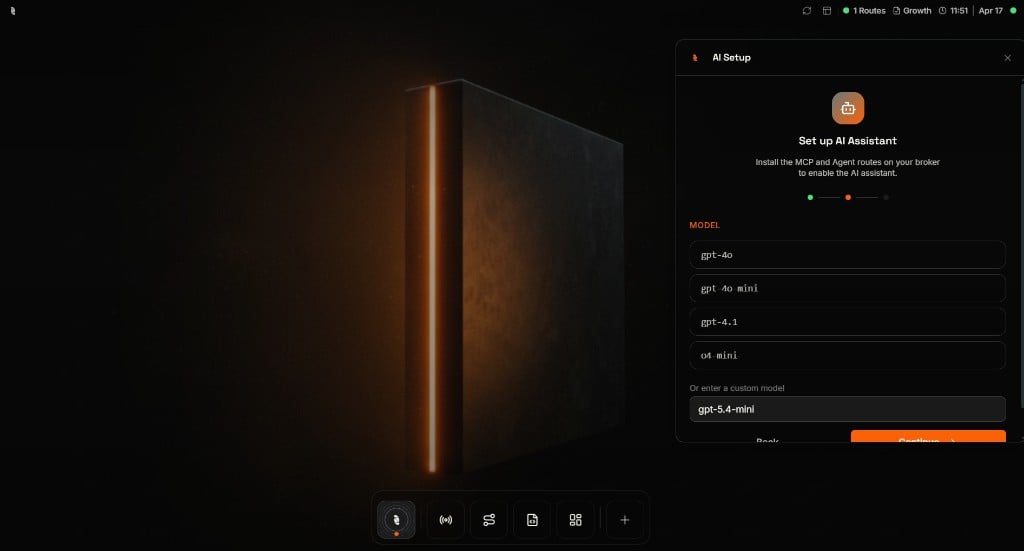
AI Setup wizard step 2 — choose a suggested model or type a custom one
Add your API key
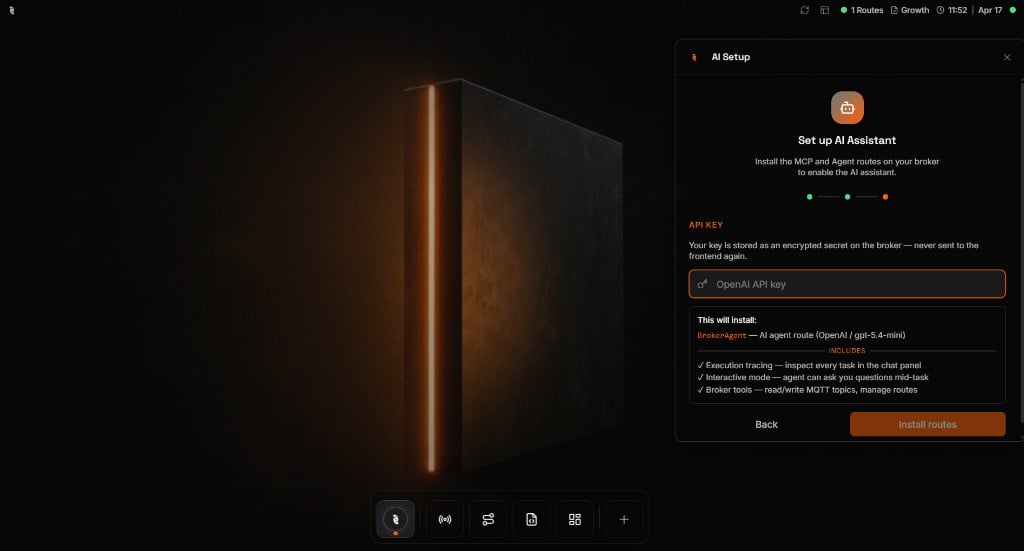
AI Setup wizard step 3 — paste your provider API key; the broker stores it as an encrypted secret
Where do I get an API key?
Where do I get an API key?
- OpenAI — platform.openai.com/api-keys
- Anthropic — console.anthropic.com
- Mistral — console.mistral.ai
Install and you're ready
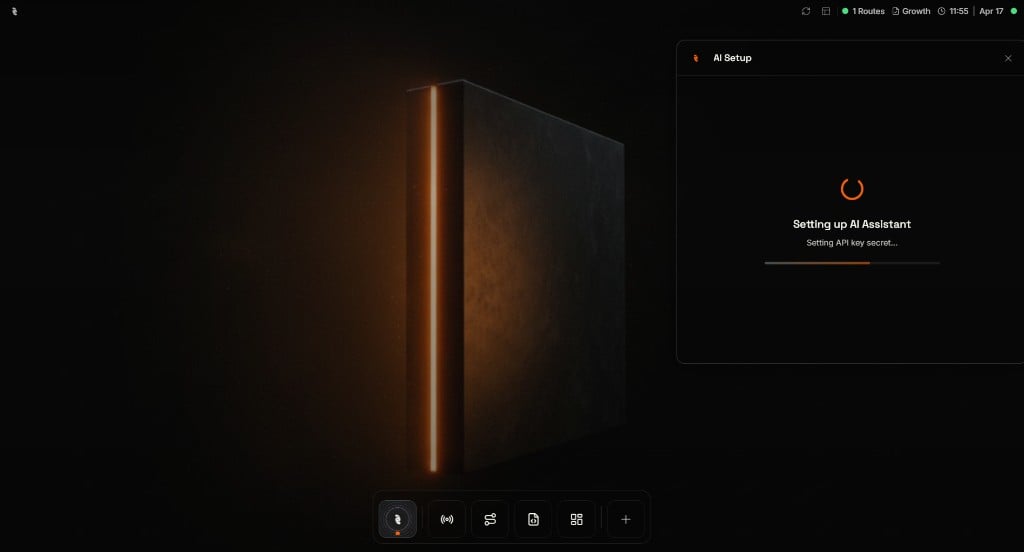
AI Setup finishing — the broker provisions the assistant in the background
Open the AI Assistant
Use the Coreflux icon in the bottom app dock—the first icon on the left. You can peek at the assistant without opening the full side panel, then click when you want the full workspace.Hover to preview
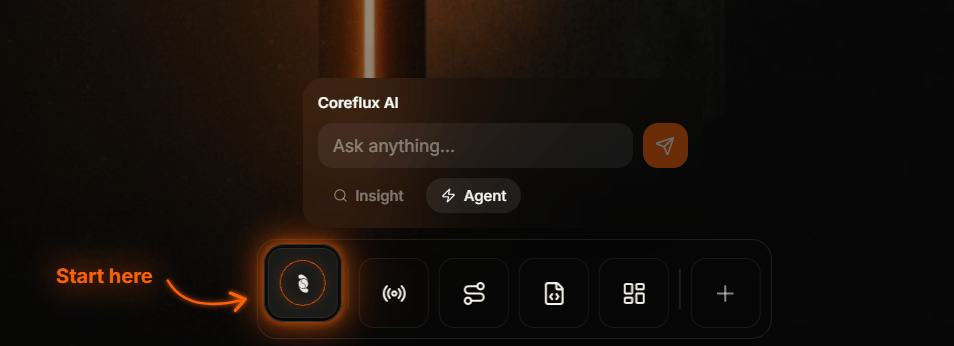
Hover the dock Coreflux icon to open the compact Coreflux AI bubble with Ask anything and mode pills
Click to open the full panel
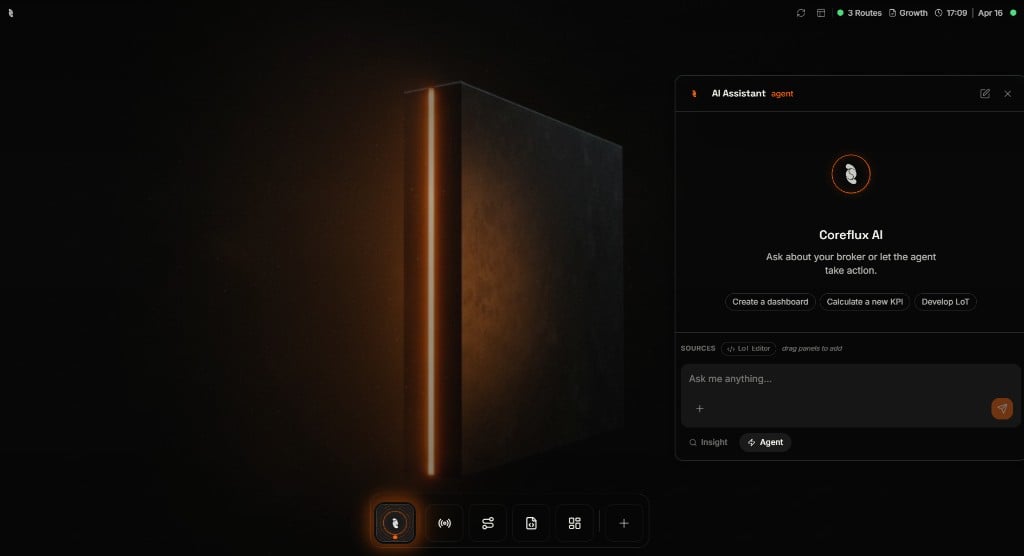
Full AI Assistant panel — suggested prompts, Sources, and the main chat input
Agent vs Insight mode
Pick the mode that matches how much change you want the assistant to make. You can switch at the bottom of the panel at any time.What you can do
These are typical starting points—phrase them in your own words; the assistant will ask follow-ups if something is missing.Build a dashboard
Develop an Action in LoT
Calculate a new KPI
Explain your broker state
Example: Build a KPI with Agent mode
Below is one real flow: you ask for a KPI, the assistant requests the missing pieces, then deploys an Action and offers a shortcut to the LoT Editor. Stay in Agent mode for this path.Ask
AI Assistant in Agent mode with suggested prompts including Calculate a new KPI
Clarify
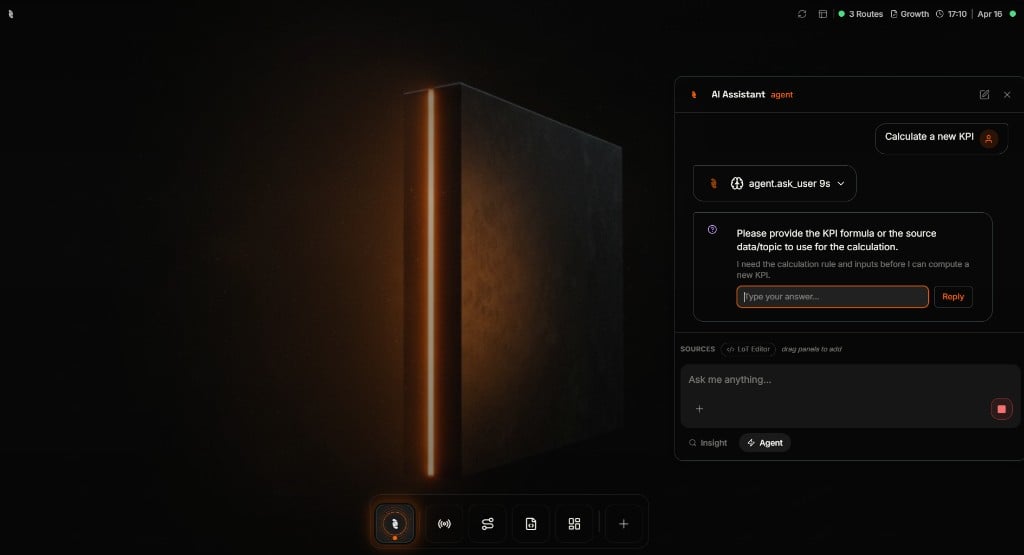
Assistant asking for KPI formula or source data before continuing
Deploy
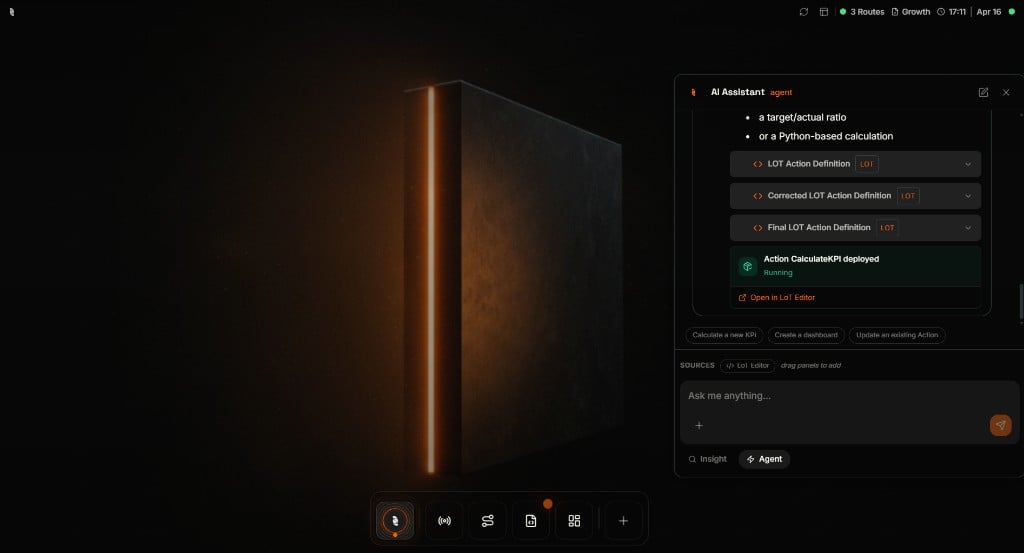
Deployed Action with Running status and Open in LoT Editor link
Example: Explore safely with Insight mode
Switch to Insight before you send if you only want answers—not changes. You can still get structured output such as tables and follow-up suggestions.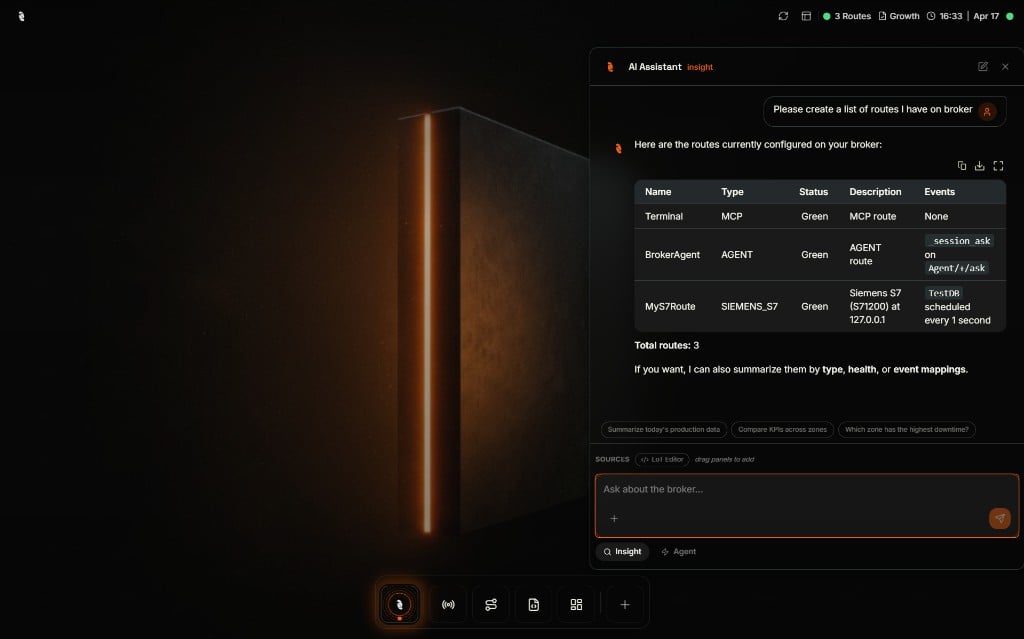
Insight mode — list of Routes returned as a table after a natural-language question
Built-in safeguards
- Your permissions apply — The assistant cannot read topics or change Routes beyond what your HUB user is allowed to do.
- Insight mode is read-only — No deploy, publish, or execute path while Insight is selected.
- Stop at any time — Long runs can be cancelled from the UI so you are never stuck waiting on a runaway answer.
- Same deployment path as humans — Anything the assistant deploys still goes through the broker’s normal validation and permission checks.
Best practices
Start in Insight when you are learning
Start in Insight when you are learning
Always review what was deployed
Always review what was deployed