


Coreflux HUB home screen with the app dock and live status (routes, workspace, time)
Why Use the Coreflux HUB?
You need a single place to manage your broker without installing extra tools or connecting via the command line. The Coreflux HUB gives you an interface to explore topics, create and edit LoT (Language of Things) definitions, configure routes, and monitor system status—all from one dashboard. It is available as a browser interface when running via Docker, or as a standalone desktop application for Windows and Linux.The Coreflux HUB is available in two ways: bundled with the Docker image (access from your browser after mapping ports
8080 and 8443), or as a standalone desktop application for Windows x64, Linux x64, and Linux ARM64—download the executable, run it, and the HUB opens. See Installation for platform-specific setup.When to Use the HUB
- Manage everything from the HUB — Configure your broker, deploy logic, and set up data routes without installing desktop tools
- Go from idea to deployment in minutes — Write and deploy Actions, Models, and Rules directly in the built-in editor
- Monitor your system in real time — See device connections, data flow, and system health at a glance
- Diagnose issues fast — Inspect live MQTT messages and run broker commands from one interface
Prerequisites
The HUB is available in two ways depending on how you run the broker.- Docker
- Standalone Desktop App
To reach the HUB from your browser, map the HUB ports when starting the container:
If these ports are not mapped, the broker still runs normally—you simply won’t be able to open the HUB. See Installation for the full Docker setup.
Accessing the HUB
- Docker
- Standalone Desktop App
Open your browser and navigate to:
- Local:
http://localhost:8080 - Remote:
http://<broker-ip>:8080
8443 instead.How the HUB Is Organized
The HUB is built around five apps. Each app groups related tools so you can switch between tasks without leaving the browser.MQTT
Explore topics, publish messages, and view connected clients.
LoT Editor
Create and edit Actions, Models, and Rules in the browser.
Dashboards
Build live panels with gauges, charts, and controls bound to broker data.
Routes
Add, configure, and monitor routes with templates or LoT code.
System
Broker configuration, user management, trace logs, and command console.
MQTT
Browse live data flowing through your broker. The MQTT app includes a Data Viewer for subscribing to topics and publishing test messages, and a Connected Clients view to see which devices are online.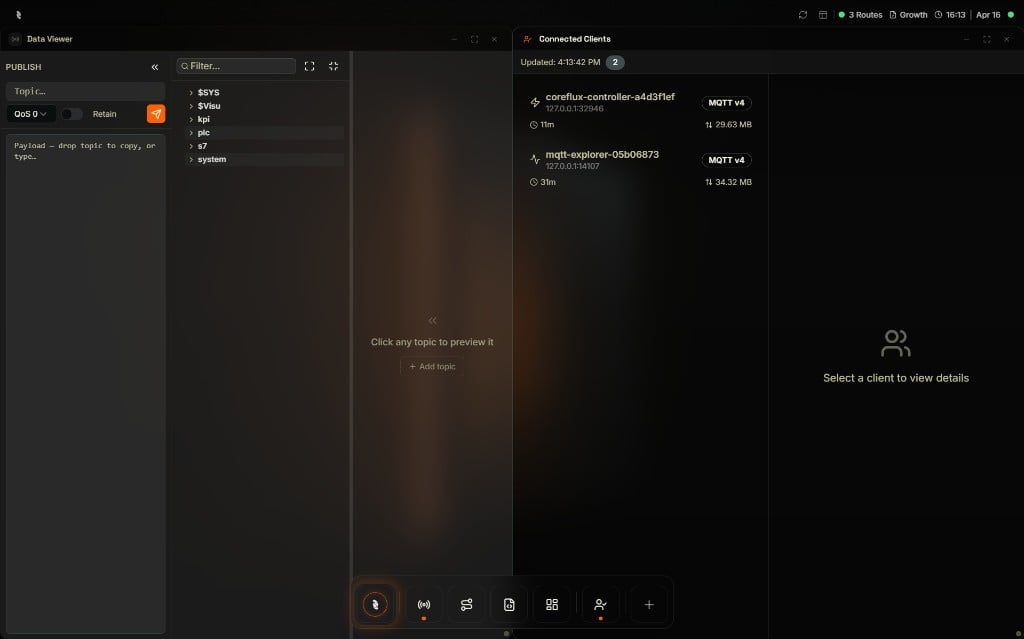
MQTT app — Data Viewer with topic tree and publish controls, plus Connected Clients
LoT Editor
Write and deploy logic directly in the HUB. The LoT Editor provides tabs for Actions, Models, and Rules, each with a code editor — no external tools required.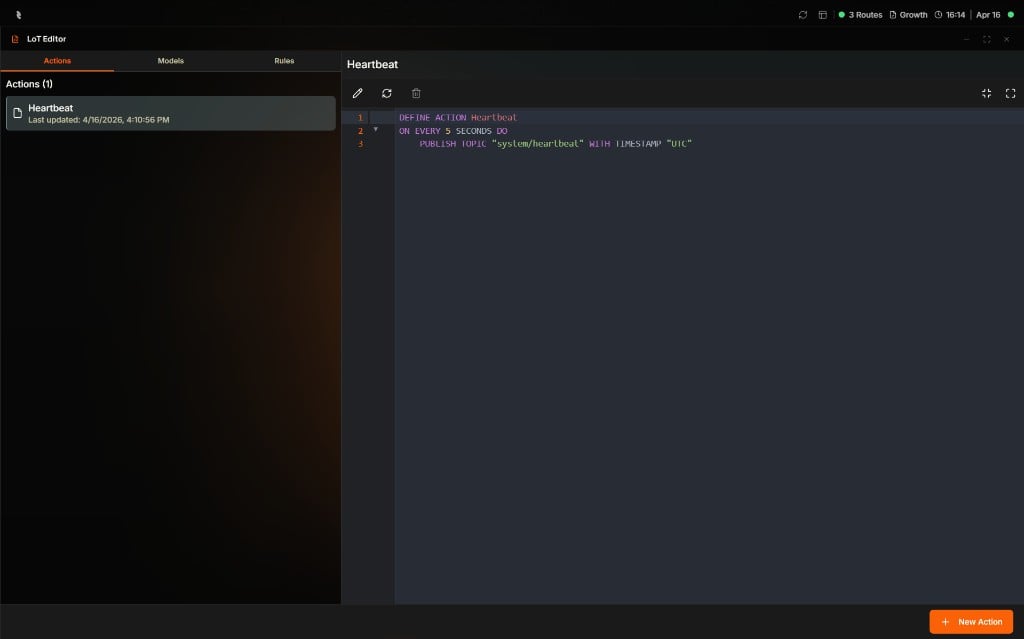
LoT Editor — Actions tab with an Action open in the inline code editor
Dashboards
Design operator-facing screens from a component library—gauges, charts, industrial symbols, and controls—and bind each widget to live data on your broker. The Dashboard Manager lists your panels; open one to preview or use it full screen for walls and shared links.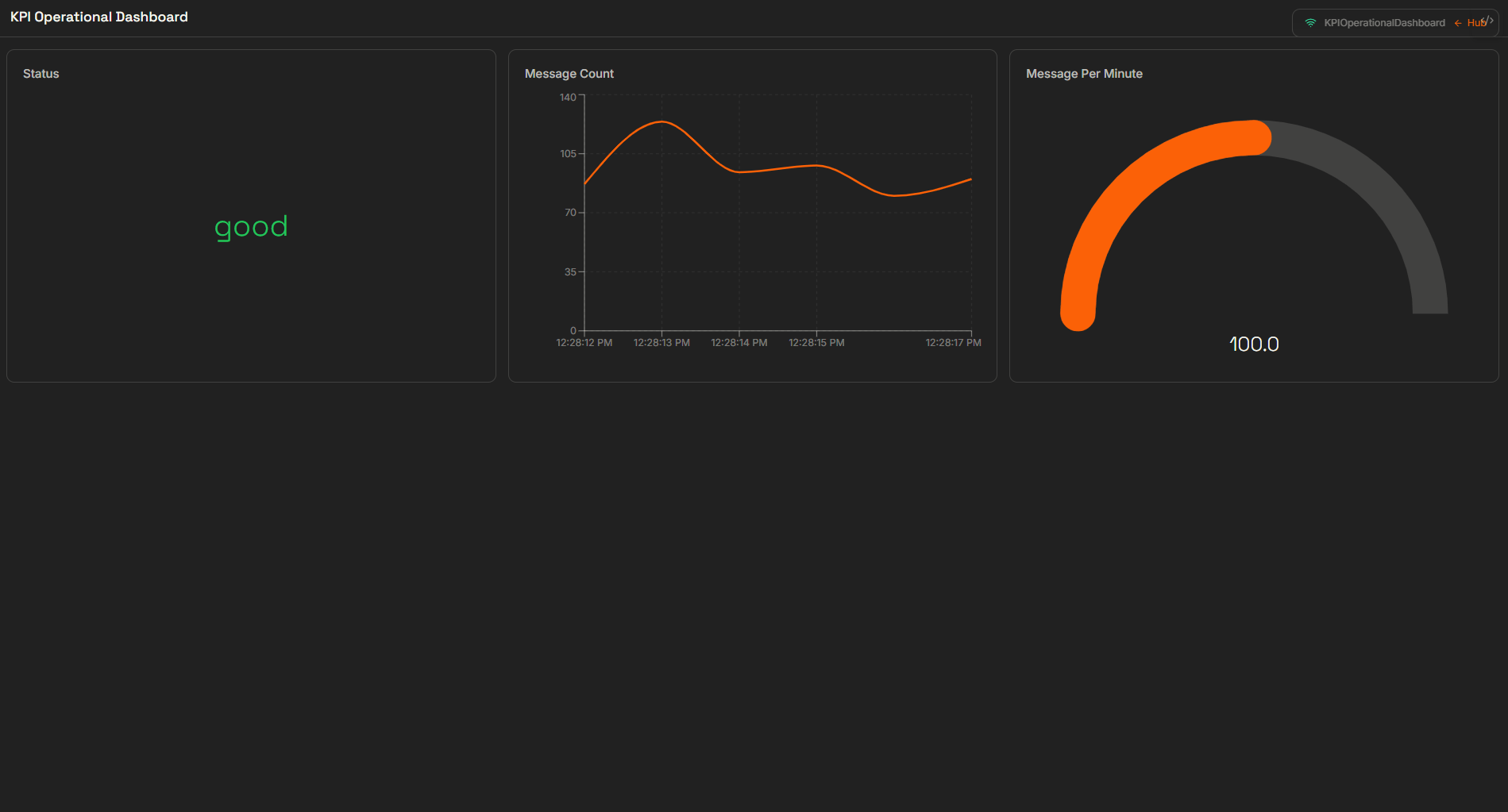
Dashboards — published panel with live numeric readout and gauge
Routes
Connect your broker to databases, PLCs, and external systems. The Routes app shows each route as a card with a live status indicator, and lets you configure routes visually or in LoT code.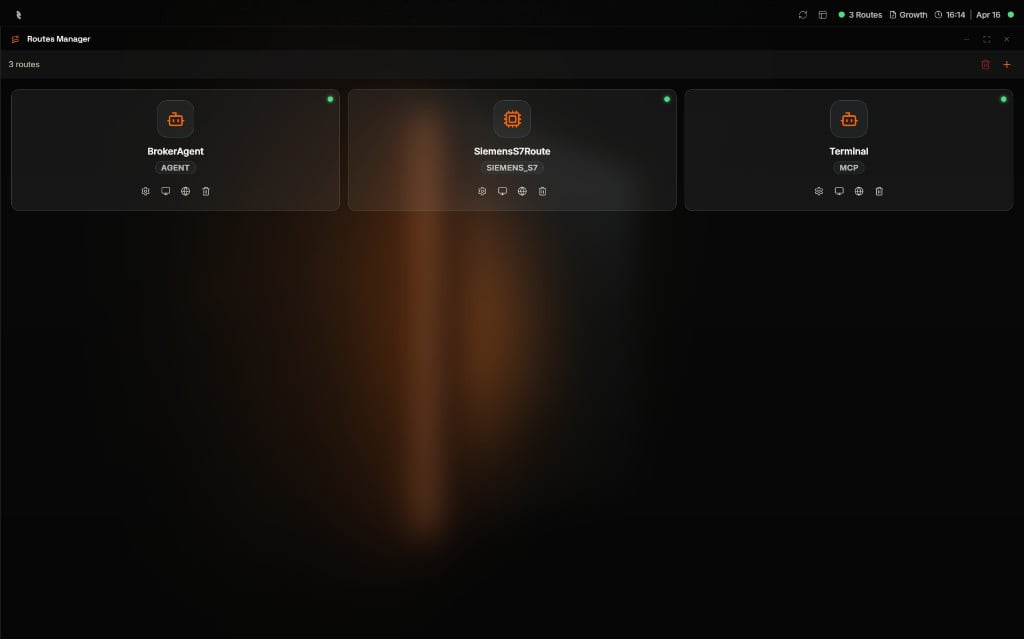
Routes app — route cards with live status and quick actions on each card
System
Administer the broker itself. The System app provides Broker Configuration, User Management, a Command Console for direct broker commands, and Broker Logs for real-time diagnostics.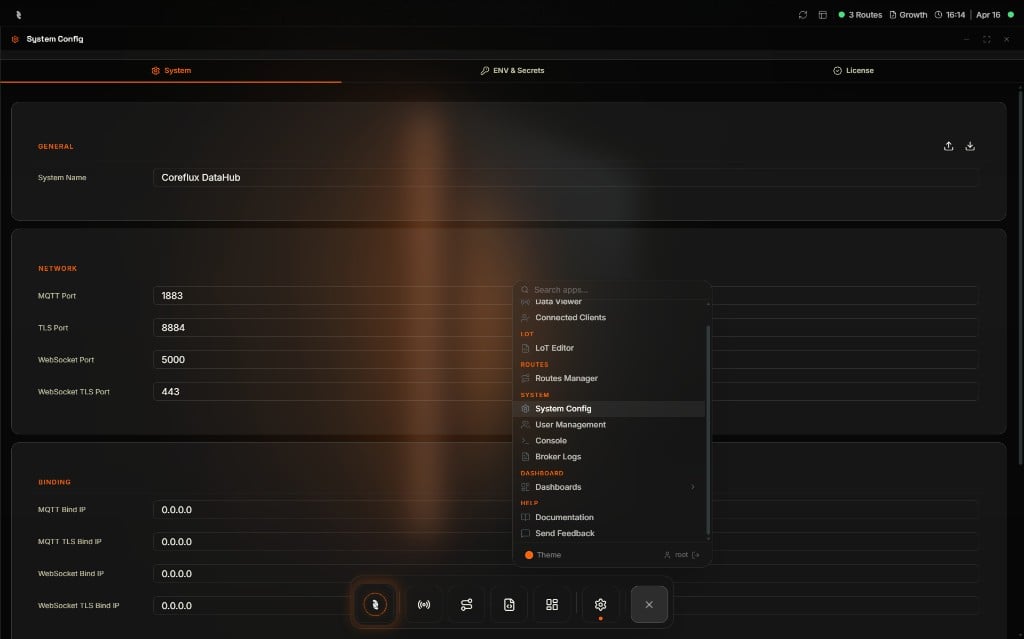
System app — System Config with network settings and the app launcher menu open
Next Steps
Data Viewer
Subscribe to topics and publish messages from the browser.
LoT Editor
Deploy your first Action without VS Code.