From a topic in the Data Viewer to a live, shareable panel — in about ten minutes.
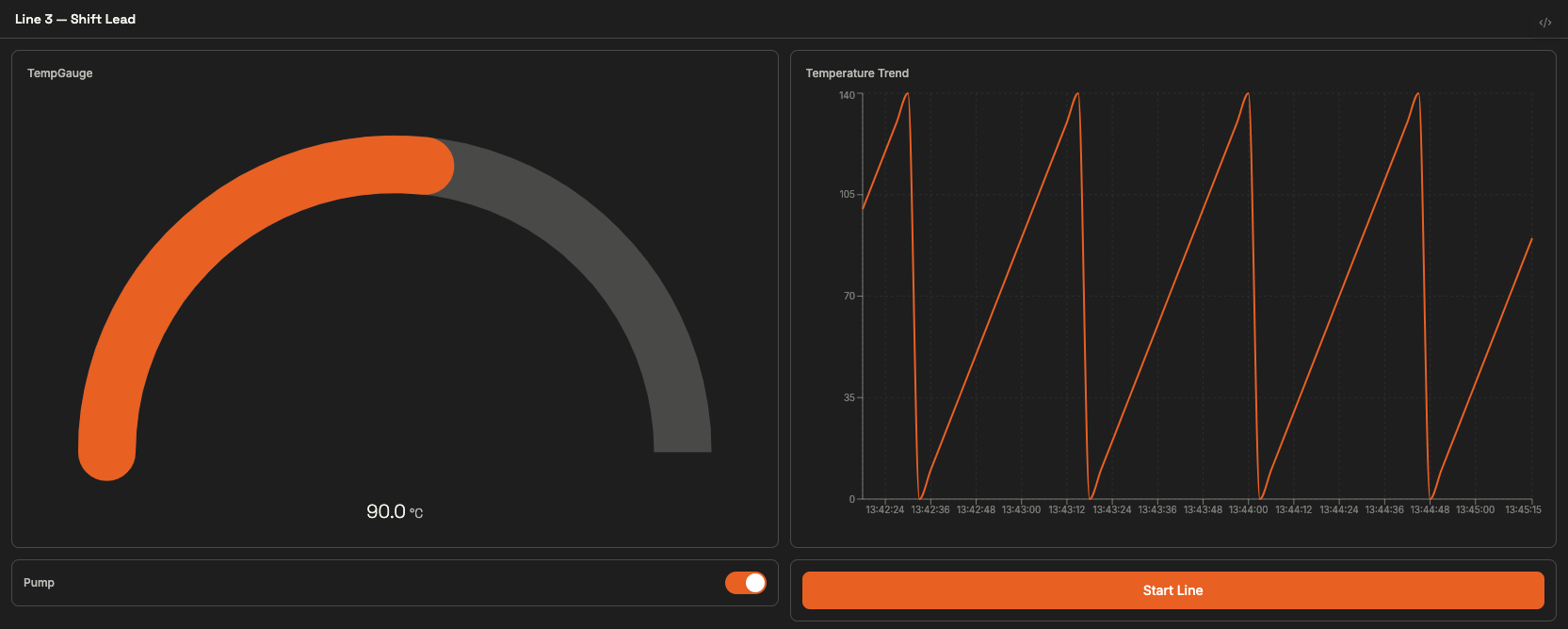
Where you're heading: the finished panel — a temperature gauge, a live trend chart, a pump toggle, and a start button
By the end of this guide you’ll have a live monitoring panel with a gauge, a live trend chart, a control, and an action wired to it — open and shareable on a second screen. Everything runs on data you generate yourself, so you can follow along even on a fresh broker.
Like assembling a control room one instrument at a time. You’ll bolt on one widget per step, watch it come alive immediately, and ship the finished console at the end.
1
Generate some live data
So your widgets have something to show, deploy a small LoT Action that publishes a changing temperature and machine status every few seconds. Open the LoT Editor in the HUB, paste this, and deploy:
DEFINE ACTION SimulateSensorDataON EVERY 3 SECONDS DO IF GET TOPIC "sim/counter" == EMPTY THEN KEEP TOPIC "sim/counter" WITH 0 SET "n" WITH (GET TOPIC "sim/counter" AS INT) SET "n" WITH ({n} + 10) IF {n} > 140 THEN SET "n" WITH 0 KEEP TOPIC "sim/counter" WITH {n} PUBLISH TOPIC "sensor/temperature" WITH {n} IF {n} > 100 THEN PUBLISH TOPIC "machine/status" WITH "stopped" ELSE PUBLISH TOPIC "machine/status" WITH "running"
This ramps sensor/temperature from 0 to 140 and flips machine/status between running and stopped — enough to move a gauge past its threshold and draw a live trend line.
Prefer to drive it by hand? Skip the Action and instead publish manually in the Data Viewer: send sensor/temperature a number like 82, and machine/status the text running or stopped.
2
Find your signal
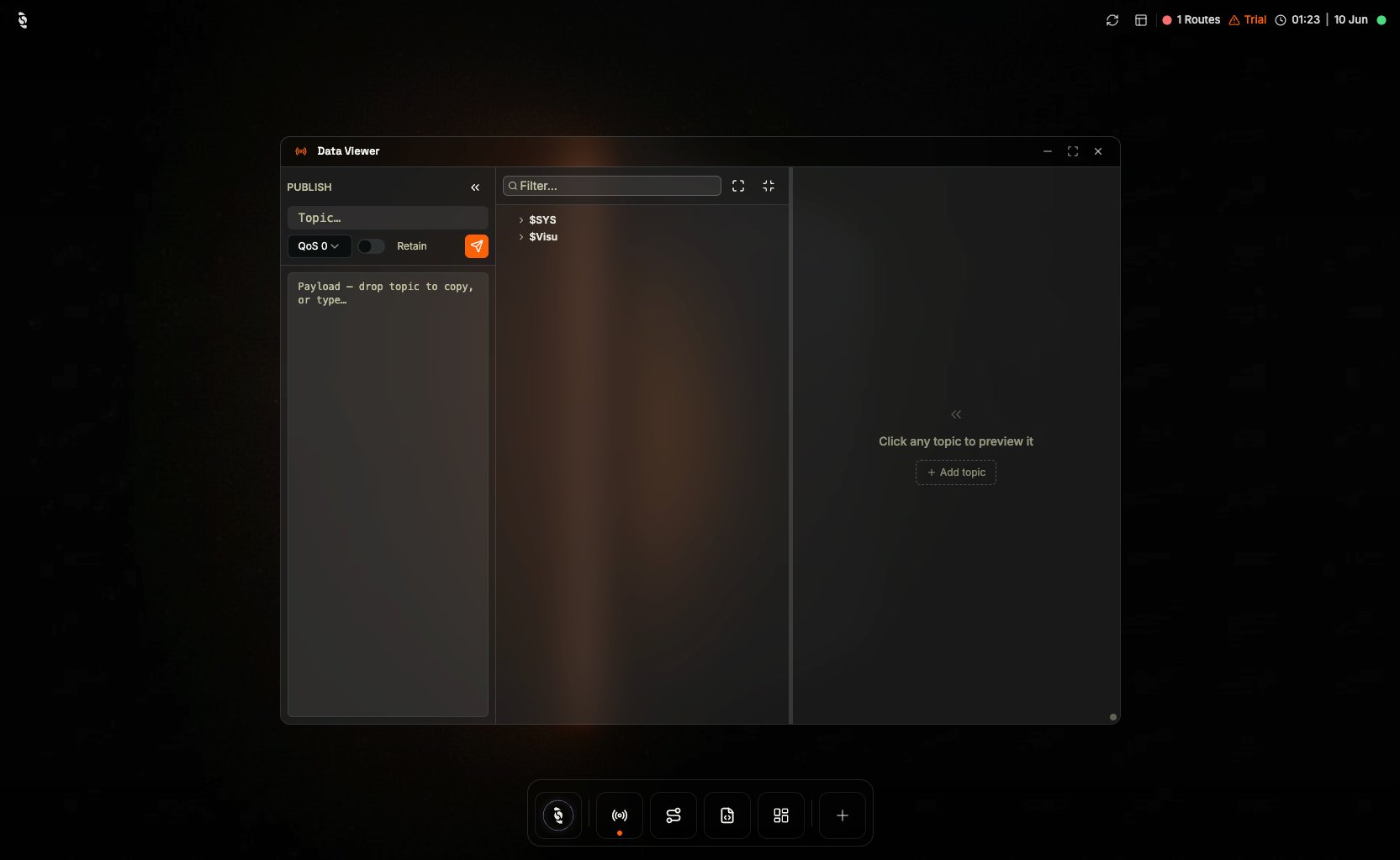
Open the Data Viewer and confirm sensor/temperature is updating with a numeric payload. Note the payload shape: a plain number binds directly; a JSON object would need JSON_PATH later.
The Data Viewer's PUBLISH panel and topic tree — confirm your signal is live before binding to it
3
Create a panel
Open Dashboards, click Create new panel, and start from this skeleton. The Dashboard Manager opens the panel definition next to its live result:
DEFINE PANEL Line3ShiftLeadWITH VISIBILITY PUBLICWITH STATE PUBLISHEDWITH TITLE "Line 3 — Shift Lead"WITH LAYOUT "grid" COLUMNS 2
4
Add a gauge
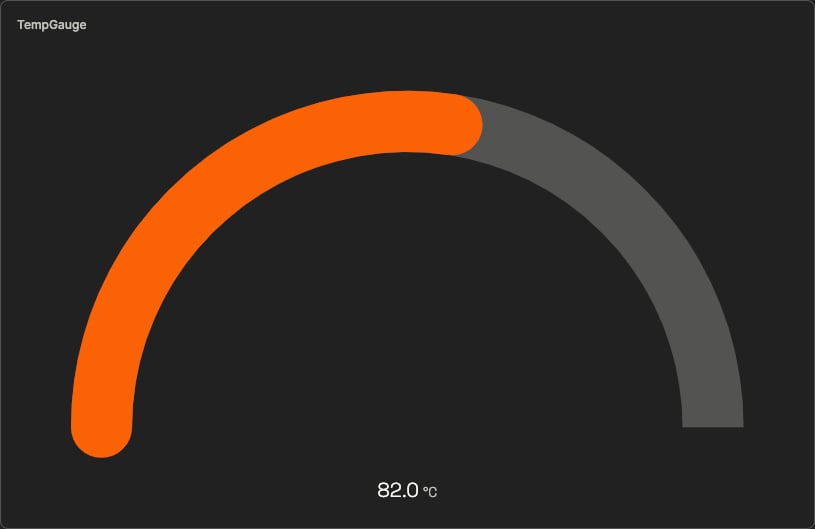
Add a gauge bound to sensor/temperature, with a range, a unit, and a warning threshold. The panel so far — the new gauge component is highlighted:
DEFINE PANEL Line3ShiftLeadWITH VISIBILITY PUBLICWITH STATE PUBLISHEDWITH TITLE "Line 3 — Shift Lead"WITH LAYOUT "grid" COLUMNS 2 ADD COMPONENT "TempGauge" WITH TYPE "gauge" SET RANGE FROM 0 TO 150 SET UNIT "°C" BIND VALUE TO TOPIC "sensor/temperature" ADD THRESHOLD AT 100 WITH COLOR "warning"
Save — the needle starts moving immediately. That’s the live binding at work.
The gauge bound to the live temperature signal (warning threshold configured at 100 °C)
5
Ask the AI to add a chart
The gauge shows now; a chart shows the last few minutes. Open the AI Assistant and ask:
“Add a live chart to my Line 3 panel that trends sensor/temperature over time.”
Review what it added in the Dashboard Manager — the panel now reads:
DEFINE PANEL Line3ShiftLeadWITH VISIBILITY PUBLICWITH STATE PUBLISHEDWITH TITLE "Line 3 — Shift Lead"WITH LAYOUT "grid" COLUMNS 2 ADD COMPONENT "TempGauge" WITH TYPE "gauge" SET RANGE FROM 0 TO 150 SET UNIT "°C" BIND VALUE TO TOPIC "sensor/temperature" ADD THRESHOLD AT 100 WITH COLOR "warning" ADD COMPONENT "TempTrend" WITH TYPE "realtime-chart" SET LABEL "Temperature Trend" SET UNIT "°C" BIND VALUE TO TOPIC "sensor/temperature"
The realtime-chart accumulates every published value into a trend — with the simulator from step 1 running, the line starts drawing itself within seconds.
6
Add a pump switch
Add a toggle that tracks the live pump state — it flips the moment the bound topic changes. Publish true or false to zone1/pump/state in the Data Viewer to see it move:
DEFINE PANEL Line3ShiftLeadWITH VISIBILITY PUBLICWITH STATE PUBLISHEDWITH TITLE "Line 3 — Shift Lead"WITH LAYOUT "grid" COLUMNS 2 ADD COMPONENT "TempGauge" WITH TYPE "gauge" SET RANGE FROM 0 TO 150 SET UNIT "°C" BIND VALUE TO TOPIC "sensor/temperature" ADD THRESHOLD AT 100 WITH COLOR "warning" ADD COMPONENT "TempTrend" WITH TYPE "realtime-chart" SET LABEL "Temperature Trend" SET UNIT "°C" BIND VALUE TO TOPIC "sensor/temperature" ADD COMPONENT "PumpToggle" WITH TYPE "toggle" SET LABEL "Pump" BIND STATE TO TOPIC "zone1/pump/state"
7
Wire an action
Events and actions are what make a panel do things, not just show them. Add a button that publishes a start command when clicked:
DEFINE PANEL Line3ShiftLeadWITH VISIBILITY PUBLICWITH STATE PUBLISHEDWITH TITLE "Line 3 — Shift Lead"WITH LAYOUT "grid" COLUMNS 2 ADD COMPONENT "TempGauge" WITH TYPE "gauge" SET RANGE FROM 0 TO 150 SET UNIT "°C" BIND VALUE TO TOPIC "sensor/temperature" ADD THRESHOLD AT 100 WITH COLOR "warning" ADD COMPONENT "TempTrend" WITH TYPE "realtime-chart" SET LABEL "Temperature Trend" SET UNIT "°C" BIND VALUE TO TOPIC "sensor/temperature" ADD COMPONENT "PumpToggle" WITH TYPE "toggle" SET LABEL "Pump" BIND STATE TO TOPIC "zone1/pump/state" ADD COMPONENT "StartButton" WITH TYPE "button" SET LABEL "Start Line" ON CLICK DO PUBLISH TOPIC "line3/commands/start" WITH 1
Watch it work: subscribe to line3/commands/start in the Data Viewer, click the button, and the 1 arrives instantly.The full set of events (clicks, changes, thresholds) and actions (publish, navigate, invoke, trigger) is in Actions & Events.Save, and the console is complete — verify the labels and ranges; operators will rely on this screen.
The final result: gauge, live trend chart, pump toggle, and start button — all live
8
Put it on a second screen
In the Dashboard Manager, hover the panel row and click Broadcast in new tab. Copy the URL into any browser — a wall TV, a tablet, a kiosk. Same live data, no HUB access required.
Everything from the steps above in one copy-paste definition:
DEFINE PANEL Line3ShiftLeadWITH VISIBILITY PUBLICWITH STATE PUBLISHEDWITH TITLE "Line 3 — Shift Lead"WITH LAYOUT "grid" COLUMNS 2 ADD COMPONENT "TempGauge" WITH TYPE "gauge" SET RANGE FROM 0 TO 150 SET UNIT "°C" BIND VALUE TO TOPIC "sensor/temperature" ADD THRESHOLD AT 100 WITH COLOR "warning" ADD COMPONENT "TempTrend" WITH TYPE "realtime-chart" SET LABEL "Temperature Trend" SET UNIT "°C" BIND VALUE TO TOPIC "sensor/temperature" ADD COMPONENT "PumpToggle" WITH TYPE "toggle" SET LABEL "Pump" BIND STATE TO TOPIC "zone1/pump/state" ADD COMPONENT "StartButton" WITH TYPE "button" SET LABEL "Start Line" ON CLICK DO PUBLISH TOPIC "line3/commands/start" WITH 1