> ## Documentation Index
> Fetch the complete documentation index at: https://docs.coreflux.org/llms.txt
> Use this file to discover all available pages before exploring further.
# Installation
> Install Coreflux on your preferred platform — Cloud Trial, Docker, Windows, Linux, or Raspberry Pi.
## Why Install Locally?
Running Coreflux on your own machine gives you a complete IoT data pipeline—MQTT broker, LoT runtime, and data routing—without external dependencies. Prefer zero setup? Start with a **Cloud Trial** and use the broker and [Coreflux HUB](/v2.0/coreflux-hub/overview) from your browser.
**Coreflux runs as a single binary or container.** No databases, no message queues, no orchestration needed—just download and run.
***
## Install Coreflux
Get a hosted Coreflux instance without installing anything. Request a trial on the [Coreflux website](https://www.coreflux.org/), and you will receive an email with a **URL** (used for both the [Coreflux HUB](/v2.0/coreflux-hub/overview) and the MQTT broker) and **login credentials**.
Go to [coreflux.org](https://www.coreflux.org/) and submit a trial request using the form on the site.
When your environment is ready, Coreflux sends an email with:
| Item | What you use it for |
| --------------- | ------------------------------------------------------------------------------------------------------------- |
| **URL** | Open the HUB in your browser and connect MQTT clients to the **same host** (broker and HUB share one address) |
| **Credentials** | Username and password for the HUB login screen and for MQTT clients |
The broker may take **up to 60 seconds** to be fully available after you receive the email. If the HUB or MQTT connection fails immediately, wait briefly and try again.
Paste the URL from the email into your browser. On the login page, enter your username and password and click **Connect to Coreflux**. Use the **Broker** field from the email if it is pre-filled differently than your trial URL.
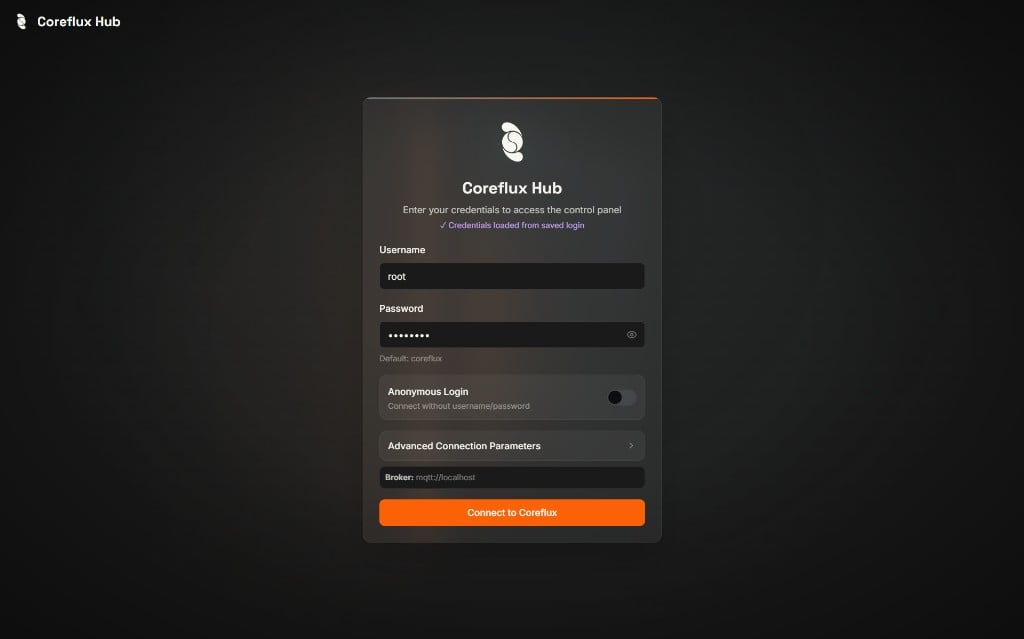 From the HUB you can deploy LoT Actions, browse MQTT topics in the Data Viewer, and manage Routes—same experience as a local Docker install.
Use the **same host** as the URL in your email (not `localhost`). For MQTT Explorer and other desktop clients:
| Setting | Value |
| ------------------- | ------------------------- |
| Protocol | **MQTTS** (MQTT over TLS) |
| Port | **8883** |
| Username / Password | From your trial email |
In **MQTT Explorer** specifically: enable **Encryption**, and **disable Validate certificate** (the trial broker uses a certificate that desktop tools may not trust by default).
**HUB remote access:** If your browser blocks the HUB page, allow **unsecure access** (or proceed past the certificate warning) for the trial URL. Managed trial environments often use certificates that browsers flag on first visit.
After the HUB loads, continue with [Getting Started](/v2.0/quick-start/getting-started) using the **Coreflux HUB** tabs—your trial already includes the HUB and broker.
Docker is the fastest way to get Coreflux running. The official image works on Linux, macOS, and Windows. Pull the image from [Docker Hub](https://hub.docker.com/r/coreflux/coreflux-mqtt-broker) or open a terminal and run the command below—Docker will pull the latest image automatically.
```bash wrap theme={"theme":"css-variables","languages":{"custom":["/languages/lot.json"]}}
docker run --pull=always -d --name coreflux_broker -p 1883:1883 -p 5000:5000 -p 8080:8080 -p 8443:8443 -v project-volume:/etc/project coreflux/coreflux-mqtt-broker:latest
```
The `project-volume` mount persists your broker project (LoT, routes, configuration) at `/etc/project` across container restarts. Docker creates the named volume on first run.
| Port | Protocol | Description |
| ------ | --------- | --------------------------------------------------------- |
| `1883` | TCP | MQTT (unencrypted) |
| `5000` | WebSocket | WebSocket connections |
| `8080` | HTTP | [Coreflux HUB](/v2.0/coreflux-hub/overview) (unencrypted) |
| `8443` | HTTPS | [Coreflux HUB](/v2.0/coreflux-hub/overview) (TLS) |
Open the HUB at `http://localhost:8080` (or `https://localhost:8443` with TLS) after the container starts.
New to Docker? Visit the [official Docker documentation](https://docs.docker.com/get-started/) to learn more.
If you configure TLS certificates, expose these additional ports:
```bash wrap theme={"theme":"css-variables","languages":{"custom":["/languages/lot.json"]}}
docker run --pull=always -d --name coreflux_broker -p 1883:1883 -p 5000:5000 -p 8080:8080 -p 8443:8443 -p 8883:8883 -p 443:443 -v project-volume:/etc/project coreflux/coreflux-mqtt-broker:latest
```
| Port | Protocol | Description |
| ------ | -------- | ------------------ |
| `8883` | TCP/TLS | MQTT over TLS |
| `443` | WSS | WebSocket over TLS |
See [Broker Configuration](/v2.0/mqtt-broker/configuration) for TLS setup.
Deploy Coreflux in seconds with our **1-Click Droplet** on DigitalOcean Marketplace. This is the fastest way to get a production-ready broker running in the cloud.
From the HUB you can deploy LoT Actions, browse MQTT topics in the Data Viewer, and manage Routes—same experience as a local Docker install.
Use the **same host** as the URL in your email (not `localhost`). For MQTT Explorer and other desktop clients:
| Setting | Value |
| ------------------- | ------------------------- |
| Protocol | **MQTTS** (MQTT over TLS) |
| Port | **8883** |
| Username / Password | From your trial email |
In **MQTT Explorer** specifically: enable **Encryption**, and **disable Validate certificate** (the trial broker uses a certificate that desktop tools may not trust by default).
**HUB remote access:** If your browser blocks the HUB page, allow **unsecure access** (or proceed past the certificate warning) for the trial URL. Managed trial environments often use certificates that browsers flag on first visit.
After the HUB loads, continue with [Getting Started](/v2.0/quick-start/getting-started) using the **Coreflux HUB** tabs—your trial already includes the HUB and broker.
Docker is the fastest way to get Coreflux running. The official image works on Linux, macOS, and Windows. Pull the image from [Docker Hub](https://hub.docker.com/r/coreflux/coreflux-mqtt-broker) or open a terminal and run the command below—Docker will pull the latest image automatically.
```bash wrap theme={"theme":"css-variables","languages":{"custom":["/languages/lot.json"]}}
docker run --pull=always -d --name coreflux_broker -p 1883:1883 -p 5000:5000 -p 8080:8080 -p 8443:8443 -v project-volume:/etc/project coreflux/coreflux-mqtt-broker:latest
```
The `project-volume` mount persists your broker project (LoT, routes, configuration) at `/etc/project` across container restarts. Docker creates the named volume on first run.
| Port | Protocol | Description |
| ------ | --------- | --------------------------------------------------------- |
| `1883` | TCP | MQTT (unencrypted) |
| `5000` | WebSocket | WebSocket connections |
| `8080` | HTTP | [Coreflux HUB](/v2.0/coreflux-hub/overview) (unencrypted) |
| `8443` | HTTPS | [Coreflux HUB](/v2.0/coreflux-hub/overview) (TLS) |
Open the HUB at `http://localhost:8080` (or `https://localhost:8443` with TLS) after the container starts.
New to Docker? Visit the [official Docker documentation](https://docs.docker.com/get-started/) to learn more.
If you configure TLS certificates, expose these additional ports:
```bash wrap theme={"theme":"css-variables","languages":{"custom":["/languages/lot.json"]}}
docker run --pull=always -d --name coreflux_broker -p 1883:1883 -p 5000:5000 -p 8080:8080 -p 8443:8443 -p 8883:8883 -p 443:443 -v project-volume:/etc/project coreflux/coreflux-mqtt-broker:latest
```
| Port | Protocol | Description |
| ------ | -------- | ------------------ |
| `8883` | TCP/TLS | MQTT over TLS |
| `443` | WSS | WebSocket over TLS |
See [Broker Configuration](/v2.0/mqtt-broker/configuration) for TLS setup.
Deploy Coreflux in seconds with our **1-Click Droplet** on DigitalOcean Marketplace. This is the fastest way to get a production-ready broker running in the cloud.
 Click the button above or visit the [Coreflux Marketplace page](https://marketplace.digitalocean.com/apps/coreflux-mqtt-broker?refcode=b993040d0243\&action=deploy).
Select a plan based on your needs:
| Plan | RAM | vCPUs | Best For |
| --------- | -------- | ----- | -------------------- |
| Basic | 1 GB | 1 | Development, testing |
| Basic | 2 GB | 1 | Small deployments |
| **Basic** | **4 GB** | **2** | **Recommended** ✓ |
We recommend the **4 GB / 2 vCPU** droplet for most use cases. It provides headroom for LoT Actions, multiple routes, and moderate message throughput.
Choose a datacenter close to your devices for lower latency.
Click **Create Droplet** and wait \~60 seconds for deployment.
Once the droplet is ready, use the public IP address to connect:
| Setting | Value |
| -------- | ------------------- |
| Host | `` |
| Port | `1883` |
| Username | `root` |
| Password | `coreflux` |
Change the default password immediately after first login. SSH into your droplet and update the broker configuration.
The Coreflux droplet exposes the following ports by default:
| Port | Protocol | Description |
| ------ | --------- | --------------------- |
| `1883` | TCP | MQTT (unencrypted) |
| `8883` | TCP/TLS | MQTT over TLS |
| `5000` | WebSocket | WebSocket connections |
| `443` | WSS | WebSocket over TLS |
Configure your DigitalOcean firewall to restrict access as needed.
To manage your Coreflux installation via SSH:
```bash wrap theme={"theme":"css-variables","languages":{"custom":["/languages/lot.json"]}}
ssh root@
```
The Coreflux broker runs as a systemd service. Common commands:
```bash wrap theme={"theme":"css-variables","languages":{"custom":["/languages/lot.json"]}}
# Check status
sudo systemctl status coreflux
# Restart broker
sudo systemctl restart coreflux
# View logs
sudo journalctl -u coreflux -f
```
Download and install Coreflux, then register it as a Windows service using the native `sc` tool.
1. Download the Windows zip from the [Coreflux website](https://www.coreflux.org)
2. Extract the zip file to your preferred location (e.g., `C:\Coreflux`)
3. Open Command Prompt **as Administrator** and run:
```cmd wrap theme={"theme":"css-variables","languages":{"custom":["/languages/lot.json"]}}
sc create CorefluxBroker binPath= "C:\Coreflux\CorefluxMQTTBroker.exe" start= auto DisplayName= "Coreflux MQTT Broker"
sc description CorefluxBroker "Coreflux MQTT Broker Service"
sc start CorefluxBroker
```
The service is now registered, set to start automatically on boot, and running.
Use these native Windows commands to control the service:
```cmd wrap theme={"theme":"css-variables","languages":{"custom":["/languages/lot.json"]}}
sc stop CorefluxBroker
sc start CorefluxBroker
sc query CorefluxBroker
```
You can also manage it from **Services** (`services.msc`) in Windows.
Stop and remove the service with:
```cmd wrap theme={"theme":"css-variables","languages":{"custom":["/languages/lot.json"]}}
sc stop CorefluxBroker
sc delete CorefluxBroker
```
Download and run the Coreflux binary on Linux x64 systems.
**Quick Start (foreground):**
1. Download the Linux zip from the [Coreflux website](https://www.coreflux.org) (**Start Free**)
2. Extract and run (replace `` with your actual filename):
```bash wrap theme={"theme":"css-variables","languages":{"custom":["/languages/lot.json"]}}
unzip .zip -d coreflux
cd coreflux
chmod +x CorefluxMQTTBroker
./CorefluxMQTTBroker
```
**Production Setup (systemd service):**
1. Create a service file:
```bash wrap theme={"theme":"css-variables","languages":{"custom":["/languages/lot.json"]}}
sudo nano /etc/systemd/system/coreflux.service
```
2. Add this configuration (adjust paths as needed):
```ini wrap theme={"theme":"css-variables","languages":{"custom":["/languages/lot.json"]}}
[Unit]
Description=Coreflux MQTT Broker
After=network.target
[Service]
Type=simple
User=root
WorkingDirectory=/opt/coreflux
ExecStart=/opt/coreflux/CorefluxMQTTBroker
Restart=always
RestartSec=5
[Install]
WantedBy=multi-user.target
```
3. Enable and start the service:
```bash wrap theme={"theme":"css-variables","languages":{"custom":["/languages/lot.json"]}}
sudo systemctl daemon-reload
sudo systemctl enable coreflux
sudo systemctl start coreflux
```
4. Check the status:
```bash wrap theme={"theme":"css-variables","languages":{"custom":["/languages/lot.json"]}}
sudo systemctl status coreflux
```
Download and run the Coreflux binary on Raspberry Pi (64-bit ARM).
**Quick Start (foreground):**
1. Download the Raspberry Pi zip from the [Coreflux website](https://www.coreflux.org)
2. Extract and run (replace `` with your actual filename):
```bash wrap theme={"theme":"css-variables","languages":{"custom":["/languages/lot.json"]}}
unzip .zip -d coreflux
cd coreflux
chmod +x CorefluxMQTTBroker
./CorefluxMQTTBroker
```
**Production Setup (systemd service):**
1. Create a service file:
```bash wrap theme={"theme":"css-variables","languages":{"custom":["/languages/lot.json"]}}
sudo nano /etc/systemd/system/coreflux.service
```
2. Add this configuration:
```ini wrap theme={"theme":"css-variables","languages":{"custom":["/languages/lot.json"]}}
[Unit]
Description=Coreflux MQTT Broker
After=network.target
[Service]
Type=simple
User=root
WorkingDirectory=/home/pi/coreflux
ExecStart=/home/pi/coreflux/CorefluxMQTTBroker
Restart=always
RestartSec=5
[Install]
WantedBy=multi-user.target
```
3. Enable and start the service:
```bash wrap theme={"theme":"css-variables","languages":{"custom":["/languages/lot.json"]}}
sudo systemctl daemon-reload
sudo systemctl enable coreflux
sudo systemctl start coreflux
```
4. Check the status:
```bash wrap theme={"theme":"css-variables","languages":{"custom":["/languages/lot.json"]}}
sudo systemctl status coreflux
```
***
## Enable the Coreflux HUB
The Coreflux HUB is available in two ways: via the Docker image (browser-based, requires port mapping) or as a standalone desktop application for Windows and Linux.
Map the HUB ports when you start the container to access the HUB from your browser:
| Port | Protocol | Description |
| ------ | -------- | ----------------- |
| `8080` | HTTP | HUB (unencrypted) |
| `8443` | HTTPS | HUB (TLS) |
```bash wrap theme={"theme":"css-variables","languages":{"custom":["/languages/lot.json"]}}
docker run --pull=always -d --name coreflux_broker -p 1883:1883 -p 5000:5000 -p 8080:8080 -p 8443:8443 -v project-volume:/etc/project coreflux/coreflux-mqtt-broker:latest
```
The `project-volume` mount persists your broker project (LoT, routes, configuration) at `/etc/project` across container restarts. Docker creates the named volume on first run.
The standalone HUB is a desktop application available for **Windows x64**, **Linux x64**, and **Linux ARM64**. It does not require a broker installation on the same machine.
1. Download the HUB executable for your platform from the [Coreflux website](https://www.coreflux.org).
2. Run the executable — the HUB window opens immediately.
3. Connect to your Coreflux broker from inside the app using the broker's host address and credentials.
If the HUB ports are not mapped on Docker, the broker still runs normally—you simply won't be able to open the HUB in the browser. See [Coreflux HUB Overview](/v2.0/coreflux-hub/overview) for what you can do once it's up.
***
## Verify Installation
Confirm the broker is running—either in the [Coreflux HUB](/v2.0/coreflux-hub/overview) (no extra tools) or with an MQTT client.
Open your environment URL in the browser—for a **Cloud Trial**, use the address from your email; for Docker, use `http://localhost:8080` (or `https://localhost:8443` with TLS).
Enter your credentials on the login page and click **Connect to Coreflux**.
After a successful login, you should see the HUB home screen with the bottom navigation bar.
Click the button above or visit the [Coreflux Marketplace page](https://marketplace.digitalocean.com/apps/coreflux-mqtt-broker?refcode=b993040d0243\&action=deploy).
Select a plan based on your needs:
| Plan | RAM | vCPUs | Best For |
| --------- | -------- | ----- | -------------------- |
| Basic | 1 GB | 1 | Development, testing |
| Basic | 2 GB | 1 | Small deployments |
| **Basic** | **4 GB** | **2** | **Recommended** ✓ |
We recommend the **4 GB / 2 vCPU** droplet for most use cases. It provides headroom for LoT Actions, multiple routes, and moderate message throughput.
Choose a datacenter close to your devices for lower latency.
Click **Create Droplet** and wait \~60 seconds for deployment.
Once the droplet is ready, use the public IP address to connect:
| Setting | Value |
| -------- | ------------------- |
| Host | `` |
| Port | `1883` |
| Username | `root` |
| Password | `coreflux` |
Change the default password immediately after first login. SSH into your droplet and update the broker configuration.
The Coreflux droplet exposes the following ports by default:
| Port | Protocol | Description |
| ------ | --------- | --------------------- |
| `1883` | TCP | MQTT (unencrypted) |
| `8883` | TCP/TLS | MQTT over TLS |
| `5000` | WebSocket | WebSocket connections |
| `443` | WSS | WebSocket over TLS |
Configure your DigitalOcean firewall to restrict access as needed.
To manage your Coreflux installation via SSH:
```bash wrap theme={"theme":"css-variables","languages":{"custom":["/languages/lot.json"]}}
ssh root@
```
The Coreflux broker runs as a systemd service. Common commands:
```bash wrap theme={"theme":"css-variables","languages":{"custom":["/languages/lot.json"]}}
# Check status
sudo systemctl status coreflux
# Restart broker
sudo systemctl restart coreflux
# View logs
sudo journalctl -u coreflux -f
```
Download and install Coreflux, then register it as a Windows service using the native `sc` tool.
1. Download the Windows zip from the [Coreflux website](https://www.coreflux.org)
2. Extract the zip file to your preferred location (e.g., `C:\Coreflux`)
3. Open Command Prompt **as Administrator** and run:
```cmd wrap theme={"theme":"css-variables","languages":{"custom":["/languages/lot.json"]}}
sc create CorefluxBroker binPath= "C:\Coreflux\CorefluxMQTTBroker.exe" start= auto DisplayName= "Coreflux MQTT Broker"
sc description CorefluxBroker "Coreflux MQTT Broker Service"
sc start CorefluxBroker
```
The service is now registered, set to start automatically on boot, and running.
Use these native Windows commands to control the service:
```cmd wrap theme={"theme":"css-variables","languages":{"custom":["/languages/lot.json"]}}
sc stop CorefluxBroker
sc start CorefluxBroker
sc query CorefluxBroker
```
You can also manage it from **Services** (`services.msc`) in Windows.
Stop and remove the service with:
```cmd wrap theme={"theme":"css-variables","languages":{"custom":["/languages/lot.json"]}}
sc stop CorefluxBroker
sc delete CorefluxBroker
```
Download and run the Coreflux binary on Linux x64 systems.
**Quick Start (foreground):**
1. Download the Linux zip from the [Coreflux website](https://www.coreflux.org) (**Start Free**)
2. Extract and run (replace `` with your actual filename):
```bash wrap theme={"theme":"css-variables","languages":{"custom":["/languages/lot.json"]}}
unzip .zip -d coreflux
cd coreflux
chmod +x CorefluxMQTTBroker
./CorefluxMQTTBroker
```
**Production Setup (systemd service):**
1. Create a service file:
```bash wrap theme={"theme":"css-variables","languages":{"custom":["/languages/lot.json"]}}
sudo nano /etc/systemd/system/coreflux.service
```
2. Add this configuration (adjust paths as needed):
```ini wrap theme={"theme":"css-variables","languages":{"custom":["/languages/lot.json"]}}
[Unit]
Description=Coreflux MQTT Broker
After=network.target
[Service]
Type=simple
User=root
WorkingDirectory=/opt/coreflux
ExecStart=/opt/coreflux/CorefluxMQTTBroker
Restart=always
RestartSec=5
[Install]
WantedBy=multi-user.target
```
3. Enable and start the service:
```bash wrap theme={"theme":"css-variables","languages":{"custom":["/languages/lot.json"]}}
sudo systemctl daemon-reload
sudo systemctl enable coreflux
sudo systemctl start coreflux
```
4. Check the status:
```bash wrap theme={"theme":"css-variables","languages":{"custom":["/languages/lot.json"]}}
sudo systemctl status coreflux
```
Download and run the Coreflux binary on Raspberry Pi (64-bit ARM).
**Quick Start (foreground):**
1. Download the Raspberry Pi zip from the [Coreflux website](https://www.coreflux.org)
2. Extract and run (replace `` with your actual filename):
```bash wrap theme={"theme":"css-variables","languages":{"custom":["/languages/lot.json"]}}
unzip .zip -d coreflux
cd coreflux
chmod +x CorefluxMQTTBroker
./CorefluxMQTTBroker
```
**Production Setup (systemd service):**
1. Create a service file:
```bash wrap theme={"theme":"css-variables","languages":{"custom":["/languages/lot.json"]}}
sudo nano /etc/systemd/system/coreflux.service
```
2. Add this configuration:
```ini wrap theme={"theme":"css-variables","languages":{"custom":["/languages/lot.json"]}}
[Unit]
Description=Coreflux MQTT Broker
After=network.target
[Service]
Type=simple
User=root
WorkingDirectory=/home/pi/coreflux
ExecStart=/home/pi/coreflux/CorefluxMQTTBroker
Restart=always
RestartSec=5
[Install]
WantedBy=multi-user.target
```
3. Enable and start the service:
```bash wrap theme={"theme":"css-variables","languages":{"custom":["/languages/lot.json"]}}
sudo systemctl daemon-reload
sudo systemctl enable coreflux
sudo systemctl start coreflux
```
4. Check the status:
```bash wrap theme={"theme":"css-variables","languages":{"custom":["/languages/lot.json"]}}
sudo systemctl status coreflux
```
***
## Enable the Coreflux HUB
The Coreflux HUB is available in two ways: via the Docker image (browser-based, requires port mapping) or as a standalone desktop application for Windows and Linux.
Map the HUB ports when you start the container to access the HUB from your browser:
| Port | Protocol | Description |
| ------ | -------- | ----------------- |
| `8080` | HTTP | HUB (unencrypted) |
| `8443` | HTTPS | HUB (TLS) |
```bash wrap theme={"theme":"css-variables","languages":{"custom":["/languages/lot.json"]}}
docker run --pull=always -d --name coreflux_broker -p 1883:1883 -p 5000:5000 -p 8080:8080 -p 8443:8443 -v project-volume:/etc/project coreflux/coreflux-mqtt-broker:latest
```
The `project-volume` mount persists your broker project (LoT, routes, configuration) at `/etc/project` across container restarts. Docker creates the named volume on first run.
The standalone HUB is a desktop application available for **Windows x64**, **Linux x64**, and **Linux ARM64**. It does not require a broker installation on the same machine.
1. Download the HUB executable for your platform from the [Coreflux website](https://www.coreflux.org).
2. Run the executable — the HUB window opens immediately.
3. Connect to your Coreflux broker from inside the app using the broker's host address and credentials.
If the HUB ports are not mapped on Docker, the broker still runs normally—you simply won't be able to open the HUB in the browser. See [Coreflux HUB Overview](/v2.0/coreflux-hub/overview) for what you can do once it's up.
***
## Verify Installation
Confirm the broker is running—either in the [Coreflux HUB](/v2.0/coreflux-hub/overview) (no extra tools) or with an MQTT client.
Open your environment URL in the browser—for a **Cloud Trial**, use the address from your email; for Docker, use `http://localhost:8080` (or `https://localhost:8443` with TLS).
Enter your credentials on the login page and click **Connect to Coreflux**.
After a successful login, you should see the HUB home screen with the bottom navigation bar.
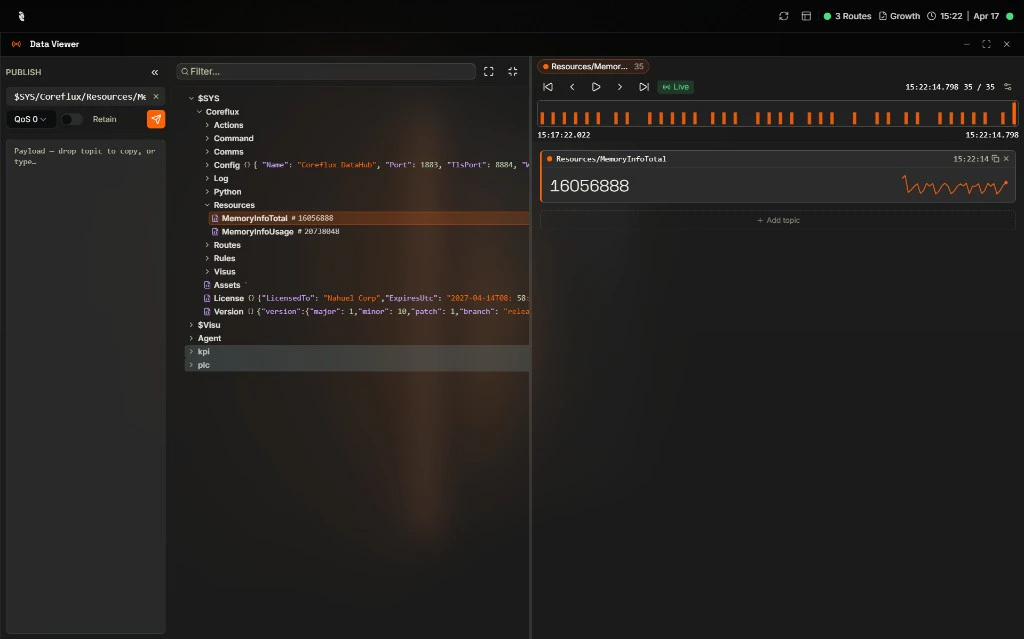
 The status bar shows route count and license info—the broker is reachable from the HUB.
Select **MQTT** → **Data Viewer**. Expand **\$SYS/Coreflux** in the Topic Tree—you should see broker topics such as **Config**, **Version**, and **Resources** updating live.
The status bar shows route count and license info—the broker is reachable from the HUB.
Select **MQTT** → **Data Viewer**. Expand **\$SYS/Coreflux** in the Topic Tree—you should see broker topics such as **Config**, **Version**, and **Resources** updating live.
 Download [MQTT Explorer](https://mqtt-explorer.com/) or use any MQTT client of your choice.
Create a new connection with these settings:
| Setting | Value |
| -------- | ---------------------------------------------------------- |
| Host | `localhost` (or your trial URL host for Cloud Trial) |
| Port | `1883` (local Docker) or **8883** with MQTTS (Cloud Trial) |
| Username | `root` (or credentials from your trial email) |
| Password | `coreflux` (or credentials from your trial email) |
For **Cloud Trial**, use **MQTTS** on port **8883**, enable **Encryption**, and **disable Validate certificate** in MQTT Explorer.
Subscribe to `$SYS/#` to see broker status messages. If you see topics such as `$SYS/Coreflux/Version`, the broker is running correctly.
You should see Coreflux system topics under `$SYS/Coreflux/`.
***
## Next Steps
Create your first LoT Action in under 15 minutes.
Set up the LoT language extension for syntax highlighting.
Download [MQTT Explorer](https://mqtt-explorer.com/) or use any MQTT client of your choice.
Create a new connection with these settings:
| Setting | Value |
| -------- | ---------------------------------------------------------- |
| Host | `localhost` (or your trial URL host for Cloud Trial) |
| Port | `1883` (local Docker) or **8883** with MQTTS (Cloud Trial) |
| Username | `root` (or credentials from your trial email) |
| Password | `coreflux` (or credentials from your trial email) |
For **Cloud Trial**, use **MQTTS** on port **8883**, enable **Encryption**, and **disable Validate certificate** in MQTT Explorer.
Subscribe to `$SYS/#` to see broker status messages. If you see topics such as `$SYS/Coreflux/Version`, the broker is running correctly.
You should see Coreflux system topics under `$SYS/Coreflux/`.
***
## Next Steps
Create your first LoT Action in under 15 minutes.
Set up the LoT language extension for syntax highlighting.