> ## Documentation Index
> Fetch the complete documentation index at: https://docs.coreflux.org/llms.txt
> Use this file to discover all available pages before exploring further.
# Data Binding
> Wiring components to live MQTT topics — JSON extraction, coercion, and formatting.
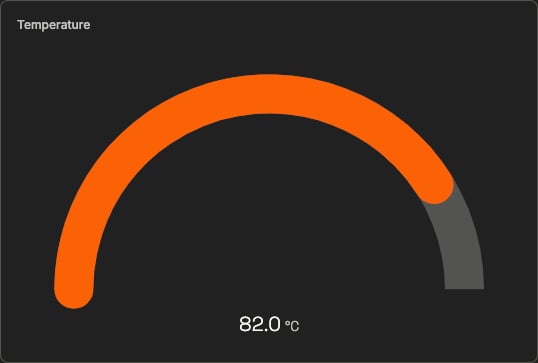 A binding is the live wire between a component and your data. When the source changes, the widget updates — no polling, no refresh. Most "why is my widget blank?" questions are answered on this page.
**Like plugging an appliance into a socket.** The widget is the appliance, the topic is the socket — once plugged in, the power (data) flows on its own.
***
Start by wiring one widget to one topic; the deeper reference — targets, coercion, JSON extraction — follows after.
## Bind a widget in 30 seconds
Pick a topic you can see updating in the [Data Viewer](/hub/mqtt/data-viewer), and point a component at it with one `BIND` line:
```lot wrap focus={10} theme={"theme":"css-variables","languages":{"custom":["/languages/lot.json"]}}
DEFINE PANEL SensorMonitor
WITH VISIBILITY PUBLIC
WITH STATE PUBLISHED
WITH TITLE "Sensor Monitor"
WITH LAYOUT "grid" COLUMNS 2
ADD COMPONENT "TempGauge" WITH TYPE "gauge"
SET RANGE FROM 0 TO 100
SET UNIT "°C"
BIND VALUE TO TOPIC "sensor/temperature"
```
Save, publish a number to `sensor/temperature`, and the needle moves. That one highlighted line is all a binding is: *which aspect of the widget* (`VALUE`) gets fed *from where* (`TOPIC "sensor/temperature"`).
## Where data comes from
Today, bindings read from **MQTT topics** — the widget updates on every message. Browse what's available in the [Data Viewer](/hub/mqtt/data-viewer):
```lot wrap theme={"theme":"css-variables","languages":{"custom":["/languages/lot.json"]}}
BIND VALUE TO TOPIC "sensor/temperature"
```
## Extracting from JSON payloads
Real device payloads are rarely a bare number. When the topic carries a JSON object, add `JSON_PATH` on the component to pick a field:
```lot wrap focus={3} theme={"theme":"css-variables","languages":{"custom":["/languages/lot.json"]}}
ADD COMPONENT "EnergyDisplay" WITH TYPE "value"
BIND VALUE TO TOPIC "machines/pump1/data"
SET JSON_PATH "$.energy_wh"
SET UNIT "Wh"
```
Always inspect the payload in the [Data Viewer](/hub/mqtt/data-viewer) before binding — you'll see immediately whether you need `JSON_PATH`, `AS NUMBER`, or neither.
***
That covers most panels. The rest of the page is the reference: the full grammar, every bind target, and the transformation options that work today.
## Anatomy of a binding
```lot wrap theme={"theme":"css-variables","languages":{"custom":["/languages/lot.json"]}}
BIND TO TOPIC ""
```
Three parts, all required:
* **Target** — which aspect of the component receives the data (`VALUE`, `STATE`, `DATA`, ...).
* **`TO TOPIC`** — both words are mandatory; the source is always an MQTT topic path.
* **Topic path** — the topic string in quotes.
## Bind targets
| Target | Used with | Description |
| ------------- | ------------------------------------------- | -------------------- |
| `VALUE` | gauge, value, slider, chart, realtime-chart | Numeric value |
| `STATE` | indicator, toggle, switch | Boolean / state |
| `CONTENT` | text, label, alert | Text content |
| `MAX` / `MIN` | gauge, value | Dynamic range bounds |
| `COLOR` | Any | Dynamic color |
| `TITLE` | card, panel | Dynamic title |
| `LABEL` | button, toggle, text | Dynamic label |
| `DATA` | chart, table, list | Dataset |
| `VISIBLE` | Any | Show / hide |
| `SRC` | image | Dynamic source URL |
## Type coercion
If a topic publishes text but the component expects a number or boolean, append a coercion keyword to the bind line:
```lot wrap theme={"theme":"css-variables","languages":{"custom":["/languages/lot.json"]}}
BIND VALUE TO TOPIC "sensor/raw_value" AS NUMBER
BIND STATE TO TOPIC "status/text" AS BOOLEAN
```
Validated on a live panel: a text payload `"87.5"` coerced with `AS NUMBER` displays as `87.50` on a `value` component.
## Formatting readouts
Apply units and decimal places on the **component**, not on the `BIND` line:
```lot wrap focus={4-5} theme={"theme":"css-variables","languages":{"custom":["/languages/lot.json"]}}
ADD COMPONENT "FlowRate" WITH TYPE "value"
BIND VALUE TO TOPIC "flow/rate"
SET UNIT "L/min"
SET DECIMALS 1
```
`SET UNIT` and `SET DECIMALS` are documented per widget in [Display components](/hub/dashboards/components/display).
## Common mistakes
Check the binding line word by word — these are the usual silent breakers:
| Wrong (silently broken) | Correct |
| -------------------------- | ---------------------------------------------- |
| `BIND TOPIC "kpi/x"` | `BIND VALUE TO TOPIC "kpi/x"` — target missing |
| `BIND VALUE TOPIC "kpi/x"` | `BIND VALUE TO TOPIC "kpi/x"` — `TO` missing |
The topic carries JSON — add `SET JSON_PATH "$.field"` to the component, as shown in [Extracting from JSON payloads](#extracting-from-json-payloads).
## Next Steps
The other half of interactivity: reacting to clicks, changes, and thresholds.
Which target each widget accepts, with rendered examples.
A binding is the live wire between a component and your data. When the source changes, the widget updates — no polling, no refresh. Most "why is my widget blank?" questions are answered on this page.
**Like plugging an appliance into a socket.** The widget is the appliance, the topic is the socket — once plugged in, the power (data) flows on its own.
***
Start by wiring one widget to one topic; the deeper reference — targets, coercion, JSON extraction — follows after.
## Bind a widget in 30 seconds
Pick a topic you can see updating in the [Data Viewer](/hub/mqtt/data-viewer), and point a component at it with one `BIND` line:
```lot wrap focus={10} theme={"theme":"css-variables","languages":{"custom":["/languages/lot.json"]}}
DEFINE PANEL SensorMonitor
WITH VISIBILITY PUBLIC
WITH STATE PUBLISHED
WITH TITLE "Sensor Monitor"
WITH LAYOUT "grid" COLUMNS 2
ADD COMPONENT "TempGauge" WITH TYPE "gauge"
SET RANGE FROM 0 TO 100
SET UNIT "°C"
BIND VALUE TO TOPIC "sensor/temperature"
```
Save, publish a number to `sensor/temperature`, and the needle moves. That one highlighted line is all a binding is: *which aspect of the widget* (`VALUE`) gets fed *from where* (`TOPIC "sensor/temperature"`).
## Where data comes from
Today, bindings read from **MQTT topics** — the widget updates on every message. Browse what's available in the [Data Viewer](/hub/mqtt/data-viewer):
```lot wrap theme={"theme":"css-variables","languages":{"custom":["/languages/lot.json"]}}
BIND VALUE TO TOPIC "sensor/temperature"
```
## Extracting from JSON payloads
Real device payloads are rarely a bare number. When the topic carries a JSON object, add `JSON_PATH` on the component to pick a field:
```lot wrap focus={3} theme={"theme":"css-variables","languages":{"custom":["/languages/lot.json"]}}
ADD COMPONENT "EnergyDisplay" WITH TYPE "value"
BIND VALUE TO TOPIC "machines/pump1/data"
SET JSON_PATH "$.energy_wh"
SET UNIT "Wh"
```
Always inspect the payload in the [Data Viewer](/hub/mqtt/data-viewer) before binding — you'll see immediately whether you need `JSON_PATH`, `AS NUMBER`, or neither.
***
That covers most panels. The rest of the page is the reference: the full grammar, every bind target, and the transformation options that work today.
## Anatomy of a binding
```lot wrap theme={"theme":"css-variables","languages":{"custom":["/languages/lot.json"]}}
BIND TO TOPIC ""
```
Three parts, all required:
* **Target** — which aspect of the component receives the data (`VALUE`, `STATE`, `DATA`, ...).
* **`TO TOPIC`** — both words are mandatory; the source is always an MQTT topic path.
* **Topic path** — the topic string in quotes.
## Bind targets
| Target | Used with | Description |
| ------------- | ------------------------------------------- | -------------------- |
| `VALUE` | gauge, value, slider, chart, realtime-chart | Numeric value |
| `STATE` | indicator, toggle, switch | Boolean / state |
| `CONTENT` | text, label, alert | Text content |
| `MAX` / `MIN` | gauge, value | Dynamic range bounds |
| `COLOR` | Any | Dynamic color |
| `TITLE` | card, panel | Dynamic title |
| `LABEL` | button, toggle, text | Dynamic label |
| `DATA` | chart, table, list | Dataset |
| `VISIBLE` | Any | Show / hide |
| `SRC` | image | Dynamic source URL |
## Type coercion
If a topic publishes text but the component expects a number or boolean, append a coercion keyword to the bind line:
```lot wrap theme={"theme":"css-variables","languages":{"custom":["/languages/lot.json"]}}
BIND VALUE TO TOPIC "sensor/raw_value" AS NUMBER
BIND STATE TO TOPIC "status/text" AS BOOLEAN
```
Validated on a live panel: a text payload `"87.5"` coerced with `AS NUMBER` displays as `87.50` on a `value` component.
## Formatting readouts
Apply units and decimal places on the **component**, not on the `BIND` line:
```lot wrap focus={4-5} theme={"theme":"css-variables","languages":{"custom":["/languages/lot.json"]}}
ADD COMPONENT "FlowRate" WITH TYPE "value"
BIND VALUE TO TOPIC "flow/rate"
SET UNIT "L/min"
SET DECIMALS 1
```
`SET UNIT` and `SET DECIMALS` are documented per widget in [Display components](/hub/dashboards/components/display).
## Common mistakes
Check the binding line word by word — these are the usual silent breakers:
| Wrong (silently broken) | Correct |
| -------------------------- | ---------------------------------------------- |
| `BIND TOPIC "kpi/x"` | `BIND VALUE TO TOPIC "kpi/x"` — target missing |
| `BIND VALUE TOPIC "kpi/x"` | `BIND VALUE TO TOPIC "kpi/x"` — `TO` missing |
The topic carries JSON — add `SET JSON_PATH "$.field"` to the component, as shown in [Extracting from JSON payloads](#extracting-from-json-payloads).
## Next Steps
The other half of interactivity: reacting to clicks, changes, and thresholds.
Which target each widget accepts, with rendered examples.