> ## Documentation Index
> Fetch the complete documentation index at: https://docs.coreflux.org/llms.txt
> Use this file to discover all available pages before exploring further.
# Command Console
> Execute broker commands directly from the Coreflux HUB
 ## Why Use the Command Console?
You need to run broker commands—add Actions, remove Routes, or perform other operations—without connecting an external MQTT client. The Command Console lets you execute broker commands directly from the Coreflux HUB.
## When to Use It
* **Adding entities** — Send `-addAction`, `-addRoute`, or similar commands
* **Removing entities** — Send `-removeAction`, `-removeRoute`, etc.
* **Other operations** — Any command supported by the broker's command topic
***
## How It Works
The Command Console sends your input to `$SYS/Coreflux/Command`. The broker replies with a JSON envelope on `$SYS/Coreflux/Command/Output`, which the HUB displays.
You do not need to:
* Subscribe to the command topic yourself
* Use an external MQTT client (for example, MQTT Explorer)
* Publish from the command line
Use `-requestId` when you send several commands in a row and need to tell the replies apart. The full command list is in [Broker Commands](/latest/mqtt-broker/commands).
## Why Use the Command Console?
You need to run broker commands—add Actions, remove Routes, or perform other operations—without connecting an external MQTT client. The Command Console lets you execute broker commands directly from the Coreflux HUB.
## When to Use It
* **Adding entities** — Send `-addAction`, `-addRoute`, or similar commands
* **Removing entities** — Send `-removeAction`, `-removeRoute`, etc.
* **Other operations** — Any command supported by the broker's command topic
***
## How It Works
The Command Console sends your input to `$SYS/Coreflux/Command`. The broker replies with a JSON envelope on `$SYS/Coreflux/Command/Output`, which the HUB displays.
You do not need to:
* Subscribe to the command topic yourself
* Use an external MQTT client (for example, MQTT Explorer)
* Publish from the command line
Use `-requestId` when you send several commands in a row and need to tell the replies apart. The full command list is in [Broker Commands](/latest/mqtt-broker/commands).
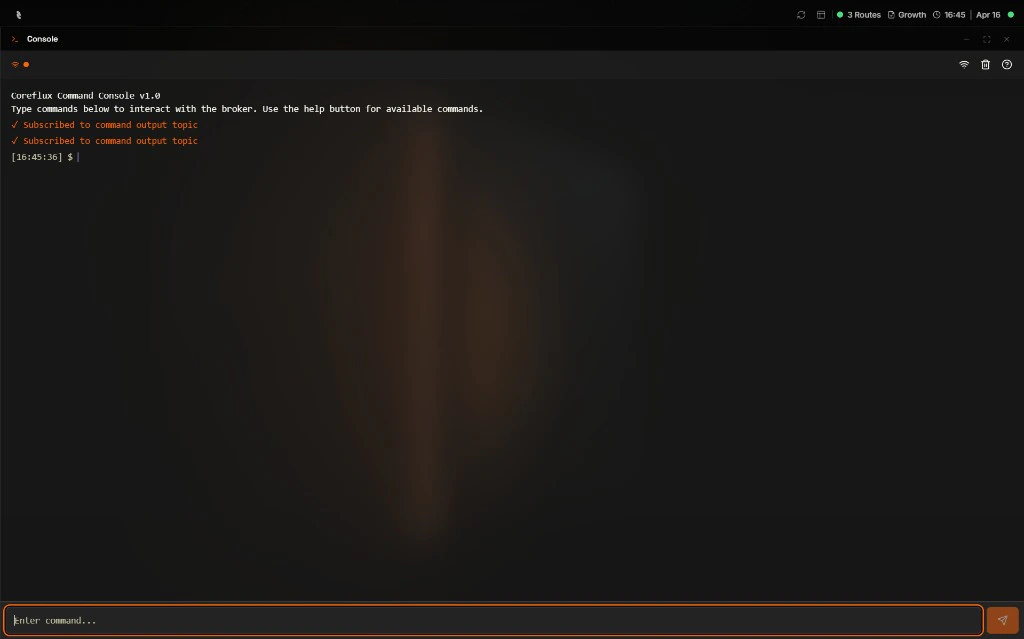 ## Entering Commands
1. In the HUB top navigation, select **System**, then **Command Console**.
2. Enter the command in the input field (e.g., `-addAction DEFINE ACTION ...`).
3. Send the command. The broker processes it and returns a result.
***
## Next Steps
Learn available broker commands and syntax.
View command execution logs.
## Entering Commands
1. In the HUB top navigation, select **System**, then **Command Console**.
2. Enter the command in the input field (e.g., `-addAction DEFINE ACTION ...`).
3. Send the command. The broker processes it and returns a result.
***
## Next Steps
Learn available broker commands and syntax.
View command execution logs.