> ## Documentation Index
> Fetch the complete documentation index at: https://docs.coreflux.org/llms.txt
> Use this file to discover all available pages before exploring further.
# LoT Editor
> Author, deploy, and inspect LoT and Python as notebooks and projects in the Coreflux HUB
 ## Why Use the LoT Editor?
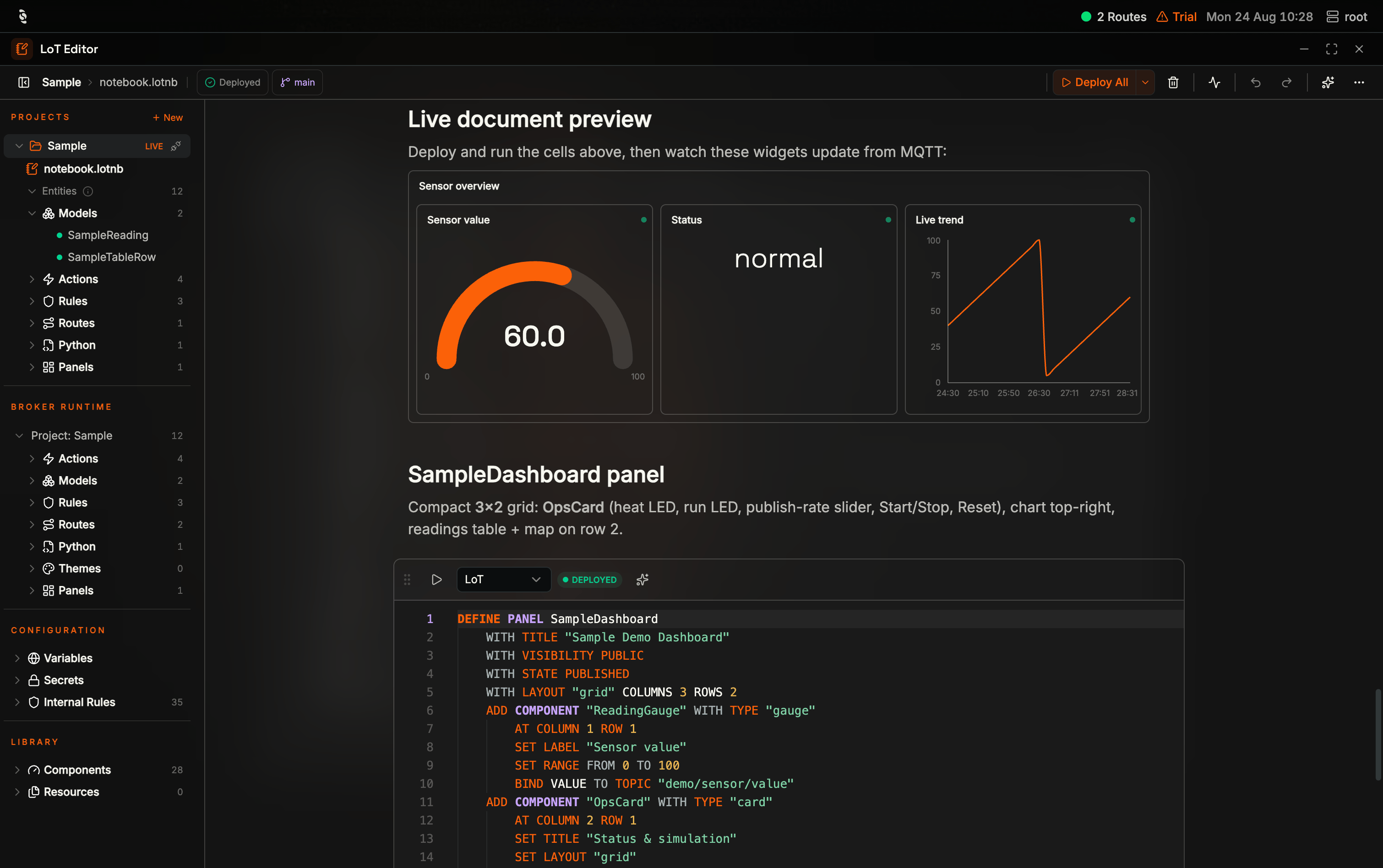
The LoT Editor brings the **LoT Notebooks** experience from VS Code into the Coreflux HUB. You author LoT and Python in notebook cells, deploy any cell on its own, and see per-cell whether your copy matches what the broker is running — with the broker's live entity list right beside your code, without leaving the browser.
This makes the HUB a single place to develop, manage, and operate your Coreflux solutions.
**This is parity, not a replacement.** Editing LoT from the [VS Code LoT Notebooks extension](/lot-notebooks/usage) remains fully supported, and you never have to choose between the two. The broker is the source of truth: either editor deploys to it, and both read the same project. `Import .lotnb`, `Push to broker`, and `Pull from broker` are what keep the two workflows one.
**Like a lab notebook wired to the machine it describes.** The prose, tables, and code live in one document — and each block of code is the thing that is actually running.
## When to Use It
* **Deploying LoT without another tool installed** — Any HUB install, Docker or desktop app, can author and deploy
* **Checking what is really on the broker** — **Broker runtime** is the authoritative list, next to your code
* **Iterating on one definition** — Run a single cell instead of redeploying a whole project
* **Auditing drift** — Per-cell badges and a broker diff show exactly which definitions have moved out of sync
* **Documenting a solution where it lives** — Markdown cells render inline, so the topic conventions and device maps sit beside the code that implements them
* **Putting live visuals next to the LoT that drives them** — Drag Library components into a markdown cell and watch topics such as `demo/sensor/value` update in the notebook
* **Picking up someone else's project** — Open it from the broker and read the notebook top to bottom
* **Publishing or recovering a project** — Push a local draft, Pull or Inspect one already on the broker, or restore an earlier commit
* **Removing without surprises** — A local delete, an entity remove, and a project remove from the broker are three different operations
***
## Opening the Editor
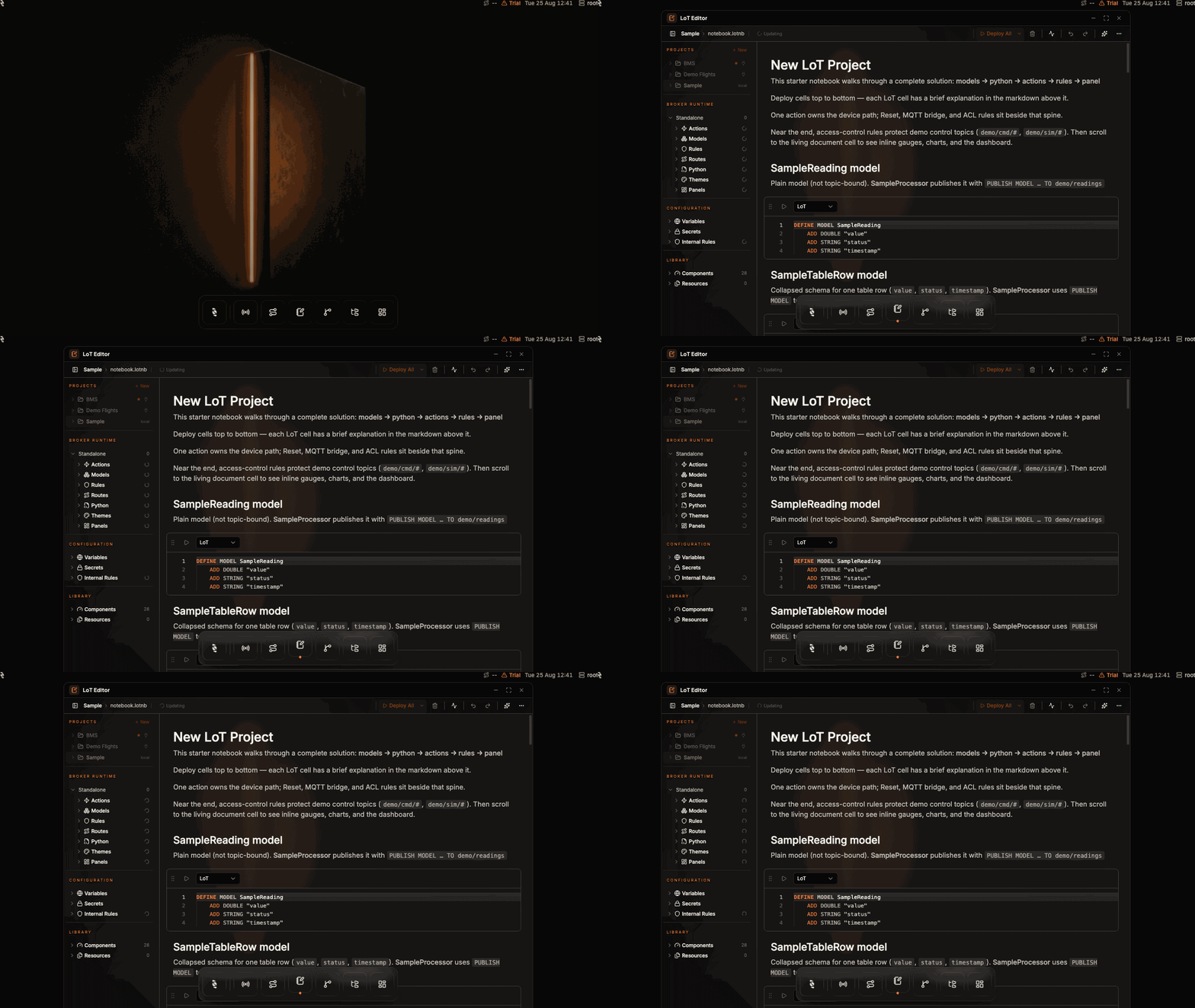
Select **LoT Editor** in the HUB dock — the notebook-and-pen icon, after **Data Viewer** and **Connections**. An orange dot under the icon marks the editor as the active app.
## Why Use the LoT Editor?
The LoT Editor brings the **LoT Notebooks** experience from VS Code into the Coreflux HUB. You author LoT and Python in notebook cells, deploy any cell on its own, and see per-cell whether your copy matches what the broker is running — with the broker's live entity list right beside your code, without leaving the browser.
This makes the HUB a single place to develop, manage, and operate your Coreflux solutions.
**This is parity, not a replacement.** Editing LoT from the [VS Code LoT Notebooks extension](/lot-notebooks/usage) remains fully supported, and you never have to choose between the two. The broker is the source of truth: either editor deploys to it, and both read the same project. `Import .lotnb`, `Push to broker`, and `Pull from broker` are what keep the two workflows one.
**Like a lab notebook wired to the machine it describes.** The prose, tables, and code live in one document — and each block of code is the thing that is actually running.
## When to Use It
* **Deploying LoT without another tool installed** — Any HUB install, Docker or desktop app, can author and deploy
* **Checking what is really on the broker** — **Broker runtime** is the authoritative list, next to your code
* **Iterating on one definition** — Run a single cell instead of redeploying a whole project
* **Auditing drift** — Per-cell badges and a broker diff show exactly which definitions have moved out of sync
* **Documenting a solution where it lives** — Markdown cells render inline, so the topic conventions and device maps sit beside the code that implements them
* **Putting live visuals next to the LoT that drives them** — Drag Library components into a markdown cell and watch topics such as `demo/sensor/value` update in the notebook
* **Picking up someone else's project** — Open it from the broker and read the notebook top to bottom
* **Publishing or recovering a project** — Push a local draft, Pull or Inspect one already on the broker, or restore an earlier commit
* **Removing without surprises** — A local delete, an entity remove, and a project remove from the broker are three different operations
***
## Opening the Editor
Select **LoT Editor** in the HUB dock — the notebook-and-pen icon, after **Data Viewer** and **Connections**. An orange dot under the icon marks the editor as the active app.
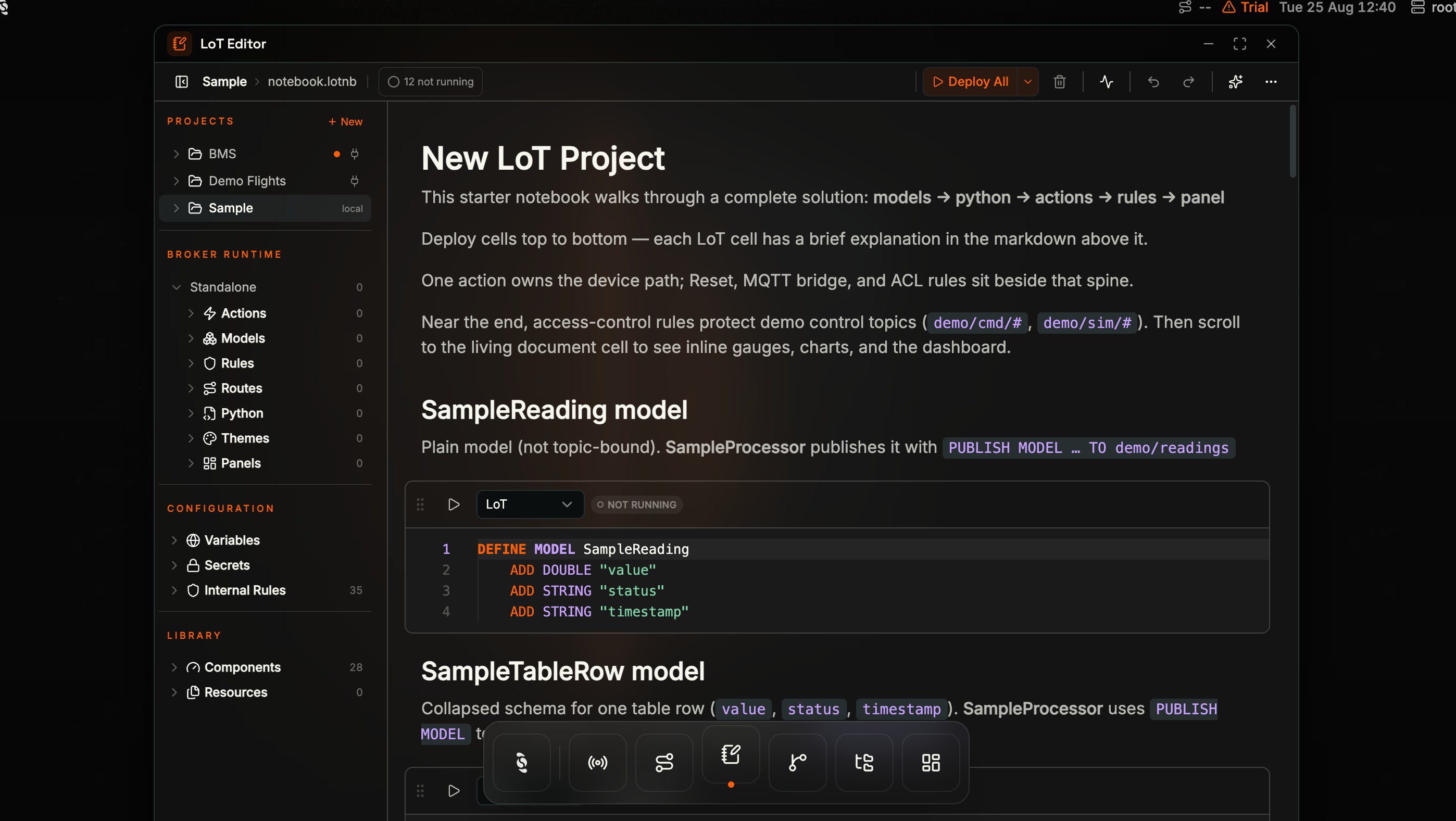
 The window header carries the current project and notebook plus the controls that act on the whole notebook:
 | Control | What it does |
| ------------------------------------------ | ------------------------------------------------------------------------------------------------------------------------------------------------------------------------- |
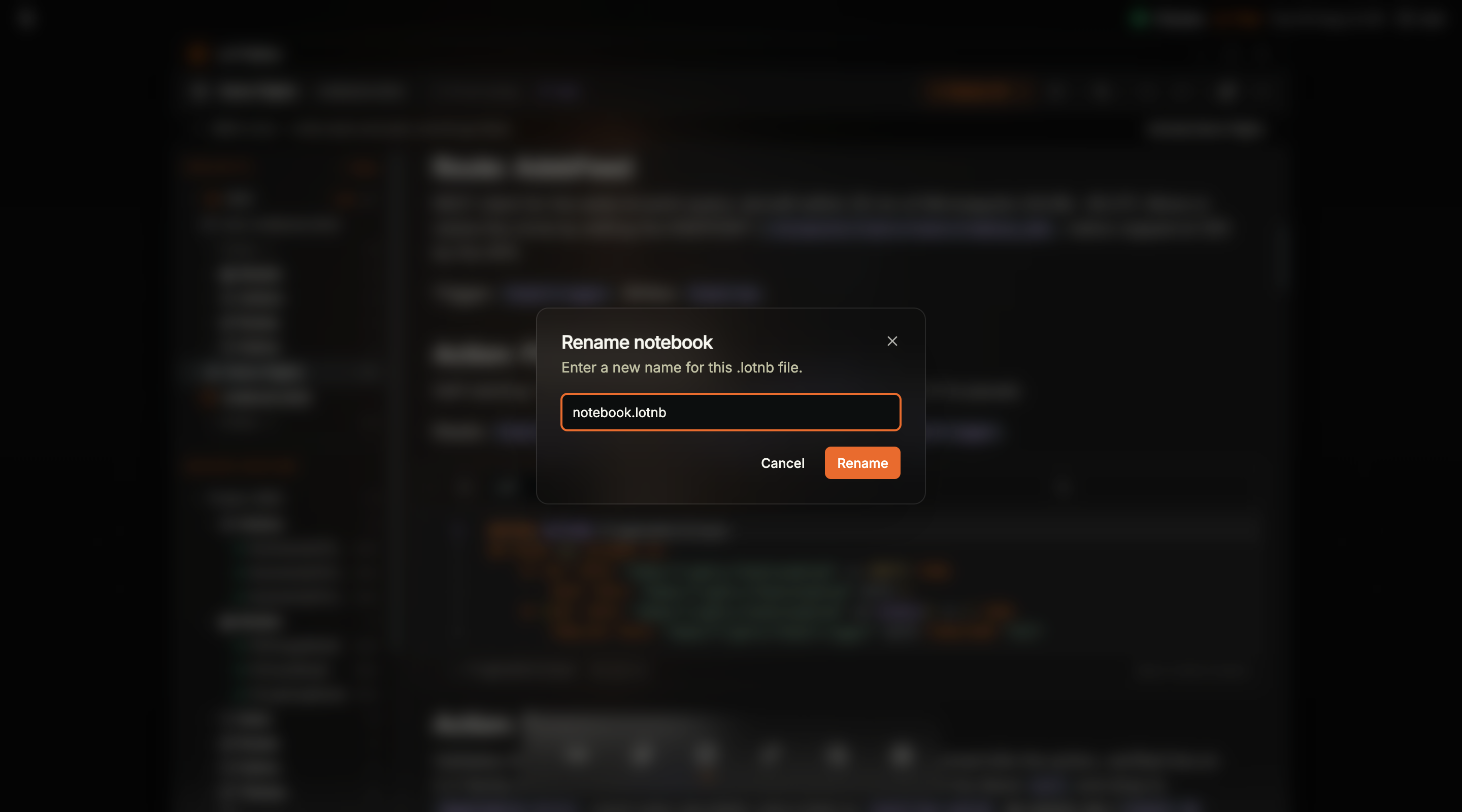
| **Breadcrumb** (`Sample › notebook.lotnb`) | The open project and file. Click either part to rename it |
| **`Deployed`** | Every comparable cell in the open project matches the broker. Drift shows as an orange count such as `N differs` or `N not running` — on a live project, click it to Push |
| **Branch chip** (`main`) | Git branch of the open project on the broker. Missing git is silence — there is no `Local workspace` chip |
| **`Deploy All`** | Deploys every LoT and Python cell in the **open notebook**. The split control also offers **Deploy project**, which stores and loads the whole project |
| **Action Console** (pulse) | Opens the right-hand **Action Console** rail for running and tracing Actions — see [Action Console](#action-console-traces-and-run-once) |
| **Remove entities** | Removes the entities *this notebook* defines from the broker |
| **Undo** / **Redo** | Step cell changes back and forward |
| **Attach notebook to AI chat** | Hands the open notebook to the HUB's AI assistant as context |
| **`…`** | `Import .lotnb file` and `Export open notebook as .lotnb` |
## A Notebook Is Both Document and Deployment
A notebook is an ordered list of cells, and the cell type dropdown decides what each one is:
| Cell type | Contents | Deployed? |
| ------------ | ------------------------------------------------------------------------------------------ | ------------------------------------------------------- |
| **LoT** | One complete definition — `DEFINE ACTION`, `DEFINE MODEL`, `DEFINE ROUTE`, `DEFINE RULE` | Yes, to the broker |
| **Python** | A Python script your Actions call, named in the cell's **Script name** field | Yes, to the broker |
| **Markdown** | Headings, prose, lists, tables, **live visual components**, and links to project documents | Visuals are published as panels; prose is documentation |
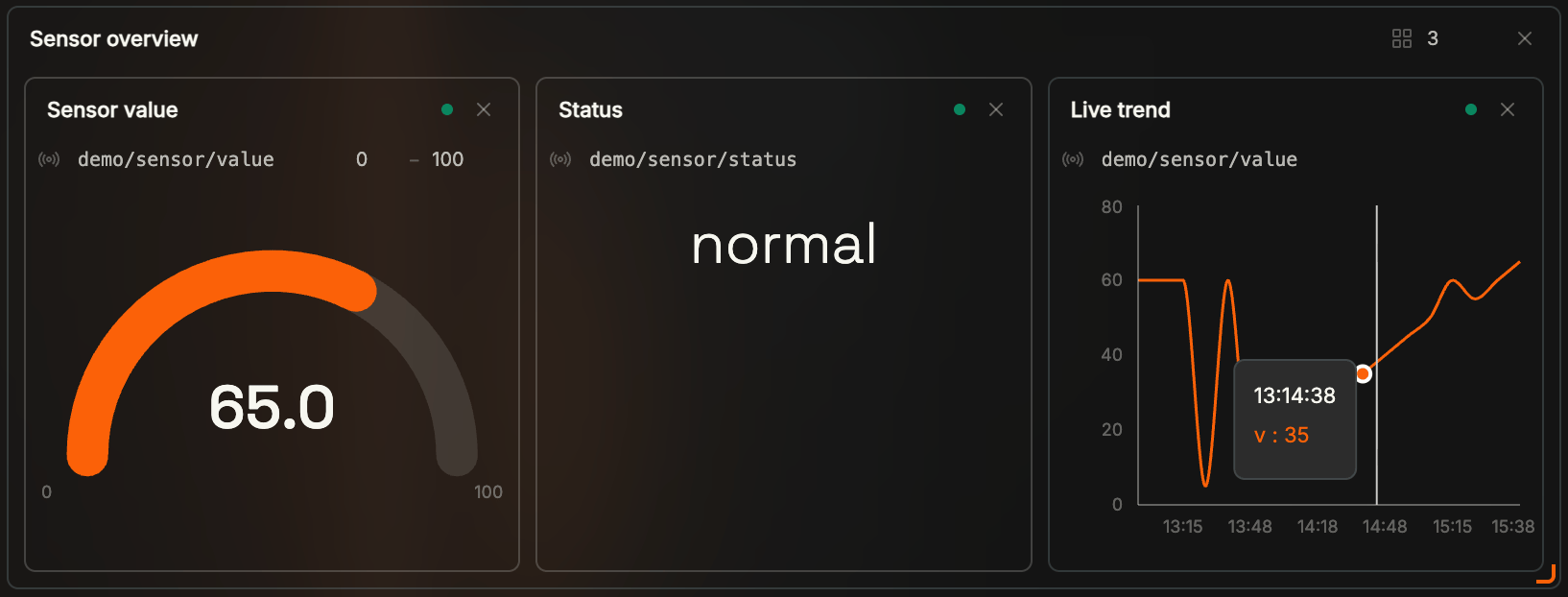
Markdown cells render in place between the executable ones. That is not documentation-only: you can drop a gauge, chart, or card from **Library → Components** into a markdown cell and it stays live, bound to MQTT. The Sample notebook uses this for a **live document preview** — widgets on `demo/sensor/value` sit in the notebook itself, so you deploy the cells above and watch the gauge, status, and trend update without leaving the editor.
**Adding visuals in the editor is a first-class authoring step**, not a Dashboards-only feature. Drag from Library, or write the component in the markdown cell — the notebook is allowed to *be* the live view. See [Library](#library-visual-components-and-documents).
To add a cell, use the **`+ Code`** and **`+ Markdown`** buttons that appear in the gutter between cells — so a new cell always lands exactly where you point at it.
## Working With Cells
Every cell has its own toolbar, left to right. Hover the cell to reveal the right-hand controls — **Move up** / **Move down**, **Duplicate**, and **Delete** stay hidden until then.
| Control | What it does |
| ------------------------------------------ | ------------------------------------------------------------------------------------------------------------------------------------------------------------------------- |
| **Breadcrumb** (`Sample › notebook.lotnb`) | The open project and file. Click either part to rename it |
| **`Deployed`** | Every comparable cell in the open project matches the broker. Drift shows as an orange count such as `N differs` or `N not running` — on a live project, click it to Push |
| **Branch chip** (`main`) | Git branch of the open project on the broker. Missing git is silence — there is no `Local workspace` chip |
| **`Deploy All`** | Deploys every LoT and Python cell in the **open notebook**. The split control also offers **Deploy project**, which stores and loads the whole project |
| **Action Console** (pulse) | Opens the right-hand **Action Console** rail for running and tracing Actions — see [Action Console](#action-console-traces-and-run-once) |
| **Remove entities** | Removes the entities *this notebook* defines from the broker |
| **Undo** / **Redo** | Step cell changes back and forward |
| **Attach notebook to AI chat** | Hands the open notebook to the HUB's AI assistant as context |
| **`…`** | `Import .lotnb file` and `Export open notebook as .lotnb` |
## A Notebook Is Both Document and Deployment
A notebook is an ordered list of cells, and the cell type dropdown decides what each one is:
| Cell type | Contents | Deployed? |
| ------------ | ------------------------------------------------------------------------------------------ | ------------------------------------------------------- |
| **LoT** | One complete definition — `DEFINE ACTION`, `DEFINE MODEL`, `DEFINE ROUTE`, `DEFINE RULE` | Yes, to the broker |
| **Python** | A Python script your Actions call, named in the cell's **Script name** field | Yes, to the broker |
| **Markdown** | Headings, prose, lists, tables, **live visual components**, and links to project documents | Visuals are published as panels; prose is documentation |
Markdown cells render in place between the executable ones. That is not documentation-only: you can drop a gauge, chart, or card from **Library → Components** into a markdown cell and it stays live, bound to MQTT. The Sample notebook uses this for a **live document preview** — widgets on `demo/sensor/value` sit in the notebook itself, so you deploy the cells above and watch the gauge, status, and trend update without leaving the editor.
**Adding visuals in the editor is a first-class authoring step**, not a Dashboards-only feature. Drag from Library, or write the component in the markdown cell — the notebook is allowed to *be* the live view. See [Library](#library-visual-components-and-documents).
To add a cell, use the **`+ Code`** and **`+ Markdown`** buttons that appear in the gutter between cells — so a new cell always lands exactly where you point at it.
## Working With Cells
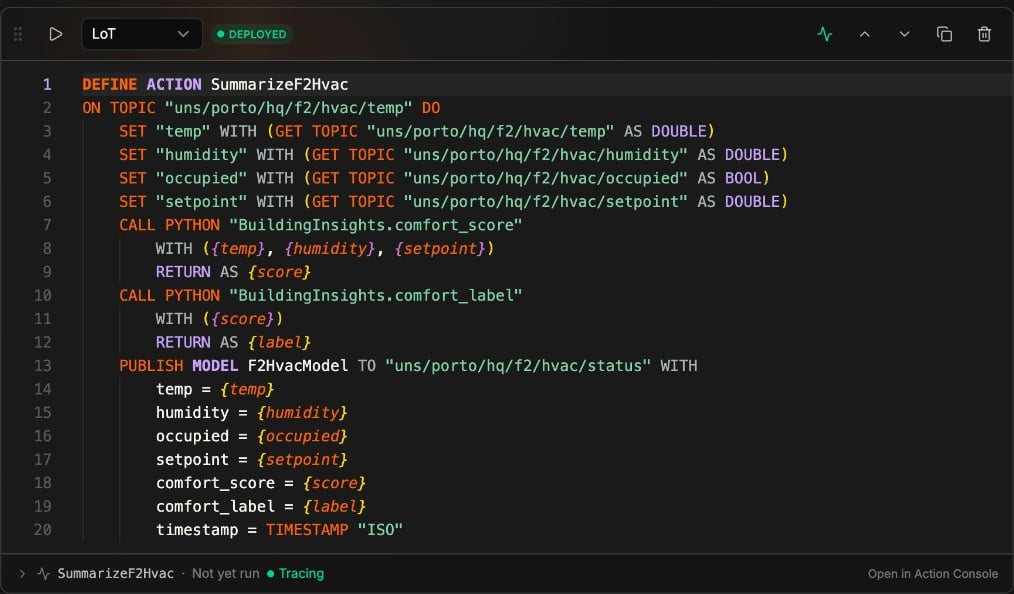
Every cell has its own toolbar, left to right. Hover the cell to reveal the right-hand controls — **Move up** / **Move down**, **Duplicate**, and **Delete** stay hidden until then.
 | Control | What it does |
| ------------------------------------------- | ----------------------------------------------------------------------------------------------------------------------------------- |
| **Drag handle** | Drag to reorder the cell |
| **Run cell** (`Shift`+`Enter`) | Deploys just this cell to the broker |
| **Cell type** | Switch between `LoT`, `Python`, and `Markdown` |
| **Sync badge** | This cell's state against the broker — see below |
| **Run or trace** (pulse, Action cells only) | Pin this Action in the [Action Console](#action-console-traces-and-run-once). While a capture is armed it reads as tracing |
| **Compare with broker** | Shown when the cell is not `DEPLOYED` — see [Comparing a cell with the broker](#comparing-a-cell-with-the-broker). Appears on hover |
| **Move up** / **Move down** | Reorder without dragging. Appear on hover |
| **Duplicate** | Copy the cell and its contents. Appears on hover |
| **Delete cell** | Remove the cell from the notebook. Appears on hover |
Action cells also carry a strip under the code. Here it reads **`SummarizeF2Hvac · Not yet run · Tracing`** — expand it for Traces and Run, or choose **Open in Action Console** to pin the same panel in the right-hand rail. **Tracing** (green) means a five-minute capture is already armed for that Action.
Deleting a cell asks **"Delete this cell?"** and warns that the cell and its contents are removed from the notebook and that it cannot be undone. It changes the notebook only — the entity that cell deployed stays on the broker until you remove it there. See [Removal](#removal-four-different-operations).
## Action Console: Traces and Run Once
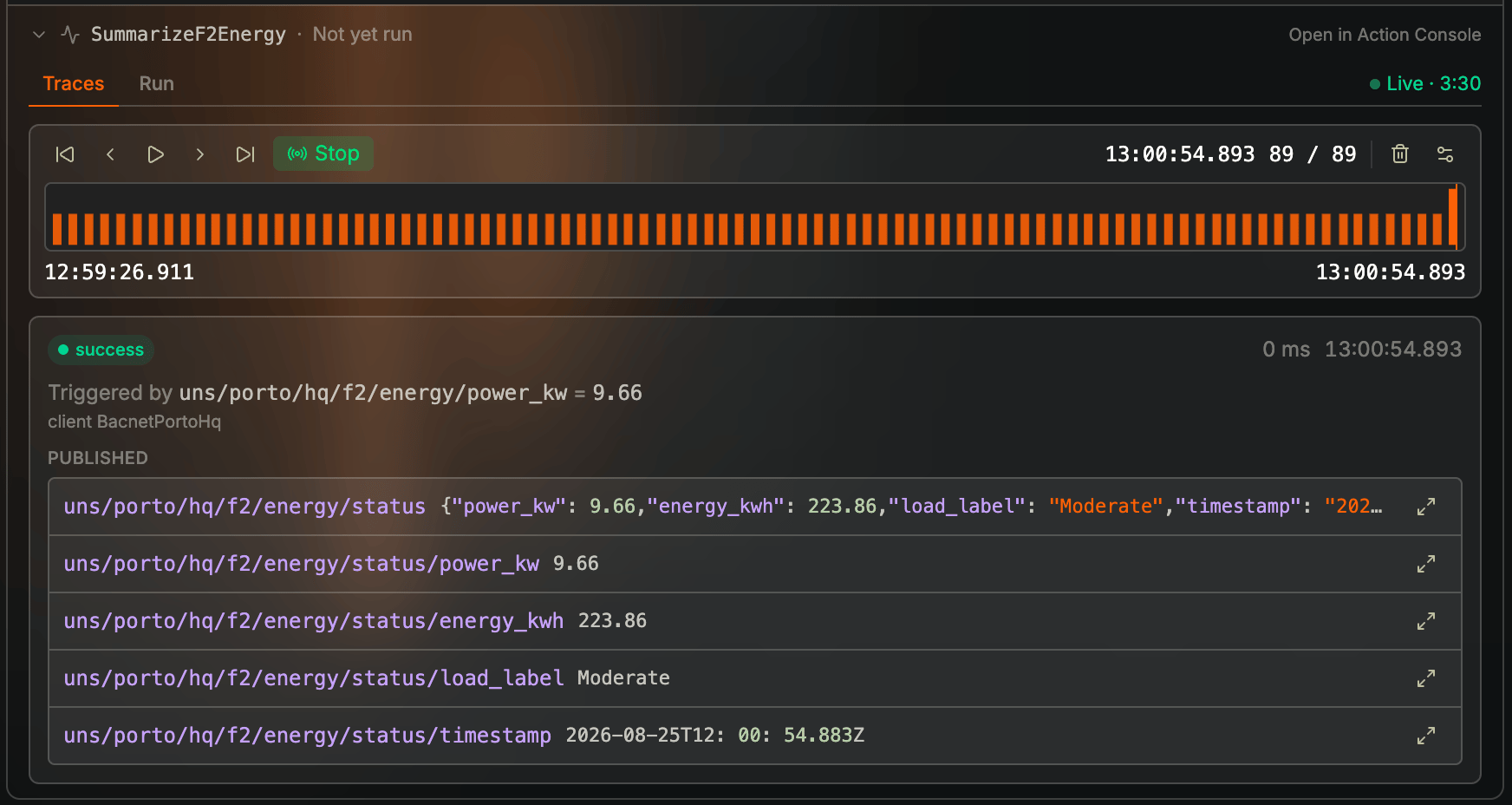
**Run cell** deploys the definition. The console underneath — or pinned from the header pulse — is where you watch and trigger execution: **Traces** records every run for five minutes, and **Run once** fires the Action with a topic and payload you choose.
Every Action cell has the same console in two places — expanded under the cell, or pinned in the header pulse rail. Both have **Traces** and **Run**.
| Control | What it does |
| ------------------------------------------- | ----------------------------------------------------------------------------------------------------------------------------------- |
| **Drag handle** | Drag to reorder the cell |
| **Run cell** (`Shift`+`Enter`) | Deploys just this cell to the broker |
| **Cell type** | Switch between `LoT`, `Python`, and `Markdown` |
| **Sync badge** | This cell's state against the broker — see below |
| **Run or trace** (pulse, Action cells only) | Pin this Action in the [Action Console](#action-console-traces-and-run-once). While a capture is armed it reads as tracing |
| **Compare with broker** | Shown when the cell is not `DEPLOYED` — see [Comparing a cell with the broker](#comparing-a-cell-with-the-broker). Appears on hover |
| **Move up** / **Move down** | Reorder without dragging. Appear on hover |
| **Duplicate** | Copy the cell and its contents. Appears on hover |
| **Delete cell** | Remove the cell from the notebook. Appears on hover |
Action cells also carry a strip under the code. Here it reads **`SummarizeF2Hvac · Not yet run · Tracing`** — expand it for Traces and Run, or choose **Open in Action Console** to pin the same panel in the right-hand rail. **Tracing** (green) means a five-minute capture is already armed for that Action.
Deleting a cell asks **"Delete this cell?"** and warns that the cell and its contents are removed from the notebook and that it cannot be undone. It changes the notebook only — the entity that cell deployed stays on the broker until you remove it there. See [Removal](#removal-four-different-operations).
## Action Console: Traces and Run Once
**Run cell** deploys the definition. The console underneath — or pinned from the header pulse — is where you watch and trigger execution: **Traces** records every run for five minutes, and **Run once** fires the Action with a topic and payload you choose.
Every Action cell has the same console in two places — expanded under the cell, or pinned in the header pulse rail. Both have **Traces** and **Run**.
 | Control | What it does |
| -------------------------- | --------------------------------------------------------------------------------------------------------------------------------------------------- |
| **Traces** tab | A five-minute capture of every execution, including runs triggered elsewhere. Playback sits on the timeline; a single run's result stays on **Run** |
| **Run** tab | Topic and payload (or JSON parameters for callable Actions), then **Run once** |
| **`Use`** | Fill the payload from the last message on that topic, or from the last run |
| **Run once** | Live run — (re)deploys the version in the cell, then executes it. There is no sandbox: anything the Action publishes is published |
| **Open in Action Console** | Pin this Action in the right-hand rail so you can switch Actions without leaving the strip |
| Control | What it does |
| -------------------------- | --------------------------------------------------------------------------------------------------------------------------------------------------- |
| **Traces** tab | A five-minute capture of every execution, including runs triggered elsewhere. Playback sits on the timeline; a single run's result stays on **Run** |
| **Run** tab | Topic and payload (or JSON parameters for callable Actions), then **Run once** |
| **`Use`** | Fill the payload from the last message on that topic, or from the last run |
| **Run once** | Live run — (re)deploys the version in the cell, then executes it. There is no sandbox: anything the Action publishes is published |
| **Open in Action Console** | Pin this Action in the right-hand rail so you can switch Actions without leaving the strip |
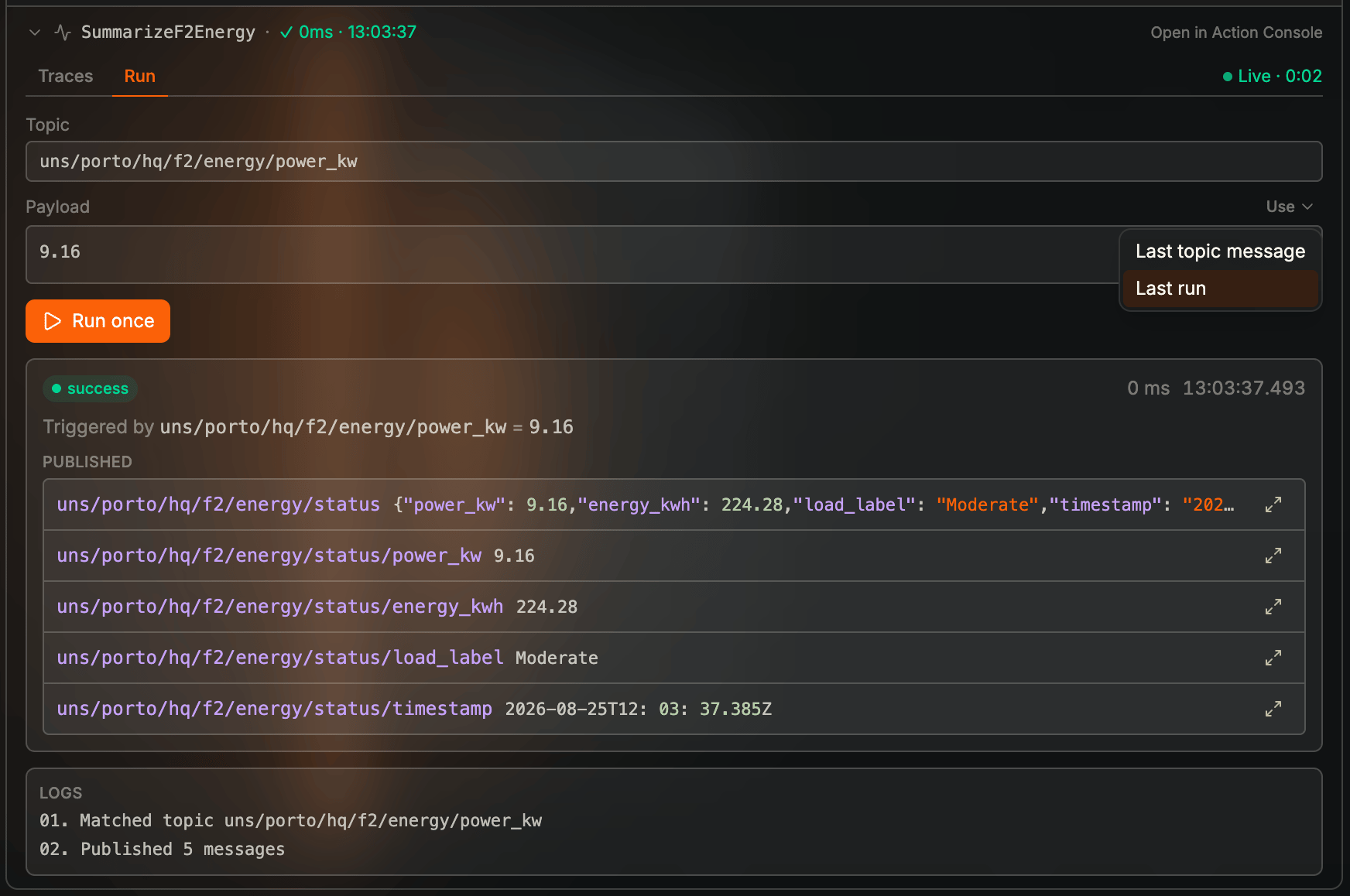 **Run once is a live run.** It (re)deploys the Action from the cell and executes it on the broker. Downstream topics, databases, and devices see the same publishes they would from a real trigger.
## Is This Cell Running on the Broker?
Each LoT and Python cell reports its own state against the broker, which is the fastest way to tell whether the code you are reading is the code that is running:
| Badge | Meaning | What to do |
| ----------------- | ------------------------------------------------------- | ------------------------------------------ |
| **`DEPLOYED`** | The cell matches an entity running on the broker | Nothing |
| **`DIFFERS`** | The entity is running but the source here has changed | Run the cell to update it |
| **`NOT RUNNING`** | Nothing of that name is running on the broker yet | Run the cell to deploy it |
| **`RUNNING`** | Something is running that this project does not declare | Adopt it, or remove it from Broker runtime |
**Run once is a live run.** It (re)deploys the Action from the cell and executes it on the broker. Downstream topics, databases, and devices see the same publishes they would from a real trigger.
## Is This Cell Running on the Broker?
Each LoT and Python cell reports its own state against the broker, which is the fastest way to tell whether the code you are reading is the code that is running:
| Badge | Meaning | What to do |
| ----------------- | ------------------------------------------------------- | ------------------------------------------ |
| **`DEPLOYED`** | The cell matches an entity running on the broker | Nothing |
| **`DIFFERS`** | The entity is running but the source here has changed | Run the cell to update it |
| **`NOT RUNNING`** | Nothing of that name is running on the broker yet | Run the cell to deploy it |
| **`RUNNING`** | Something is running that this project does not declare | Adopt it, or remove it from Broker runtime |
 `NOT RUNNING` and `DIFFERS` are how the editor answers "why is my Action missing from [LoT Flow](/hub/lot-flow)?" — the graph is drawn from Broker runtime, so a cell that has never been deployed has nothing to draw.
### Comparing a cell with the broker
Whenever a cell is not `DEPLOYED`, a **Compare with broker (Diff)** control appears on its toolbar. It replaces the editor with a line-by-line comparison of the running definition against your local copy, headed `BROKER · ⟷ LOCAL` with an added/removed line count:
`NOT RUNNING` and `DIFFERS` are how the editor answers "why is my Action missing from [LoT Flow](/hub/lot-flow)?" — the graph is drawn from Broker runtime, so a cell that has never been deployed has nothing to draw.
### Comparing a cell with the broker
Whenever a cell is not `DEPLOYED`, a **Compare with broker (Diff)** control appears on its toolbar. It replaces the editor with a line-by-line comparison of the running definition against your local copy, headed `BROKER · ⟷ LOCAL` with an added/removed line count:
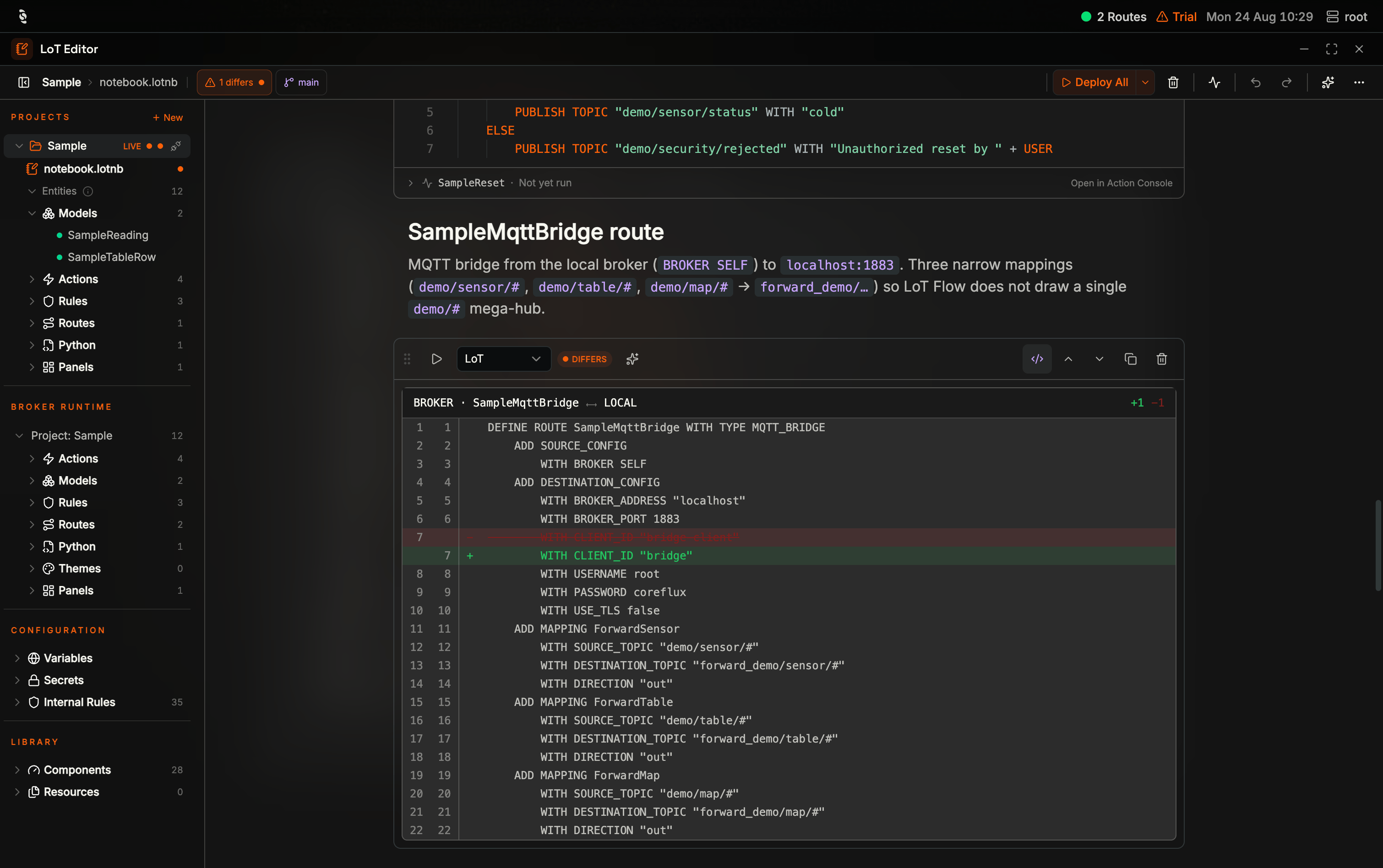 For a `NOT RUNNING` cell the comparison is against nothing — every line shows as an addition, which is a quick way to review a whole definition before it goes live.
## Deploying
Two granularities, and the difference matters when a project is large:
* **Run cell** deploys that one definition. Use it while iterating — you get the broker's response for that entity alone.
* **Deploy All** deploys every LoT and Python cell in the **open notebook**. Use it while iterating.
* **Deploy project** (the other half of the split button) stores the whole project and loads it, replacing the broker's entity set. It always confirms first.
Either way the cell's badge flips to `DEPLOYED` once the broker confirms it, and the entity appears under **Broker runtime**.
Here is a complete Model as it appears in a cell — the fields the Action fills in are the ones worth reading first:
```lot wrap focus={2-4} theme={"theme":"css-variables","languages":{"custom":["/languages/lot.json"]}}
DEFINE MODEL SampleTableRow COLLAPSED
ADD DOUBLE "value"
ADD STRING "status"
ADD STRING "timestamp"
```
Running a cell writes to the broker immediately. There is no staging step and no separate save — the definition in the cell replaces whatever the broker was running under that name.
***
## The Sidebar: Projects and Broker Runtime
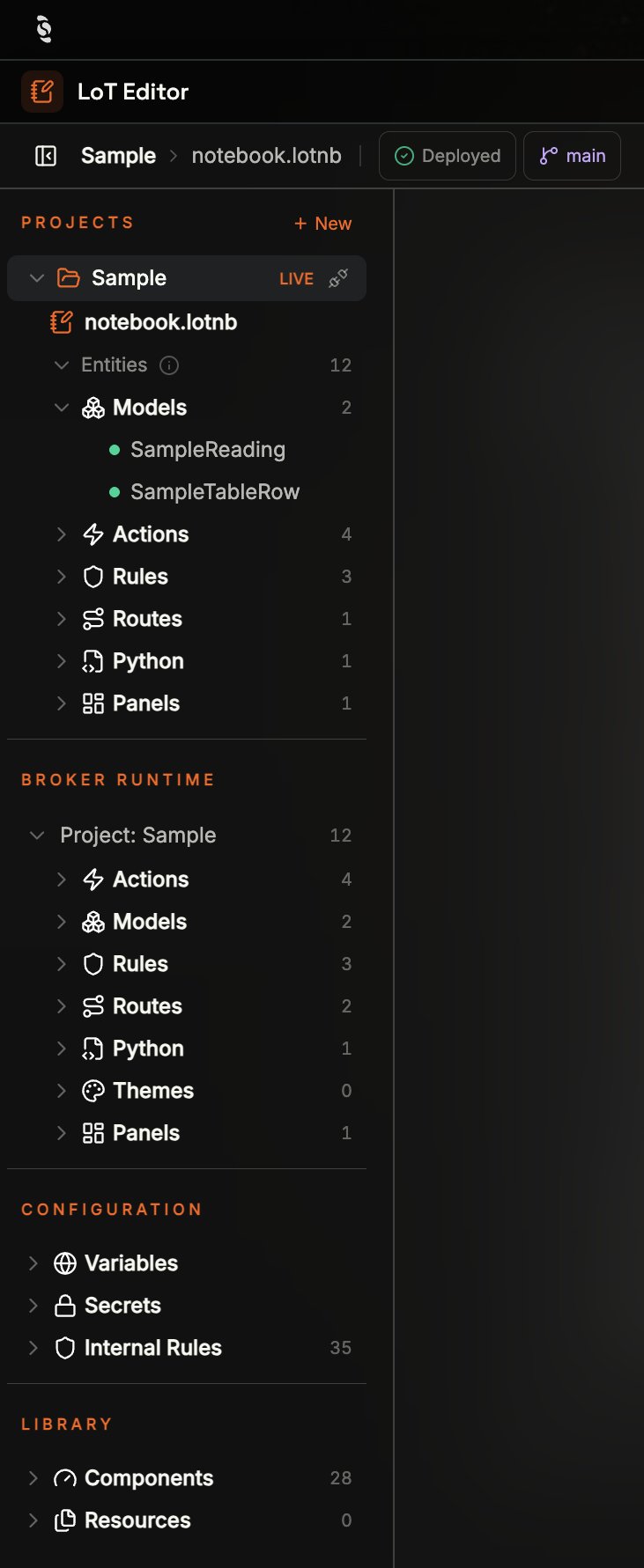
There is **one Projects list**, and **Broker runtime** sits under it as its own section — always present, even when nothing is running.
For a `NOT RUNNING` cell the comparison is against nothing — every line shows as an addition, which is a quick way to review a whole definition before it goes live.
## Deploying
Two granularities, and the difference matters when a project is large:
* **Run cell** deploys that one definition. Use it while iterating — you get the broker's response for that entity alone.
* **Deploy All** deploys every LoT and Python cell in the **open notebook**. Use it while iterating.
* **Deploy project** (the other half of the split button) stores the whole project and loads it, replacing the broker's entity set. It always confirms first.
Either way the cell's badge flips to `DEPLOYED` once the broker confirms it, and the entity appears under **Broker runtime**.
Here is a complete Model as it appears in a cell — the fields the Action fills in are the ones worth reading first:
```lot wrap focus={2-4} theme={"theme":"css-variables","languages":{"custom":["/languages/lot.json"]}}
DEFINE MODEL SampleTableRow COLLAPSED
ADD DOUBLE "value"
ADD STRING "status"
ADD STRING "timestamp"
```
Running a cell writes to the broker immediately. There is no staging step and no separate save — the definition in the cell replaces whatever the broker was running under that name.
***
## The Sidebar: Projects and Broker Runtime
There is **one Projects list**, and **Broker runtime** sits under it as its own section — always present, even when nothing is running.
 | Section | What it holds |
| ------------------ | ---------------------------------------------------------------------------------------------------------------------------------------------------------------------------------------------------------------------------------------------------------- |
| **Projects** | Every project you can open — on the broker, local-only drafts, and the one currently **LIVE**. `+ New` creates a draft. Hover a name for placement (`On broker · live`, `On broker · idle`, `Local draft`). The row plug is **Activate** or **Deactivate** |
| **Broker runtime** | What is actually running. The group reads **`Project: Sample`** (or whatever project is live), or **`Standalone`** when none is. Click the name to open the inspector table |
| **Configuration** | `Variables`, `Secrets`, and `Internal Rules` — the broker's locked built-in permission rules |
| **Library** | Visual components, documents, and images — see [Library](#library-visual-components-and-documents) |
Editing a notebook changes your local copy. Only deploying, Push, Activate, or Deploy project writes to the broker. A colleague on another machine sees the same Broker runtime and the same on-broker projects, not your unpublished local edits — which is why you Push and Pull.
### Broker runtime
Expanding **Broker runtime** groups everything running by type — `Actions`, `Models`, `Rules`, `Routes`, `Python`, `Themes`, `Panels` — each with a count and names beneath. Click **`Project: {name}`** or **Standalone** to open the inspector:
| Section | What it holds |
| ------------------ | ---------------------------------------------------------------------------------------------------------------------------------------------------------------------------------------------------------------------------------------------------------- |
| **Projects** | Every project you can open — on the broker, local-only drafts, and the one currently **LIVE**. `+ New` creates a draft. Hover a name for placement (`On broker · live`, `On broker · idle`, `Local draft`). The row plug is **Activate** or **Deactivate** |
| **Broker runtime** | What is actually running. The group reads **`Project: Sample`** (or whatever project is live), or **`Standalone`** when none is. Click the name to open the inspector table |
| **Configuration** | `Variables`, `Secrets`, and `Internal Rules` — the broker's locked built-in permission rules |
| **Library** | Visual components, documents, and images — see [Library](#library-visual-components-and-documents) |
Editing a notebook changes your local copy. Only deploying, Push, Activate, or Deploy project writes to the broker. A colleague on another machine sees the same Broker runtime and the same on-broker projects, not your unpublished local edits — which is why you Push and Pull.
### Broker runtime
Expanding **Broker runtime** groups everything running by type — `Actions`, `Models`, `Rules`, `Routes`, `Python`, `Themes`, `Panels` — each with a count and names beneath. Click **`Project: {name}`** or **Standalone** to open the inspector:
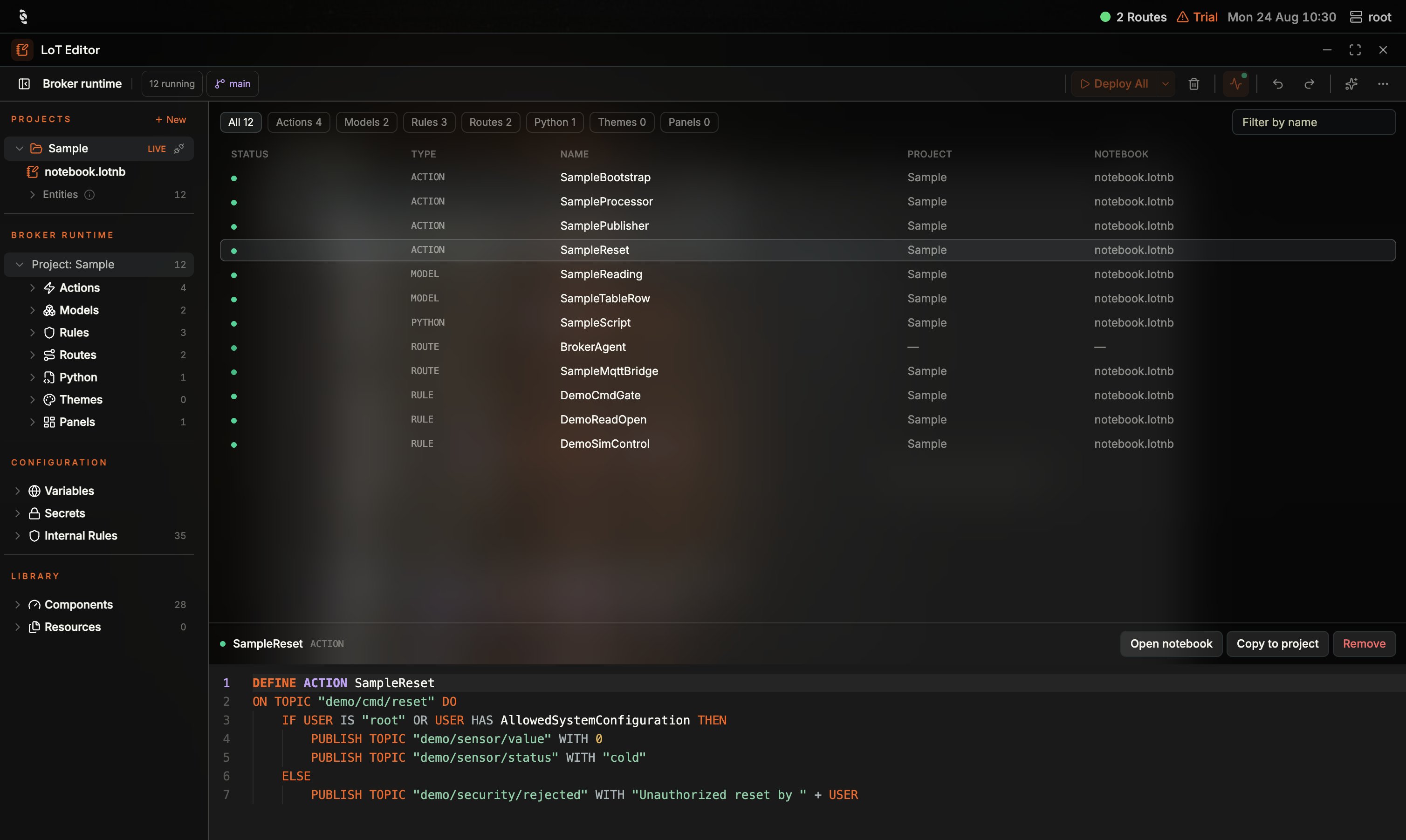 The inspector is where mixed ownership is obvious: Sample-owned rows point at `notebook.lotnb`; a standalone route such as `BrokerAgent` leaves **Project** and **Notebook** blank. Select a row to read the running source and use **Open notebook**, **Copy to project**, or **Remove**.
A project's own **Entities** folder (under the project in **Projects**) is what that project's notebooks *declare*. Broker runtime is what is *running*. In the Sample notebook those counts can disagree — **Routes (1)** under the project versus **Routes (2)** on the broker — because a leftover such as `BrokerAgent` is running but not declared in the notebook.
An idle project's declarations can match the running set and still read `NOT RUNNING` on cells — Activate that project before treating those badges as a deploy to-do.
**Routes and Python scripts deploy from the editor too.** Routes still have their own [Routes Manager](/hub/routes/overview) for connection status and templates.
Two counts are easy to misread:
* **`Rules`** under a project counts rules that project owns. Locked built-ins live under **Configuration → Internal Rules**, not here.
* **`Python`** counts *scripts*. [LoT Flow](/hub/lot-flow)'s Python group counts the individual *functions* those scripts expose.
## Library: Visual Components and Documents
**Library** is the bottom of the LoT Editor sidebar. It is how you put *views* and *files* into a project — not a second editor.
The inspector is where mixed ownership is obvious: Sample-owned rows point at `notebook.lotnb`; a standalone route such as `BrokerAgent` leaves **Project** and **Notebook** blank. Select a row to read the running source and use **Open notebook**, **Copy to project**, or **Remove**.
A project's own **Entities** folder (under the project in **Projects**) is what that project's notebooks *declare*. Broker runtime is what is *running*. In the Sample notebook those counts can disagree — **Routes (1)** under the project versus **Routes (2)** on the broker — because a leftover such as `BrokerAgent` is running but not declared in the notebook.
An idle project's declarations can match the running set and still read `NOT RUNNING` on cells — Activate that project before treating those badges as a deploy to-do.
**Routes and Python scripts deploy from the editor too.** Routes still have their own [Routes Manager](/hub/routes/overview) for connection status and templates.
Two counts are easy to misread:
* **`Rules`** under a project counts rules that project owns. Locked built-ins live under **Configuration → Internal Rules**, not here.
* **`Python`** counts *scripts*. [LoT Flow](/hub/lot-flow)'s Python group counts the individual *functions* those scripts expose.
## Library: Visual Components and Documents
**Library** is the bottom of the LoT Editor sidebar. It is how you put *views* and *files* into a project — not a second editor.
 ### Components
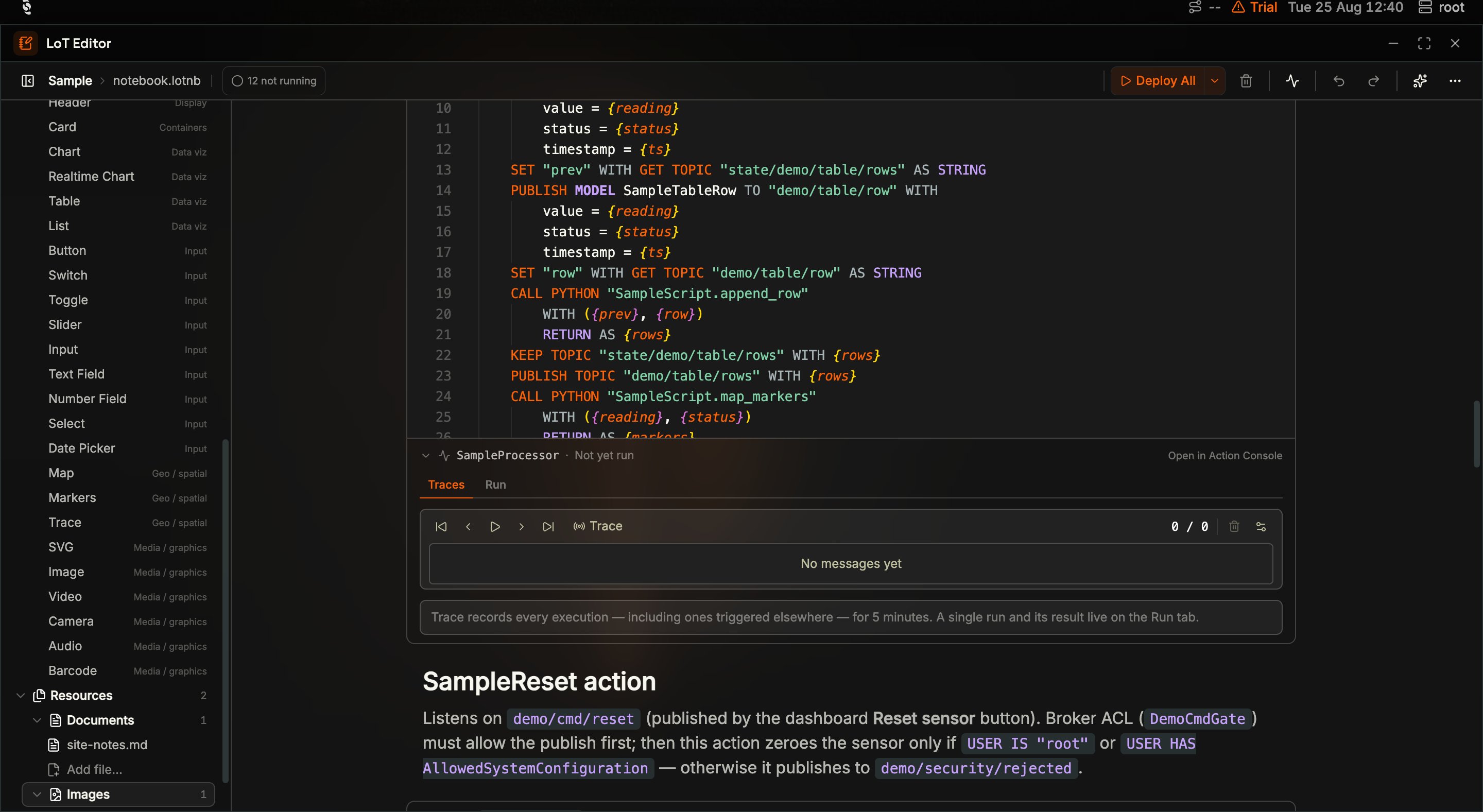
**Components** is the palette of live widgets you can drop onto a **markdown** cell. Each row is a type (Gauge, Chart, Button, Map, …) with its group on the right. Drag a row onto a markdown cell to embed a viewer bound to an MQTT topic. The Sample notebook's live preview is this capability in use: a card of gauge, status, and trend sitting in the document.
### Components
**Components** is the palette of live widgets you can drop onto a **markdown** cell. Each row is a type (Gauge, Chart, Button, Map, …) with its group on the right. Drag a row onto a markdown cell to embed a viewer bound to an MQTT topic. The Sample notebook's live preview is this capability in use: a card of gauge, status, and trend sitting in the document.
 Types you can drop today, by group:
| Group | Components |
| -------------------- | ------------------------------------------------------------------------------------ |
| **Display** | Gauge, Indicator, Value, Text, Header |
| **Containers** | Card, Frame |
| **Data viz** | Chart, Realtime Chart, Table, List |
| **Input** | Button, Switch, Toggle, Slider, Input, Text Field, Number Field, Select, Date Picker |
| **Geo / spatial** | Map, Markers, Trace |
| **Media / graphics** | SVG, Image, Video, Camera, Audio, Barcode |
Widgets in the notebook publish as panels when the document is saved, so they are the same component types Dashboards uses — authored next to the LoT that feeds them.
### Resources: documents and images
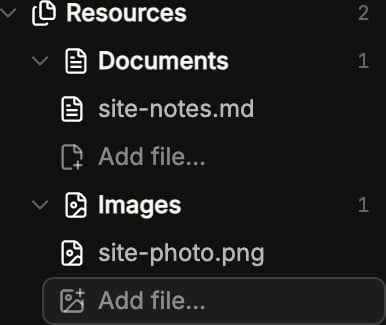
**Resources** nests **Documents** and **Images**. These are files in the project, not a separate scrapbook you have to remember to Push.
Types you can drop today, by group:
| Group | Components |
| -------------------- | ------------------------------------------------------------------------------------ |
| **Display** | Gauge, Indicator, Value, Text, Header |
| **Containers** | Card, Frame |
| **Data viz** | Chart, Realtime Chart, Table, List |
| **Input** | Button, Switch, Toggle, Slider, Input, Text Field, Number Field, Select, Date Picker |
| **Geo / spatial** | Map, Markers, Trace |
| **Media / graphics** | SVG, Image, Video, Camera, Audio, Barcode |
Widgets in the notebook publish as panels when the document is saved, so they are the same component types Dashboards uses — authored next to the LoT that feeds them.
### Resources: documents and images
**Resources** nests **Documents** and **Images**. These are files in the project, not a separate scrapbook you have to remember to Push.
 | Item | What it holds | How you add it | What drop onto markdown does |
| ------------- | ------------------------------------------------------- | ----------------------------------------------------------------------------- | --------------------------------- |
| **Documents** | `.txt`, `.md`, and `.pdf` files in the **open project** | **Add file…**, or project / folder **Import file…** | Inserts a relative markdown link |
| **Images** | Project images (PNG, JPEG, SVG, GIF, WebP, and similar) | **Add file…** under Images, **Import file…**, or drag an image onto a project | Inserts a relative markdown image |
Click a document or image in Library to open it in the main pane (it replaces the notebook until you go back). Hover **Remove** on a Library leaf to delete that file from the list.
Right-click a project or folder for **Import file…** when you want the file to live under a specific folder rather than the Library picker. Dropping a Library image onto a project copies it into that project.
## Standalone Deployments vs Projects
The broker can run LoT **with** a live project, or **without** one. Broker runtime tells you which:
| Mode | Broker runtime label | What it means |
| ---------------- | ----------------------------------------------- | ------------------------------------------------------------------------------------------------------------------------------------------------------------------ |
| **Live project** | **`Project: Sample`** (the live project's name) | At most one project is **LIVE**. Deployments from that project auto-commit. **Activate** / **Deactivate** on the project row choose which stored project is active |
| **Standalone** | **`Standalone`** | No project is loaded. Entities can still be running — you deployed cells with nothing live, or leftovers that no project owns. Auto-commit is off |
Standalone is a normal state: a scratchpad, the view after **Deactivate**, or entities deployed outside a project (another editor, an older session, or a cell run with nothing LIVE).
How the two interact:
* **Run cell / Deploy All** with nothing LIVE writes straight into standalone runtime. The toolbar stays a direct action.
* **Deploy All** from an idle project on the broker asks you to **Activate** first — it does not silently load that project.
* **Deploy All** from a local-only draft while another project is LIVE is refused (the toast points you at **Push**). Deploying those cells would write into the other live project.
* **Activate** loads a stored project's declarations. If the broker publishes entity ownership, only that project's entities stop; standalone leftovers stay. Without ownership, the confirm says the current project's entities are replaced.
* **Deactivate** unloads the live project and **removes its entities from running**. Auto-commit stops until you Activate again. Broker runtime then reads **Standalone** (plus anything that was never owned by that project). The confirm is explicit: *Deactivating **BMS** unloads it from the broker and **removes its entities from running**.*
* **Adopt into project** (Broker runtime context menu) writes selected running entities into a notebook and Pushes — that is how you turn a standalone set into a project.
## Moving Work Between Projects and the Broker
Right-click a project under **Projects** for operations on that row. A **LIVE** project and an idle on-broker project do not offer the same items (idle has **Inspect** and **Activate**; live has **Deactivate** and the full create/import set).
| Item | What it holds | How you add it | What drop onto markdown does |
| ------------- | ------------------------------------------------------- | ----------------------------------------------------------------------------- | --------------------------------- |
| **Documents** | `.txt`, `.md`, and `.pdf` files in the **open project** | **Add file…**, or project / folder **Import file…** | Inserts a relative markdown link |
| **Images** | Project images (PNG, JPEG, SVG, GIF, WebP, and similar) | **Add file…** under Images, **Import file…**, or drag an image onto a project | Inserts a relative markdown image |
Click a document or image in Library to open it in the main pane (it replaces the notebook until you go back). Hover **Remove** on a Library leaf to delete that file from the list.
Right-click a project or folder for **Import file…** when you want the file to live under a specific folder rather than the Library picker. Dropping a Library image onto a project copies it into that project.
## Standalone Deployments vs Projects
The broker can run LoT **with** a live project, or **without** one. Broker runtime tells you which:
| Mode | Broker runtime label | What it means |
| ---------------- | ----------------------------------------------- | ------------------------------------------------------------------------------------------------------------------------------------------------------------------ |
| **Live project** | **`Project: Sample`** (the live project's name) | At most one project is **LIVE**. Deployments from that project auto-commit. **Activate** / **Deactivate** on the project row choose which stored project is active |
| **Standalone** | **`Standalone`** | No project is loaded. Entities can still be running — you deployed cells with nothing live, or leftovers that no project owns. Auto-commit is off |
Standalone is a normal state: a scratchpad, the view after **Deactivate**, or entities deployed outside a project (another editor, an older session, or a cell run with nothing LIVE).
How the two interact:
* **Run cell / Deploy All** with nothing LIVE writes straight into standalone runtime. The toolbar stays a direct action.
* **Deploy All** from an idle project on the broker asks you to **Activate** first — it does not silently load that project.
* **Deploy All** from a local-only draft while another project is LIVE is refused (the toast points you at **Push**). Deploying those cells would write into the other live project.
* **Activate** loads a stored project's declarations. If the broker publishes entity ownership, only that project's entities stop; standalone leftovers stay. Without ownership, the confirm says the current project's entities are replaced.
* **Deactivate** unloads the live project and **removes its entities from running**. Auto-commit stops until you Activate again. Broker runtime then reads **Standalone** (plus anything that was never owned by that project). The confirm is explicit: *Deactivating **BMS** unloads it from the broker and **removes its entities from running**.*
* **Adopt into project** (Broker runtime context menu) writes selected running entities into a notebook and Pushes — that is how you turn a standalone set into a project.
## Moving Work Between Projects and the Broker
Right-click a project under **Projects** for operations on that row. A **LIVE** project and an idle on-broker project do not offer the same items (idle has **Inspect** and **Activate**; live has **Deactivate** and the full create/import set).
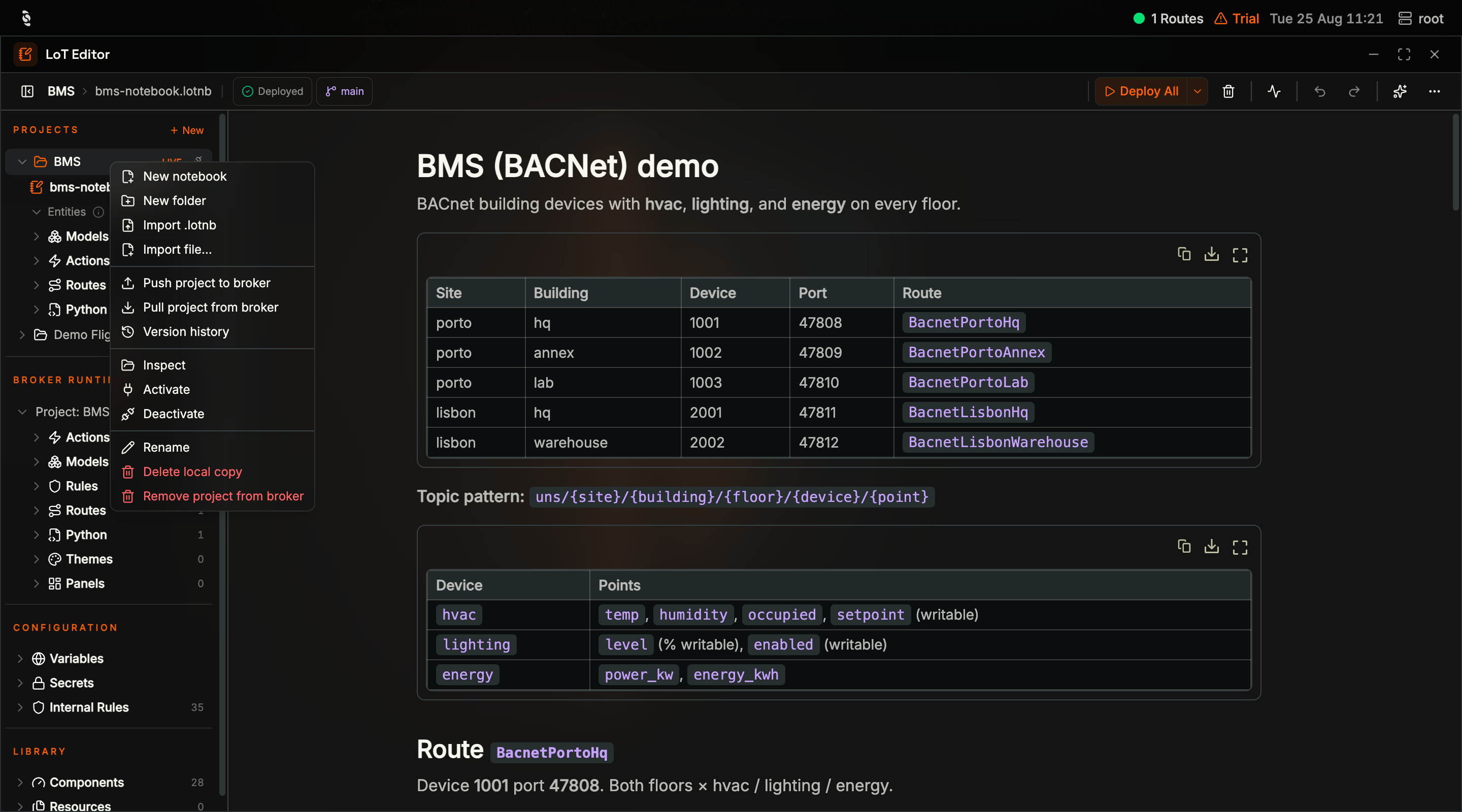 | Item | What it does |
| ---------------------------------------- | ------------------------------------------------------------------------------------------------------------------------------------------------------------ |
| **`New notebook`** / **`New folder`** | Add a `.lotnb` file or a folder inside the project |
| **`Push to broker`** | Send the whole project — every notebook and folder — to the broker. This is what links a local project to a broker project and puts it under version control |
| **`Pull from broker`** | Replace your local copy with the broker's. If you have unsaved local changes, a **"Pull from broker?"** prompt warns you first |
| **`Version history`** | Open the broker's git history for this project |
| **`Import .lotnb`** / **`Import file…`** | Bring a notebook or other file from outside into this project |
| **`Inspect`** | Download the broker's copy of an idle on-broker project into the editor (does not Activate) |
| **`Activate`** / **`Deactivate`** | Load or unload the stored project as the live one — see [Standalone vs projects](#standalone-deployments-vs-projects) |
| **`Rename`** | Rename the local project |
| **`Delete local copy`** | Delete the HUB notebooks only |
| **`Remove project from broker`** | Permanently delete the project from the broker |
Click **`Project: {name}`** to open the inspector table (status, type, name, owning project, notebook). A row with empty **Project** / **Notebook** is a standalone leftover — see [Standalone vs projects](#standalone-deployments-vs-projects). Right-click **Broker runtime** for operations on the running set:
| Item | What it does |
| ---------------------------------------- | ------------------------------------------------------------------------------------------------------------------------------------------------------------ |
| **`New notebook`** / **`New folder`** | Add a `.lotnb` file or a folder inside the project |
| **`Push to broker`** | Send the whole project — every notebook and folder — to the broker. This is what links a local project to a broker project and puts it under version control |
| **`Pull from broker`** | Replace your local copy with the broker's. If you have unsaved local changes, a **"Pull from broker?"** prompt warns you first |
| **`Version history`** | Open the broker's git history for this project |
| **`Import .lotnb`** / **`Import file…`** | Bring a notebook or other file from outside into this project |
| **`Inspect`** | Download the broker's copy of an idle on-broker project into the editor (does not Activate) |
| **`Activate`** / **`Deactivate`** | Load or unload the stored project as the live one — see [Standalone vs projects](#standalone-deployments-vs-projects) |
| **`Rename`** | Rename the local project |
| **`Delete local copy`** | Delete the HUB notebooks only |
| **`Remove project from broker`** | Permanently delete the project from the broker |
Click **`Project: {name}`** to open the inspector table (status, type, name, owning project, notebook). A row with empty **Project** / **Notebook** is a standalone leftover — see [Standalone vs projects](#standalone-deployments-vs-projects). Right-click **Broker runtime** for operations on the running set:
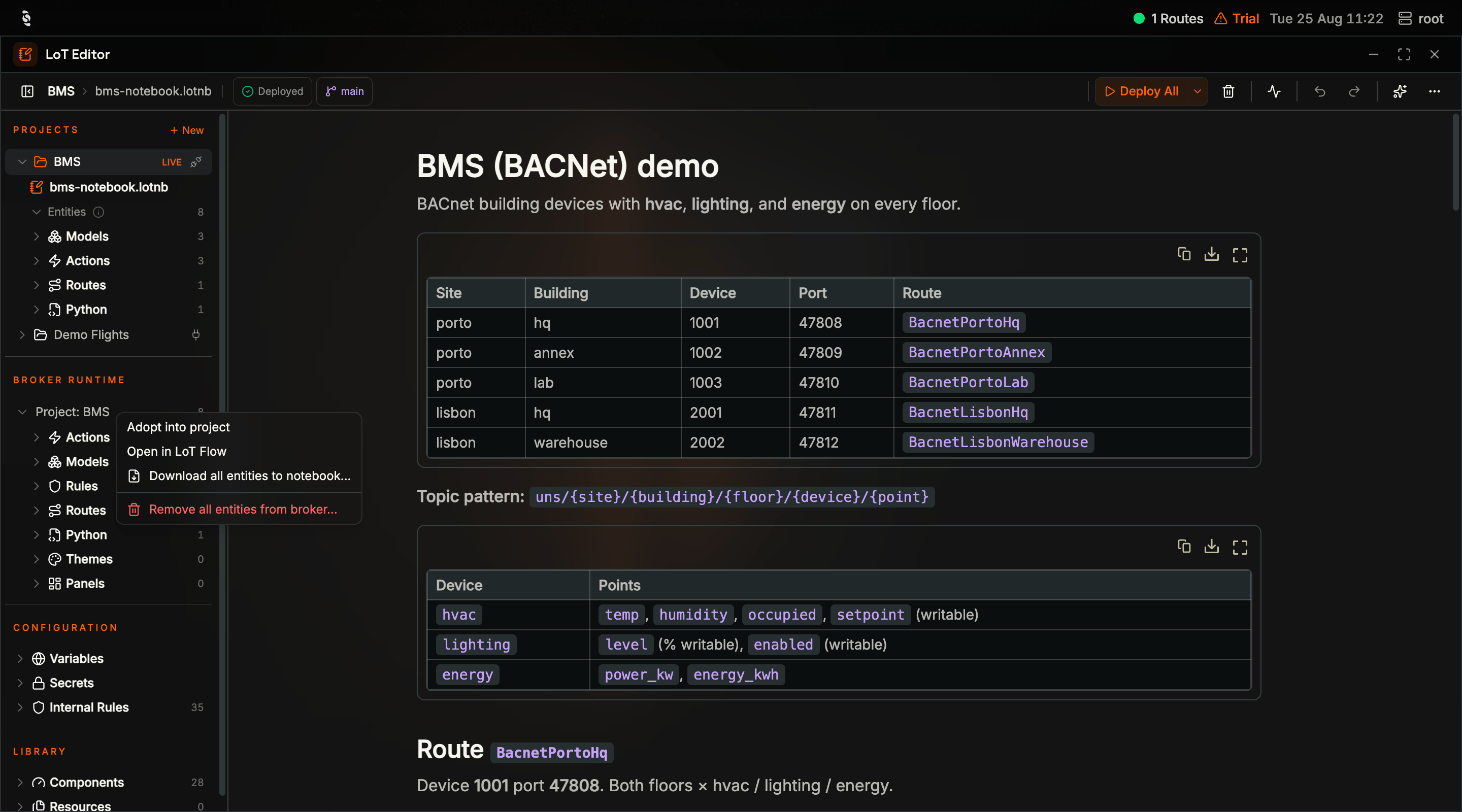 | Item | What it does |
| ---------------------------------------- | ----------------------------------------------------------------------- |
| **`Adopt into project`** | Write the selected (or all) running entities into a notebook, then Push |
| **`Open in LoT Flow`** | Open the live graph of this runtime |
| **`Download all entities to notebook…`** | Copy running definitions into a `.lotnb` file |
| **`Remove all entities from broker…`** | Undeploy the running set. Internal Rules stay |
## Version History
Broker projects are git repositories, and the editor exposes enough of that to recover from mistakes without a terminal:
| Item | What it does |
| ---------------------------------------- | ----------------------------------------------------------------------- |
| **`Adopt into project`** | Write the selected (or all) running entities into a notebook, then Push |
| **`Open in LoT Flow`** | Open the live graph of this runtime |
| **`Download all entities to notebook…`** | Copy running definitions into a `.lotnb` file |
| **`Remove all entities from broker…`** | Undeploy the running set. Internal Rules stay |
## Version History
Broker projects are git repositories, and the editor exposes enough of that to recover from mistakes without a terminal:
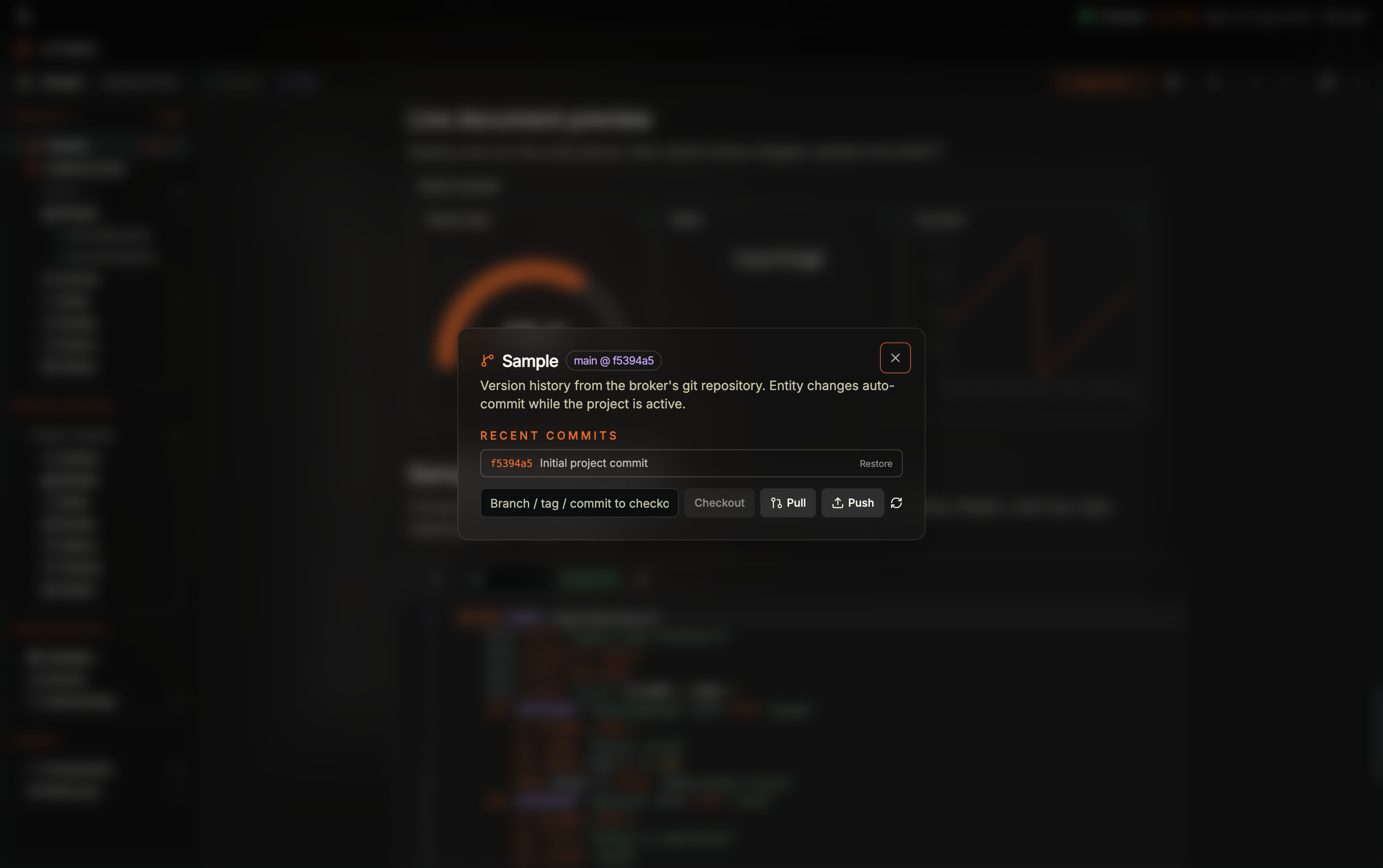 The dialog reports the project's branch and current commit, lists recent commits with their messages, and shows any uncommitted changes on the broker. From here you can:
* **Restore a commit** — checks that commit out on the broker and reloads the workspace if the project is active
* **Checkout a branch, tag, or commit** — type a ref and check it out
* **Pull** and **Push** — synchronise with the broker's configured git remote
**Entity changes auto-commit while the project is active.** You do not commit by hand — deploying an entity produces a commit like `Update route: BacnetPortoHq`, which is why the history reads as a log of deployments.
Restoring a commit can discard uncommitted changes on the broker. Check the **Uncommitted changes** list in the same dialog before restoring.
## Pulling Entities Back Into a Notebook
Deployment is not one-way. Anything running on the broker can be brought back into a notebook, which is how you adopt LoT that was deployed by other means.
Right-click an entity **type group** under **Broker runtime**:
The dialog reports the project's branch and current commit, lists recent commits with their messages, and shows any uncommitted changes on the broker. From here you can:
* **Restore a commit** — checks that commit out on the broker and reloads the workspace if the project is active
* **Checkout a branch, tag, or commit** — type a ref and check it out
* **Pull** and **Push** — synchronise with the broker's configured git remote
**Entity changes auto-commit while the project is active.** You do not commit by hand — deploying an entity produces a commit like `Update route: BacnetPortoHq`, which is why the history reads as a log of deployments.
Restoring a commit can discard uncommitted changes on the broker. Check the **Uncommitted changes** list in the same dialog before restoring.
## Pulling Entities Back Into a Notebook
Deployment is not one-way. Anything running on the broker can be brought back into a notebook, which is how you adopt LoT that was deployed by other means.
Right-click an entity **type group** under **Broker runtime**:
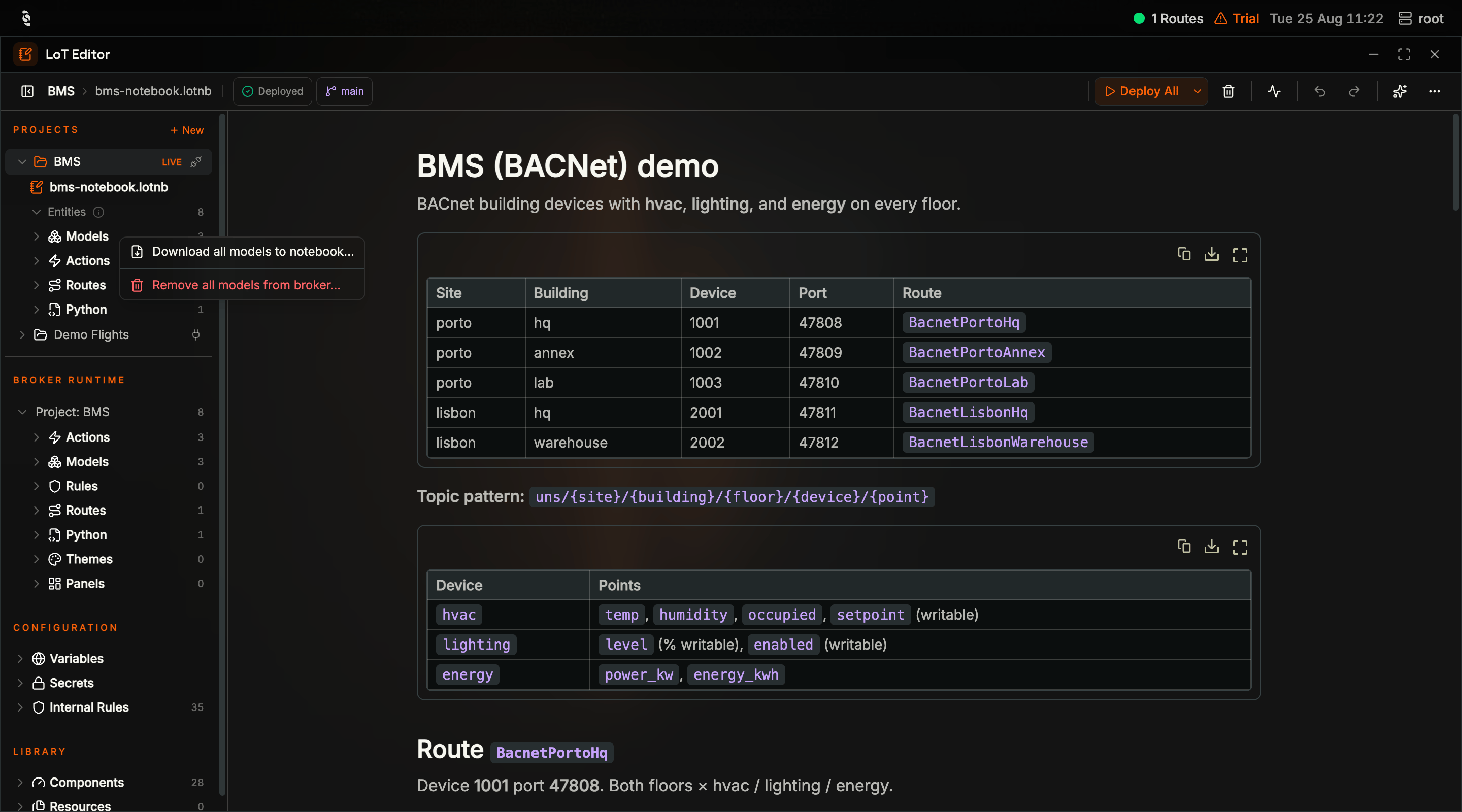 Every type group carries its own pair, and the `Entities` group itself carries **`Download all to notebook…`** and **`Remove all from broker…`** for the whole set. Right-clicking a **single entity** offers **`Open in code editor`**, **`Download to notebook…`**, and **`Remove from broker…`**.
Any download asks **"Choose notebook"** — pick an existing `.lotnb` file in the project, or create a new one — and the definitions arrive as cells you can then edit and redeploy.
## Removal: Four Different Operations
Deleting locally and removing from the broker are different operations with different consequences, and the HUB guards them differently on purpose. Read the dialog: it tells you which one you are in.
| Trigger | Dialog | What it destroys | Guard |
| ------------------------------------------- | ------------------------------------------------------------------------------------------------------------------------------------------------------------------------------------------------------------------------------------- | ---------------------------------------- | ------------------------------------------------------------------------------- |
| Workspace project → **`Delete local copy`** | **"Delete project?"** — local notebooks and folders only | Your local copy only | Plain confirm |
| Single entity → **`Remove from broker…`** | **"Remove from broker?"** — *Remove action "SummarizeF2Hvac" from the broker. This cannot be undone.* | One running entity | Plain confirm |
| `Entities` → **`Remove all from broker…`** | **"Remove all from broker?"** — *Remove 3 action(s), 3 model(s), 1 route(s), 1 python script(s), 0 theme(s), and 0 panel(s) from the broker. Project-owned rules are also cleared; built-in and operator custom rules are preserved.* | Everything loaded on the broker | Plain confirm, but it enumerates live counts — read them |
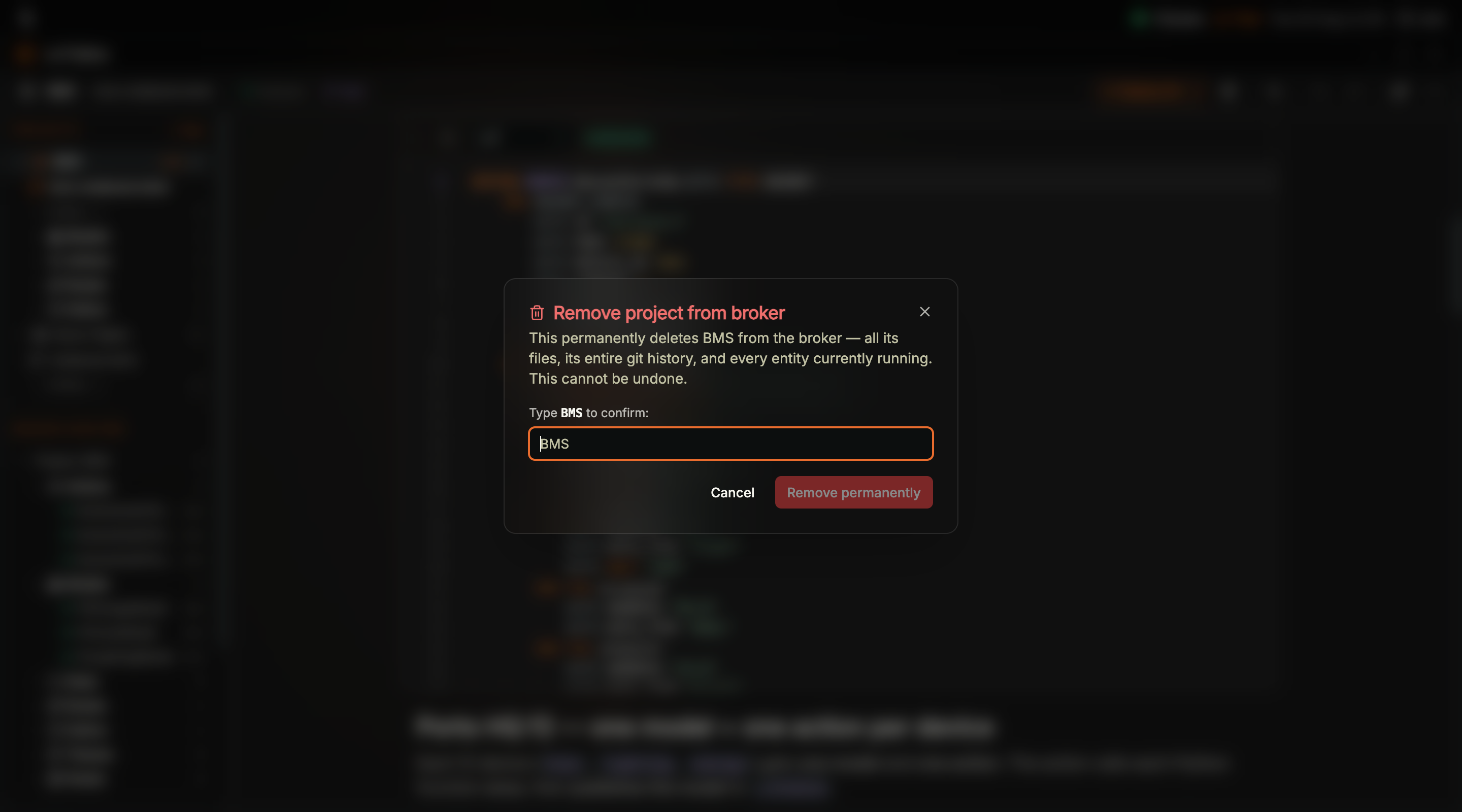
| Broker project → **`Remove from broker…`** | **"Remove project from broker"** — *This permanently deletes **BMS** from the broker — all its files **and its entire git history**. This cannot be undone.* | The project, its files, and every commit | **Type-to-confirm** — the button stays disabled until you type the project name |
**Deleting a workspace project does not touch the broker, and removing a project from the broker does not touch your workspace.** A local delete leaves every entity running and every commit intact; a broker removal leaves your notebooks on disk but destroys the project's git history. Neither is a substitute for the other, and only the broker removal is guarded by type-to-confirm.
Every type group carries its own pair, and the `Entities` group itself carries **`Download all to notebook…`** and **`Remove all from broker…`** for the whole set. Right-clicking a **single entity** offers **`Open in code editor`**, **`Download to notebook…`**, and **`Remove from broker…`**.
Any download asks **"Choose notebook"** — pick an existing `.lotnb` file in the project, or create a new one — and the definitions arrive as cells you can then edit and redeploy.
## Removal: Four Different Operations
Deleting locally and removing from the broker are different operations with different consequences, and the HUB guards them differently on purpose. Read the dialog: it tells you which one you are in.
| Trigger | Dialog | What it destroys | Guard |
| ------------------------------------------- | ------------------------------------------------------------------------------------------------------------------------------------------------------------------------------------------------------------------------------------- | ---------------------------------------- | ------------------------------------------------------------------------------- |
| Workspace project → **`Delete local copy`** | **"Delete project?"** — local notebooks and folders only | Your local copy only | Plain confirm |
| Single entity → **`Remove from broker…`** | **"Remove from broker?"** — *Remove action "SummarizeF2Hvac" from the broker. This cannot be undone.* | One running entity | Plain confirm |
| `Entities` → **`Remove all from broker…`** | **"Remove all from broker?"** — *Remove 3 action(s), 3 model(s), 1 route(s), 1 python script(s), 0 theme(s), and 0 panel(s) from the broker. Project-owned rules are also cleared; built-in and operator custom rules are preserved.* | Everything loaded on the broker | Plain confirm, but it enumerates live counts — read them |
| Broker project → **`Remove from broker…`** | **"Remove project from broker"** — *This permanently deletes **BMS** from the broker — all its files **and its entire git history**. This cannot be undone.* | The project, its files, and every commit | **Type-to-confirm** — the button stays disabled until you type the project name |
**Deleting a workspace project does not touch the broker, and removing a project from the broker does not touch your workspace.** A local delete leaves every entity running and every commit intact; a broker removal leaves your notebooks on disk but destroys the project's git history. Neither is a substitute for the other, and only the broker removal is guarded by type-to-confirm.
 The bulk-remove wording also settles a question the sidebar raises: **project-owned rules are cleared, while built-in and operator custom rules are preserved.** That is why the `Rules` count under **Broker runtime** can be small while **Configuration → Internal Rules** lists the broker's locked built-ins separately.
A `.lotnb` file is the safety net worth having before any removal. **`Download all to notebook…`** on the `Entities` group captures everything currently deployed, and **`Export open notebook as .lotnb`** in the header `…` menu writes it out as a file.
## Editing the Same Project From VS Code
The in-HUB editor and VS Code share the same broker-held project and git history: a project pushed from the HUB opens in the VS Code extension and vice versa, and `.lotnb` files move between them directly:
* **`Import .lotnb`** on a project, or **`Import .lotnb file`** in the header `…` menu, brings a notebook from outside into that project
* **`Export open notebook as .lotnb`** takes the open notebook back out
* **`Push to broker`** and **`Pull from broker`** move the whole project, which is how two people using two editors stay on one project
Whichever tool deployed an entity, it appears the same way under **Broker runtime** and is drawn the same way in [LoT Flow](/hub/lot-flow).
***
## Next Steps
See the entities you just deployed as a live dependency graph.
Edit the same broker-held project from VS Code, then Push and Pull to stay in sync.
The bulk-remove wording also settles a question the sidebar raises: **project-owned rules are cleared, while built-in and operator custom rules are preserved.** That is why the `Rules` count under **Broker runtime** can be small while **Configuration → Internal Rules** lists the broker's locked built-ins separately.
A `.lotnb` file is the safety net worth having before any removal. **`Download all to notebook…`** on the `Entities` group captures everything currently deployed, and **`Export open notebook as .lotnb`** in the header `…` menu writes it out as a file.
## Editing the Same Project From VS Code
The in-HUB editor and VS Code share the same broker-held project and git history: a project pushed from the HUB opens in the VS Code extension and vice versa, and `.lotnb` files move between them directly:
* **`Import .lotnb`** on a project, or **`Import .lotnb file`** in the header `…` menu, brings a notebook from outside into that project
* **`Export open notebook as .lotnb`** takes the open notebook back out
* **`Push to broker`** and **`Pull from broker`** move the whole project, which is how two people using two editors stay on one project
Whichever tool deployed an entity, it appears the same way under **Broker runtime** and is drawn the same way in [LoT Flow](/hub/lot-flow).
***
## Next Steps
See the entities you just deployed as a live dependency graph.
Edit the same broker-held project from VS Code, then Push and Pull to stay in sync.