> ## Documentation Index
> Fetch the complete documentation index at: https://docs.coreflux.org/llms.txt
> Use this file to discover all available pages before exploring further.
# Model Context Protocol (MCP)
> Connect AI assistants to the Coreflux knowledge base using the Model Context Protocol
## The Bridge Between AI and Your Coreflux Environment
Modern AI assistants are powerful — but they don't natively understand LoT (Language of Things) syntax, Coreflux broker configuration, or the nuances of industrial IoT architecture. Without access to the official documentation, an AI assistant will guess, often producing code that looks plausible but uses invented syntax.
The **Model Context Protocol (MCP)** solves this. MCP is an open standard that lets AI assistants — like Claude, GitHub Copilot, or any MCP-compatible client — call external tools during a conversation. The **Coreflux MCP Server** exposes the entire Coreflux documentation as a set of tools your assistant can query in real time. When you ask "how do I create a time-based LoT Action?", your assistant doesn't guess — it looks up the answer in the official docs and responds with verified syntax and working examples.
The result: you stay in your editor, describe what you want in plain English, and get accurate LoT code grounded in real documentation.
**Like giving your AI assistant a library card for Coreflux.** Instead of guessing about LoT syntax or broker configuration, your assistant can look it up directly in the official docs and give you an accurate, sourced answer.
### When to Use This
* You want your AI assistant to **answer Coreflux questions accurately** using official documentation
* You need **LoT syntax help** while coding in an AI-powered editor (Cursor, VS Code with Copilot)
* You want to **search the documentation** through natural language without leaving your workflow
* You're building with Coreflux and want your assistant to have **up-to-date reference material**
***
## How It Works
MCP (Model Context Protocol) is a standard created by Anthropic that defines how AI assistants communicate with external services. It works like a plugin system: an MCP **server** exposes a set of tools, and an MCP **client** (your AI assistant) discovers and calls those tools during conversation.
Here is what happens when you ask your AI assistant a Coreflux question:
| Step | What Happens |
| ------------------------------- | ---------------------------------------------------------------------------------------------------------------- |
| **1. You ask** | You type a question in natural language — *"Create a LoT Action that monitors temperature sensors"* |
| **2. AI recognizes the domain** | Your assistant detects this is a Coreflux question and decides to consult the MCP tools |
| **3. MCP tool call** | The assistant calls the Coreflux MCP Server — searching the documentation or asking the docs assistant |
| **4. Documentation responds** | The MCP server returns relevant documentation snippets, syntax references, and code examples |
| **5. AI synthesizes** | Your assistant combines the documentation with your specific requirements to produce accurate, grounded LoT code |
| **6. You review** | You receive a response with correct syntax, proper patterns, and source references you can verify |
This loop happens automatically once the MCP is connected. You don't need to tell your assistant to "use the MCP" — it discovers the available tools and calls them whenever your question relates to Coreflux.
| Component | Role |
| -------------- | ---------------------------------------------------------------- |
| **MCP Server** | Coreflux's hosted service that exposes documentation tools |
| **MCP Client** | Your AI assistant (Claude, Copilot, etc.) that calls those tools |
| **Transport** | HTTP connection between client and server |
***
## Setup
Connect your AI assistant to the Coreflux documentation MCP server. Choose **Native** to install from the contextual menu on any documentation page, or **Manual** to paste the server URL into your editor's configuration file.
The fastest way to connect is through the **contextual menu** at the top of every documentation page. It copies the hosted MCP server URL or installs the server directly in supported editors — no JSON editing required.
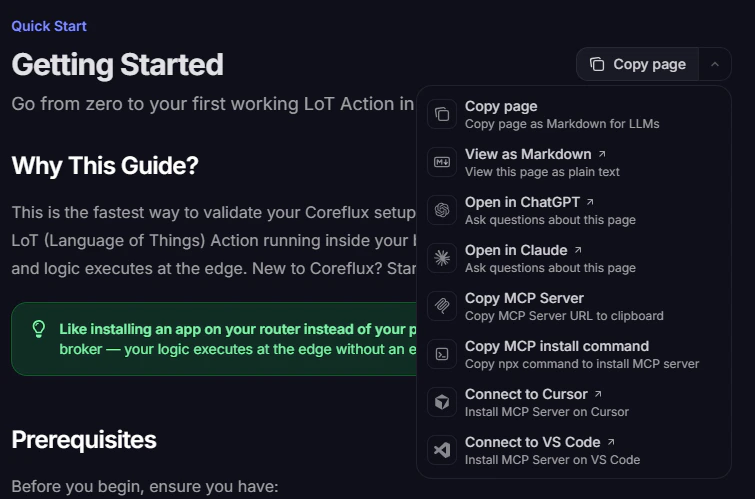 | Menu option | What it does |
| ---------------------------- | ------------------------------------------------------ |
| **Copy MCP Server** | Copies the hosted MCP server URL to your clipboard |
| **Copy MCP install command** | Copies the `npx add-mcp` command to install the server |
| **Connect to Cursor** | Opens Cursor and installs the MCP server |
| **Connect to VS Code** | Opens VS Code and installs the MCP server |
On any Coreflux documentation page, click **Copy page** (top right) to expand the menu.
Select **Connect to VS Code**. VS Code opens the MCP server installation flow for **Coreflux Documentation**.
On the MCP server page, click **Install** (current window) or **Install in Workspace** (project only). Confirm trust if prompted.
| Menu option | What it does |
| ---------------------------- | ------------------------------------------------------ |
| **Copy MCP Server** | Copies the hosted MCP server URL to your clipboard |
| **Copy MCP install command** | Copies the `npx add-mcp` command to install the server |
| **Connect to Cursor** | Opens Cursor and installs the MCP server |
| **Connect to VS Code** | Opens VS Code and installs the MCP server |
On any Coreflux documentation page, click **Copy page** (top right) to expand the menu.
Select **Connect to VS Code**. VS Code opens the MCP server installation flow for **Coreflux Documentation**.
On the MCP server page, click **Install** (current window) or **Install in Workspace** (project only). Confirm trust if prompted.
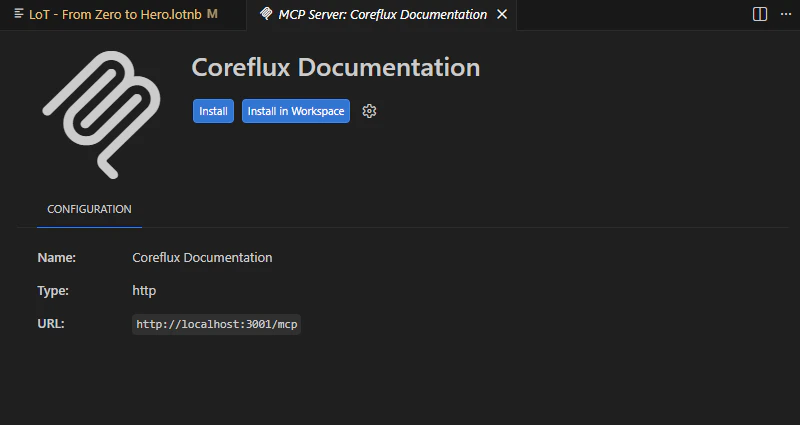 Reload the window if needed, then open Copilot Chat in **Agent** mode and enable the Coreflux tools in the tool picker.
On any Coreflux documentation page, click **Copy page** (top right) to expand the menu.
Select **Connect to Cursor**. Cursor opens the MCP server installation flow for **Coreflux Documentation**.
In **Settings → Tools & MCPs**, review the pre-filled **Install MCP Server?** form (name, type, and URL), then click **Install**.
Reload the window if needed, then open Copilot Chat in **Agent** mode and enable the Coreflux tools in the tool picker.
On any Coreflux documentation page, click **Copy page** (top right) to expand the menu.
Select **Connect to Cursor**. Cursor opens the MCP server installation flow for **Coreflux Documentation**.
In **Settings → Tools & MCPs**, review the pre-filled **Install MCP Server?** form (name, type, and URL), then click **Install**.
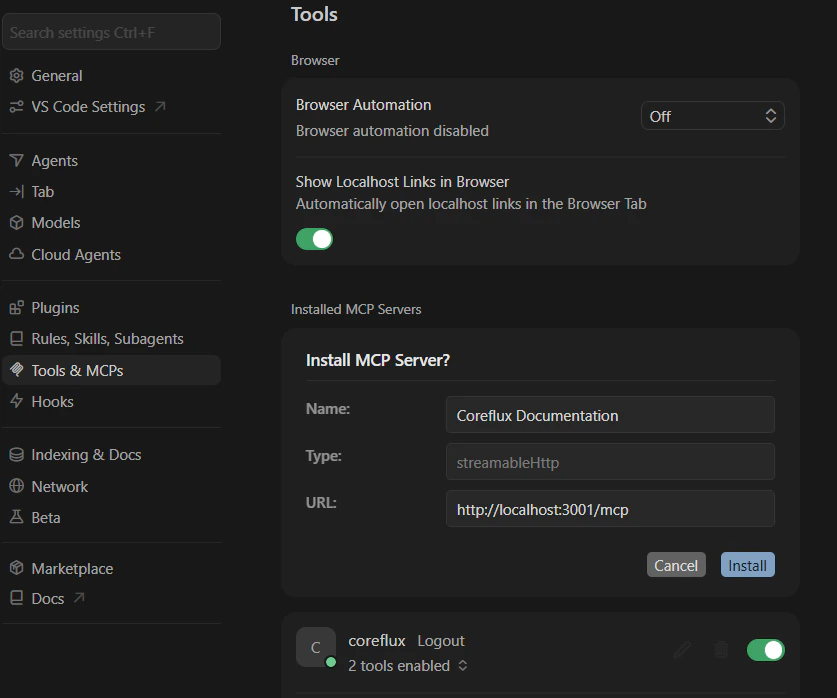 Verify **Coreflux Documentation** appears under **Installed MCP Servers** with tools enabled.
To install manually in Cursor instead, use **Copy MCP Server** or **Copy MCP install command**, then switch to the **Manual** tab and follow the **Cursor** steps.
For Claude Desktop, Claude.ai, or other MCP clients that are not in the menu:
Open the contextual menu and choose **Copy MCP Server**. Paste the URL into your client's MCP configuration.
Choose **Copy MCP install command** and run the copied `npx add-mcp` command in your terminal, then follow the prompts for your editor.
Restart the client and confirm the **Coreflux Documentation** server is connected. See the **Manual** tab for editor-specific configuration examples.
Add the Coreflux MCP server URL to your client's configuration file. Use this method when you need full control over the config or when the contextual menu is unavailable.
**Coreflux MCP Server URL:**
```text wrap theme={"theme":"css-variables","languages":{"custom":["/languages/lot.json"]}}
https://docs.coreflux.org/mcp
```
The [Coreflux AI Starter](https://github.com/CorefluxCommunity/coreflux-ai-starter) repository has pre-built MCP config files for Cursor, VS Code, and Claude Desktop — copy the file for your editor instead of writing JSON by hand.
Cursor supports MCP servers natively. Add the Coreflux MCP to your global configuration or to a specific project.
Navigate to your Cursor MCP configuration file. You can use the global configuration at `~/.cursor/mcp.json`, or create a project-level `.cursor/mcp.json` in your workspace root.
Add the following entry to the `mcpServers` object:
```json wrap theme={"theme":"css-variables","languages":{"custom":["/languages/lot.json"]}}
{
"mcpServers": {
"coreflux": {
"url": "https://docs.coreflux.org/mcp"
}
}
}
```
Restart Cursor or reload the window for the MCP server to be detected. You should see the Coreflux tools become available in your AI assistant's tool list.
Open Cursor Settings and navigate to the **MCP** section. You should see `coreflux` listed as a connected server with its tools available.
If you already have other MCP servers configured, simply add the `"coreflux"` entry alongside them inside the existing `mcpServers` object.
Claude Desktop supports MCP servers through its configuration file.
Open the Claude Desktop configuration file at:
```text wrap theme={"theme":"css-variables","languages":{"custom":["/languages/lot.json"]}}
%APPDATA%\Claude\claude_desktop_config.json
```
```text wrap theme={"theme":"css-variables","languages":{"custom":["/languages/lot.json"]}}
~/Library/Application Support/Claude/claude_desktop_config.json
```
```text wrap theme={"theme":"css-variables","languages":{"custom":["/languages/lot.json"]}}
~/.config/Claude/claude_desktop_config.json
```
If the file doesn't exist, create it.
Add or merge the following configuration:
```json wrap theme={"theme":"css-variables","languages":{"custom":["/languages/lot.json"]}}
{
"mcpServers": {
"coreflux": {
"url": "https://docs.coreflux.org/mcp"
}
}
}
```
Fully quit and reopen Claude Desktop. The Coreflux tools will appear in Claude's tool picker (the hammer icon) when starting a new conversation.
Claude.ai (the web interface) supports remote MCP server connections through its Integrations settings.
Go to [claude.ai](https://claude.ai), click your profile icon, and navigate to **Settings**.
Select the **Integrations** section in the settings panel.
Click **Add Integration** (or **Add MCP Server**), and enter the Coreflux MCP Server URL:
```text wrap theme={"theme":"css-variables","languages":{"custom":["/languages/lot.json"]}}
https://docs.coreflux.org/mcp
```
Give it a name like **Coreflux** and confirm.
Open a new conversation. The Coreflux tools will be available for Claude to use when relevant to your prompts.
Remote MCP server support on Claude.ai may require a Pro or Team plan. Check your plan's feature availability.
VS Code supports MCP servers through GitHub Copilot's agent mode. Ensure you have the **GitHub Copilot** extension installed and updated.
Create or open the `.vscode/mcp.json` file in your workspace root. Alternatively, you can configure MCP servers globally in your VS Code `settings.json`.
In `.vscode/mcp.json`, add:
```json wrap theme={"theme":"css-variables","languages":{"custom":["/languages/lot.json"]}}
{
"servers": {
"coreflux": {
"type": "sse",
"url": "https://docs.coreflux.org/mcp"
}
}
}
```
Or in your global `settings.json`:
```json wrap theme={"theme":"css-variables","languages":{"custom":["/languages/lot.json"]}}
{
"mcp": {
"servers": {
"coreflux": {
"type": "sse",
"url": "https://docs.coreflux.org/mcp"
}
}
}
}
```
Reload the window (`Ctrl+Shift+P` → **Developer: Reload Window**). The Coreflux MCP tools will become available in Copilot's agent mode.
After reloading, confirm trust if prompted and open the "Configure Tools" button in the Chat input to verify the tools are enabled in the tool picker before proceeding.
Open the Copilot Chat panel and switch to **Agent** mode. The Coreflux tools will be available for Copilot to call when relevant.
***
## Verify Your Connection
After setup, confirm the MCP is working by sending a test prompt to your AI assistant. The specific prompt doesn't matter — what matters is that the assistant **calls the Coreflux MCP tools** rather than answering from memory.
### Quick Test
Send this prompt to your AI assistant:
```text wrap theme={"theme":"css-variables","languages":{"custom":["/languages/lot.json"]}}
Using the Coreflux documentation, show me the correct syntax for
a LoT Action that triggers every 30 seconds and publishes a
heartbeat message.
```
It's working if your assistant calls one of the MCP tools during its response. In Cursor, you'll see the tool calls in the assistant's output. In Claude Desktop, look for the hammer icon indicating tool usage.
**It's not working** if the assistant answers from general knowledge without calling any Coreflux tools. Double-check your MCP configuration and restart your client.
### What a Connected Response Looks Like
When the MCP is active, your assistant's response will:
* Reference **specific LoT syntax** from the documentation (not invented patterns)
* Include **working code examples** that match the official docs
* Cite **source pages** you can open to verify the information
* Use **correct terminology** — LoT, Actions, Models, Rules, Routes — exactly as defined in the documentation
Without the MCP, the assistant might still produce LoT-like code, but it will be based on general training data rather than the official Coreflux documentation. Always verify the connection before starting a development session.
***
## Best Practices
The more specific your question, the better the results. Instead of asking "tell me about routes," try "how do I configure a PostgreSQL data storage route with authentication." Specific queries help the tools return more relevant documentation.
When you need to verify information, ask your assistant to include documentation source links. The Coreflux MCP tools can return references to official pages so you can open and verify the answer yourself.
Before deploying LoT code, ask your assistant to validate the syntax against the documentation. For example: *"Check the Coreflux docs — is this the correct syntax for a Modbus TCP route?"* This ensures your code follows the latest documented patterns.
The documentation assistant supports multi-turn conversations. Ask follow-up questions to drill deeper into a topic without repeating context — the assistant remembers what you discussed previously in the same conversation.
The Coreflux MCP Server is currently in **beta**. The server URL may change as the service evolves. Check this page for the latest configuration instructions.
***
## Next Steps
A guide on utilizing AI agents to write, debug, and deploy LoT scripts directly through the MCP interface.
Strategic advice on prompt engineering, security guardrails, and maintaining consistency when using AI to manage industrial assets.
Verify **Coreflux Documentation** appears under **Installed MCP Servers** with tools enabled.
To install manually in Cursor instead, use **Copy MCP Server** or **Copy MCP install command**, then switch to the **Manual** tab and follow the **Cursor** steps.
For Claude Desktop, Claude.ai, or other MCP clients that are not in the menu:
Open the contextual menu and choose **Copy MCP Server**. Paste the URL into your client's MCP configuration.
Choose **Copy MCP install command** and run the copied `npx add-mcp` command in your terminal, then follow the prompts for your editor.
Restart the client and confirm the **Coreflux Documentation** server is connected. See the **Manual** tab for editor-specific configuration examples.
Add the Coreflux MCP server URL to your client's configuration file. Use this method when you need full control over the config or when the contextual menu is unavailable.
**Coreflux MCP Server URL:**
```text wrap theme={"theme":"css-variables","languages":{"custom":["/languages/lot.json"]}}
https://docs.coreflux.org/mcp
```
The [Coreflux AI Starter](https://github.com/CorefluxCommunity/coreflux-ai-starter) repository has pre-built MCP config files for Cursor, VS Code, and Claude Desktop — copy the file for your editor instead of writing JSON by hand.
Cursor supports MCP servers natively. Add the Coreflux MCP to your global configuration or to a specific project.
Navigate to your Cursor MCP configuration file. You can use the global configuration at `~/.cursor/mcp.json`, or create a project-level `.cursor/mcp.json` in your workspace root.
Add the following entry to the `mcpServers` object:
```json wrap theme={"theme":"css-variables","languages":{"custom":["/languages/lot.json"]}}
{
"mcpServers": {
"coreflux": {
"url": "https://docs.coreflux.org/mcp"
}
}
}
```
Restart Cursor or reload the window for the MCP server to be detected. You should see the Coreflux tools become available in your AI assistant's tool list.
Open Cursor Settings and navigate to the **MCP** section. You should see `coreflux` listed as a connected server with its tools available.
If you already have other MCP servers configured, simply add the `"coreflux"` entry alongside them inside the existing `mcpServers` object.
Claude Desktop supports MCP servers through its configuration file.
Open the Claude Desktop configuration file at:
```text wrap theme={"theme":"css-variables","languages":{"custom":["/languages/lot.json"]}}
%APPDATA%\Claude\claude_desktop_config.json
```
```text wrap theme={"theme":"css-variables","languages":{"custom":["/languages/lot.json"]}}
~/Library/Application Support/Claude/claude_desktop_config.json
```
```text wrap theme={"theme":"css-variables","languages":{"custom":["/languages/lot.json"]}}
~/.config/Claude/claude_desktop_config.json
```
If the file doesn't exist, create it.
Add or merge the following configuration:
```json wrap theme={"theme":"css-variables","languages":{"custom":["/languages/lot.json"]}}
{
"mcpServers": {
"coreflux": {
"url": "https://docs.coreflux.org/mcp"
}
}
}
```
Fully quit and reopen Claude Desktop. The Coreflux tools will appear in Claude's tool picker (the hammer icon) when starting a new conversation.
Claude.ai (the web interface) supports remote MCP server connections through its Integrations settings.
Go to [claude.ai](https://claude.ai), click your profile icon, and navigate to **Settings**.
Select the **Integrations** section in the settings panel.
Click **Add Integration** (or **Add MCP Server**), and enter the Coreflux MCP Server URL:
```text wrap theme={"theme":"css-variables","languages":{"custom":["/languages/lot.json"]}}
https://docs.coreflux.org/mcp
```
Give it a name like **Coreflux** and confirm.
Open a new conversation. The Coreflux tools will be available for Claude to use when relevant to your prompts.
Remote MCP server support on Claude.ai may require a Pro or Team plan. Check your plan's feature availability.
VS Code supports MCP servers through GitHub Copilot's agent mode. Ensure you have the **GitHub Copilot** extension installed and updated.
Create or open the `.vscode/mcp.json` file in your workspace root. Alternatively, you can configure MCP servers globally in your VS Code `settings.json`.
In `.vscode/mcp.json`, add:
```json wrap theme={"theme":"css-variables","languages":{"custom":["/languages/lot.json"]}}
{
"servers": {
"coreflux": {
"type": "sse",
"url": "https://docs.coreflux.org/mcp"
}
}
}
```
Or in your global `settings.json`:
```json wrap theme={"theme":"css-variables","languages":{"custom":["/languages/lot.json"]}}
{
"mcp": {
"servers": {
"coreflux": {
"type": "sse",
"url": "https://docs.coreflux.org/mcp"
}
}
}
}
```
Reload the window (`Ctrl+Shift+P` → **Developer: Reload Window**). The Coreflux MCP tools will become available in Copilot's agent mode.
After reloading, confirm trust if prompted and open the "Configure Tools" button in the Chat input to verify the tools are enabled in the tool picker before proceeding.
Open the Copilot Chat panel and switch to **Agent** mode. The Coreflux tools will be available for Copilot to call when relevant.
***
## Verify Your Connection
After setup, confirm the MCP is working by sending a test prompt to your AI assistant. The specific prompt doesn't matter — what matters is that the assistant **calls the Coreflux MCP tools** rather than answering from memory.
### Quick Test
Send this prompt to your AI assistant:
```text wrap theme={"theme":"css-variables","languages":{"custom":["/languages/lot.json"]}}
Using the Coreflux documentation, show me the correct syntax for
a LoT Action that triggers every 30 seconds and publishes a
heartbeat message.
```
It's working if your assistant calls one of the MCP tools during its response. In Cursor, you'll see the tool calls in the assistant's output. In Claude Desktop, look for the hammer icon indicating tool usage.
**It's not working** if the assistant answers from general knowledge without calling any Coreflux tools. Double-check your MCP configuration and restart your client.
### What a Connected Response Looks Like
When the MCP is active, your assistant's response will:
* Reference **specific LoT syntax** from the documentation (not invented patterns)
* Include **working code examples** that match the official docs
* Cite **source pages** you can open to verify the information
* Use **correct terminology** — LoT, Actions, Models, Rules, Routes — exactly as defined in the documentation
Without the MCP, the assistant might still produce LoT-like code, but it will be based on general training data rather than the official Coreflux documentation. Always verify the connection before starting a development session.
***
## Best Practices
The more specific your question, the better the results. Instead of asking "tell me about routes," try "how do I configure a PostgreSQL data storage route with authentication." Specific queries help the tools return more relevant documentation.
When you need to verify information, ask your assistant to include documentation source links. The Coreflux MCP tools can return references to official pages so you can open and verify the answer yourself.
Before deploying LoT code, ask your assistant to validate the syntax against the documentation. For example: *"Check the Coreflux docs — is this the correct syntax for a Modbus TCP route?"* This ensures your code follows the latest documented patterns.
The documentation assistant supports multi-turn conversations. Ask follow-up questions to drill deeper into a topic without repeating context — the assistant remembers what you discussed previously in the same conversation.
The Coreflux MCP Server is currently in **beta**. The server URL may change as the service evolves. Check this page for the latest configuration instructions.
***
## Next Steps
A guide on utilizing AI agents to write, debug, and deploy LoT scripts directly through the MCP interface.
Strategic advice on prompt engineering, security guardrails, and maintaining consistency when using AI to manage industrial assets.